Face Expressions
- Available on all platforms
The Face Expression effect gives you information about the current expression of the user's face, such as whether the user is blinking their left eye or opening their mouth.
Take a look at the Face Expression example which uses Face Expression to drive a 3D model's face with blend shapes.
The Expressions
Face tracking reports 51 expressions, each corresponding to a facial muscle movement or expression. Each expression has a weight, a value that indicates the strength of the expression.
For example, EyeBlinkLeft has a weight closer to 0.0 when the user's left eye stays fully open, and increases when the user blinks. Every face produces different values, so the weight may never reach exactly 0.0 or 1.0.
You can see every expression in use, and what each looks like, in the Face Expression example.
Create the Face Expression
You can access the Face Expression data through Face Mesh. To create a
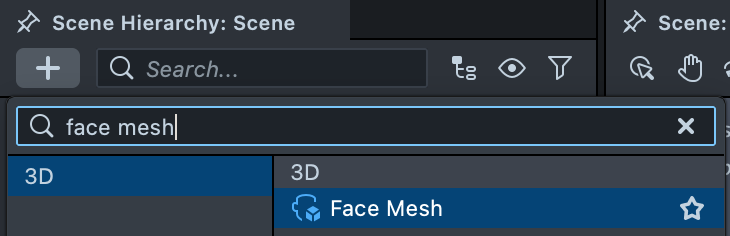
Face Mesh, in the Scene Hierarchy panel select + > Face Mesh. Type face mesh in the menu search to
find it under 3D.
Access the Current Expression
Once you've added the Face Mesh to your scene, you can read the current face's expression in a script.
In the script, create an input for the Face Mesh asset:
// @input Asset.RenderMesh faceMesh
Then attach the script to a scene object and set its Face Mesh input to the Face Mesh asset in the Inspector panel.
Then, subscribe to the onExpressionWeightsUpdate event on the Face Mesh's control to receive expression weights each time they update.
The callback receives a NamedValues object containing names and values arrays that correspond to each other.
script.faceMesh.control.onExpressionWeightsUpdate.add(function (expWeights) {
  var idx = expWeights.names.indexOf(Expressions.MouthClose);
  if (idx >= 0) {
    print('MouthClose weight: ' + expWeights.values[idx]);
  }
});
For the list of expressions, see Expressions in the API reference.
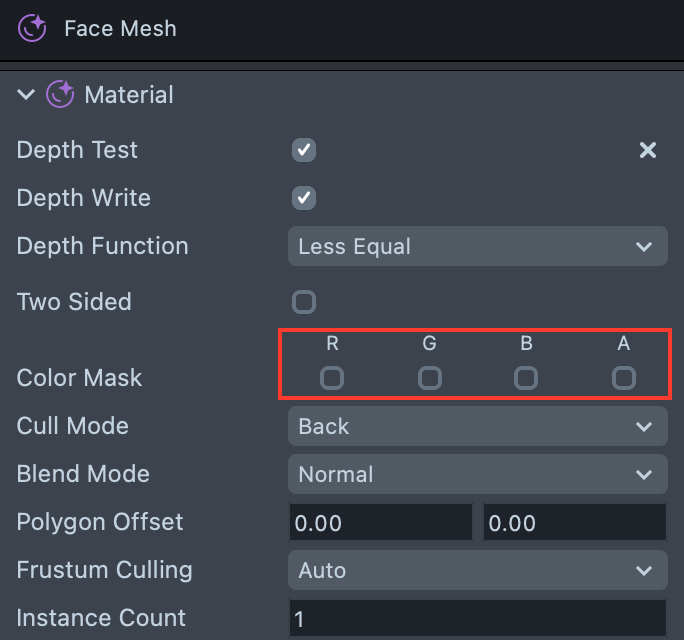
If you don't want to display the Face Mesh, hide it with its material, for example by turning off every Color Mask channel. The Face Mesh object itself must stay enabled to receive information about the face.