Audio Tracks
- Available on all platforms
This page explains different types of Audio Tracks. You can access provider of the audio track asset by accessing it's control property:
//@input Asset.AudioTrackAsset audioTrack
var control = script.audioTrack.control;
For each type of audio track asset serves different purpose, let's quickly overview all of them
FIle Audio Track
The most common type of Audio Track asset is audio From File.
To import your sound, drag and drop your audio file into the Asset Browser panel.
They can be played with Audio component or processed as raw data with JavaScript.
We currently support reading audio data from 1 channel audio, for a stereo file left and right channels will be added
This type of audio is using Provider.FileAudioTrackProvider type and allows to read audio data. Check out API documentation page to see scripting examples.
Licensed Music
Another Audio Track asset type is Licensed Music. Provider type : FileLicensedSoundProvider
To add a new Licensed Music open the Asset Library and select the Music section. Left-click on the play button to hear the sound preview.
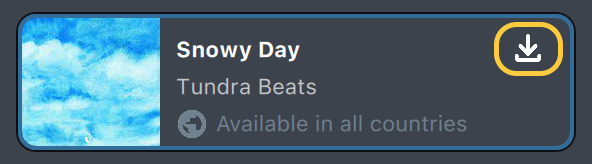
Once you’ve selected a Music asset, press on the import button to add a Music resource to your project.
Licensed Music can be played as any other audio track asset in Lens Studio using Audio Component, or with the help of a Behavior script.
Licensed Music has certain usage limitations, such as:
- Lens can contain only one Licensed Music.
- If Lens Studio cannot get device location or the track is not available in the user’s country, the sound in the Lens will be muted. The user will have an ability to remove or replace unavailable tracks.
- These tracks cannot be mixed with other tracks or changed in any manner. Only one track can be played at a time. Any other simultaneous audio playback is forbidden.
- The final audio will be mixed directly into the Lens.
Audio Component that plays this audio track has its API restricted to support these limitations. Using restricted APIs will throw an exception in Lens Studio and on device, so be mindful of using them.
To learn more about Snap's Guidelines on Licensed Music, you can visit the Music on Snapchat Guidelines.
Available API:
- Play (loops)
- All spatial audio API
Restricted API:
- Stop
- Pause
- Resume
- Fade in, fade out
- Volume changing
- Position changing
- Recording volume changing
Behavior script checks and ignores all restricted use cases and can be safely used with Licensed Music.
Microphone Audio
Microphone Audio is a specific Audio Track asset that provides direct access to the audio from the microphone. Provided by MicrophoneAudioProvider.
To add a Microphone Audio asset, click + in the Asset Browser, search for "microphone" and select Microphone Audio.
After the Microphone Audio asset is referenced somewhere in the scene, a microphone button appears in the bottom-left corner of the Preview panel.
You will also be asked for permissions at the first time.
On SPECS, a Lens that uses Microphone Audio gets the Analysis audio input profile, which applies Echo Cancellation. The ASR Module uses the Voice profile instead, and when a Lens uses both, the Voice profile takes precedence. See Audio on SPECS. The microphone is a sensitive sensor: a Lens that also uses the internet needs Transparent Permission.

The Microphone Preview button is only available if a Microphone Audio asset is present and referenced in Script or Script Graph somewhere in the project.
On MacOS: the default input device is used, settings can be changed in the System Preferences. On Windows - right click on the button and select the Input Device if multiple ones are available.

Toggle the button to start or stop grabbing the Audio Input for processing.
If Audio input is enabled the button provides visual feedback on the input sound
You can find usage examples in the API documentation or AudioAnalyzer and Keyword Detection templates.
You can find usage examples in the API documentation. For speech-to-text from the microphone on SPECS, use the ASR Module.
While reading data from microphone don't forget to call start function
var control = script.audioTrack.control;
if (control.isOfType('Provider.MicrophoneAudioProvider')) {
  control.start();
}
Audio Output
Audio Output is a specific type of Audio Track asset that allows you to obtain a preferred audio frame size for the current frame and write raw data into it.
Guide
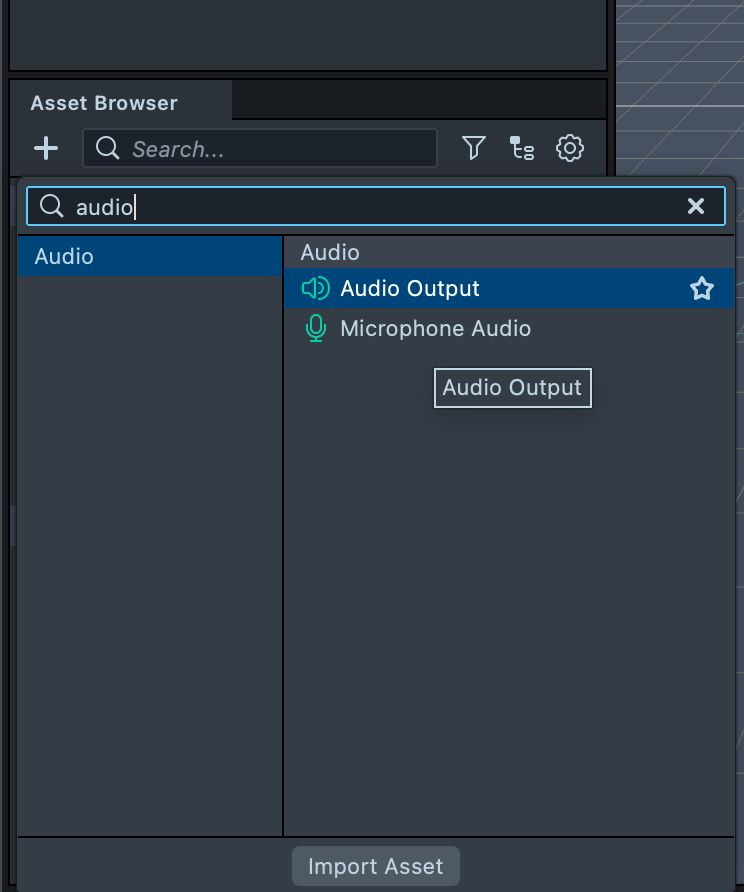
Audio Output audio track can be added by pressing the “+” button on the Asset Browser panel and selecting Audio Output.
AudioOutputProvider of this audio track asset allows you to get the amount of samples required for the current frame, generate some data and write into the output. Here is an example of how to generate sin wave :
// @input Asset.AudioTrackAsset outputAudioTrack
// @input int sampleRate = 44100 {"widget" : "combobox", "values" : [{"label" : "4000", "value" : 4000}, {"label" : "8000", "value" : 8000},{"label" : "16000", "value" : 16000}, {"label" : "32000", "value" : 32000}, {"label" : "44100", "value" : 44100}, {"label" : "48000", "value" : 48000}], "hint" : "Number or samples per second"}
// @input float frequency = 440
// @input float amplitude = 0.5
const PI_2 = Math.PI * 2;
const BUFFER_SIZE = 640000;
var audioOutput = script.outputAudioTrack.control;
audioOutput.sampleRate = script.sampleRate;
var data = new Float32Array(BUFFER_SIZE);
var shape = new vec3(0, 1, 1);
var phase = 0;
function udpateAudioFrame() {
  shape.x = audioOutput.getPreferredFrameSize();
  //write some samples into the data array
  //for example sin signal
  for (var i = 0; i < shape.x; i++) {
    data[i] = Math.sin(phase) * script.amplitude;
    phase = (phase % PI_2) + (PI_2 * this.frequency) / this.sampleRate;
  }
  audioOutput.enqueueAudioFrame(data, shape);
}
script.createEvent('UpdateEvent').bind(udpateAudioFrame);
To make this example work create Audio Component, set Audio Track with the Audio Output asset and enable Autoplay Loop