Text 3D
- Available on all platforms
The Text3D Component lets you convert any text into a 3D object in Lens Studio.
To learn more about how to use the Text3D component in Lens Studio, check out the 3D Text Template.
Creating the Text3D Component
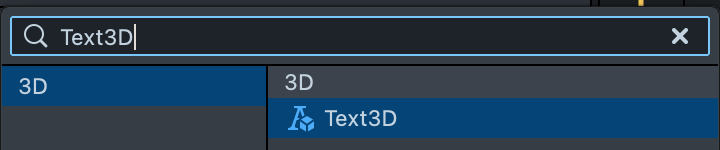
To create the Text3D component. Go to Scene Hierarchy > +, and type Text3D.
A Text3D object will be added to the scene. You can move this object around like any other 3D object in Lens Studio.
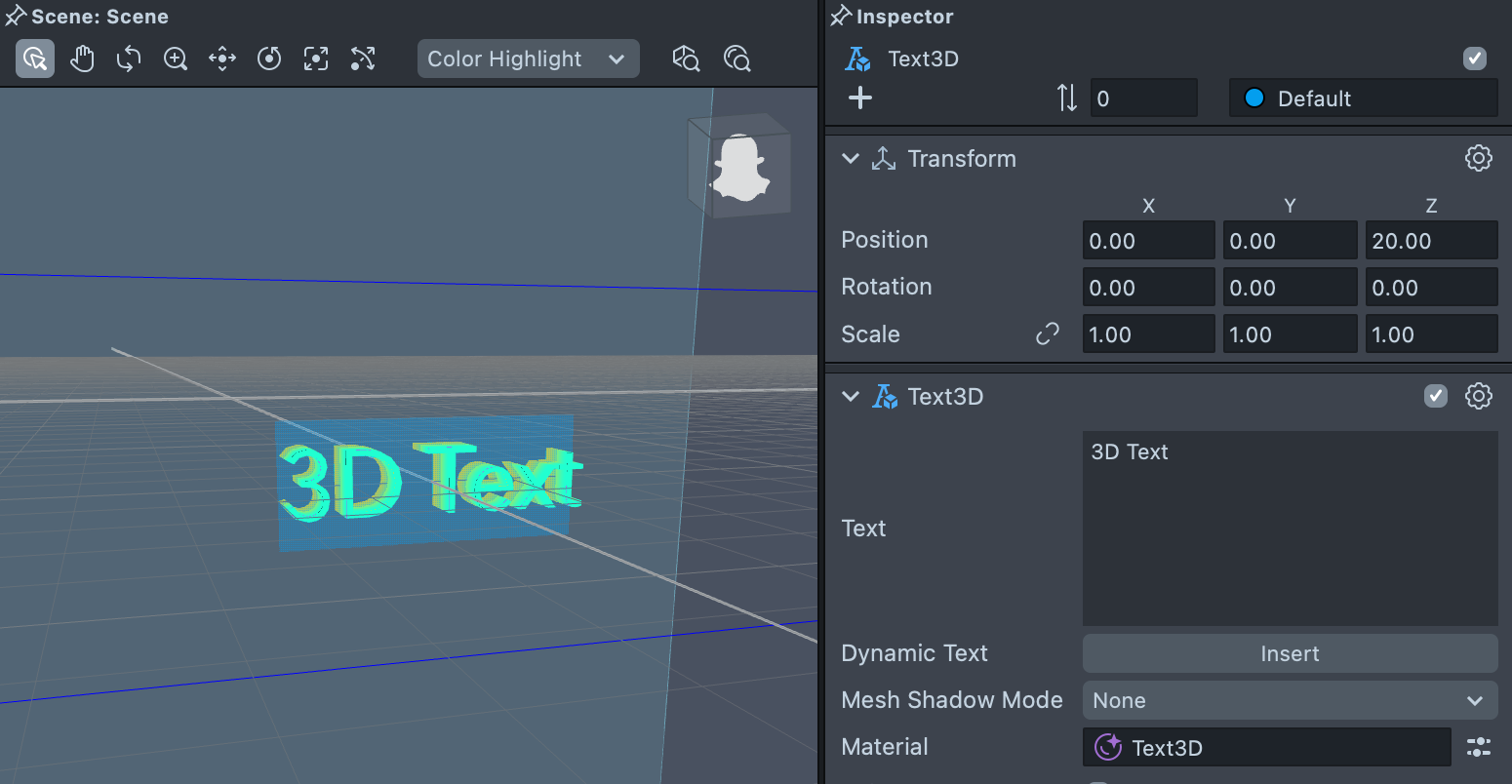
The Text3D Component
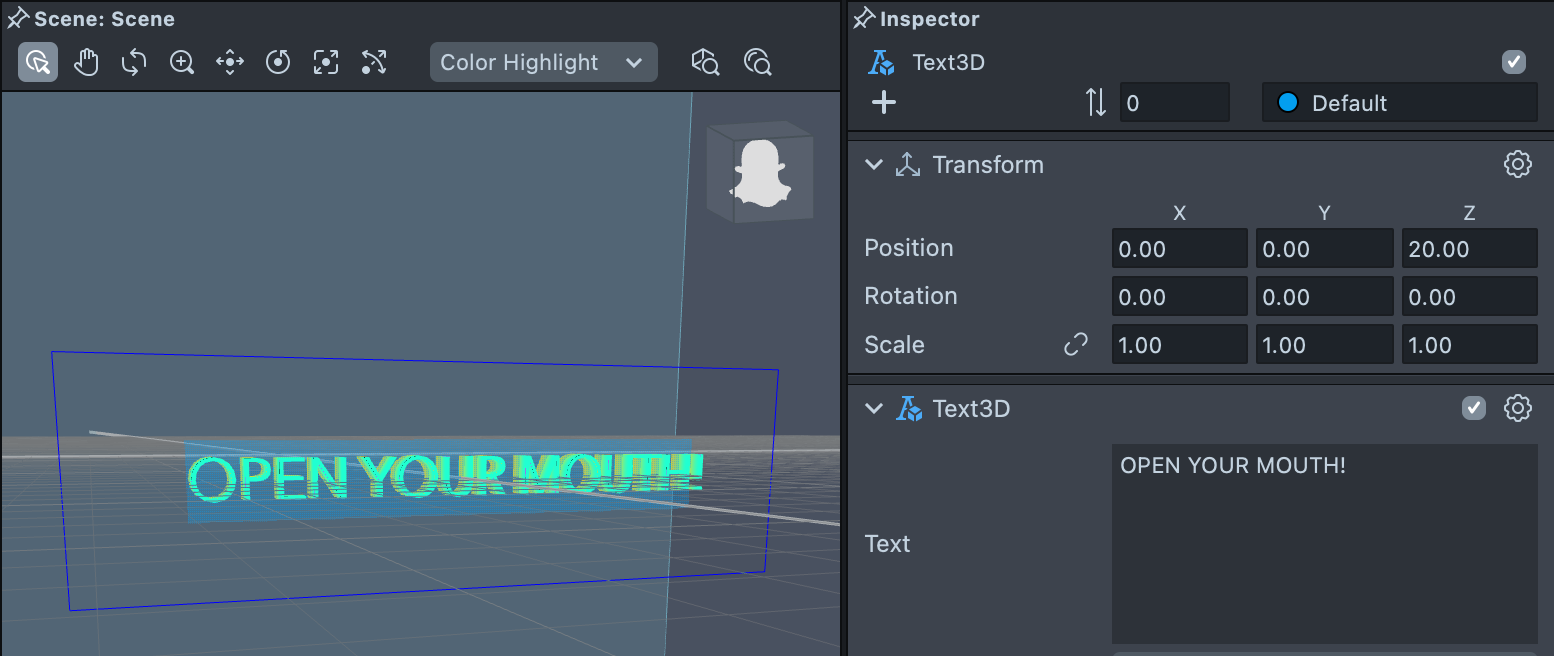
Enter any text in the Text field on the Text3D component to change the 3D text.
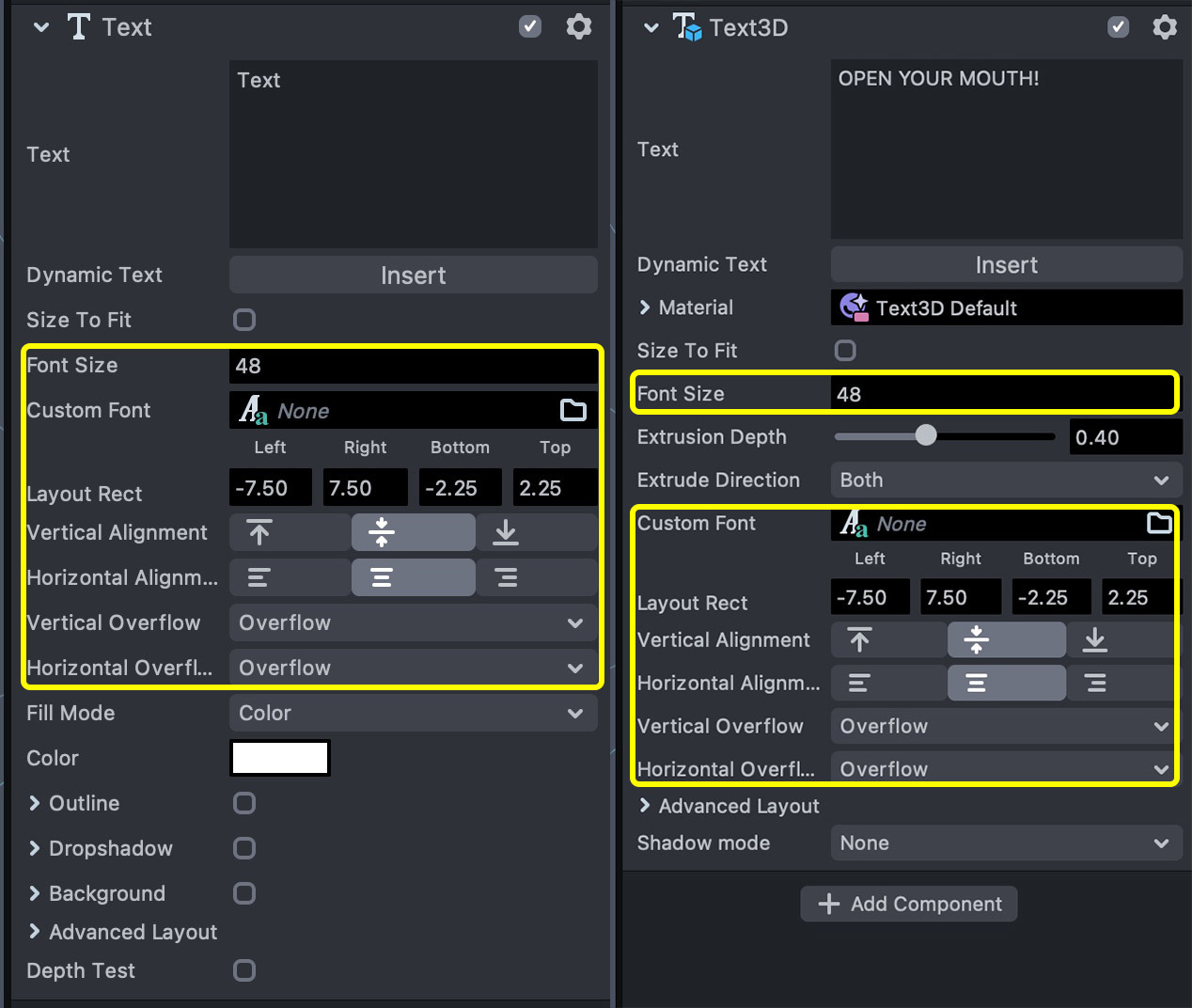
We can also set custom layout, font, alignment and overflow type for the 3D text. These settings work the exact same way as the regular Text component.
3D Text Extrusion
The Text3D component has built-in extrusion settings, try changing the extrusion settings to alter the shape of your text.
3D Text Material
When each Text3D component is created, a Text3D Default Material will be created. You can double-click on the material to check out its graph in the Material Editor. This material has 4 dedicated sections corresponding to the sides of the generated 3D text: Front, Back, Out and Inner edge.
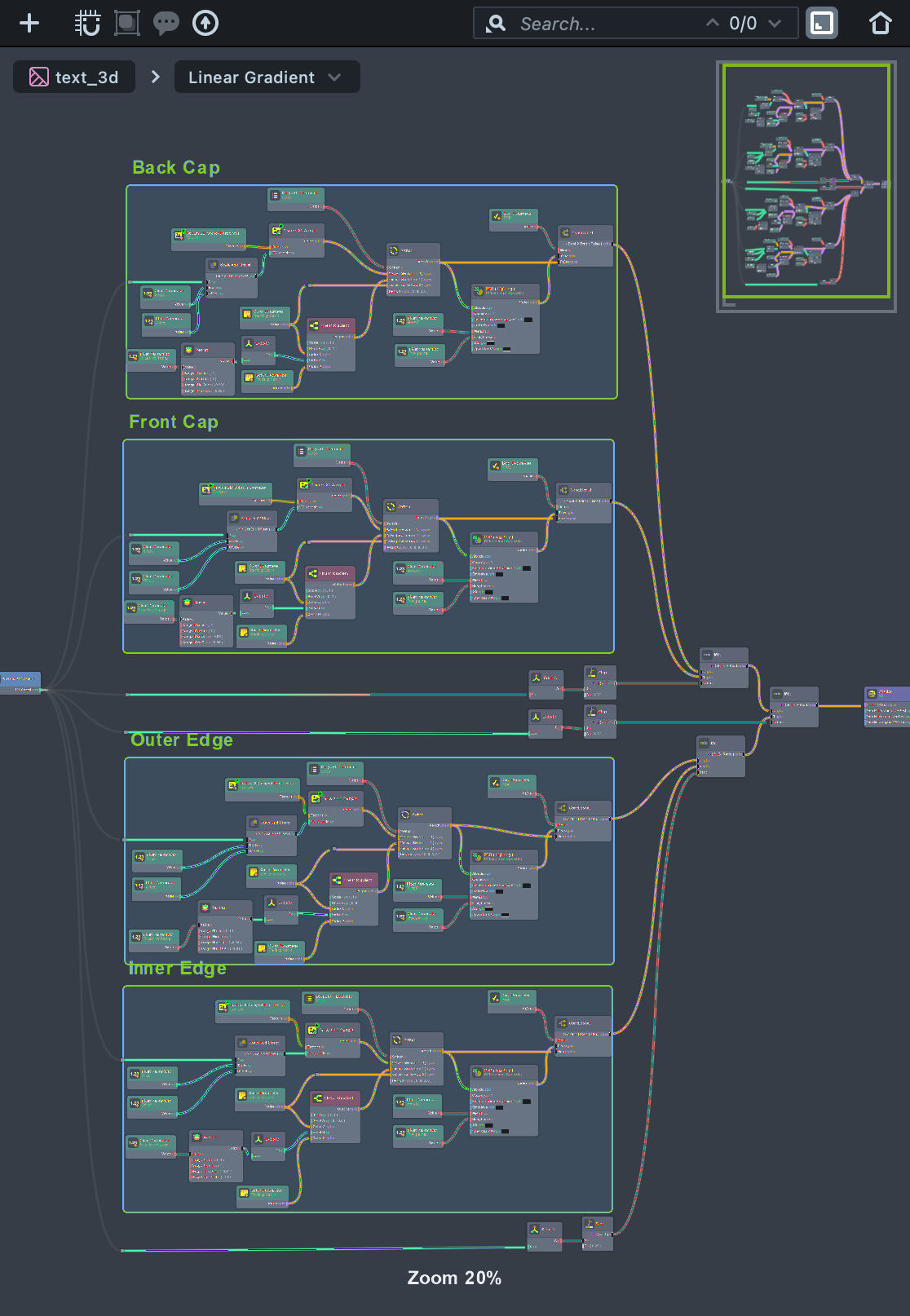
Each of the section has color and render settings correlating to the section of the text. Edit these to create vibrant effects for your custom 3D text in Lens Studio.
Enable Editing
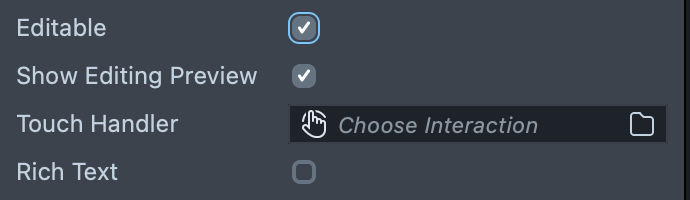
To enable editing of the text via the keyboard, check the Editable field of the component. An interaction component will automatically be added to the Scene Object and is the default interaction component for detecting touches to open the keyboard.
To override this interaction component, use the Touch Handler input of the component.
The Show Editing Preview input controls whether the keyboard will show a preview of the text that is being typed.
On SPECS, for text that people type into, use UI Kit's TextInputField, which opens the SPECS keyboard.