Get Started
What Interaction Kit 4.0.0 includes for SPECS, and how to set it up in a project, from the Base Template or an existing project, and test hand interactions in the Preview panel.
- Snapchat: not supported
- SPECS: fully supported
- Camera Kit Web: not supported
- Camera Kit Mobile: not supported
- SnapchatNot supported
- SPECSFully supported
- Camera Kit WebNot supported
- Camera Kit MobileNot supported
Interaction Kit (formerly Spectacles Interaction Kit, SIK) is the Lens Studio package that makes
content in a SPECS Lens respond to the user's hands: it targets objects, detects pinch and poke,
and sends hover, trigger, and drag events to your scripts. It provides the common building blocks
of a spatial experience: interactors that read the user's hands, interactable objects that respond
to them, and the cursors and events that connect the two. This page describes Interaction Kit
4.0.0, whose package is InteractionKit, and sets it up in a project. For themed buttons, sliders,
panels, and scroll views built on Interaction Kit, use UI Kit.
For the changes in each version, see the Interaction Kit Release Notes.
What Interaction Kit includes
Start a SPECS project with Interaction Kit already set up
The SPECS Base Template already includes Interaction Kit and the settings it needs.
-
Open Lens Studio 5.25 or later (download Lens Studio). On the Home screen, set I'm Building For to SPECS.

-
Under Build With Starter Templates, select Base Template.
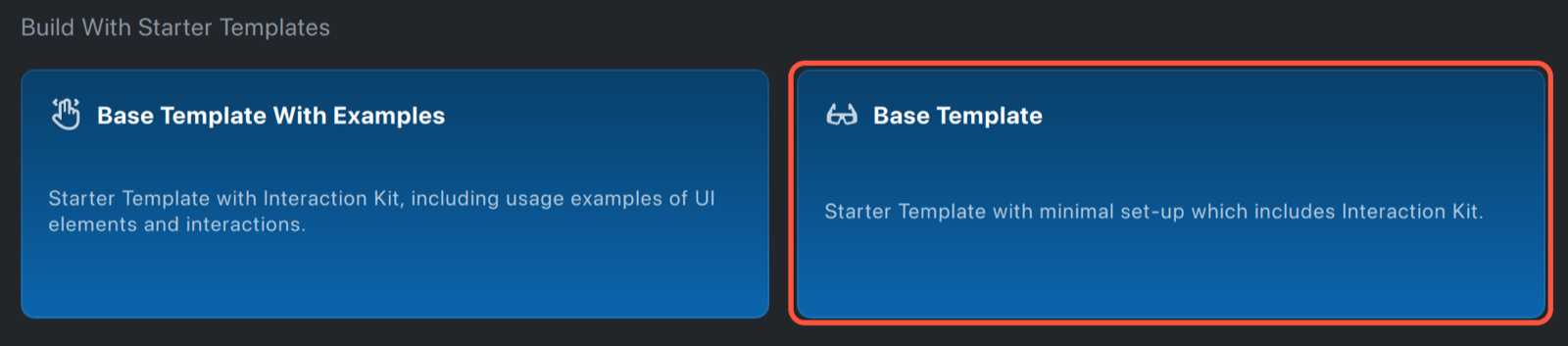
The new project targets SPECS, tracks the world, and contains the InteractionKit prefab, so you can start building right away. Don't add a second InteractionKit prefab to it. For the full setup, see Set Up Lens Studio for SPECS.
Add Interaction Kit to an existing project
To use Interaction Kit in a project that didn't start from a SPECS template:
-
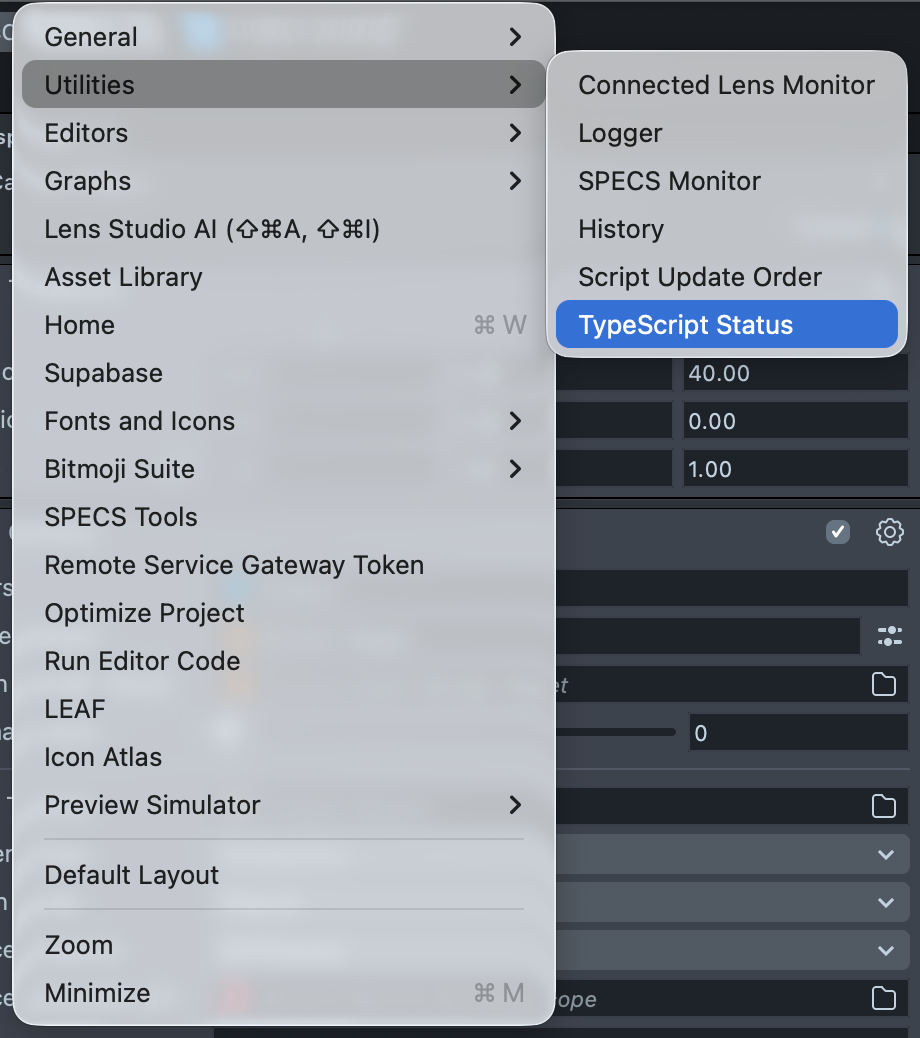
Open the TypeScript Status panel: Window > Utilities > TypeScript Status. It shows when TypeScript compilation is complete, which later steps wait for.
-
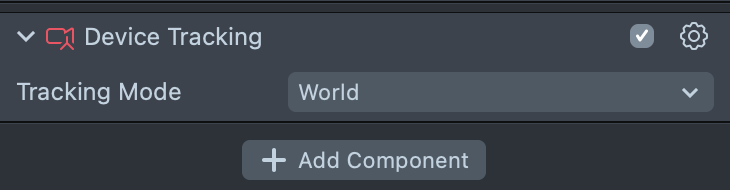
Select the main camera, add a Device Tracking component, and set Tracking Mode to World. Interaction Kit stops the Lens when the main camera has no Device Tracking component.
-
Select File > Project Settings and set Target Platform to SPECS.

-
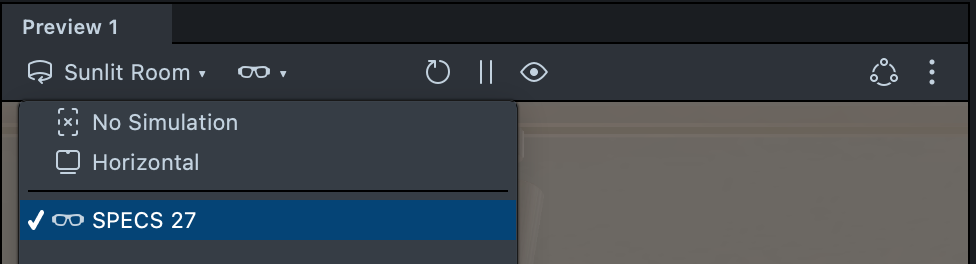
In the Preview panel toolbar, open the device menu (the glasses icon) and select SPECS 27. In a Preview panel that doesn't run the Lens as SPECS, Interaction Kit stops the Lens.
-
Select Asset Library in the toolbar, search for
InteractionKit, and select Import on the Interaction Kit card. The package appears as InteractionKit under Packages in the Asset Browser.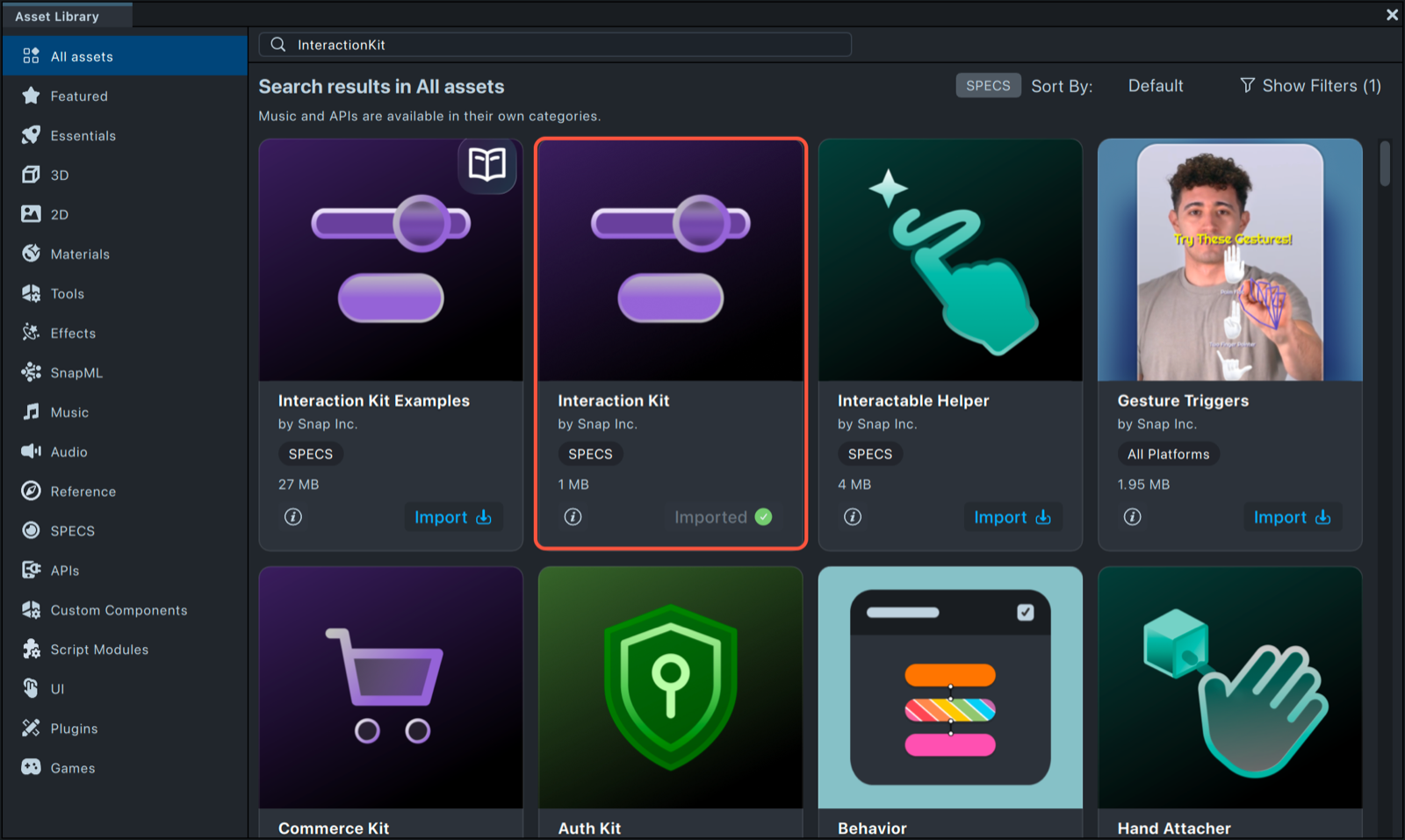
-
Wait until the TypeScript Status panel shows that compilation is complete. A prefab instantiated before compilation finishes can lose its links to its TypeScript components.
-
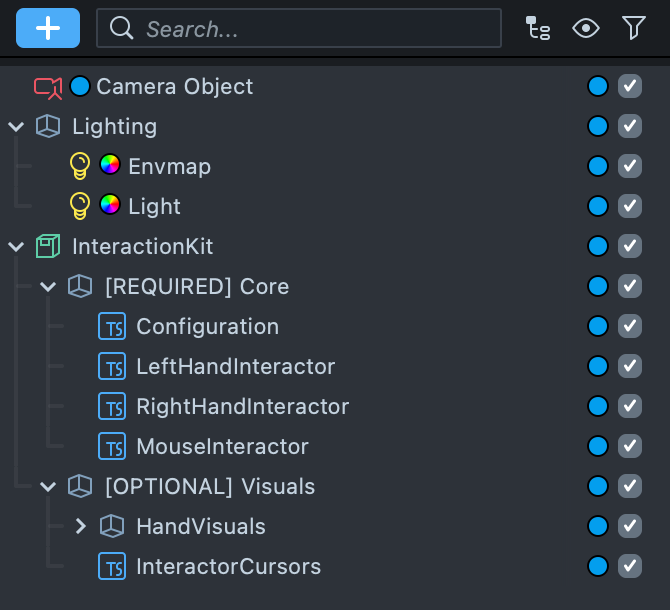
In the Asset Browser, expand Packages > InteractionKit > Prefabs, and drag the InteractionKit prefab into the Scene Hierarchy. Keep exactly one InteractionKit prefab in the scene: without it, objects still render but don't receive hover or trigger events.
-
In the Preview panel toolbar, select Reset (the circular arrow) to restart the Lens.
-
Save the project: File > Save.
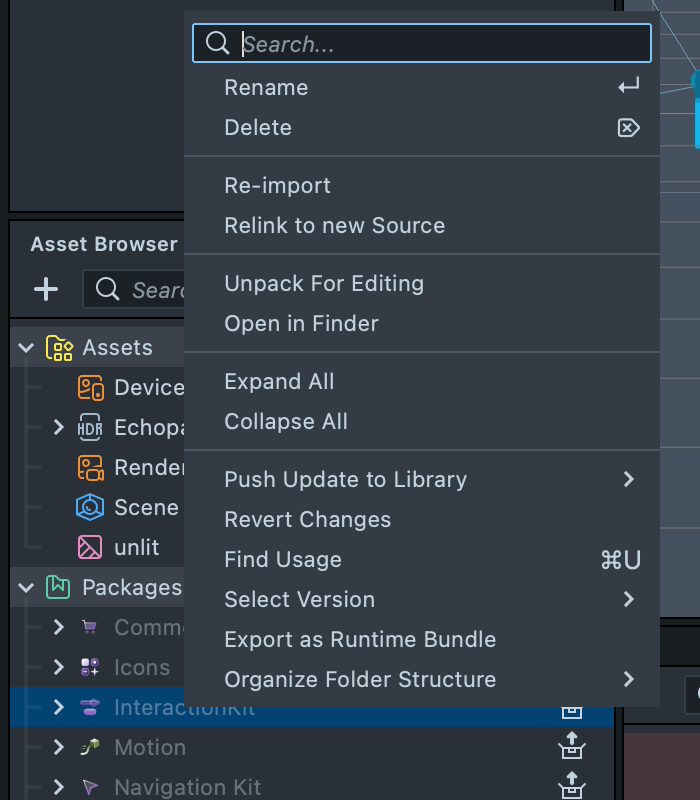
To edit the package's source, right-click InteractionKit in the Asset Browser and select Unpack For Editing. An unpacked copy no longer updates from the Asset Library, so later upgrades take more work.
What the InteractionKit prefab contains
The InteractionKit prefab is the standard way to add Interaction Kit to a scene; add it rather than rebuilding its hierarchy.
| Scene object | What it does |
|---|---|
| [REQUIRED] Core > Configuration | Holds ConfigurationValidator, which checks the project setup when the Lens starts, and IKLogLevelConfiguration, which sets which Interaction Kit messages reach the Logger (Log Level Filter) and turns on debug drawing (Debug Mode Enabled). |
| [REQUIRED] Core > LeftHandInteractor, RightHandInteractor | A HandInteractor for each hand: they target and trigger Interactables with the user's hands. |
| [REQUIRED] Core > MouseInteractor | Lets the mouse stand in for a hand in the Preview panel. |
| [OPTIONAL] Visuals > HandVisuals | A HandVisual for each hand, which can draw a hand mesh. See Hand Visualization. |
| [OPTIONAL] Visuals > InteractorCursors | CursorController, which gives each interactor a cursor and a ray. See Cursor. |
Test hand interactions in the Preview panel
With SPECS 27 selected in the Preview panel, the MouseInteractor stands in for the user's hands: point at an Interactable to hover over it, and click to trigger it, as a pinch does on SPECS. To test interactions that depend on how close the hand is, turn on Move In Depth on the MouseInteractor. For everything else the panel simulates, see Preview Lenses for SPECS.
Update Interaction Kit in a project
-
Open the project and wait until the TypeScript Status panel shows that compilation is complete.
-
In the Asset Browser, right-click the InteractionKit package. When a newer version is in the Asset Library, the menu offers Pull Update from Library: select it. To install a specific version, open Select Version and choose the version, for example 4.0.0.
An update can change the API, which shows up as TypeScript compilation errors. Read the Release Notes for the version you install and update your scripts.
Move a project to Interaction Kit 4.0.0
Interaction Kit 4.0.0 renames the package and its entry point, so every script that imports the
kit needs an update. Earlier versions named the package, its module prefix, and its prefab after
the kit's former name, and exported a SIK entry point. In 4.0.0:
| What | Before 4.0.0 | 4.0.0 |
|---|---|---|
| Package and module prefix | Named after the kit's former name | InteractionKit.lspkg/, with the rest of each module path unchanged |
| Entry point | import { SIK } from '…/SIK' | import { IK } from 'InteractionKit.lspkg/IK' |
| Shared providers | SIK.InteractionManager, SIK.HandInputData, … | IK.InteractionManager, IK.HandInputData, … |
| Log level component | SIKLogLevelConfiguration | IKLogLevelConfiguration |
| Prefab | Named after the kit's former name | InteractionKit.prefab |
Inspector field names are unchanged. Installing InteractionKit.lspkg beside the package of an
earlier version can leave two copies of the kit in the project, and changing the imports alone
doesn't move the components in your scenes to the new package. Check every reference to the old
package before you remove it.
The UI components that earlier versions included (buttons, toggles, sliders, scroll views, container frames) aren't in Interaction Kit 4.0.0; use UI Kit instead.
Troubleshooting Interaction Kit setup
Interaction Kit throws "To run InteractionKit in the Lens Studio Preview"
The Lens stops, and the Logger shows:
To run InteractionKit in the Lens Studio Preview, set the Preview Panel's Device Type Override to SPECS, or the Simulation Mode to SPECS 27!
Cause: the Preview panel doesn't run the Lens as SPECS.
Fix: in the Preview panel toolbar, set the device menu to SPECS 27 and select Reset.
Interaction Kit says the main camera is missing a Device Tracking Component
The Lens stops, and the Logger shows:
Your main camera is currently missing a 'Device Tracking Component'. Set your `Device Tracking Component` with Tracking Mode: World for spatial movement in your Lens.
Fix: select the main camera, add a Device Tracking component, and set Tracking Mode to World.
A component throws "was not provided" when the Lens starts
Cause: an input of an Interaction Kit component that isn't optional is empty. The editor accepts the empty input, but the component throws when it initializes, which can stop the whole Lens. HandVisual, InteractorLineVisual, InteractableOutlineFeedback, and InteractableSquishFeedback all have required inputs.
Fix: in the Inspector, fill in every input of the component named in the message. A
component's script lists its required inputs: each @input without @allowUndefined.
Objects render but don't respond to hover or pinch
Cause: the scene has no InteractionKit prefab. Hover and trigger events need it, and without it they fail silently while visuals keep rendering.
Fix: keep exactly one InteractionKit prefab in the Scene Hierarchy, and give each interactive object an Interactable and a collider.
Related
- Interaction System: how interactors, Interactables, and the InteractionManager work together, with a first script.
- Components List: every component Interaction Kit 4.0.0 ships.
- Preview Lenses for SPECS: test a Lens in Lens Studio before you send it to SPECS.
- UI Kit: buttons, sliders, and panels built on Interaction Kit.