Set Up Lens Studio for SPECS
Install Lens Studio, create a SPECS project from the Base Template, or convert an existing project to target SPECS.
You build Lenses for SPECS in Lens Studio. This page takes you from installing Lens Studio to a project that targets SPECS: a new one from the Base Template, or an existing project you convert.
What you need
- Lens Studio 5.25 or later. Download Lens Studio.
- A SPECS account, to sign in to Lens Studio and send Lenses to SPECS. Sign in or create a SPECS account.
- The SPECS App on your phone, signed in to the same SPECS account, with Developer Mode turned on. Lens Studio can only send Lenses to SPECS that have Developer Mode on. Download the SPECS App on the App Store.
- SPECS, to test on the device. See Connect Lens Studio to SPECS.
Create a SPECS project
-
Open Lens Studio. On the Home screen, set I'm Building For at the top to SPECS. The Home screen then shows SPECS projects and templates.

-
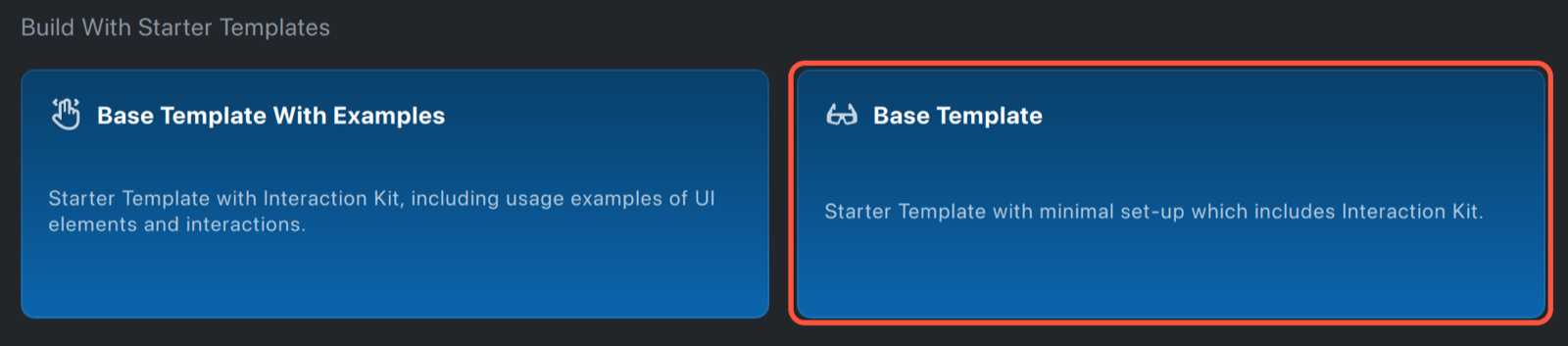
Under Build With Starter Templates, select Base Template. Base Template With Examples adds sample UI elements and interactions.
-
Save the project: File > Save As.
The Base Template is already set up for SPECS: it targets SPECS, tracks the world, and includes Interaction Kit and UI Kit. To start building, see the Interaction Kit guide for hand interactions and the UI Kit guide for interface components.
Convert an existing project to SPECS
To target SPECS from a project that started elsewhere, change these settings.
-
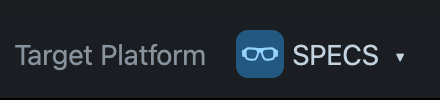
Select File > Project Settings and set Target Platform to SPECS.
-
In the Preview panel toolbar, check that the device menu (the glasses icon) shows SPECS 27; if it doesn't, select it. See Preview Lenses for SPECS.
-
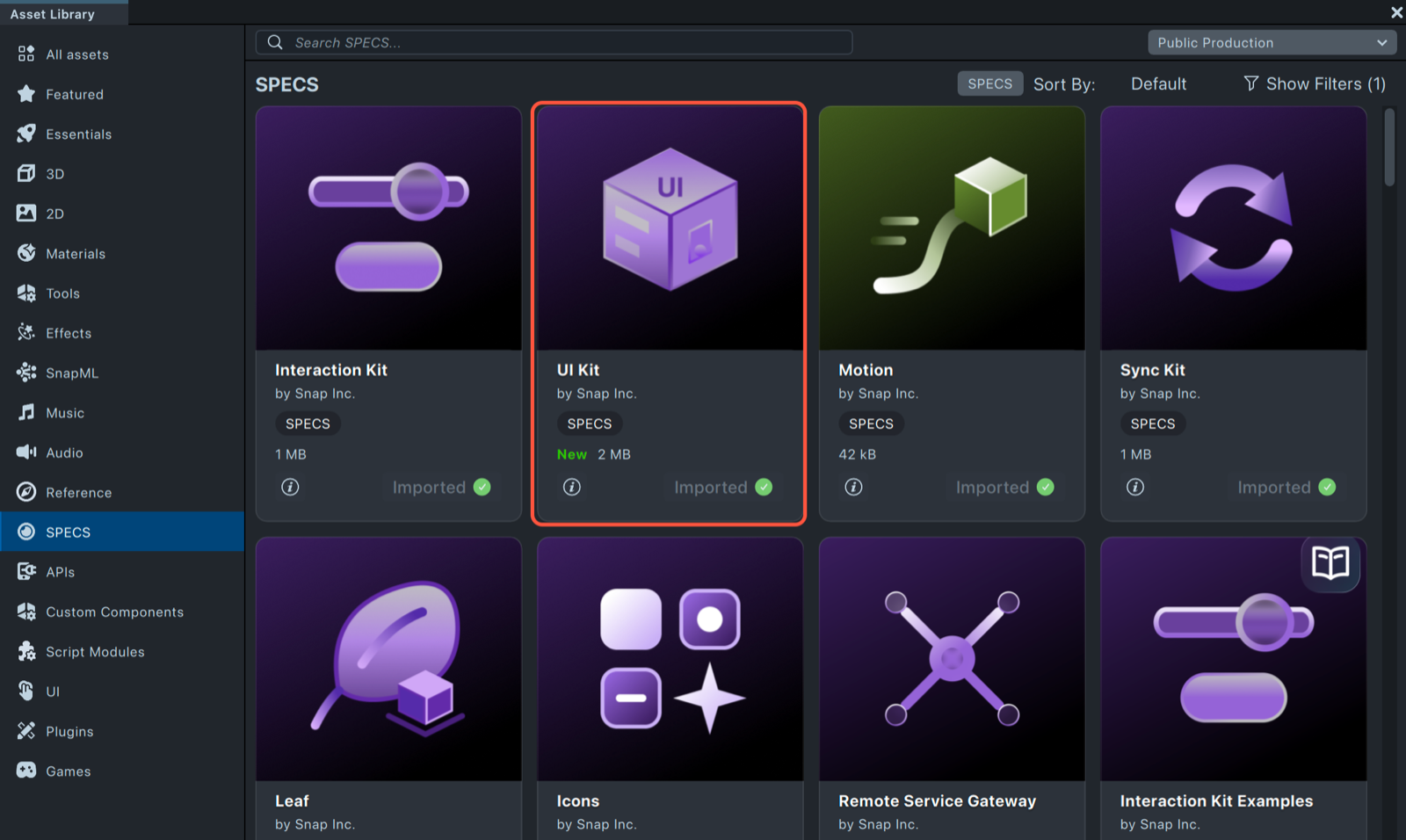
Select Asset Library in the toolbar, then the SPECS category, and install UI Kit. Lens Studio also installs the packages UI Kit depends on: Interaction Kit, Icons, and Motion. They appear under Packages in the Asset Browser.
-
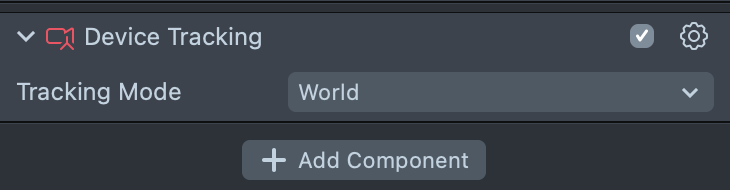
Select the main camera, add a Device Tracking component, and set Tracking Mode to World.
-
In the Asset Browser, expand Packages > InteractionKit > Prefabs, and drag the InteractionKit prefab into the Scene Hierarchy.
These are the minimum changes to run a project on SPECS. Some features need more: the top of each feature's page shows which platforms it supports and any limits.
Troubleshooting a SPECS project
Lens Studio says "Target Platform is not set to SPECS"
The Logger shows:
SPECS connected, but Target Platform is not set to SPECS. Please set SPECS as the Target Platform in the Project Settings
Fix: select File > Project Settings and set Target Platform to SPECS.
Interaction Kit says the main camera is missing a Device Tracking Component
The Lens stops, and the Logger shows:
Your main camera is currently missing a 'Device Tracking Component'. Set your `Device Tracking Component` with Tracking Mode: World for spatial movement in your Lens.
Fix: select the main camera, add a Device Tracking component, and set Tracking Mode to World.