Preview Lenses for SPECS
Simulate SPECS in the Lens Studio Preview panel to test a Lens before you send it to the device.
The Preview panel in Lens Studio simulates SPECS: it runs your Lens in a virtual room and renders it the way the SPECS displays show it, so you can test as you build without the device. Hand tracking, the cameras, and some APIs only work on SPECS (see What the Preview panel can't test).
Set up the Preview panel for SPECS
-
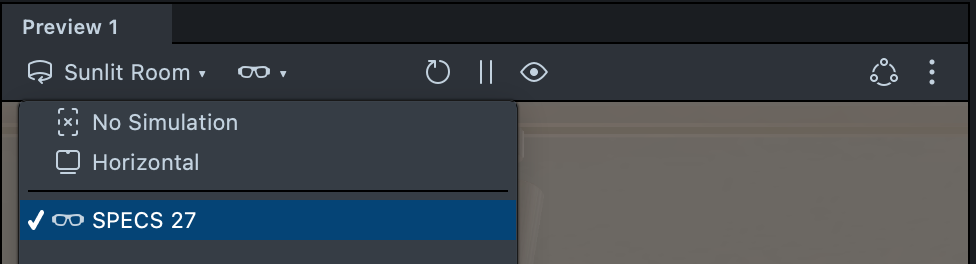
In the Preview panel toolbar, open the device menu (the glasses icon) and select SPECS 27. Interaction Kit, Sync Kit, and the Fetch API need it: in a panel that doesn't run the Lens as SPECS, Interaction Kit stops the Lens and Fetch requests return 404.
-
Open the environment menu at the left of the toolbar and select a room under Interactive Previews, such as Sunlit Room, or Plane for an empty floor.
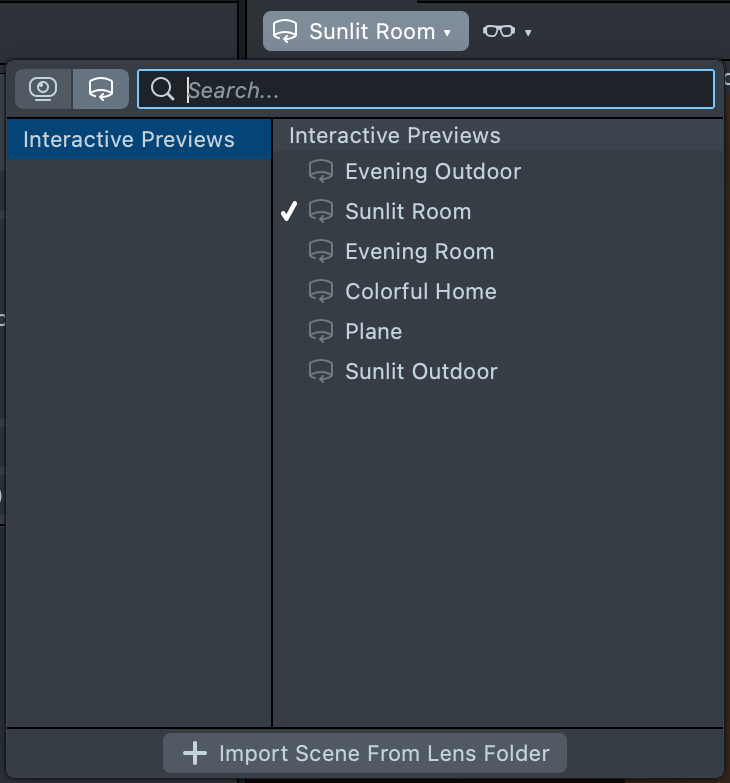
The Preview panel now shows the Lens in the room as SPECS display it. The room supplies simulated depth, world mesh, and surfaces, so content you place in the world sits on them.
To restart the Lens from the beginning, select Reset (the circular arrow) in the toolbar.

Move around the simulated room
Click the Preview panel to give it focus, then:
| To | Use |
|---|---|
| Move forward, back, left, or right | W, S, A, D, or the arrow keys |
| Move up or down | E or Q |
| Look around | Drag with the right mouse button |
| Change movement speed | Hold Shift and use the scroll wheel |
To go back to where you started, select Reset View to Origin at the bottom of the panel.

Interact with a Lens using the mouse
In the Preview panel, Interaction Kit's MouseInteractor stands in for the user's hands: point at an Interactable to hover over it, and click to select it, as a pinch selects it on SPECS. To test interactions that depend on how close the hand is, turn on Move In Depth on the MouseInteractor, which moves the interactor back and forth along its ray.
Check how a Lens looks on the SPECS displays
The SPECS displays add light to what the user sees: black isn't rendered, so the room shows through, and dark colors are faint. To compare with your content as authored, select ⋮ > SPECS and turn off Simulate Device Display.
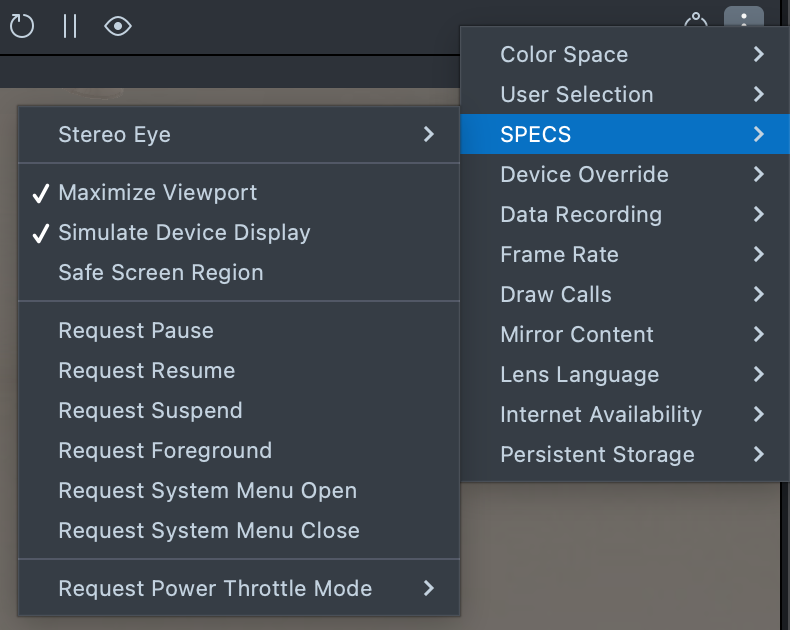
For choosing colors that work on the displays, see Additive Display and Color.
Test pause, suspend, and going offline
The ⋮ > SPECS menu sends the running Lens the events SPECS send it:
| Menu item | What the Lens receives |
|---|---|
| Request Pause, Request Resume | OnPauseEvent, OnResumeEvent |
| Request Suspend | OnWillEnterSuspendedEvent, then OnDidEnterSuspendedEvent |
| Request Foreground | OnWillEnterForegroundEvent, then OnDidEnterForegroundEvent |
To test the Lens without internet access, select ⋮ > Internet Availability > Emulate Unavailable. Emulate Available restores it.
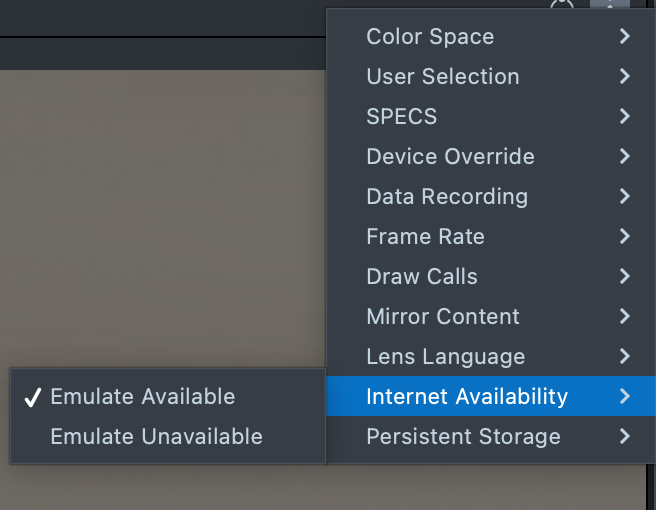
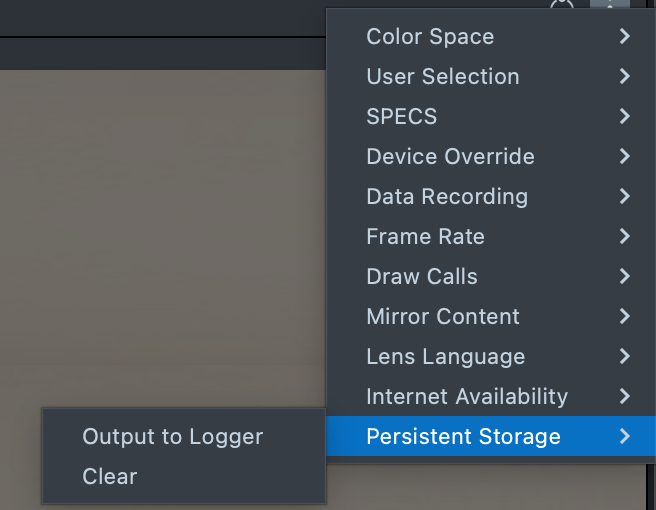
To see what the Lens saved in Persistent Storage, select ⋮ > Persistent Storage > Output to Logger. Clear empties it, so the next run starts with nothing saved.
What the Preview panel can't test
To test these on the device, see Connect Lens Studio to SPECS and Send a Lens to SPECS.
| Feature | In the Preview panel |
|---|---|
| Hand tracking and gestures | The mouse stands in for the user's hands. |
| Cameras | Camera Module's getCameras() returns an empty array. |
| Bluetooth | Doesn't work. |
| Auth Kit | Authorization throws Authorization not supported in editor mode. |
| Commerce Kit | Purchases are simulated: any product ID succeeds at $0.99; subscriptions are not simulated. |
| Power use and heat | Measure them on SPECS with SPECS Monitor. |
Troubleshooting the Preview panel for SPECS
Interaction Kit throws "To run InteractionKit in the Lens Studio Preview"
The Lens stops, and the Logger shows:
To run InteractionKit in the Lens Studio Preview, set the Preview Panel's Device Type Override to SPECS, or the Simulation Mode to SPECS 27!
Cause: the Preview panel doesn't run the Lens as SPECS, and Interaction Kit checks that it does when it starts. Sync Kit uses Interaction Kit, so a Connected Lens built with Sync Kit shows the same error.
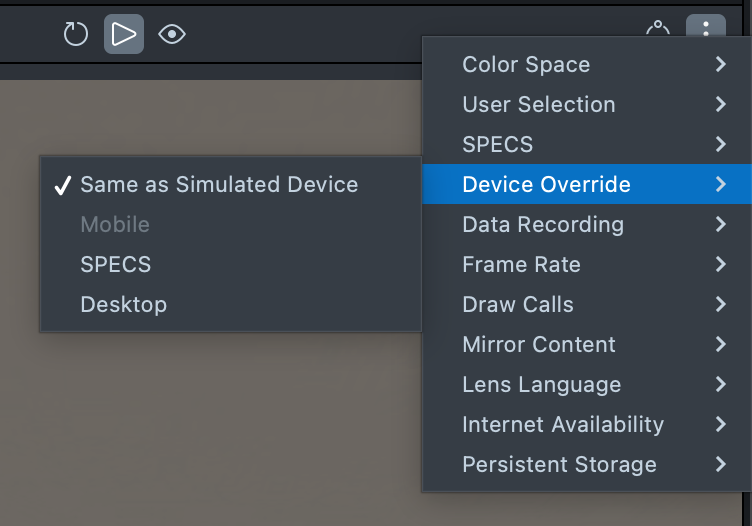
Fix: set the device menu to SPECS 27 and select Reset. To keep the panel's current simulation instead, select ⋮ (Additional Options) > Device Override > SPECS. For a Connected Lens, set up every Preview panel you test with.
Fetch requests return 404 in the Preview panel
Cause: the Fetch API of
Internet Access
only works in the Preview panel when the Lens runs as SPECS; otherwise every request returns
404. A 404 doesn't reject the promise fetch returns, so check the response's status.
Fix: set the device menu to SPECS 27, or set ⋮ > Device Override to SPECS.
Related
- Connect Lens Studio to SPECS: pair the device to test what the preview can't.
- Send a Lens to SPECS: run the Lens on the glasses.
- External Debugger: pause on breakpoints in the preview.
- Building Connected Lenses: test with one Preview panel per user.