Hand Tracking
Use Interaction Kit hand tracking on SPECS to read hand keypoints, react to pinches, and get the position and direction of each hand's interactor.
- Snapchat: not supported
- SPECS: fully supported
- Camera Kit Web: not supported
- Camera Kit Mobile: not supported
- SnapchatNot supported
- SPECSFully supported
- Camera Kit WebNot supported
- Camera Kit MobileNot supported
Interaction Kit uses hand tracking as the main input method for Lenses on SPECS. Users interact with AR content in a natural way, with their own hands, which makes the content feel present. This page shows how scripts read hand tracking data and the hand interactors that Interaction Kit builds on it.
Interaction Kit hand interaction modes
Interaction Kit supports several ways for a hand to interact with an object:
- Indirect: the user targets a distant object with a ray from the hand, then pinches.
- Direct pinch: the user reaches out and pinches the object.
- Poke: the user pokes the object with the index finger.
Each Interactable's Targeting Mode sets which of these reach it; see Interaction System. In the Lens Studio Preview panel, the MouseInteractor stands in for the hands, so the same Interactables respond to the mouse.
Read hand data with HandInputData and TrackedHand
HandInputData gets hand tracking data from Lens Studio's ObjectTracking3D and gestures from GestureModule, and provides it to the rest of Interaction Kit, in particular the HandInteractor and HandVisual components. HandInputData provides hand tracking data only; it doesn't make objects interactive.
A TrackedHand represents one tracked hand. Get it from HandInputData with getHand('left') or
getHand('right'), or with getDominantHand() and getNonDominantHand() (setDominantHand()
chooses which hand is dominant). A TrackedHand provides all the hand's keypoints, and these events
and methods:
| Member | What it tells you |
|---|---|
onHandFound, onHandLost | The system found or lost the hand. |
onPinchDown | The user pinched. |
onPinchUp | The user released a pinch. |
onPinchCancel | The system canceled the pinch. |
isTracked() | Whether the hand is tracked now. |
isPinching() | Whether the user is pinching now. |
The palm tap (isTapping()) is deprecated: the gesture is reserved for system navigation. Use
pinch instead.
This script prints the position of each index fingertip when that hand pinches:
- TypeScript
- JavaScript
import { IK } from 'InteractionKit.lspkg/IK';

@component
export class ExampleHandScript extends BaseScriptComponent {
  onAwake() {
    this.createEvent('OnStartEvent').bind(() => {
      this.onStart();
    });
  }

  onStart() {
    // Get HandInputData from Interaction Kit.
    const handInputData = IK.HandInputData;

    // Get the TrackedHand for the left and right hands.
    const leftHand = handInputData.getHand('left');
    const rightHand = handInputData.getHand('right');

    // Print when each hand pinches.
    leftHand.onPinchDown.add(() => {
      print(
        `The left hand has pinched. The tip of the left index finger is: ${leftHand.indexTip.position}.`
      );
    });
    rightHand.onPinchDown.add(() => {
      print(
        `The right hand has pinched. The tip of the right index finger is: ${rightHand.indexTip.position}.`
      );
    });
  }
}
const IK = require('InteractionKit.lspkg/IK').IK;

function onAwake() {
  // Wait for other components to initialize by deferring to OnStartEvent.
  script.createEvent('OnStartEvent').bind(() => {
    onStart();
  });
}

function onStart() {
  const handInputData = IK.HandInputData;

  // Get the TrackedHand for the left and right hands.
  var leftHand = handInputData.getHand('left');
  var rightHand = handInputData.getHand('right');

  // Print when each hand pinches.
  leftHand.onPinchDown.add(() => {
    print(
      `The left hand has pinched. The tip of the left index finger is: ${leftHand.indexTip.position}.`
    );
  });
  rightHand.onPinchDown.add(() => {
    print(
      `The right hand has pinched. The tip of the right index finger is: ${rightHand.indexTip.position}.`
    );
  });
}

onAwake();
Read the position and direction of a HandInteractor
A HandInteractor processes the data from HandInputData to interact with scene objects that
have an Interactable component. The InteractionKit prefab has one for each hand. Get them
from the InteractionManager with getInteractorsByType, using InteractorInputType.LeftHand or
InteractorInputType.RightHand. For how interactors and Interactables work together, see
Interaction System.
This script prints where each hand's interactor starts and where it points, every frame.
startPoint and direction can be null, so the script checks them before printing.
- TypeScript
- JavaScript
import { IK } from 'InteractionKit.lspkg/IK';
import { InteractorInputType } from 'InteractionKit.lspkg/Core/Interactor/Interactor';

@component
export class ExampleHandInteractorScript extends BaseScriptComponent {
  onAwake() {
    // Bind the update after Interaction Kit's components have initialized.
    this.createEvent('OnStartEvent').bind(() => {
      this.createEvent('UpdateEvent').bind(() => {
        this.onUpdate();
      });
    });
  }

  onUpdate() {
    const interactionManager = IK.InteractionManager;

    // Get the HandInteractor for each hand.
    const leftHandInteractor = interactionManager.getInteractorsByType(
      InteractorInputType.LeftHand
    )[0];
    const rightHandInteractor = interactionManager.getInteractorsByType(
      InteractorInputType.RightHand
    )[0];

    // Print the position and direction of each HandInteractor.
    if (leftHandInteractor && leftHandInteractor.startPoint) {
      print(
        `The left hand interactor is at position: ${leftHandInteractor.startPoint} and is pointing in direction: ${leftHandInteractor.direction}.`
      );
    }
    if (rightHandInteractor && rightHandInteractor.startPoint) {
      print(
        `The right hand interactor is at position: ${rightHandInteractor.startPoint} and is pointing in direction: ${rightHandInteractor.direction}.`
      );
    }
  }
}
const IK = require('InteractionKit.lspkg/IK').IK;
const InteractorInputType =
  require('InteractionKit.lspkg/Core/Interactor/Interactor').InteractorInputType;

function onAwake() {
  // Bind the update after Interaction Kit's components have initialized.
  script.createEvent('OnStartEvent').bind(() => {
    script.createEvent('UpdateEvent').bind(() => {
      onUpdate();
    });
  });
}

function onUpdate() {
  const interactionManager = IK.InteractionManager;

  // Get the HandInteractor for each hand.
  var leftHandInteractor = interactionManager.getInteractorsByType(
    InteractorInputType.LeftHand
  )[0];
  var rightHandInteractor = interactionManager.getInteractorsByType(
    InteractorInputType.RightHand
  )[0];

  // Print the position and direction of each HandInteractor.
  if (leftHandInteractor && leftHandInteractor.startPoint) {
    print(
      `The left hand interactor is at position: ${leftHandInteractor.startPoint} and is pointing in direction: ${leftHandInteractor.direction}.`
    );
  }
  if (rightHandInteractor && rightHandInteractor.startPoint) {
    print(
      `The right hand interactor is at position: ${rightHandInteractor.startPoint} and is pointing in direction: ${rightHandInteractor.direction}.`
    );
  }
}

onAwake();
Hand keypoints of a TrackedHand
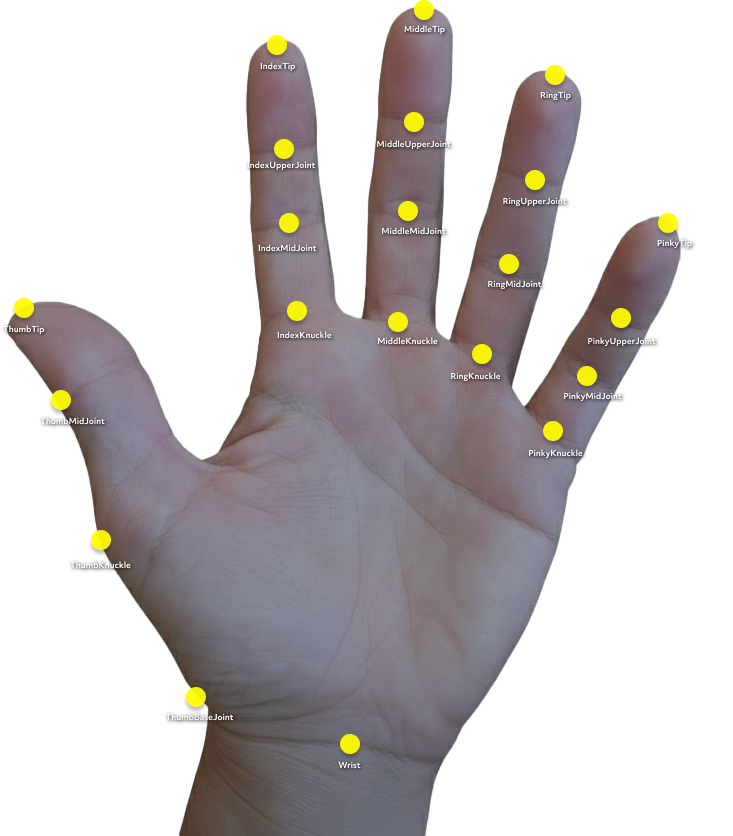
A TrackedHand provides a Keypoint for each of the 21 tracked joints of the hand: the wrist and
four joints on each finger, from knuckle to tip (on the thumb, from base joint to tip). It also
provides a …ToWrist keypoint for each finger (thumbToWrist, indexToWrist, middleToWrist,
ringToWrist, pinkyToWrist), arrays of each finger's keypoints (thumbFinger, indexFinger,
…), and all of them in points. Use keypoints to attach objects to parts of the hand or to
analyze hand poses.
A Keypoint is one joint of the hand in 3D space. Its position is the joint's world position,
rotation its world rotation, and screenPosition its position in screen space. Interaction Kit
places each Keypoint with an attachment point on an ObjectTracking3D
component, and converts world positions to screen positions with the world camera.
This script places an instance of a prefab on the left index fingertip while the left hand is tracked, and removes it when tracking is lost:
- TypeScript
- JavaScript
import { IK } from 'InteractionKit.lspkg/IK';

@component
export class KeypointExample extends BaseScriptComponent {
  @input
  keypointPrefab: ObjectPrefab; // Prefab to instantiate on the keypoint

  private keypointSceneObject: SceneObject | null = null;

  onAwake() {
    this.createEvent('OnStartEvent').bind(() => {
      this.onStart();
    });
  }

  private onStart() {
    // Get the left hand from Interaction Kit's HandInputData.
    const leftHand = IK.HandInputData.getHand('left');

    this.createEvent('UpdateEvent').bind(() => {
      if (leftHand.isTracked()) {
        // Hand is tracked: create the prefab instance if it doesn't exist.
        if (!this.keypointSceneObject) {
          this.keypointSceneObject = this.keypointPrefab.instantiate(
            this.getSceneObject()
          );
          print('Left hand tracked - instantiated keypoint prefab');
        }

        // Follow the index fingertip.
        const transform = this.keypointSceneObject.getTransform();
        const indexTip = leftHand.indexTip;
        transform.setWorldPosition(indexTip.position);
        transform.setWorldRotation(indexTip.rotation);
      } else if (this.keypointSceneObject) {
        // Hand isn't tracked: destroy the prefab instance if it exists.
        this.keypointSceneObject.destroy();
        this.keypointSceneObject = null;
        print('Left hand lost - destroyed keypoint prefab');
      }
    });
  }
}
//@input Asset.ObjectPrefab keypointPrefab

const IK = require('InteractionKit.lspkg/IK').IK;
var keypointSceneObject = null;

function onAwake() {
  // Wait for other components to initialize by deferring to OnStartEvent.
  script.createEvent('OnStartEvent').bind(onStart);
}

function onStart() {
  // Get the left hand from Interaction Kit's HandInputData.
  var leftHand = IK.HandInputData.getHand('left');

  script.createEvent('UpdateEvent').bind(function () {
    if (leftHand.isTracked()) {
      // Hand is tracked: create the prefab instance if it doesn't exist.
      if (!keypointSceneObject) {
        keypointSceneObject = script.keypointPrefab.instantiate(
          script.getSceneObject()
        );
        print('Left hand tracked - instantiated keypoint prefab');
      }

      // Follow the index fingertip.
      var transform = keypointSceneObject.getTransform();
      var indexTip = leftHand.indexTip;
      transform.setWorldPosition(indexTip.position);
      transform.setWorldRotation(indexTip.rotation);
    } else if (keypointSceneObject) {
      // Hand isn't tracked: destroy the prefab instance if it exists.
      keypointSceneObject.destroy();
      keypointSceneObject = null;
      print('Left hand lost - destroyed keypoint prefab');
    }
  });
}

onAwake();
Related
- Interaction System: Interactables and the events hands trigger on them.
- Hand Visualization: draw a hand mesh or attach effects to hand keypoints.
- Gesture Module: the Lens Studio module that detects hand gestures on SPECS.
- Cursor: the cursor and ray that show where a hand points.