Native Keyboard
- Snapchat: fully supported
- SPECS: not supported
- Camera Kit Web: fully supported
- Camera Kit Mobile: fully supported
- SnapchatFully supported
- SPECSNot supported
- See Keyboard
- Camera Kit WebFully supported
- Camera Kit MobileFully supported
To use the keyboard in Lenses, enable the Editable checkbox on a Text or Text3D component.
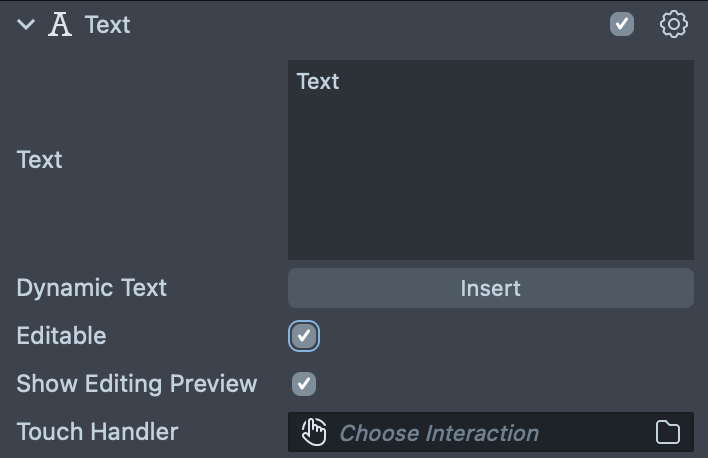
Editable: if enabled, the text can be edited with the keyboard. Tapping the text opens the keyboard.
Show Editing Preview: if enabled, shows a text editing field at the top of the keyboard.
Touch Handler: optional. Overrides the touch area that opens the keyboard, using another object that has an Interaction component.
Examples
The following examples cover some of the most common use cases.
Scripting Keyboard, 2D Editable Text and 3D Editable Text examples covered in this guide are available in Lens Studio Asset Library. Import them into your project and follow the instructions in the prefab's object name.
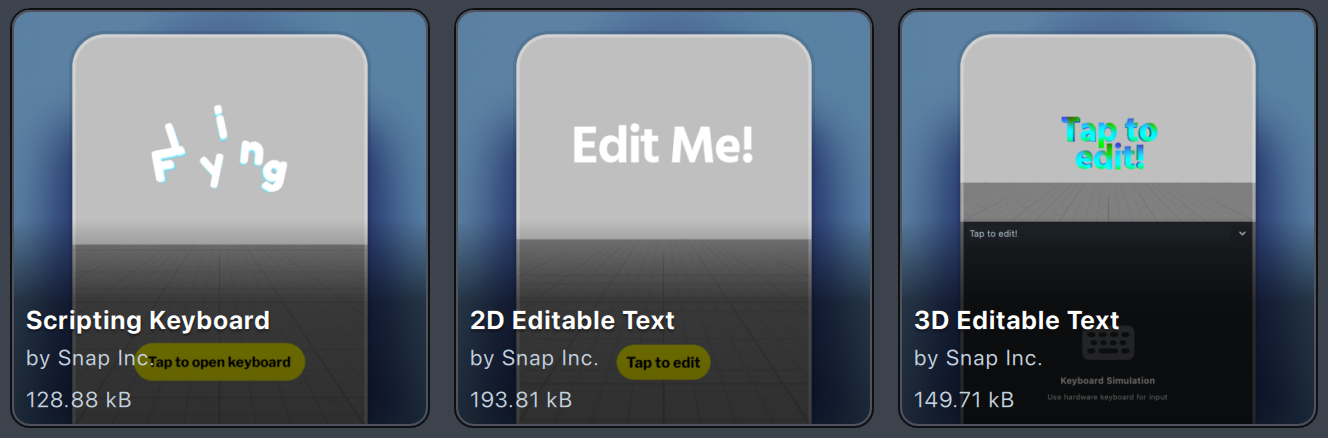
Right-click on imported packages and select Unpack for Editing to customize the included scripts.
3D Editable Text
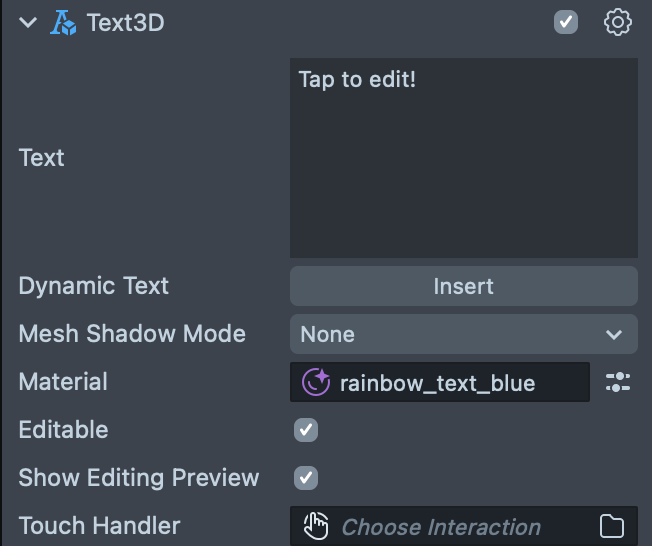
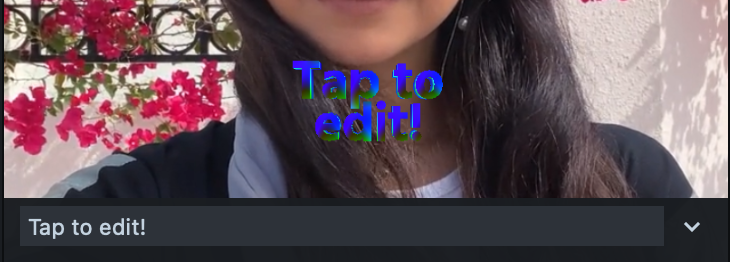
This example is the simplest setup you need to make text editable. It contains a Text3D object with the Editable checkbox enabled.
2D Editable Text
This example demonstrates how to use an alternative interaction component to open the keyboard. In this case, tapping a button image edits the text.
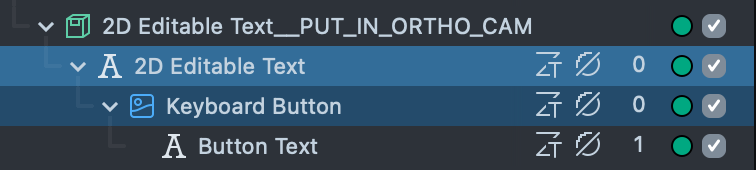
The Image component requires an Interaction component and is set as a Touch Handler input of the Text component we want to edit.

In addition, the Keyboard State Button script shows how to respond to keyboard events in scripting and update visuals in your Lens.
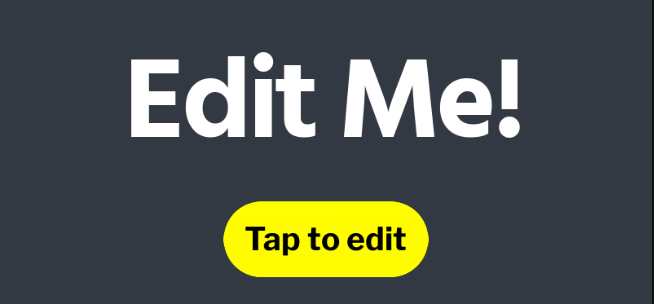
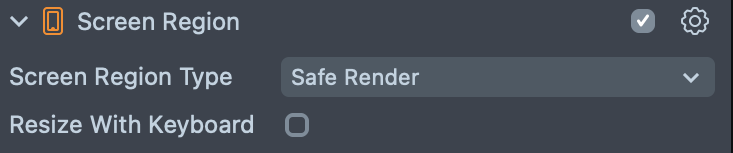
When using Screen Text, you can configure the Safe Render Screen Region to resize with the keyboard.
Scripting Keyboard
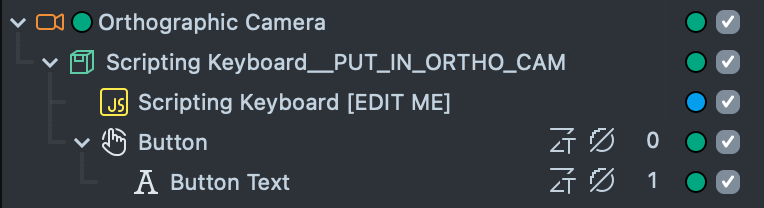
The Scripting Keyboard example demonstrates how to trigger the keyboard entirely through scripting. You can reference the script Scripting Keyboard Example which uses the TextInputSystem to trigger the keyboard and create Text3D components from the entered text.
Previewing Your Lens
You’re now ready to preview your Lens experience.
To preview your Lens in Snapchat, follow the Pairing to Snapchat guide.