Keyboard
Let users type in a SPECS Lens: request the keyboard, read the text, and place your text field where the system suggests.
- Snapchat: not supported
- SPECS: fully supported
- Camera Kit Web: not supported
- Camera Kit Mobile: not supported
- SnapchatNot supported
- SPECSFully supported
- Camera Kit WebNot supported
- Camera Kit MobileNot supported
The keyboard lets the users of your SPECS Lens input any alphanumeric character, including special characters. It supports use cases such as web browsing, entering usernames and passwords, and sending messages. Your Lens opens and closes the keyboard during a Lens session through the TextInputSystem, and chooses the layout with a keyboard type.
This page describes Lens Studio 5.25 and SPECS 27. For a styled text field that opens the keyboard for you, see the UI Kit TextInputField.
Keyboards that can serve a Lens on SPECS
When your Lens requests the keyboard on SPECS, the system decides which keyboard serves the text input session and tells your Lens through the onKeyboardKindChanged callback. The kinds are the values of TextInputSystem.KeyboardKind:
| Keyboard kind | What serves the session |
|---|---|
AR | The world-positioned virtual keyboard (the AR keyboard). |
Physical | A physical keyboard, wired or wireless. |
Mobile | Text input from the paired mobile device. |
Unknown | A keyboard of unknown kind. Treat it as a generic keyboard, without assumptions about its form. |
None | No keyboard is serving the session at the moment; the session may still be alive. |
The AR keyboard is a digital overlay displayed within the Lens experience on SPECS. The user can grab the AR keyboard and drag it to another place; your Lens hears about it through the keyboard move callbacks (see Follow the keyboard's kind, pose, and moves).
When the AR keyboard opens, it animates directly in front of the user.
The mobile keyboard in the SPECS App
The SPECS App on the user's phone can serve as the keyboard. From the AR keyboard, users can switch to the mobile keyboard, and a system notification confirms "keyboard connected." When users close the mobile keyboard, the AR keyboard takes over again, and a system notification says "keyboard disconnected."
Which keyboard opens when a Lens requests one
- If the SPECS App isn't connected, the AR keyboard opens in front of the user.
- If the SPECS App is connected but not open, the AR keyboard opens in front of the user, and a mobile notification says that the mobile keyboard is available.
- If the SPECS App is connected and open, the mobile keyboard opens, and a system notification says "keyboard connected."
Pressing the return key on either keyboard ends the text input and closes the keyboard. To close it
yourself, for example when the user submits a form, call dismissKeyboard() as in the example below.
Open the keyboard from a Lens
Open the keyboard by calling global.textInputSystem.requestKeyboard() with a TextInputSystem.KeyboardOptions object. Set the callbacks on the options object before the request: the keyboard returns the user's text to your Lens only through them.
- Add
require('LensStudio:TextInputModule')to the script. The TextInputModule declares the Input Framework (Text) permission for your Lens project. - Create a
TextInputSystem.KeyboardOptionsobject and set its keyboard type, return key type, and preview. - Set
onTextChangedto receive the text each time the user presses a key other than return. - Set
onReturnKeyPressedto handle the submitted text. To close the keyboard at that point, callglobal.textInputSystem.dismissKeyboard()in the callback. - Call
global.textInputSystem.requestKeyboard(options).
- TypeScript
- JavaScript
require('LensStudio:TextInputModule');

@component
export class KeyboardExample extends BaseScriptComponent {
  private currentText: string = '';

  onAwake() {
    this.createEvent('OnStartEvent').bind(() => {
      const options = new TextInputSystem.KeyboardOptions();
      options.enablePreview = true;
      options.keyboardType = TextInputSystem.KeyboardType.Text;
      options.returnKeyType = TextInputSystem.ReturnKeyType.Return;

      options.onTextChanged = (text: string, range: vec2) => {
        this.currentText = text;
      };

      options.onReturnKeyPressed = () => {
        print('Submitted: ' + this.currentText);
        global.textInputSystem.dismissKeyboard();
      };

      options.onKeyboardStateChanged = (keyboardIsOpen: boolean) => {
        print('Keyboard ' + (keyboardIsOpen ? 'opened' : 'closed'));
      };

      options.onError = (error: number, description: string) => {
        print('Keyboard error ' + error + ': ' + description);
      };

      global.textInputSystem.requestKeyboard(options);
    });
  }
}
require('LensStudio:TextInputModule');

var currentText = '';

script.createEvent('OnStartEvent').bind(function () {
  var options = new TextInputSystem.KeyboardOptions();
  options.enablePreview = true;
  options.keyboardType = TextInputSystem.KeyboardType.Text;
  options.returnKeyType = TextInputSystem.ReturnKeyType.Return;

  options.onTextChanged = function (text, range) {
    currentText = text;
  };

  options.onReturnKeyPressed = function () {
    print('Submitted: ' + currentText);
    global.textInputSystem.dismissKeyboard();
  };

  options.onKeyboardStateChanged = function (keyboardIsOpen) {
    print('Keyboard ' + (keyboardIsOpen ? 'opened' : 'closed'));
  };

  options.onError = function (error, description) {
    print('Keyboard error ' + error + ': ' + description);
  };

  global.textInputSystem.requestKeyboard(options);
});
Keyboard options for a text input request
The main TextInputSystem.KeyboardOptions fields:
| Field | Type | Description |
|---|---|---|
keyboardType | TextInputSystem.KeyboardType | The requested keyboard layout. Default Text. |
returnKeyType | TextInputSystem.ReturnKeyType | The requested return key label. Default Done. |
enablePreview | boolean | Whether a preview of the text is visible above the keyboard. Default false. |
initialText | string | Initial text for the invisible text view the keyboard edits. |
initialSelectedRange | vec2 | Initial selected text range. |
onTextChanged | (text: string, range: vec2) => void | Called every time the user presses a key other than return. |
onReturnKeyPressed | () => void | Called when the user presses the return key. |
onKeyboardStateChanged | (keyboardIsOpen: boolean) => void | Called when the keyboard is shown or dismissed. |
onError | (error: number, description: string) => void | Called when there is an error. |
The KeyboardOptions reference also lists the input method callbacks SPECS supports, such as onCommitText, onSetComposingText, and onUpdateText, and TextInputSystem has updateText() to update the text and selection while the keyboard is shown.
Keyboard types
Set keyboardType to a TextInputSystem.KeyboardType value:
| Keyboard type | For entering |
|---|---|
Text | Normal text |
Num | Digits |
Phone | Phone numbers |
Url | URLs |
Password | Passwords |
Pin | PINs |
Email | Email addresses |
Return key types
Set returnKeyType to a TextInputSystem.ReturnKeyType value. Each value sets the return key's label: Done, Go, Next, Return (shows "return"), Search, or Send.
Follow the keyboard's kind, pose, and moves
On SPECS, three more groups of KeyboardOptions callbacks let your Lens keep its text field next to the keyboard that serves it:
| Callback | Called when |
|---|---|
onKeyboardKindChanged: (keyboardKind: TextInputSystem.KeyboardKind) => void | The kind of keyboard serving the session changes. The current kind is delivered right after the keyboard request. |
onTextInputPoseSuggestionChanged: (position: vec3, rotation: quat, size: vec2) => void | The system suggests where to place the content being edited. |
onVirtualKeyboardMoveStarted: () => void | The user grabs the AR keyboard and starts dragging it. |
onVirtualKeyboardMoveEnded: () => void | The user releases the AR keyboard after a drag. Always paired with a preceding onVirtualKeyboardMoveStarted. |
How to use them:
- Pose suggestions.
positionandrotationare the suggested bottom center of the text input element that has focus, just above the keyboard's top edge, in your Lens's world space, in centimeters.size, when non-zero, is the recommended content size in centimeters; it is not enforced. - Kind changes reset the pose. When
onKeyboardKindChangedfires, discard the last pose suggestion and wait for a new one. - Keyboard moves. Apply any transient drag effects to your content between the move callbacks; pose suggestions can keep arriving during the move. Late joiners to the text input session are also told when a move is in progress.
- TypeScript
- JavaScript
require('LensStudio:TextInputModule');

@component
export class KeyboardPoseExample extends BaseScriptComponent {
  @input
  textField: SceneObject;

  onAwake() {
    this.createEvent('OnStartEvent').bind(() => {
      const options = new TextInputSystem.KeyboardOptions();
      options.keyboardType = TextInputSystem.KeyboardType.Text;

      options.onKeyboardKindChanged = (keyboardKind: TextInputSystem.KeyboardKind) => {
        // Discard the last pose suggestion: wait for a new one before moving the field.
        print('Keyboard kind: ' + keyboardKind);
      };

      options.onTextInputPoseSuggestionChanged = (position: vec3, rotation: quat, size: vec2) => {
        const transform = this.textField.getTransform();
        transform.setWorldPosition(position);
        transform.setWorldRotation(rotation);
      };

      options.onVirtualKeyboardMoveStarted = () => {
        print('The user started moving the keyboard');
      };

      options.onVirtualKeyboardMoveEnded = () => {
        print('The user stopped moving the keyboard');
      };

      global.textInputSystem.requestKeyboard(options);
    });
  }
}
// @input SceneObject textField

require('LensStudio:TextInputModule');

script.createEvent('OnStartEvent').bind(function () {
  var options = new TextInputSystem.KeyboardOptions();
  options.keyboardType = TextInputSystem.KeyboardType.Text;

  options.onKeyboardKindChanged = function (keyboardKind) {
    // Discard the last pose suggestion: wait for a new one before moving the field.
    print('Keyboard kind: ' + keyboardKind);
  };

  options.onTextInputPoseSuggestionChanged = function (position, rotation, size) {
    var transform = script.textField.getTransform();
    transform.setWorldPosition(position);
    transform.setWorldRotation(rotation);
  };

  options.onVirtualKeyboardMoveStarted = function () {
    print('The user started moving the keyboard');
  };

  options.onVirtualKeyboardMoveEnded = function () {
    print('The user stopped moving the keyboard');
  };

  global.textInputSystem.requestKeyboard(options);
});
Test the keyboard in the Preview panel
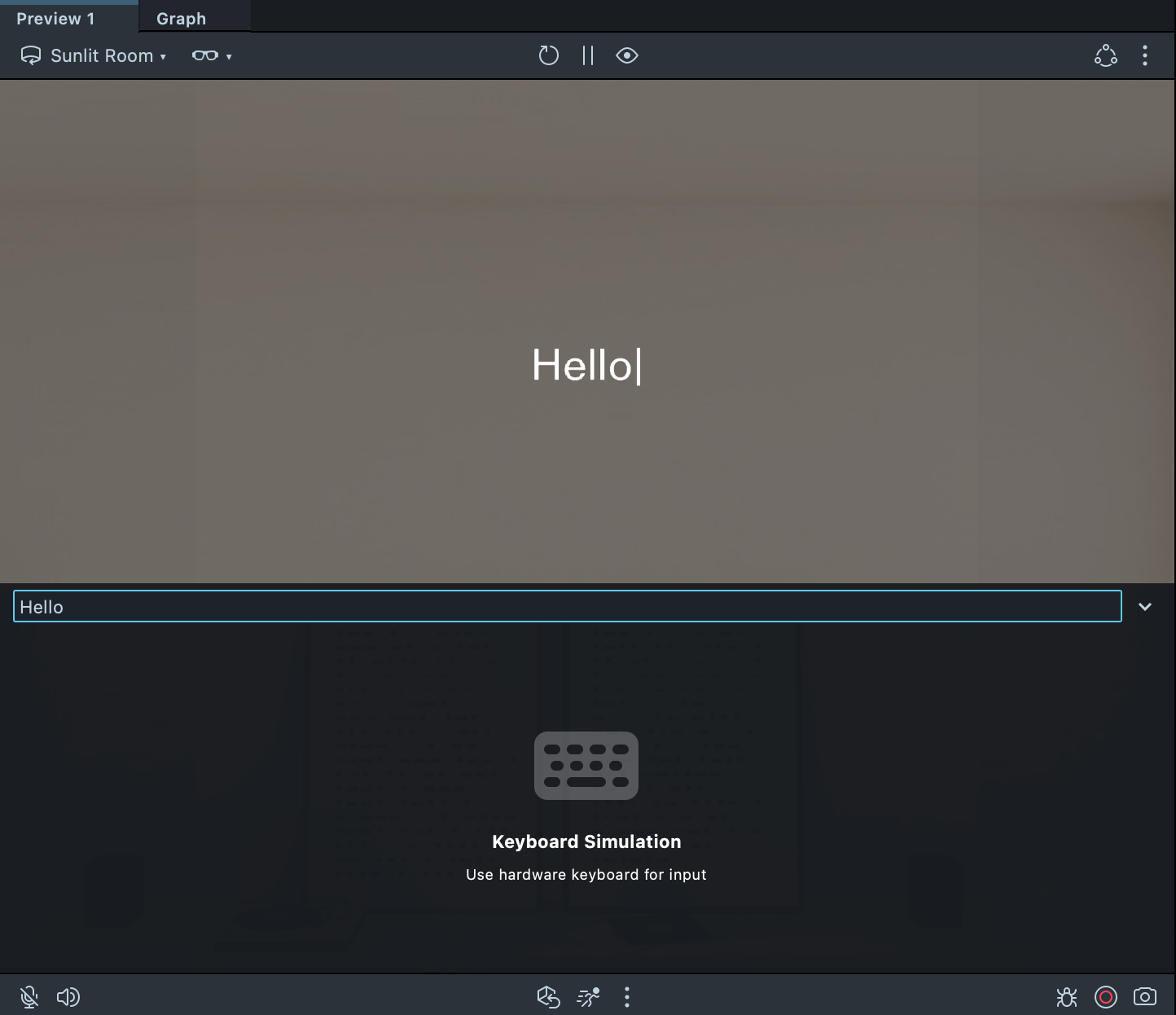
When you preview a Lens with the SPECS 27 simulation in the Preview panel, focusing a text field shows a keyboard simulation placeholder in place of the AR keyboard. Type on your computer's keyboard to enter text: the text reaches your Lens as it does on the device. The AR keyboard itself renders only on SPECS.
To set up the simulation, see Set up the Preview panel for SPECS in Preview Lenses for SPECS.
Related
- TextInputField: a UI Kit text field that opens the keyboard and shows the text for you.
- Preview Lenses for SPECS: set up the Preview panel simulation the keyboard test needs.
- Send a Lens to SPECS: try the AR keyboard on the device.
- Gesture Module: other ways for users to give input with their hands.