WebXR
Run WebXR experiences on SPECS from the browser, with hand input and hit testing, using standard web APIs and no Lens Studio project.
- Snapchat: not supported
- SPECS: fully supported
- Camera Kit Web: not supported
- Camera Kit Mobile: not supported
- SnapchatNot supported
- SPECSFully supported
- Camera Kit WebNot supported
- Camera Kit MobileNot supported
WebXR experiences run on SPECS in the SPECS browser: you build an AR experience with standard web technologies, host it on any web server, and open its URL on SPECS. You need no Lens Studio project, and the wearer installs nothing. This page is for web developers bringing a WebXR experience to SPECS.
What WebXR is
WebXR is the web standard for virtual reality (VR) and augmented reality (AR) in the browser: the WebXR Device API and its modules let a web page start an immersive session, track the viewer, read input, and render 3D content into the world. On SPECS, WebXR lets you build AR experiences with the web tools and frameworks you already use. To learn more about the standard, see Immersive Web.
How WebXR experiences run on SPECS
The SPECS browser uses WebKit, the browser engine behind Safari, and its WebXR support runs on the SPECS OpenXR runtime. A WebXR experience on SPECS:
- Opens from a URL. The wearer opens the browser from Lens Explorer on SPECS and visits the experience's address, with no installation.
- Uses standard web APIs. Code written against the WebXR Device API and the WebXR AR module runs as it does in other WebXR browsers.
- Runs on other WebXR devices too. The same experience works in any browser that supports the WebXR features it uses.
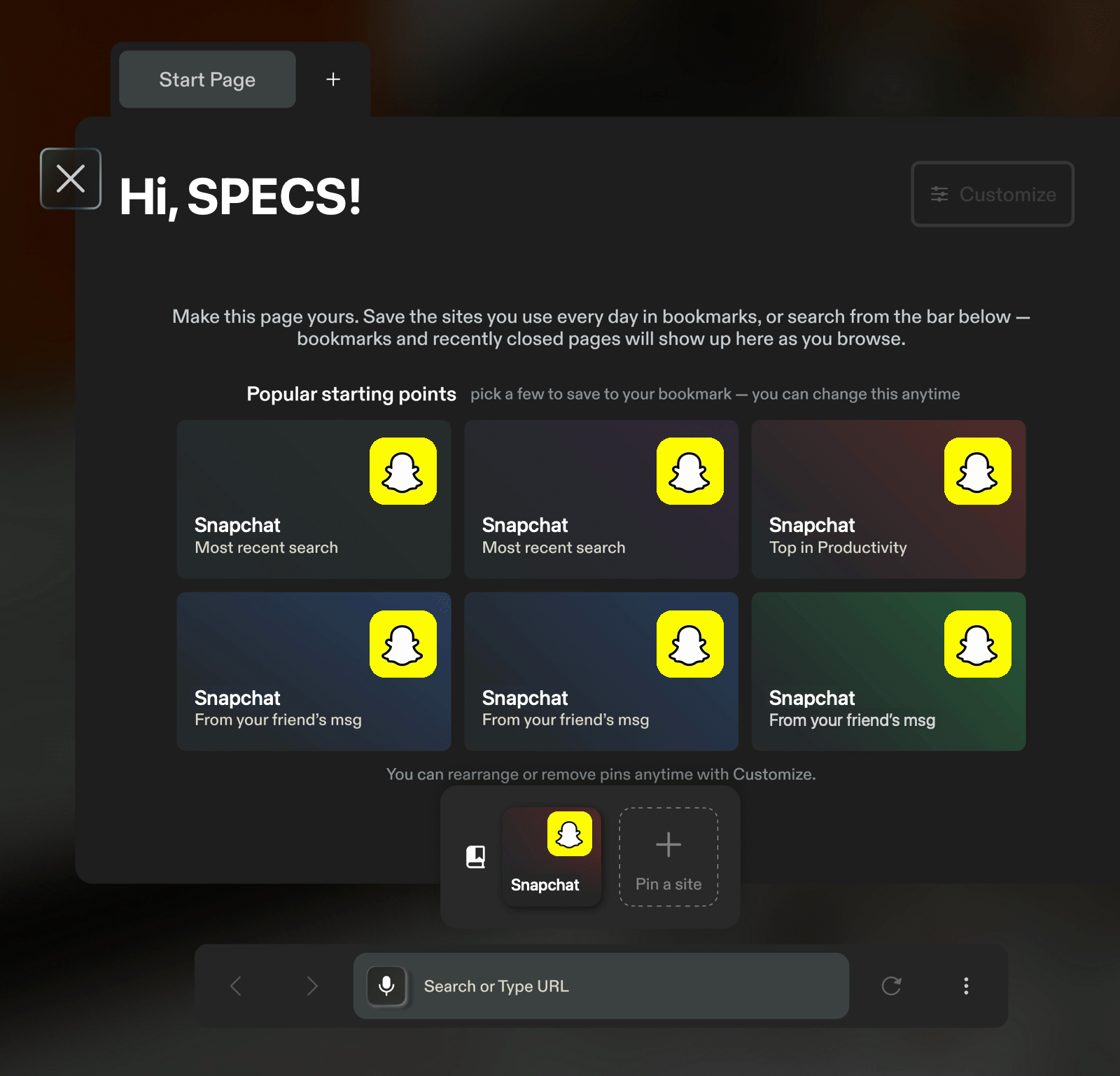
What SPECS adds around a WebXR experience
SPECS wraps every WebXR experience in its own system UI, with no code on your part:
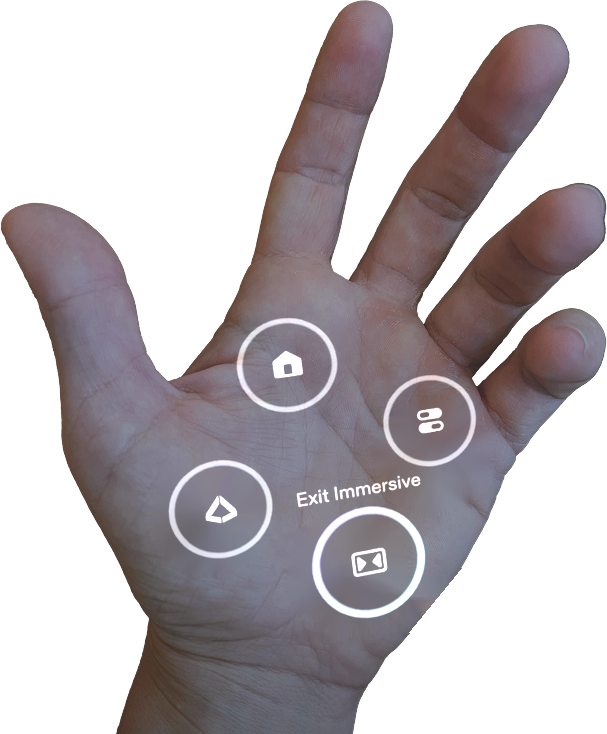
- Immersive mode notification. When an experience enters WebXR immersive mode, SPECS shows a notification for 3 seconds, so the wearer knows they are moving from 2D browsing to an AR experience.
- Exit from the palm. In immersive mode, the System Menu on the wearer's palm shows an Exit Immersive button, which leaves immersive mode and returns to the 2D web page: the same gesture-based control the rest of SPECS uses.
- Capture. The wearer can capture a WebXR experience and share it, with no setup in your experience.
Supported WebXR features on SPECS
The SPECS browser supports these WebXR specifications:
| Feature | Status on SPECS |
|---|---|
| WebXR Device API | Supported |
| WebXR AR Module | Supported |
| WebXR Hand Input | Supported. Hands are the main input on SPECS. |
| WebXR Hit Test | Supported |
| WebXR Gamepads | Supported |
| WebXR Anchors | Partly: an anchor holds a pose for the session; anchors don't persist between sessions. |
| WebXR Layers | Partly: some layer types render through a slower path. |
WebXR features SPECS doesn't support yet
These WebXR features aren't available in the SPECS browser:
- Plane Detection
- Depth Sensing
- Mesh Detection
- Image tracking
- Raw camera access
- Lighting estimation
Request them as optionalFeatures, not requiredFeatures, and check the session's enabledFeatures,
so your experience still starts on SPECS and falls back when a feature is missing.
Build and test a WebXR experience for SPECS
- Choose a framework. PlayCanvas is the recommended framework for WebXR on SPECS; any framework built on the WebXR Device API works.
- Build your experience on the WebXR Device API and the AR module: request an
immersive-arsession, with the features from Supported WebXR features on SPECS that it uses. - Test the experience in a WebXR-compatible browser.
- Host the experience on any web server, over HTTPS: browsers offer WebXR only on secure pages.
- On SPECS, open the browser from Lens Explorer and visit the experience's URL.
The experience picks up the SPECS system UI and hand input with no extra code.
To check what the SPECS browser supports, open these pages in it:
- WebXR support report: lists the WebXR session modes and features the browser offers.
- WebXR hit-test sample: places objects on real surfaces with the Hit Test module.
- WebGL report: shows the WebGL 2 capabilities your renderer can use.
Example WebXR experiences for SPECS
These demo experiences target SPECS and run in the SPECS browser:
| Demo | What it shows | URL |
|---|---|---|
| Chair | Placing furniture in the room | webxr-chair.vercel.app |
| Sneaker | Viewing a product in 3D | webxr-sneaker.vercel.app |
| Burger | Interacting with food items | webxr-burger.vercel.app |
| 3D Tic-Tac-Toe | An interactive game | webxr-tictactoe.vercel.app |
Adam Varga created the demos.
Source code: the complete source code for all four demos is in the webxr-ar-demos repository on GitHub.
Related
- Immersive Web: the WebXR standard, its modules, and browser support.
- PlayCanvas WebXR guide: building WebXR experiences with the recommended framework.
- WebXR samples: reference implementations of each WebXR module to test on SPECS.