Dual Camera
Provides the capability to render both front and rear cameras at the same time, enhancing creative possibilities within your Lens.
- Snapchat: fully supported
- SPECS: not supported
- Camera Kit Web: not supported
- Camera Kit Mobile: fully supported
- SnapchatFully supported
- SPECSNot supported
- Camera Kit WebNot supported — the SDK takes a single camera stream
- Camera Kit MobileFully supported
The Dual Camera feature provides the capability to render both front and rear cameras at the same time, enhancing creative possibilities within your Lens.
Tracking on both cameras
With Tracking Scope in Lens Studio 5.8 and newer, you can apply face tracking, body tracking and other ML features to custom textures, including reverseCameraTexture and images or videos from the camera roll. For example, you can create different effects for the front and back cameras at the same time, or track objects in pre-recorded media. In earlier versions, these features worked only on deviceCameraTexture, one camera at a time.
World tracking
The Dual Camera feature isn't compatible with World tracking. If World tracking is active on the rear camera, the front camera can't be accessed through the dual camera system.
Usage
To use the Dual Camera feature without the custom component, add the Reverse Camera Texture from the Asset Browser panel. However, the primary function of the custom component is to allow adjustment of the fallback state, as many devices do not support dual-camera technology. Because of this limitation, it is recommended to use the feature with the custom component to ensure a better experience across all devices.
Additionally, the Reverse Camera Texture will not be displayed in the editor's preview and is only visible on a device, which may make setup more challenging.
Installation
- Locate the Dual Camera custom component in the Asset Library.
- Click the Install button to add it to your project. Once installed, the component can be attached to a Scene Object.
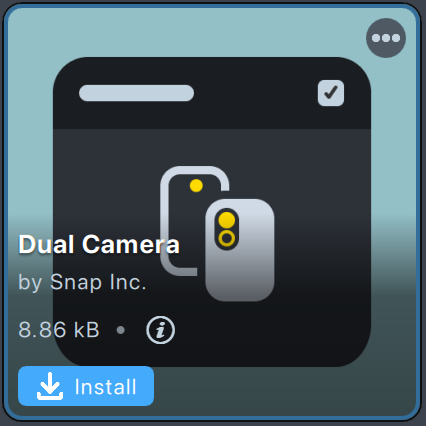
Adding Placeholders
You can assign placeholders for the Reverse Camera Texture by adding objects with mesh visuals (for example, Images, Meshes) to the Placeholders field.
These placeholders will be used to display the dual camera texture. During testing in Lens Studio, mock dual camera textures will be displayed. Once you push the Lens to a device, the reverse camera texture will replace the mock texture.
Configuring Textures
By default, the custom component will look for the baseTex property in the material assigned to the placeholders. If you are using a custom material with a different property name for the texture, you must manually configure the Reverse Camera Texture by following these steps:
- Unpack the custom component.
- Locate Reverse Camera Texture.
- Manually insert the texture into the materials of your placeholders.
Configuring Fallback
Since the Dual Camera feature is not supported on all devices, fallback states ensure a seamless experience for all users.
Available Fallback Modes
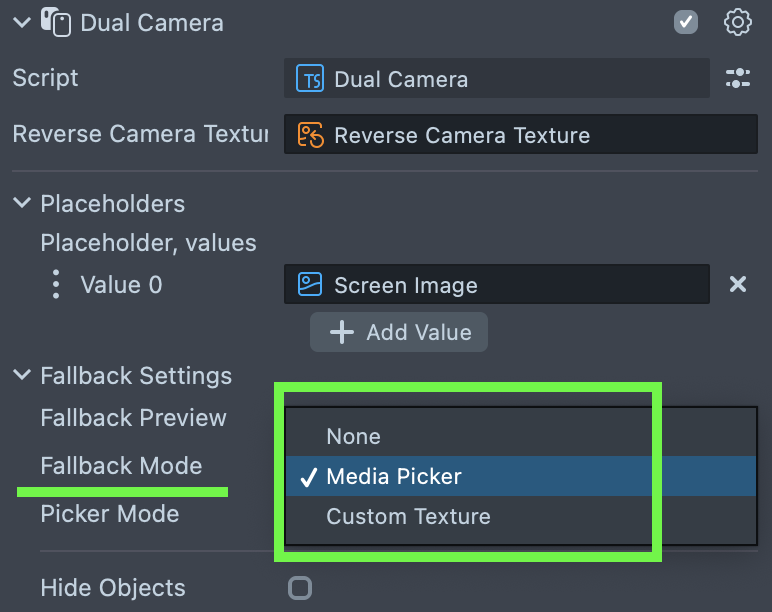
None: If the device doesn’t support Dual Camera, all placeholders are disabled.- Media Picker: Enables users to use a media picker to select textures from their camera roll. These textures will then populate the placeholders.
Adjustable Picker Mode options:
- All Media
- Only Images
- Only Videos
- Custom Texture: Allows you to specify a custom texture that will be displayed in placeholders when Dual Camera is unsupported.
To preview fallback behavior in Lens Studio, enable the Fallback Preview option (this only affects Lens Studio previews, not device performance).
API
isSupported: Promise<boolean>- Returns a boolean indicating whether Dual Camera is supported on the device.(read-only) mediaPickerProvider: MediaPickerTextureProvider- Provides the media picker texture to use in fallback mode if configured.
Testing on Device
To preview your Lens in Snapchat, follow the Pairing to Snapchat guide.
When you open any Lens that uses the Dual Camera feature, a loading screen (black screen with a loading animation) will appear initially. This indicates that the Dual Camera is being loaded.