Eye Tracking
- Snapchat: fully supported
- SPECS: partially supported
- Camera Kit Web: fully supported
- Camera Kit Mobile: fully supported
- SnapchatFully supported
- SPECSPartially supported
- Only position is supported, rotation is currently not supported
- Camera Kit WebFully supported
- Camera Kit MobileFully supported
The Eye Tracking effect tracks the position and rotation of the user's eyes. The Eye Tracking effect uses the Head Binding component to change the transform of the object the component is on.
Attaching Objects to the Eye
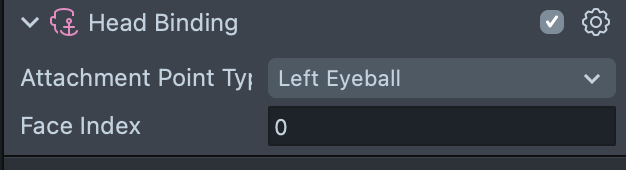
To attach an object to an eye, make it a child of an object whose Head Binding component has Attachment Point Type set to Left Eyeball or Right Eyeball.
The Left Eye and Right Eye objects position and rotate themselves with the user's eyes. You can add an object as a child of either object to have your object track the eye.
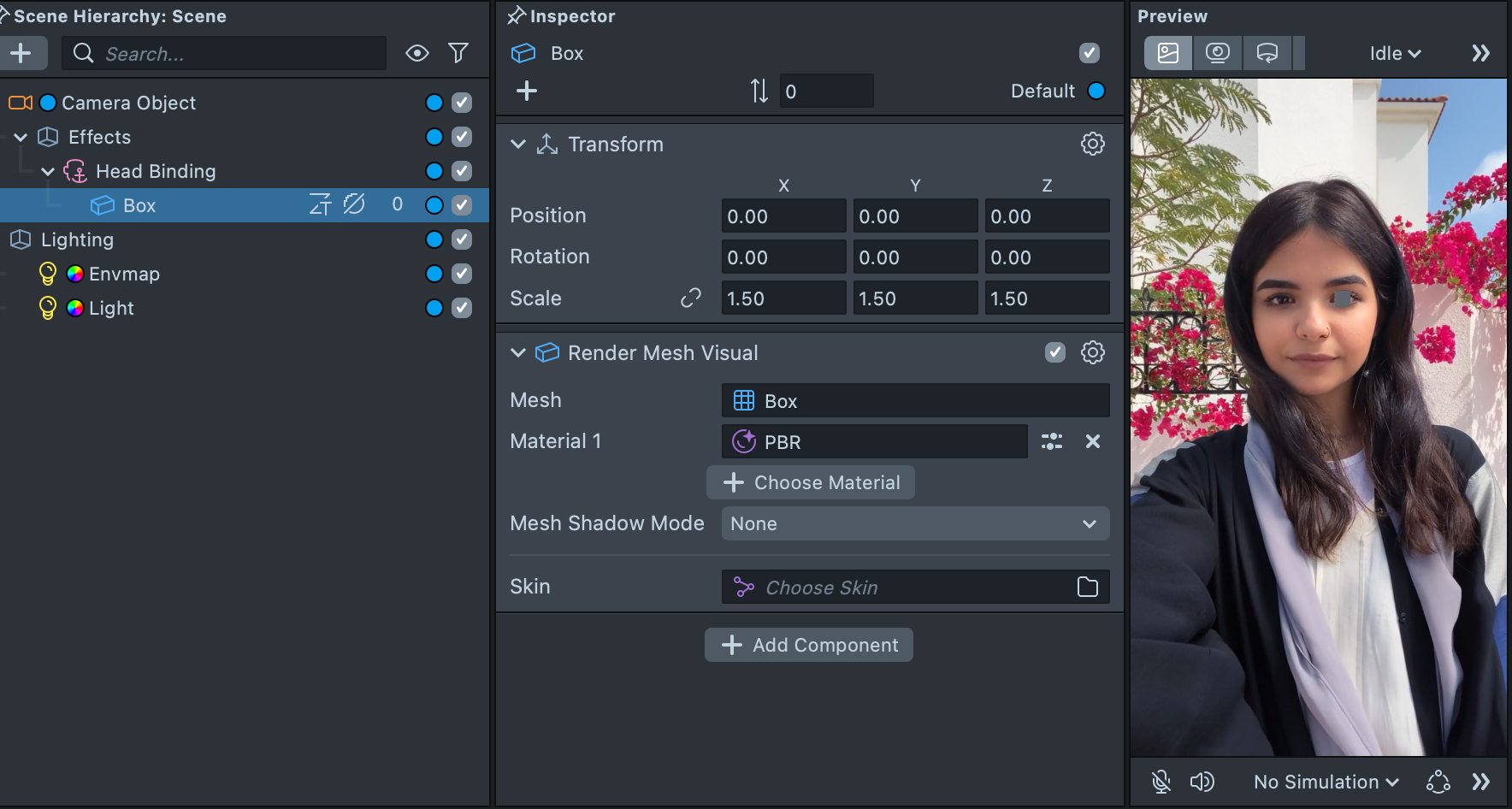
Eyeballs Example
You can see a usage of this technique in the Eyeballs asset in the Asset Library.
In this asset, each eye comes with two objects: Sclera and Choroid. These objects are provided as an example and can be removed. The Sclera adds a reflective sphere around the Choroid. Both use the default PBR material.
Add Eyeballs
Once you've imported Eyeballs from the Asset Library, you will find it in your Asset Browser panel.
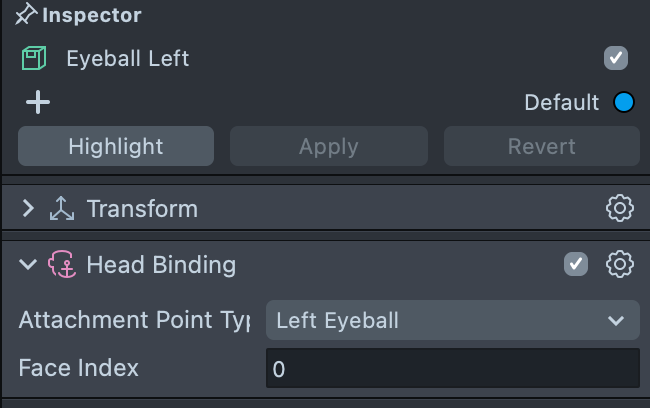
Next, drag the prefab inside its folder under the main camera, as its name instructs. This will add a Left Eye and Right Eye object, each with their own Head Binding component and their respective attach point.
Using the Eyeball Rotation Only
The Head Binding component changes both the rotation and the position of its object.
In some cases, you may only want to use the rotation and manually position the eyeball. For example, in the clip below, the character's eyes shouldn't sit where the user's eyes are.
One way to do this is to track the eyeball to the head, but not to the eye itself. For example, below the two eye objects are attached to Head Center.
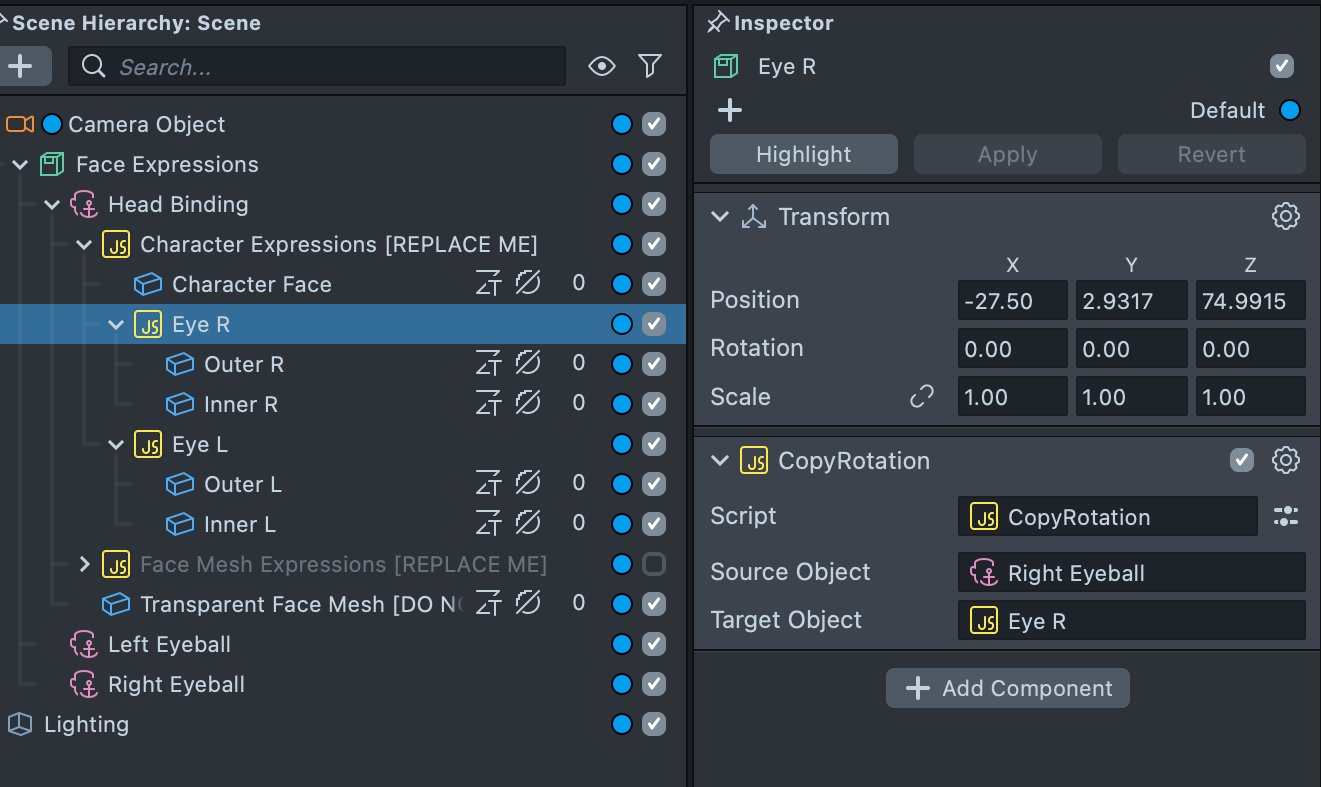
Next, copy the rotation of the eye onto the head-tracked object. You can use the following script to copy the rotation from one object to another.
// CopyRotation.js
// Version: 0.0.1
// Description: Copies rotation from one object to another
// @input SceneObject sourceObject
// @input SceneObject targetObject
var targetTransform;
var sourceTransform;
if (script.targetObject) {
  targetTransform = script.targetObject.getTransform();
} else {
  targetTransform = script.getSceneObject().getTransform();
}
if (script.sourceObject) {
  sourceTransform = script.sourceObject.getTransform();
} else {
  print('[CopyRotation] Source object is not set');
}
function onUpdate() {
  if (sourceTransform) {
    targetTransform.setWorldRotation(sourceTransform.getWorldRotation());
  }
}
var updateEvent = script.createEvent('UpdateEvent');
updateEvent.bind(onUpdate);
Select the object with this script, and in the Inspector panel set Source Object to the object whose Head Binding tracks the eye, and Target Object to the object you want to rotate with the eye.
You can check out the Face Expressions example in the Asset Library to see the complete setup above.
Changing the Eye to Track
Like any object with the Head Binding component, you can change the Face Index field to change which face to track for the eyeballs. The first detected face is 0, the second face is 1, and so forth.