3D Body and Hand Tracking
The 3D Body Tracking component allows you to attach 2D or 3D contents to a set of 3D skeletons found in the camera.
- Snapchat: fully supported
- SPECS: partially supported
- Camera Kit Web: partially supported
- Camera Kit Mobile: fully supported
- SnapchatFully supported
- SPECSPartially supported
- Camera Kit WebPartially supported
- Runs at noticeably lower frame rates, especially in browsers on Windows and mobile devices
- Camera Kit MobileFully supported
You can track joints on the body, as well as the hands, in 3D space with the Object Tracking 3D component. Depending on the parts you want to track, you use a different Tracking Asset.
To add either kind of tracking, select + in the Scene Hierarchy panel, then select Body Tracking 3D or Hand Tracking 3D under Tracking. Lens Studio adds an object that uses its own Tracking Asset.
You can also track your, or your friends, Bitmoji to the body. Take a look at the Bitmoji 3D guide to learn more.
You can also track hand and body in 2D space using Object Tracking.
3D Body Tracking
The 3D Body Tracking asset, combined with the Object Tracking 3D component, allows you to attach 2D or 3D contents to a set of 3D skeletons found in the camera. It currently supports the tracking of the joints of one or more bodies.
Previewing Your Model for Use
You can preview the rigged skeleton of any 3D model in the Scene panel. Custom rigging that you import is turquoise, and bones provided by the Object Tracking 3D component are grey, as shown in the clip below.
You can select an individual joint and drag it to adjust the shape of your rigged model.
Removing Existing Animation Component
If your 3D model already has an Animation Player component, disable it. Otherwise your 3D model might not move with the tracking component, because its existing animation overwrites its movement. See Make Sure Models Are Not Using Animations below.
In the same way, even if you manipulate the position of a joint in the Scene panel, if you have an animation on it, your changes will be overwritten.
Adding Body Tracking 3D
Body Tracking 3D tracks the joints of one or more bodies in 3D. Unlike 2D Body tracking, it tracks the rotation of the joints even as the user turns around.
To add 3D Body Tracking to your project, in the Scene Hierarchy panel, select + > Tracking > Body Tracking 3D.
Lens Studio adds a 3D Body Tracking asset to the Asset Browser panel, used by the new object's Object Tracking 3D component.
If you're looking to create 3D Body Tracking Lenses, we recommend taking a look at the 3D Body Tracking example.
Choosing Tracking Mode
Your content can be attached to the tracker in several ways.
- Proportions And Pose: applies rotation correction from the root of the model to the leaf bones. If bones further down the hierarchy are missing, we still apply corrections up to that point. Additionally, it scales your object so that it matches the proportion of the Snapchatter.
- Pose Only: the same as Proportions And Pose, but does not apply scaling. This is useful when you don't want your 3D model to be distorted based on the Snapchatter's body.
- Attachment: moves the attached scene object to the world position of the joint. An object with 0 rotation will be aligned to the axis of the attached joint. This mode is useful when you are attaching separate 3D models to the joints.
Adding 3D Models to the Tracking Component
Each Object Tracking 3D component has a list of Attachment Points. Each point represents a specific joint on the body part. Any object linked in a slot is attached to that part of the body.
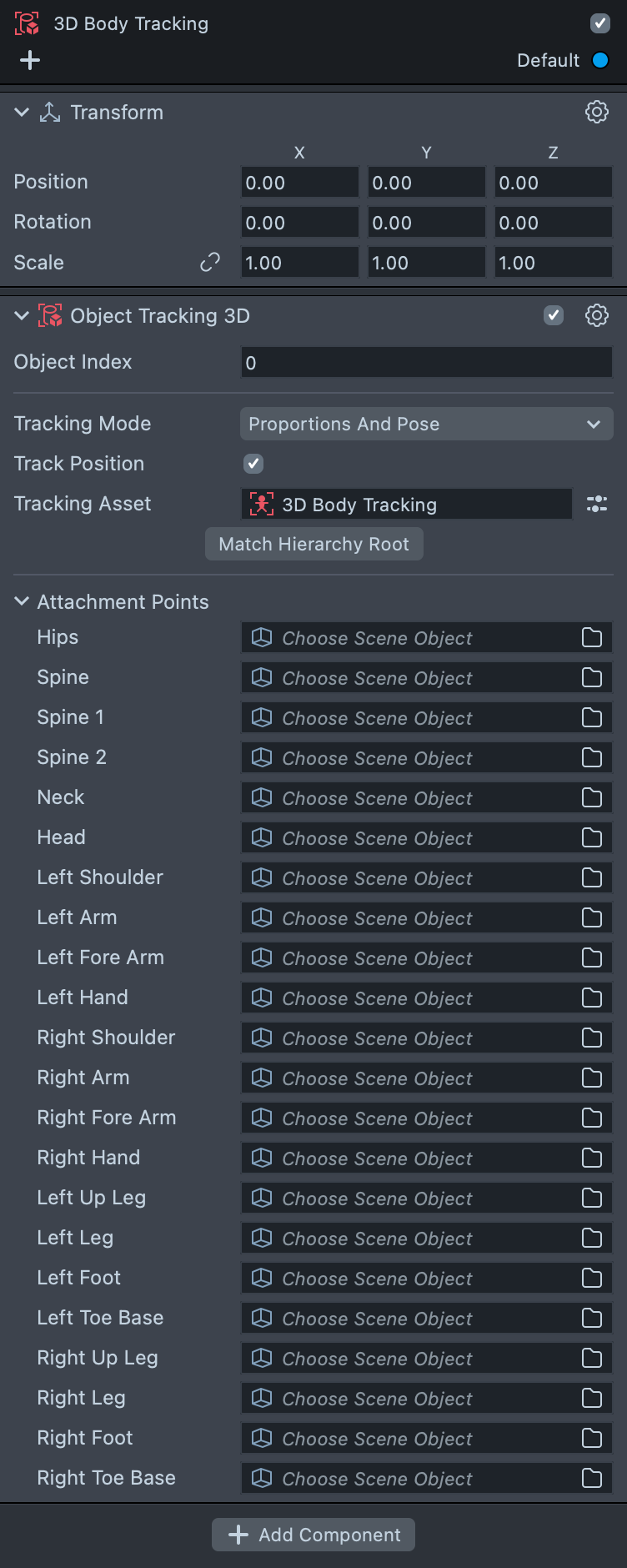
Using Match Hierarchy
No visual element shows up in the scene unless you apply a custom 3D model to the Object Tracking 3D component. The most convenient way to do this is by using the Match Hierarchy option.
Match Hierarchy works only if your 3D model has the same rigged bone structure as the default models. For a
reference, see the 3D Body Tracking template or the Stick Figure 3D Model on the Asset Library as a reference.
Hand Tracking in Body Tracking
The 3D Body Tracking asset has an option to enable hand tracking: select the asset and check Track Hand in the Inspector panel. It's off by default. Turn it on when you want to track both the body and the hands, and leave it off if your object doesn't have joints for the hands.
Take a look at the 3D Body Template guide to see the hierarchy used in 3D Body Tracking, as well as examples of it in action.
Standalone 3D Hand Tracking
In addition to hand tracking provided by the body tracking, you can also add a dedicated 3D Hand Tracking asset, which is more precise.
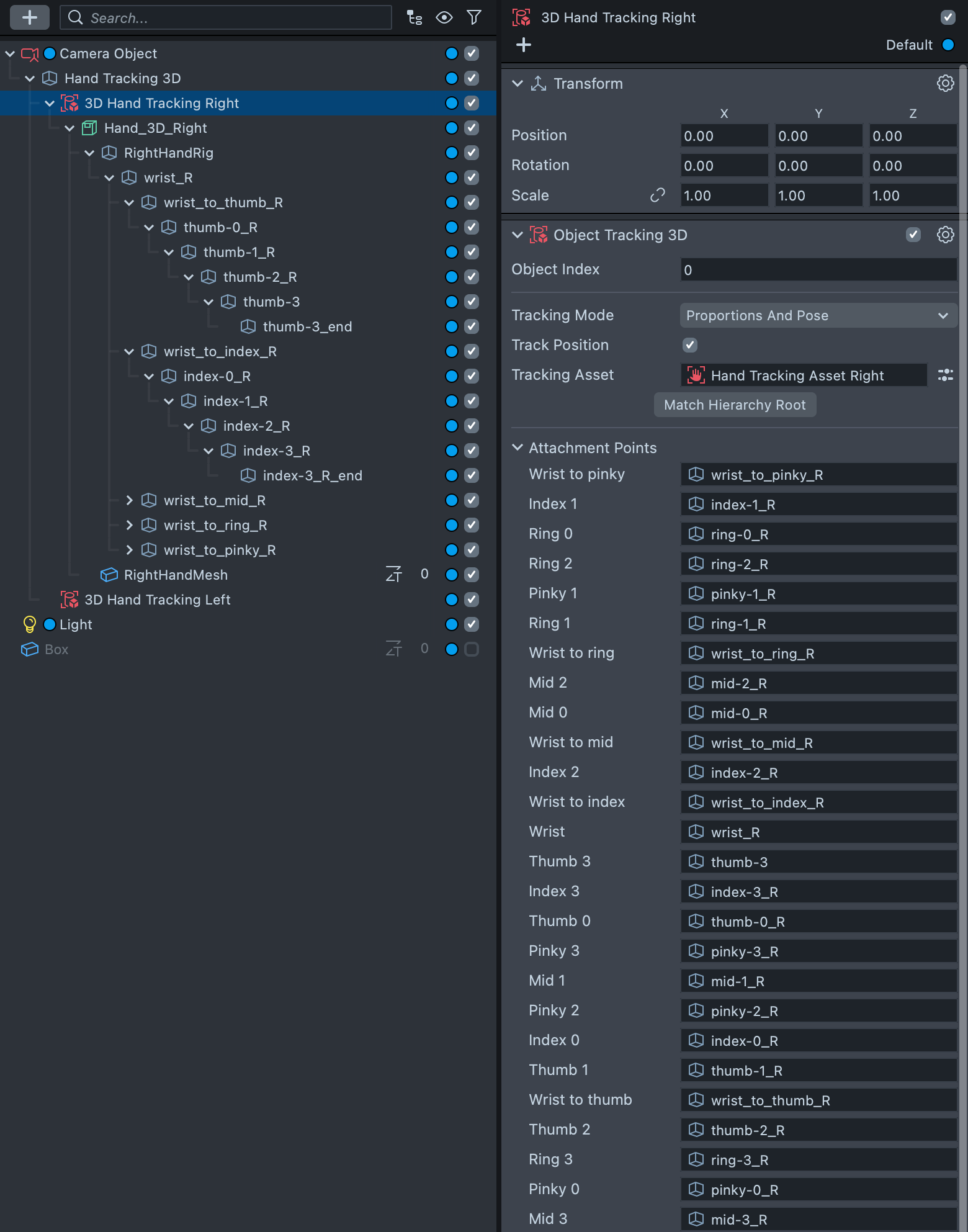
The Hand Tracking hierarchy in the Body Tracking asset uses a more standard hierarchy used in 3D animation. In contrast, the standalone 3D Hand Tracking contains 5 extra bones: wrist-to-thumb, wrist-to-index, wrist-to-mid, wrist-to-ring, wrist-to-pinky. In addition, they use a 0-based naming convention for the remaining 4 bones of each finger, for example, thumb-0, thumb-1, thumb-2, thumb-3.
Hand Tracking 3D tracks the joints of one or more hands in 3D. To add Hand Tracking 3D to your project, in the Scene Hierarchy panel, select + > Tracking > Hand Tracking 3D.
Lens Studio adds a Hand Tracking 3D object with 3D Hand Tracking Left and 3D Hand Tracking Right children, and a 3D Hand Tracking Assets folder with Hand Tracking Asset Left and Hand Tracking Asset Right to the Asset Browser panel. Select an asset to set its Hand Type, the hand it tracks, and its Tracking Scope.
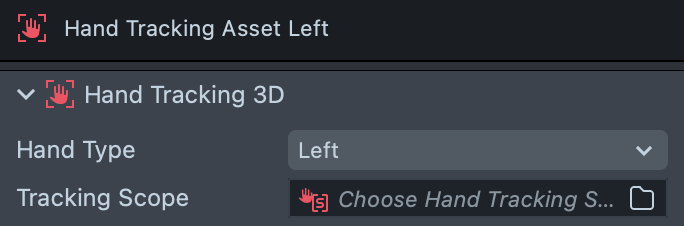
For hand input such as pinch, poke, and targeting, use Interaction Kit Hand Tracking, which reads hands through Object Tracking 3D.
You can have an Object Tracking 3D for each hand you want to track, each referencing its own Hand Tracking Asset. If you only need one, you can delete the other.
Additional joints are provided between the wrist and the different fingers to allow scaling and rotation of "knuckles" joints independently, resulting in a more flexible 3D model that's more accurate to the tracked hand. Without these extra joints all 5 knuckles joints would share the same parent joint (wrist) and thus would share the same parent coordinate system; In other words, they could only be scaled and rotated all at once using single shared scaling and rotation parameters.
Adding 3D Models to the Tracking Component
As with 3D Body Tracking, each 3D Hand Tracking object has a list of Attachment Points. Each point represents a specific joint on the body part. Any object linked in a slot is attached to that specific part of the hand.
Using Match Hierarchy
As with 3D Body Tracking, Match Hierarchy on a 3D Hand Tracking object works if your 3D model has the same
rigged bone structure as the default models. Find the structure of the reference for 3D Hand model in the 3D Hand Reference asset in the Asset Library or in the 3D Hand Tracking example.
Make Sure Models Are Not Using Animations
Some models have built-in animations when you import them to Lens Studio. If so, the built-in animation might overwrite the movement, so your 3D model doesn't follow the tracking position, even if it's assigned in Attachment Points.
To keep the built-in animation from taking over your 3D model's position, disable the Animation Player component on the object.
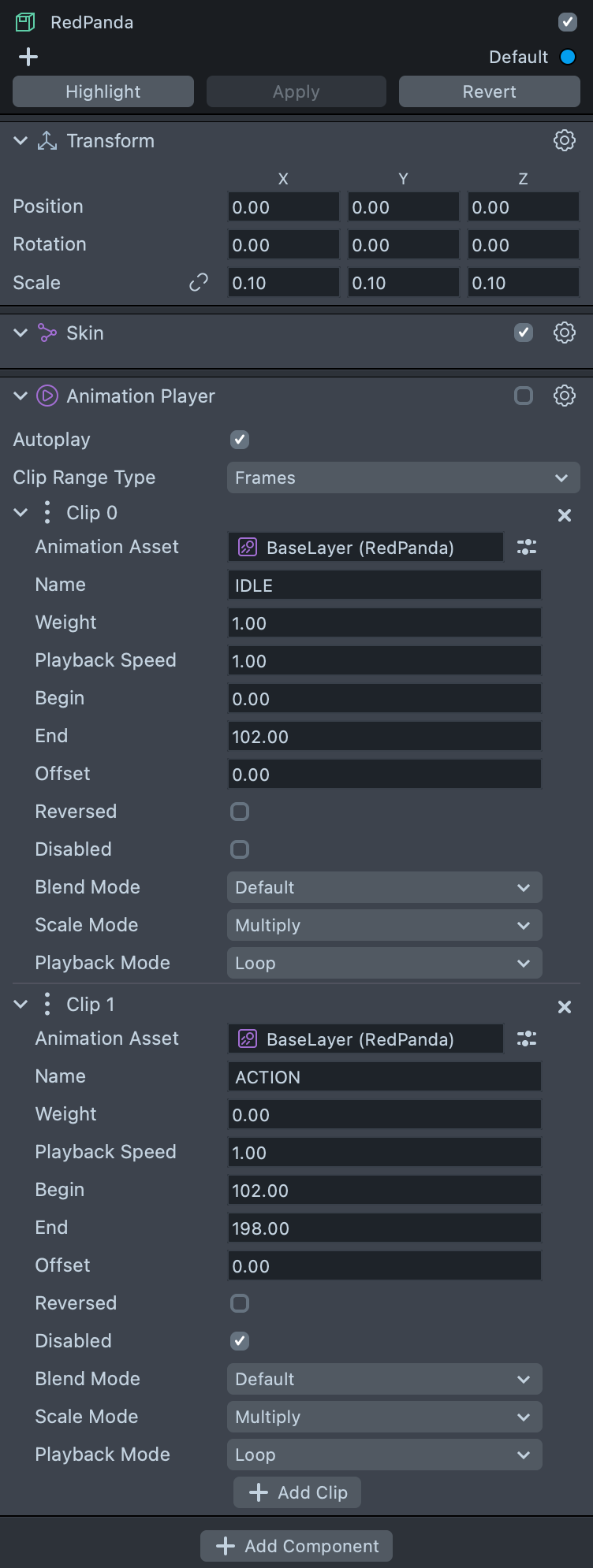
With the Animation Player disabled, no existing animation overwrites your model, and the tracking component controls it instead.