3D Body and Face Tracking
- Snapchat: fully supported
- SPECS: partially supported
- Camera Kit Web: fully supported
- Camera Kit Mobile: fully supported
- SnapchatFully supported
- SPECSPartially supported
- Camera Kit WebFully supported
- Camera Kit MobileFully supported
The 3D Body Tracking and Body Mesh features in Lens Studio let you apply effects to a user's body, while the Head and Face Mesh features track facial elements (like expressions, eye movements, and landmarks) in real-time, enabling face effects. These features support multiple bodies and faces through index properties (faceIndex and bodyIndex).
When you use both features together, you may notice problems. For example, face tracking struggles at a typical body-tracking distance, and the body and face tracking indexes don't always correspond to the same person.
Person Tracking Scope
To solve these issues, assign a Person Tracking Scope to Head and Face Mesh components. It enables consistent tracking of full-body characters, including facial expressions and eye movements, by using face tracking derived from body tracking instead of the default approach, which reduces errors and improves performance.
A Person Tracking Scope is also a convenient way to change bodyIndex or faceIndex on multiple components at once.
Person Tracking Scope Asset
To mix and match face tracking components (Head Binding, Face Mesh, the face expressions API) and body tracking components (Object Tracking 3D, Body Mesh):
-
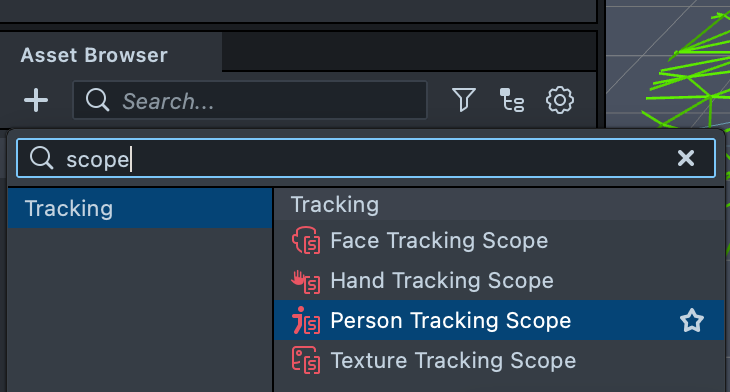
In the Asset Browser panel, select +, then select Person Tracking Scope under Tracking.
-
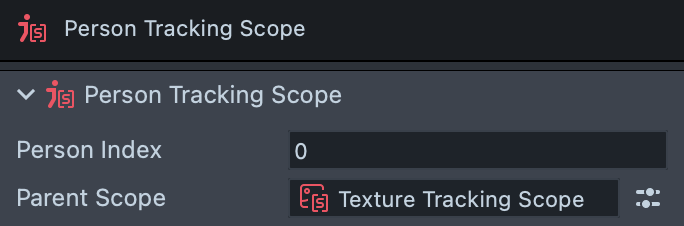
Select the new asset and set Person Index in the Inspector panel as needed.
-
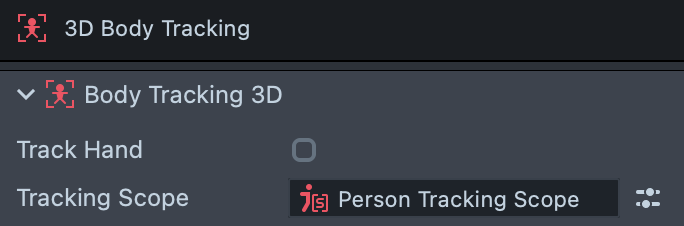
With a Face Mesh, Body Mesh or Body Tracking 3D in your scene, select its Face Mesh, Full Body Mesh or 3D Body Tracking asset in the Asset Browser panel. For face tracking components (such as Head Binding, Face Inset, Face Mask, Face Retouch, Eye Color and Face Stretch), select the scene object with the component in the Scene Hierarchy panel.
-
Set its Tracking Scope field to the Person Tracking Scope asset of your choice.
Scripting Example
You can also set tracking scopes in a script:
// @input Asset.PersonTrackingScope personTrackingScope

// set scope on face mesh visual
// @input Component.RenderMeshVisual faceMeshVisual
script.faceMeshVisual.mesh.control.trackingScope = script.personTrackingScope;

// set scope on head binding (the Head component)
// @input Component.Head head
script.head.trackingScope = script.personTrackingScope;

// set scope on body tracking 3d
// @input Component.ObjectTracking3D bodyTracking3D
script.bodyTracking3D.trackingAsset.trackingScope = script.personTrackingScope;

// set scope on body mesh or upper body mesh
// @input Component.RenderMeshVisual bodyMeshVisual
script.bodyMeshVisual.mesh.control.trackingScope = script.personTrackingScope;

// Set the tracking scope for the Face Inset component
// @input Component.FaceInsetVisual faceInset
script.faceInset.trackingScope = script.personTrackingScope;

// Set the tracking scope for the Face Mask component
// @input Component.FaceMaskVisual faceMask
script.faceMask.trackingScope = script.personTrackingScope;

// Set the tracking scope for the Face Retouch component
// @input Component.RetouchVisual faceRetouch
script.faceRetouch.trackingScope = script.personTrackingScope;

// Set the tracking scope for the Eye Color component
// @input Component.EyeColorVisual eyeColor
script.eyeColor.trackingScope = script.personTrackingScope;

// Set the tracking scope for the Face Stretch component
// @input Component.FaceStretchVisual faceStretch
script.faceStretch.trackingScope = script.personTrackingScope;
Texture Tracking Scope
You can also track a body on a custom texture, such as a Media Picker texture, a Dual Camera texture or a video embedded in the Lens.
To do so:
-
In the Asset Browser panel, select + > Texture Tracking Scope. Set its Texture to the texture of your choice.
-
Set Parent Scope on a Person Tracking Scope asset to the Texture Tracking Scope asset.
-
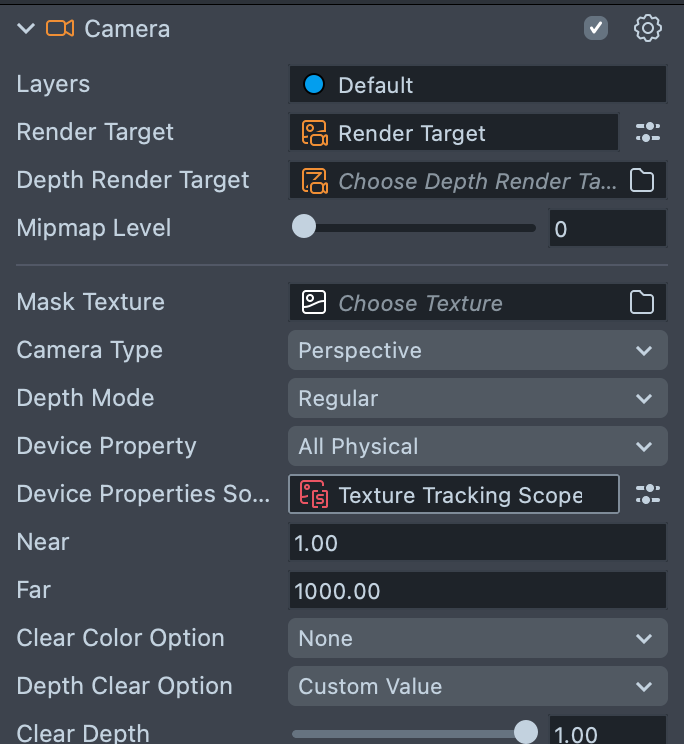
Select the camera used for body tracking. On its Camera component, set Device Properties Source to the Texture Tracking Scope asset, so the camera uses that texture's properties.
-
For details of the scene setup for tracking a body on a custom texture, see Tracking Scope.