Bitmoji 3D
- Snapchat: fully supported
- SPECS: partially supported
- Camera Kit Web: partially supported
- Camera Kit Mobile: partially supported
- SnapchatFully supported
- SPECSPartially supported
- No friend graph: getAllFriends, getBestFriends, getUsersInCurrentContext and getMyAIUser aren't available, so friends' and My AI's Bitmoji can't load
- See Bitmoji 3D for SPECS
- Camera Kit WebPartially supported
- Camera Kit MobilePartially supported
You can add a 3D Bitmoji avatar representing the user as well as their friends. You can drive these avatars using custom 3D animation that you made or from animation services like Mixamo or Bitmoji Animation plugin.
Bitmoji avatars cannot be used for commercial purposes, including Ads.
Bitmoji 3D component
For a no-code approach, you may use a Bitmoji 3D component. This component allows you to download the 3D avatar of a Snapchat user, their friends, or their AI assistant, and add it to the scene.
Video above is using Bitmoji 3D component v 6.0 and LS 5.0.14 and newer.
Installing the component
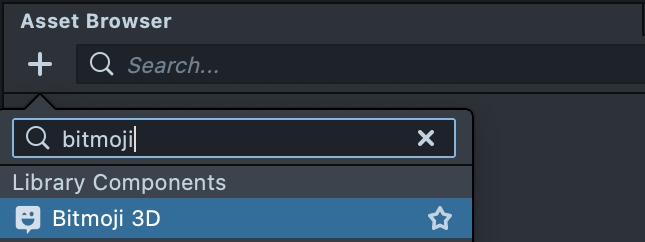
The Bitmoji 3D custom component is available in LS Asset Library. Press install or Update and then add it to the Asset Browser panel by clicking the + button and looking up Bitmoji 3D.
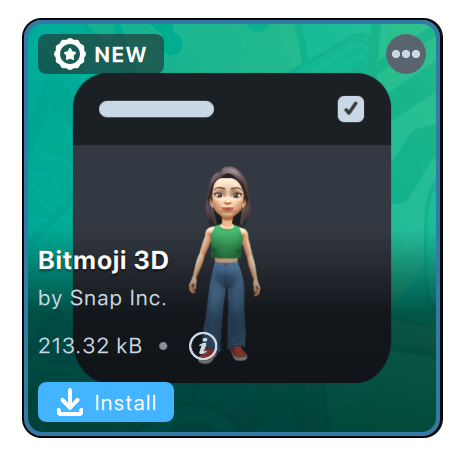
Adding the Bitmoji to the scene
Drag and drop Bitmoji 3D asset to the Scene Hierarchy panel to quickly create a new scene object with components attached.
Or add Bitmoji 3D component to scene object that you want the Bitmoji to be instantiated under (version 6.0). For animated bitmoji add it to the scene object that has Animation Player on it.
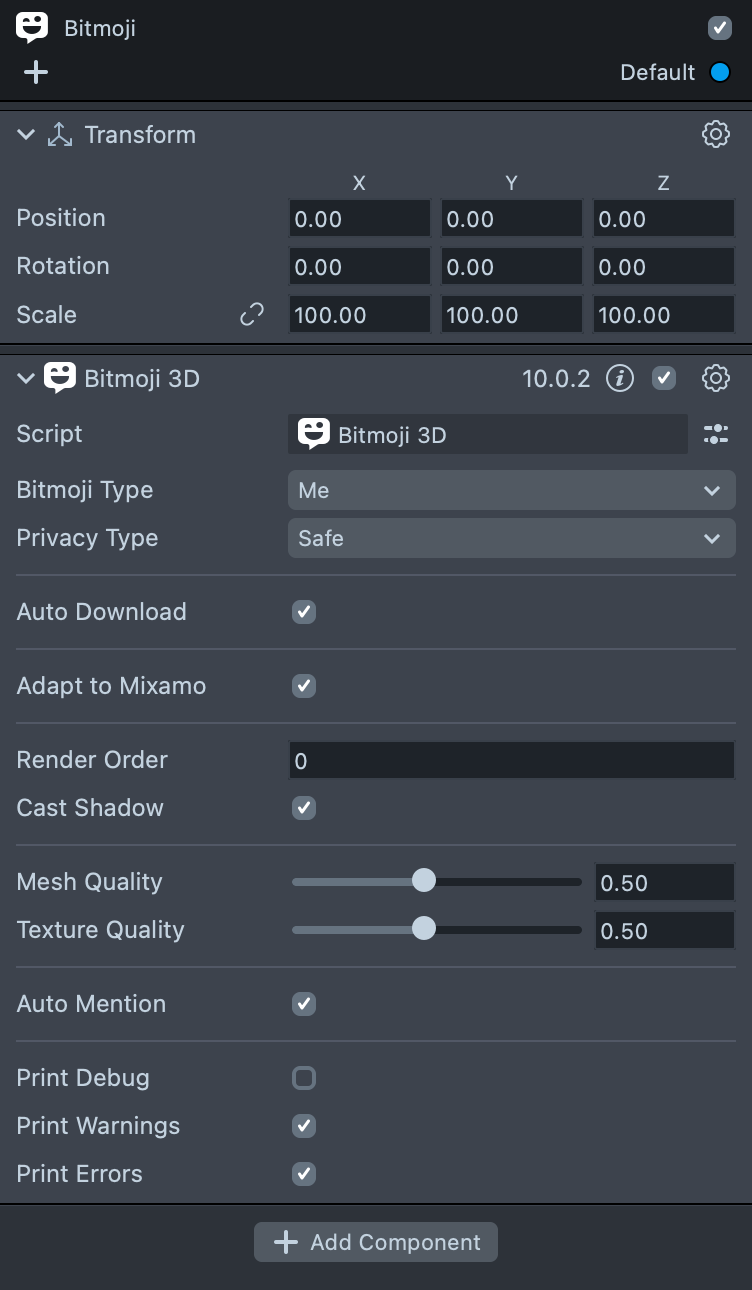
The scale of the parent object is important, as it will affect how big the Bitmoji is in the scene. If you can't see your Bitmoji, try setting your parent's object scale to at 100, 100, 100.
Learn more about navigating the Scene panel in the panels guide.
Component Inputs
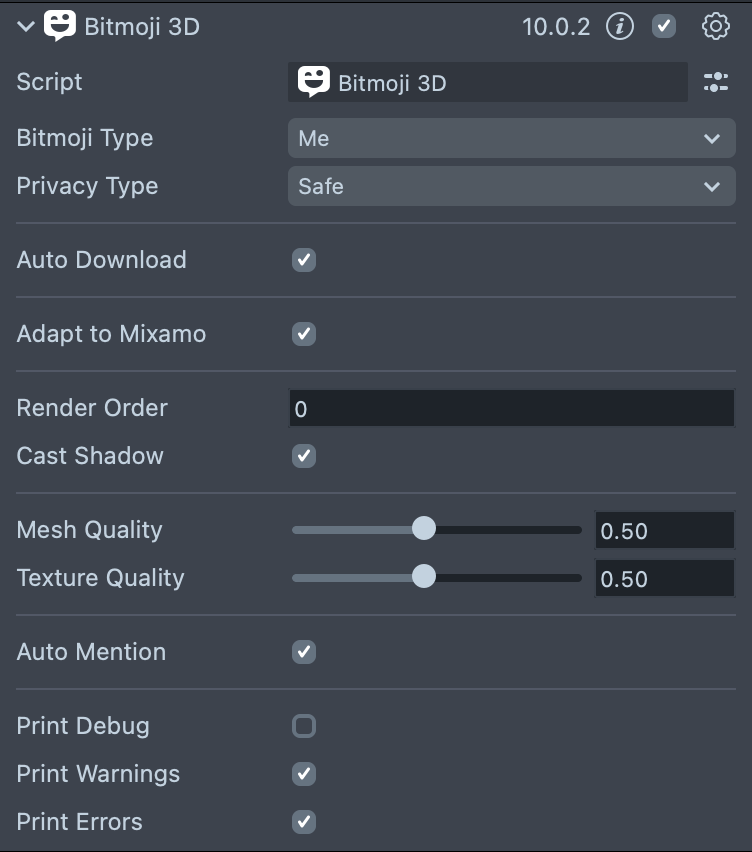
The Bitmoji 3D component (version 10.0.2) has these inputs:
- Bitmoji Type: whose avatar to load.
- None: loads nothing until a script calls the component's download methods.
- Me: the current user's avatar.
- My Friend: the avatar of the user's friend, if one exists. Optionally works with a Friends Component.
- Friends Component: plugs in a Friends Component that builds a custom list of friends, for example sorted by last talked to or by duration of friendship.
- Friend Index: the friend's index in the list.
- My AI: the avatar of My AI.
- Privacy Type: Safe loads users when the Lens uses restrictive features such as Remote Service Module, Leaderboards, or Cloud Storage; None allows more capabilities, such as friend sorting and auto-mention.
- Auto Download: whether the Bitmoji downloads when the Lens starts. Turn it off to download from a script instead.
- Adapt to Mixamo: configures the Bitmoji rig to work with Mixamo-generated animation.
- Render Order: the render order of the avatar's meshes.
- Cast Shadow: enables shadows. Add a Shadow Plane to the scene and enable shadows on your light source.
- Mesh Quality and Texture Quality: the avatar's mesh and texture quality, from 0.1 (lowest) to 1 (highest).
- Auto Mention: mentions the avatar's owner in a recorded Snap.
- Material Holder and Loader Prefab: the material applied to the loaded avatar, and a prefab shown while it downloads.
When building for SPECS, set Bitmoji Type to Me. My Friend and My AI have no avatar data on SPECS.
Each next Bitmoji asset significantly affects Lens load time and overall performance. Please be mindful of this and keep the total Bitmoji 3D amount considerate.
In Lens Studio 5.0.10 and later you can inspect the Preview to see what happens under the hood: where your 3D model is parented and positioned, and which components are attached to the scene objects. Use Inspect in the center of the Preview panel's header.

Getting the Bitmoji through Script
Alternatively, you can also gather Bitmoji data of a specific user, download assets and instantiate them in the scene through scripting.
const remoteMediaModule = require('LensStudio:RemoteMediaModule');
const bitmojiModule = require('LensStudio:BitmojiModule');

//@input Asset.Material material

/**
 * get Bitmoji 3D resource
 * @param {Bitmoji3DOptions} options
 * @returns {Promise<Bitmoji3DResource>}
 */
function getBitmojiResource(options) {
  return new Promise(function (resolve, reject) {
    bitmojiModule.requestBitmoji3DResourceWithOptions(options, resolve);
  });
}

/**
 * download Bitmoji 3D assets
 * @param {Bitmoji3DResource} bitmoji3DResource
 * @returns {Promise<ObjectPrefab>}
 */
function download3DAsset(bitmoji3DResource) {
  return new Promise(function (resolve, reject) {
    remoteMediaModule.loadResourceAsGltfAsset(
      bitmoji3DResource,
      resolve,
      reject
    );
  });
}

/**
 * get current user
 * @returns {SnapchatUser}
 */
async function getMyUser() {
  return new Promise(function (resolve, reject) {
    global.userContextSystem.getCurrentUser(function (user) {
      resolve(user);
    });
  });
}

// Create the options for our current user.
const user = await getMyUser();
var options = Bitmoji3DOptions.create();
options.user = user;

// Get the Bitmoji resource, based on the options.
const bitmoji3DResource = await getBitmojiResource(options);
const gltfAsset = await download3DAsset(bitmoji3DResource);

// Instantiate the 3D model
let settings = GltfSettings.create();
settings.convertMetersToCentimeters = true;
let avatar = gltfAsset.tryInstantiateWithSetting(
  script.getSceneObject(),
  script.material,
  settings
);
You will see a placeholder bitmoji while testing in Lens Studio for all users.
Getting Bitmoji of your friends
In the example above, notice that we use the userContextSystem in order to get the current user's Bitmoji. You can get your friends Bitmoji information through the Friends API, or Friends Custom Component as well.