Interactions
Direct and indirect interaction, pinch and poke, when to use grab and long press, choosing inputs, anchoring UI, targeting modes, and how big and far apart to make interactables on SPECS.
Primary interactions
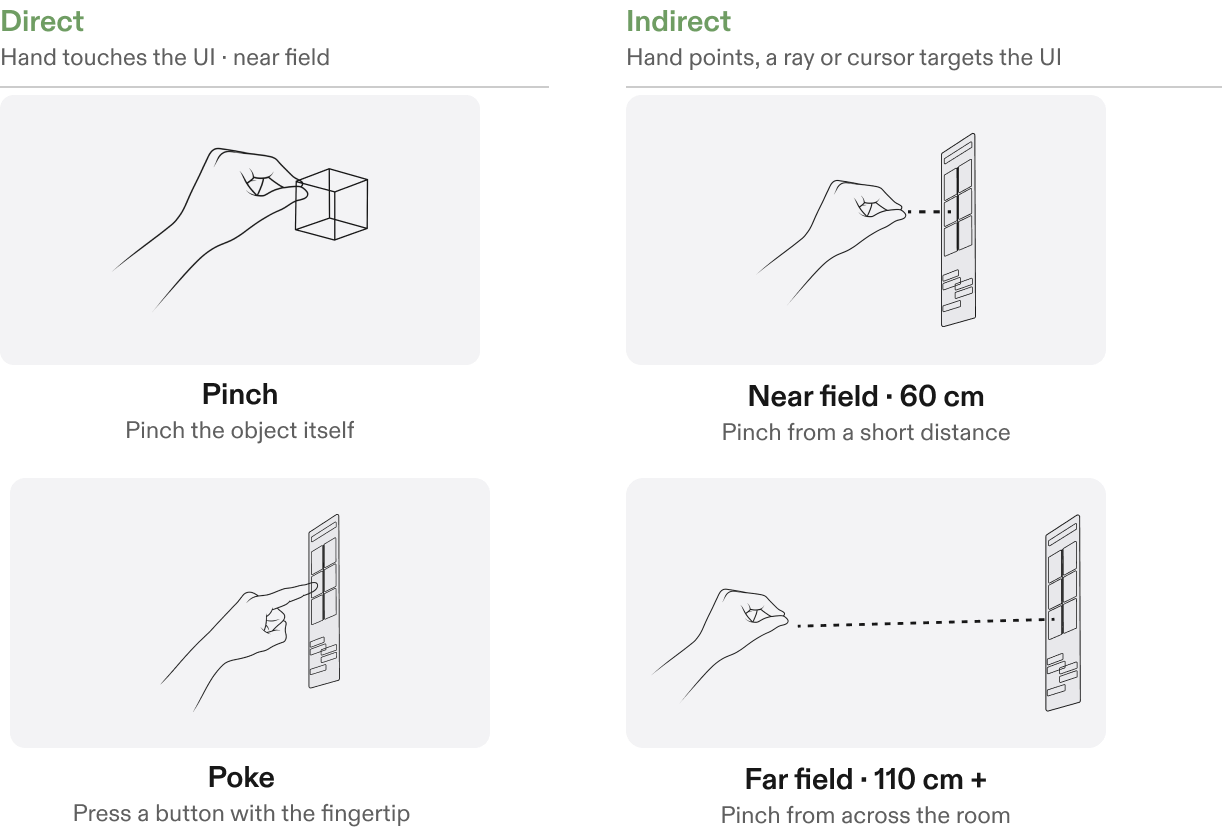
Interactions come in two types:
- Direct: the hand touches the UI. Works within arm's reach.
- Indirect: the hand points, and a ray or cursor targets the UI.
The primary interactions are pinch (direct and indirect) and poke (direct).
| Type | Interaction | What the user does |
|---|---|---|
| Direct | Pinch | Pinches the object itself |
| Direct | Poke | Presses a button with the fingertip |
| Indirect | Pinch, near field · 60 cm | Pinches from a short distance |
| Indirect | Pinch, far field · 110 cm and beyond | Pinches from across the room |
Additional interactions
These interactions are less common and need to be taught to users explicitly. Show them with images or animations rather than text.
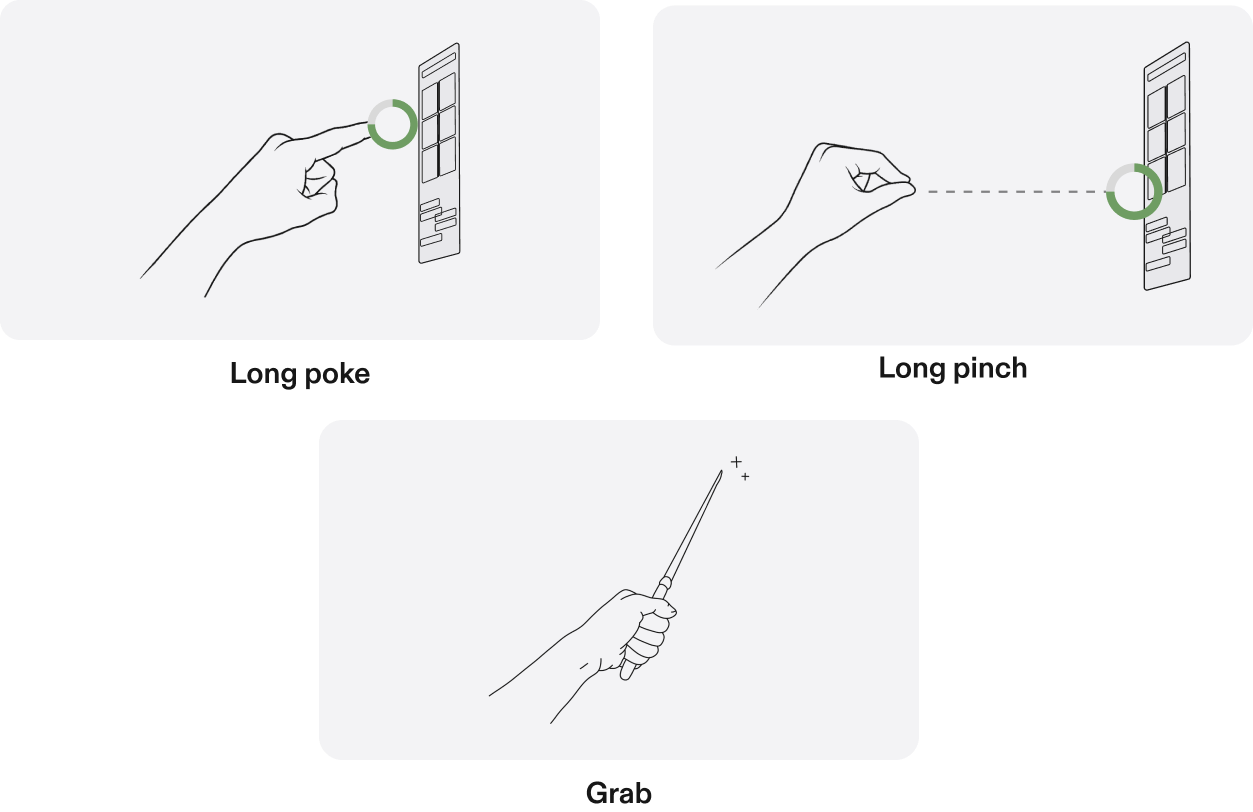
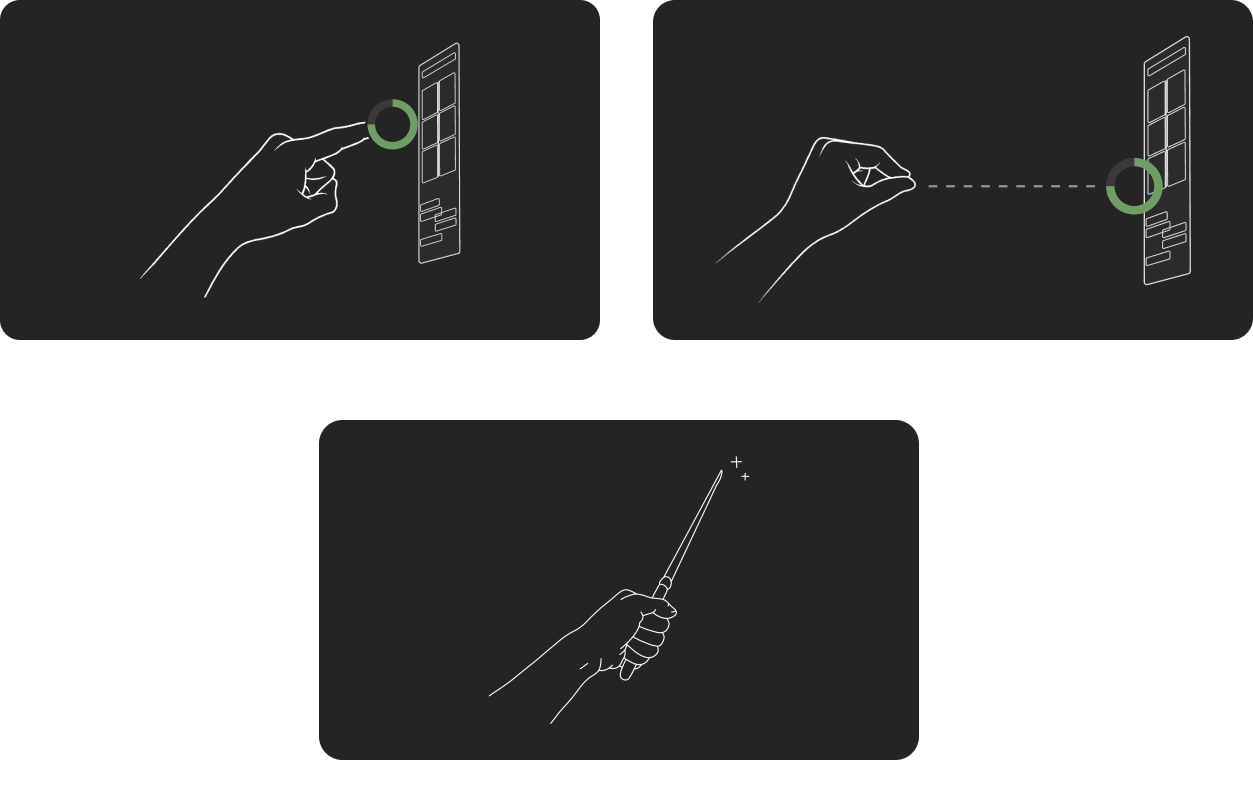
- Long pinch or poke: triggered by the Interaction Kit from a poke and hold or an indirect pinch and hold. Use it for contextual UI actions, such as delete or duplicate.
- Grab: use it sparingly, only when it's semantically meaningful, such as holding the handle of a sword or hammer, lifting something heavy by a rope, and so on.
Choosing the right inputs
Choose the input that feels most natural for the task and the environment.
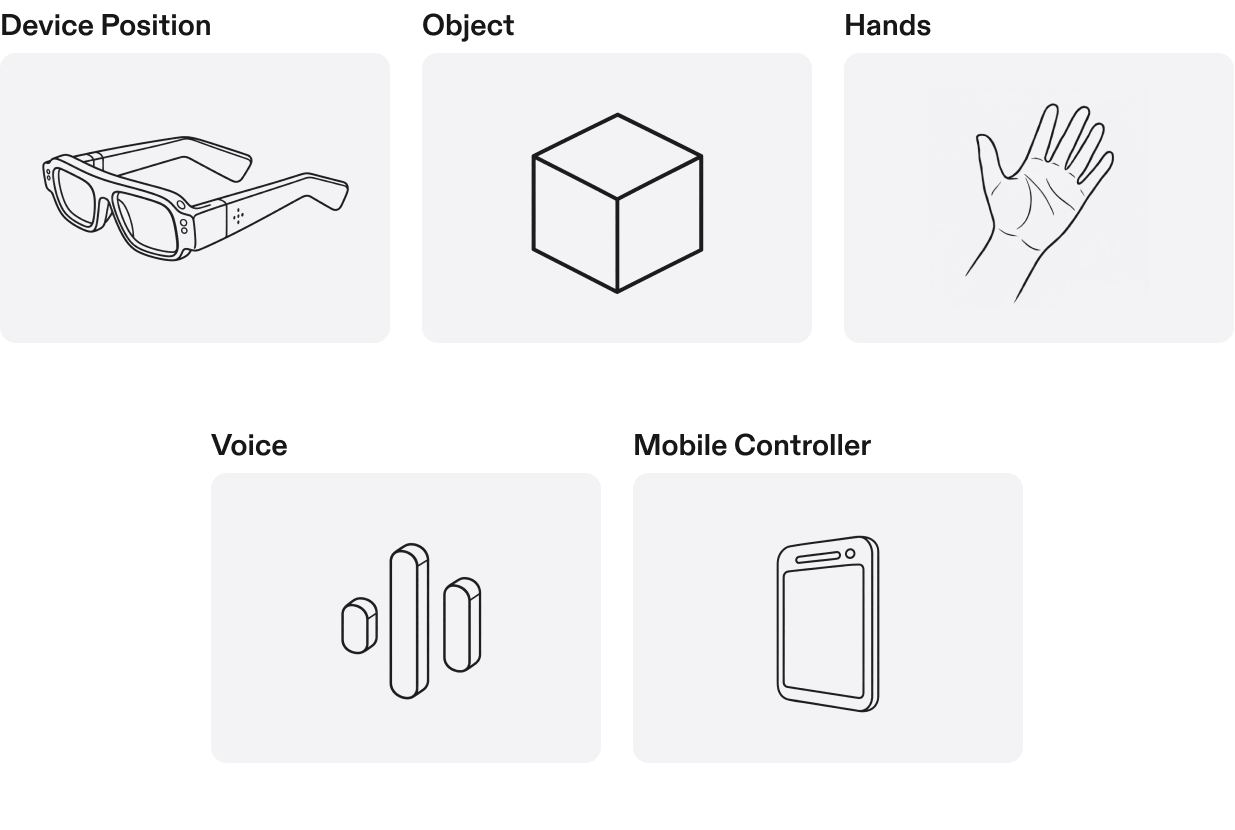
- Device position: head movement and spatial navigation.
- Objects: interact using tracked physical objects.
- Hands: select, grab, and manipulate virtual content.
- Voice: hands-free commands and search.
- Mobile controller: precise controls and complex interactions.
Use the simplest input that meets the user's needs.
Types of UI anchoring
UI can be anchored in different ways, depending on how users need to access and interact with content.
- Hand anchoring: quick controls accessed through the hand menu, keeping the main experience unobstructed.
- Body anchoring: UI positioned relative to the user's body, keeping controls accessible as they move.
- Spatial anchoring: UI anchored to a fixed position in the real world, so users can move around it and interact with it naturally.
Choose an anchoring method based on how often users need the UI, and whether it should move with them or stay in place.
Hand Anchoring
Body Anchoring
Spatial Anchoring
Targeting modes
Choose which inputs an interactable responds to:
| Mode | Use for | Example |
|---|---|---|
| All modes (poke, direct pinch, indirect pinch) | The default whenever possible | Menus |
| Direct and indirect pinch | Volumetric or 3D objects, where poke doesn't apply | Objects the user needs to move |
| Direct only | Objects that should only be picked up close, not from a distance | A paper airplane |
| Poke only | Buttons anchored in space that you want the user to walk up to | A physical-style button on a wall |
| Indirect only (indirect pinch) | Only when the user is guaranteed not to get within arm's length | A HUD, content on the horizon |
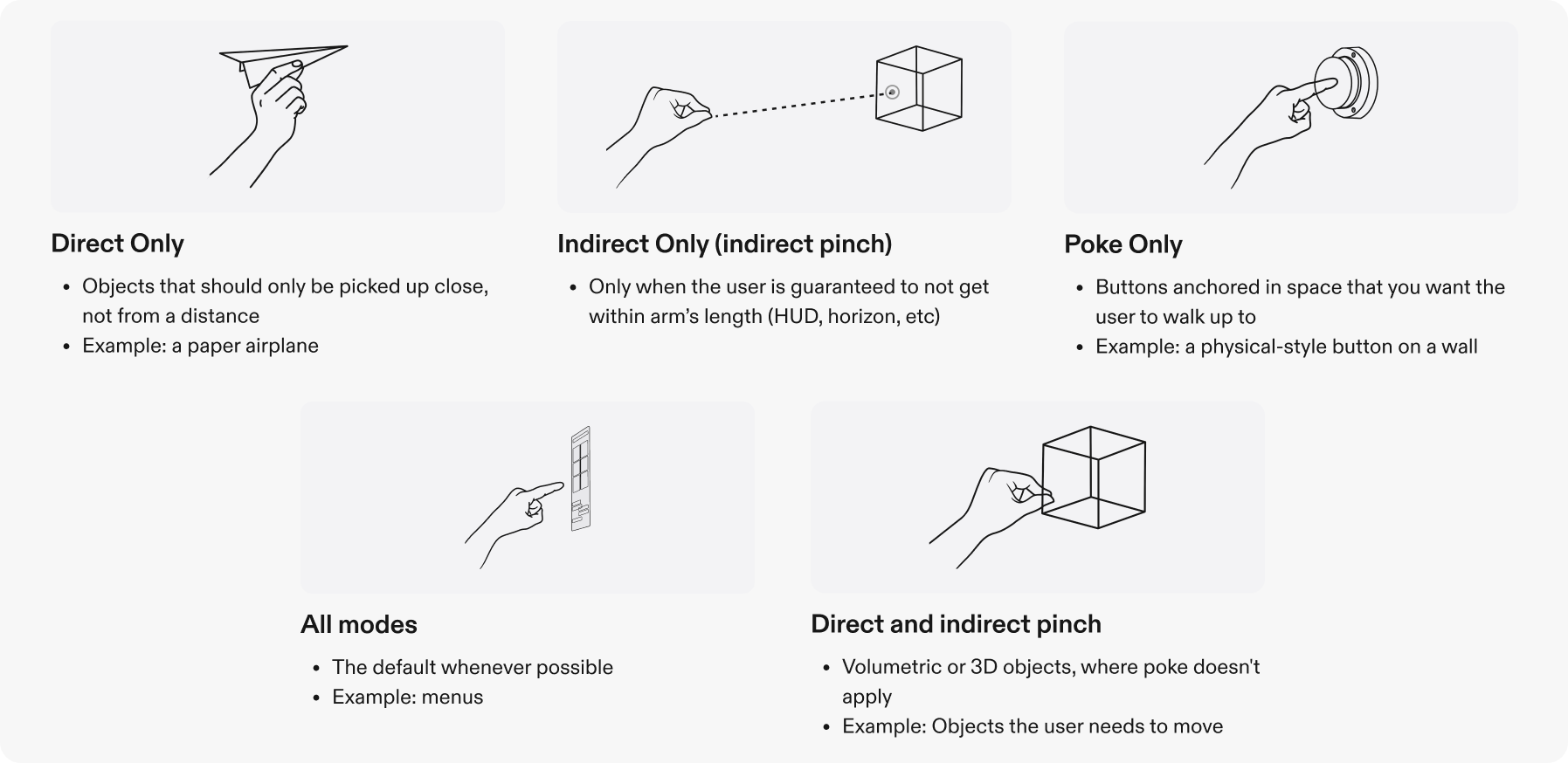
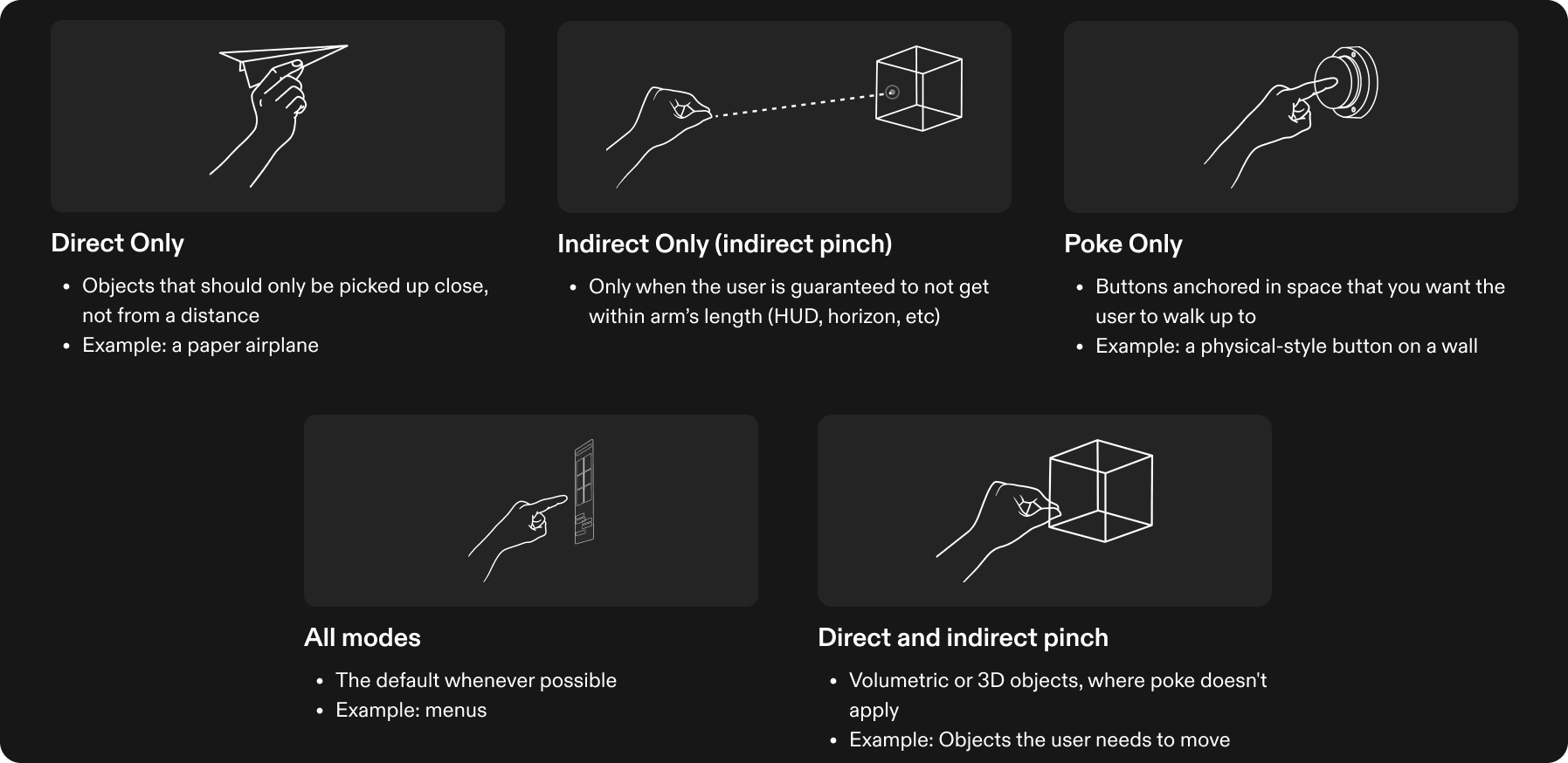
How to pick the right interaction
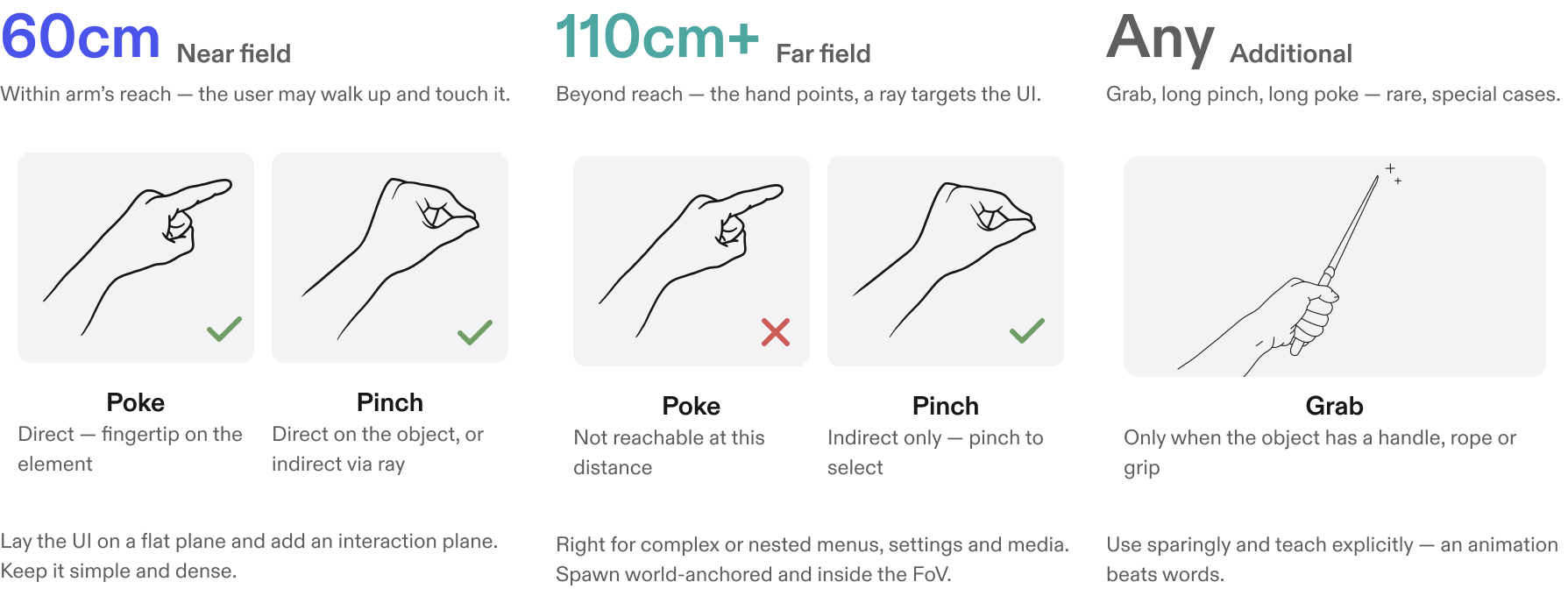
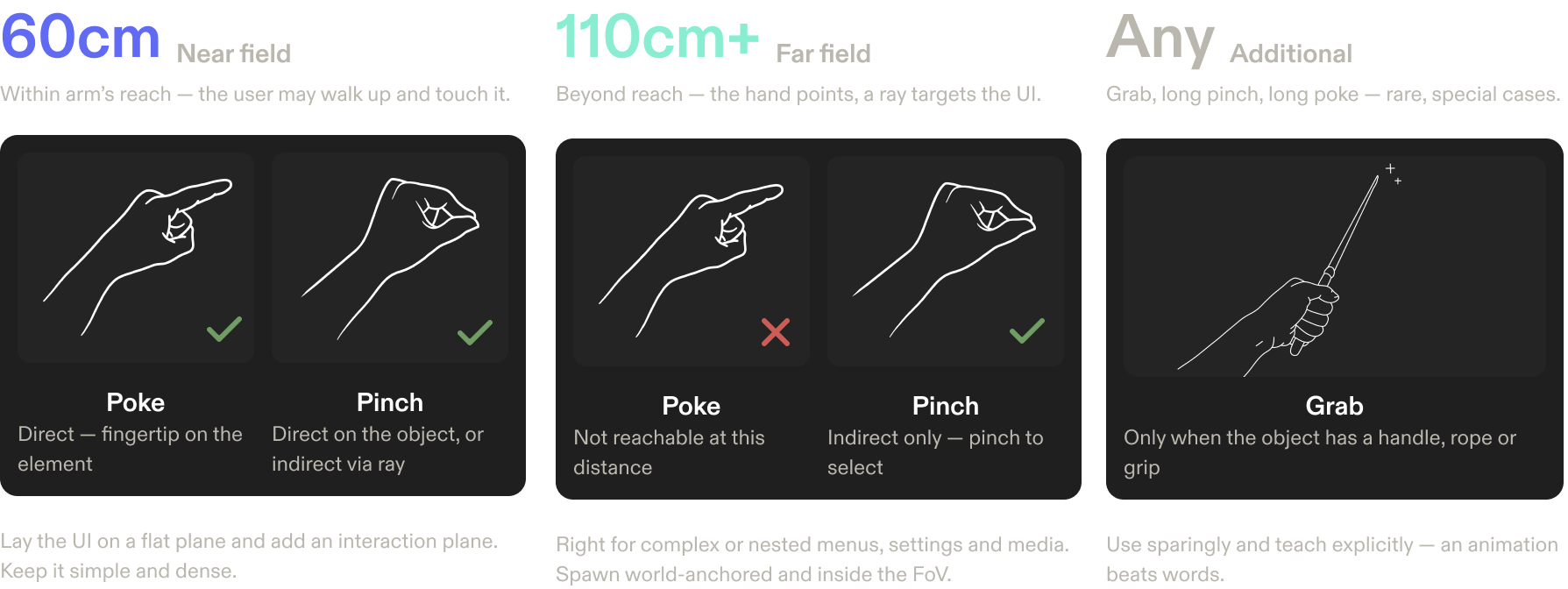
Distance decides the input. UI within reach must work with both poke and pinch; UI out of reach is pinch only.
Near field · 60 cm
Within arm's reach: the user may walk up and touch the UI.
- Poke: direct, with the fingertip on the element.
- Pinch: direct on the object, or indirect via a ray.
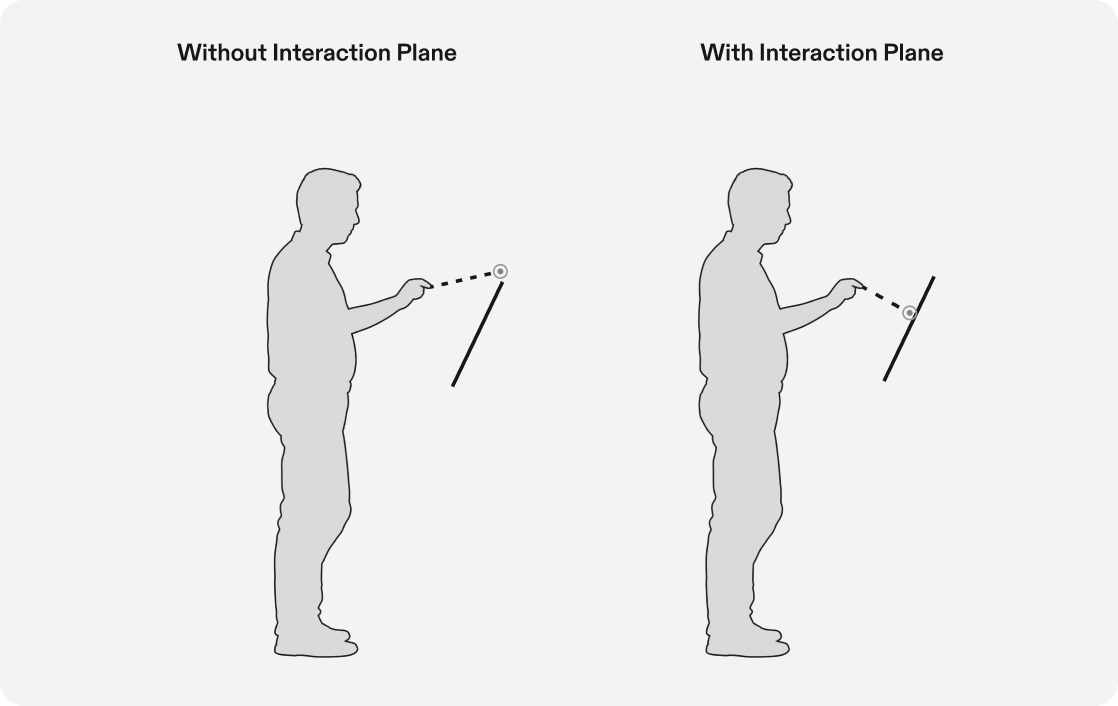
Lay the UI on a flat plane and add an interaction plane.
Far field · 110 cm and beyond
Beyond reach: the hand points, and a ray targets the UI.
- Poke: not reachable at this distance.
- Pinch: indirect only. The user pinches to select.
Right for complex or nested menus, settings, and media. Spawn the UI world-anchored and inside the FoV.
Additional · any distance
Grab, long pinch, and long poke are for rare, special cases.
- Grab: only when the object has a handle, rope, or grip.
Use these sparingly and teach them explicitly: an animation beats words.
Target sizes and spacing
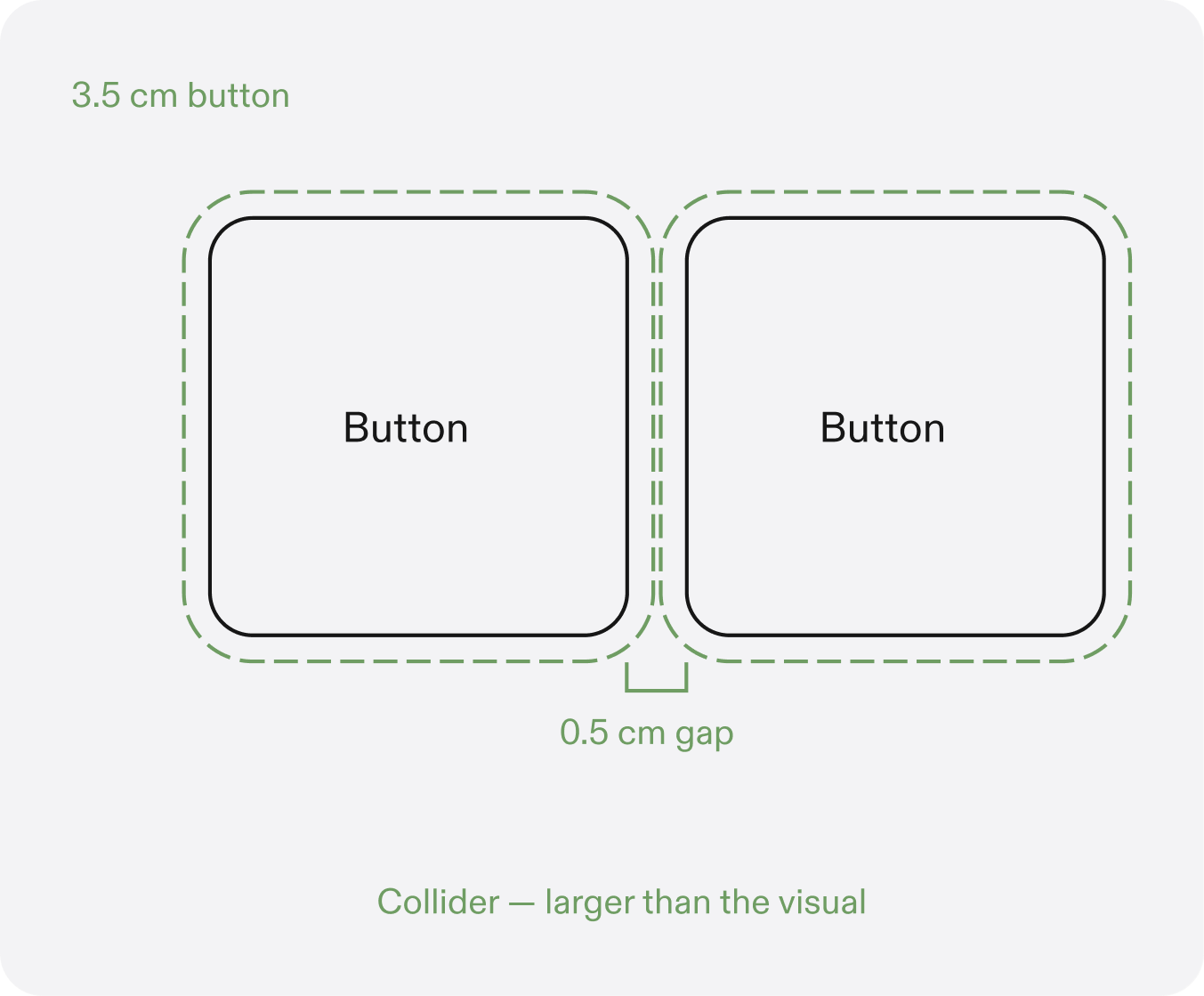
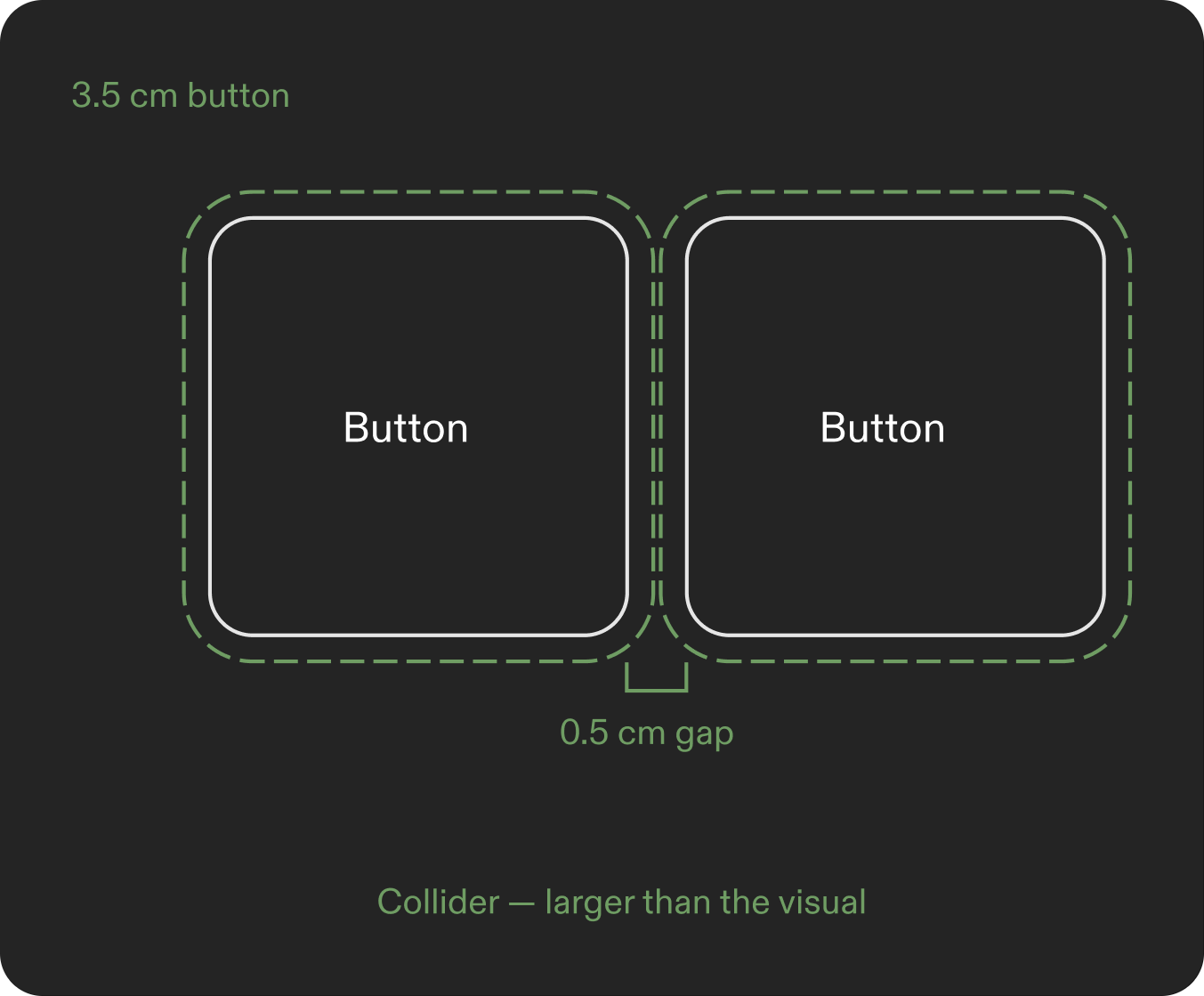
Make interactables as big as possible, keep them apart, and give every one a collider larger than what the user sees.
| Rule | Value | Notes |
|---|---|---|
| Minimum target size | 3.5 cm | At 110 cm. At 60 cm the minimum is 2.5 cm. Never go below it; larger is always better. |
| Minimum gap between targets | 0.5 cm | At 110 cm. Prevents mis-triggers when two interactables sit side by side. |
| Collider larger than the visual | 10–15% larger | Highly recommended for every interactable, at any distance: the interactive area extends past the visible element, so near misses still register. |
Ergonomics
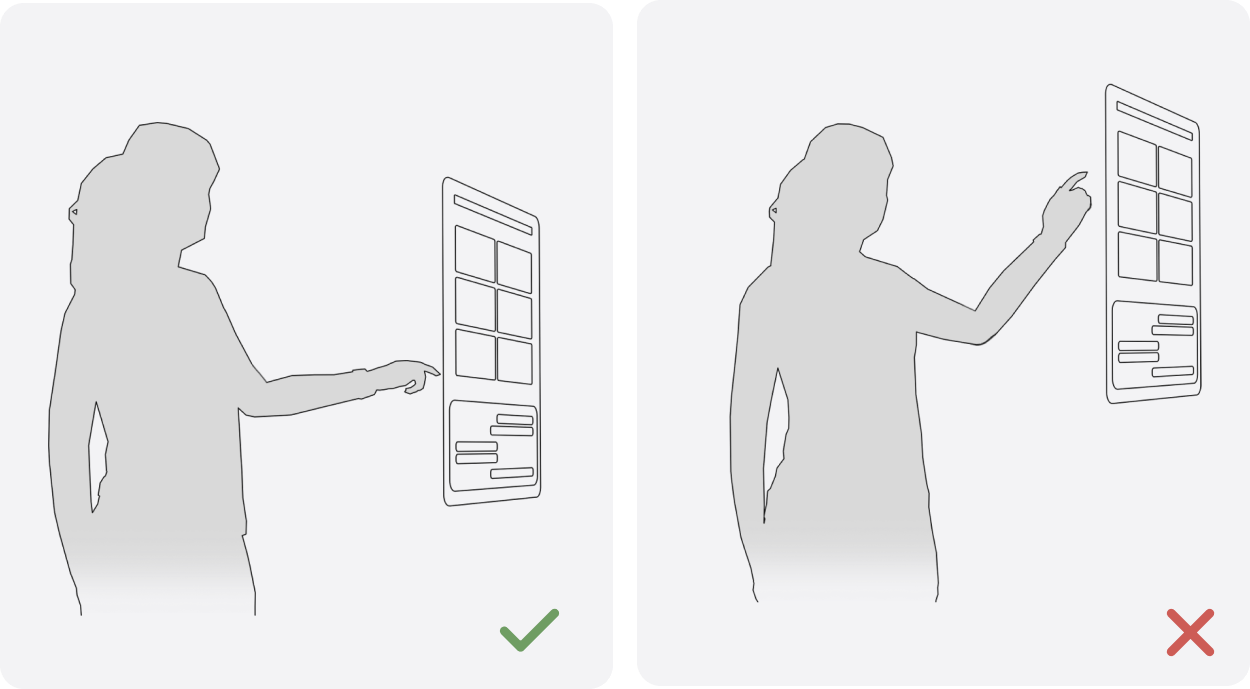
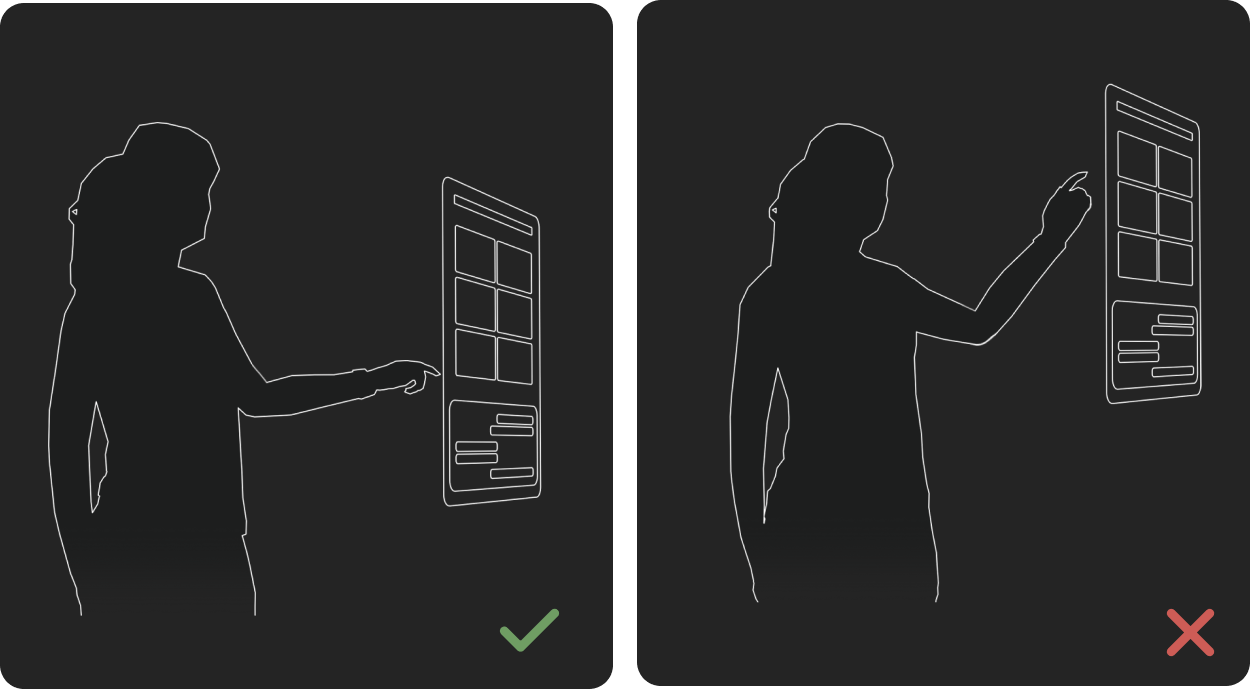
- Natural hand movement: hand gestures in AR should feel natural and ergonomically comfortable.
- Prioritize lower targeting zones: minimize the strain and fatigue of prolonged upward reaching and targeting.
- Mind the gaps: don't place interactive elements too close to each other, which makes them difficult to target accurately. Keep to the minimum gap.
Near-field interaction plane
An interaction plane is an Interaction Kit component that improves near-field interaction on flat surfaces. It provides:
- Ray redirection for ergonomic targeting
- Fingertip visuals that indicate proximity
- Stabilized targeting for pinch and poke
Use an interaction plane whenever both of these are true:
- The UI is arranged on a flat plane.
- The user could plausibly walk up and poke the UI.
UI Kit's Frame can turn one on for you with Enable Interaction Plane.