Hand Menu
When to give a SPECS Lens a hand menu, how big to make it, and how to place it using the Control Center as the reference.
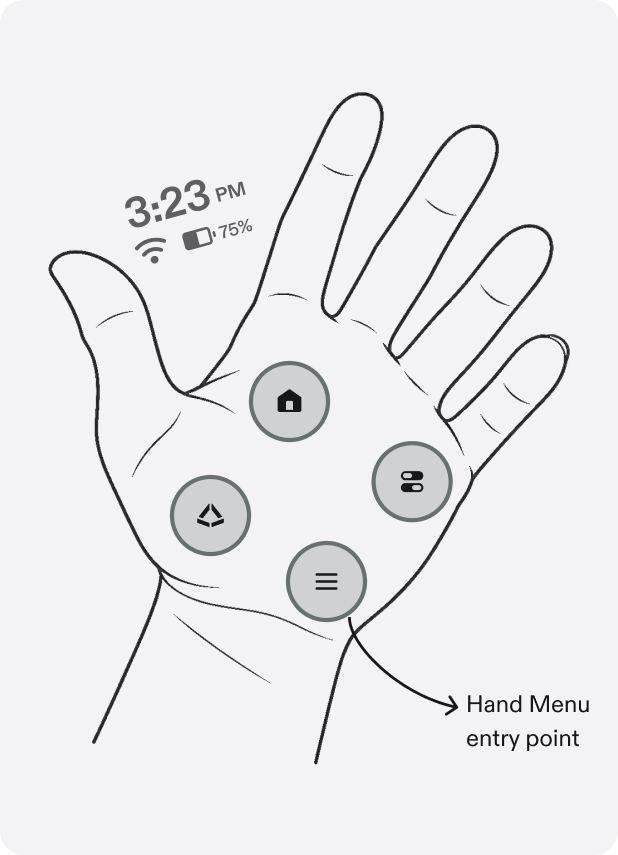
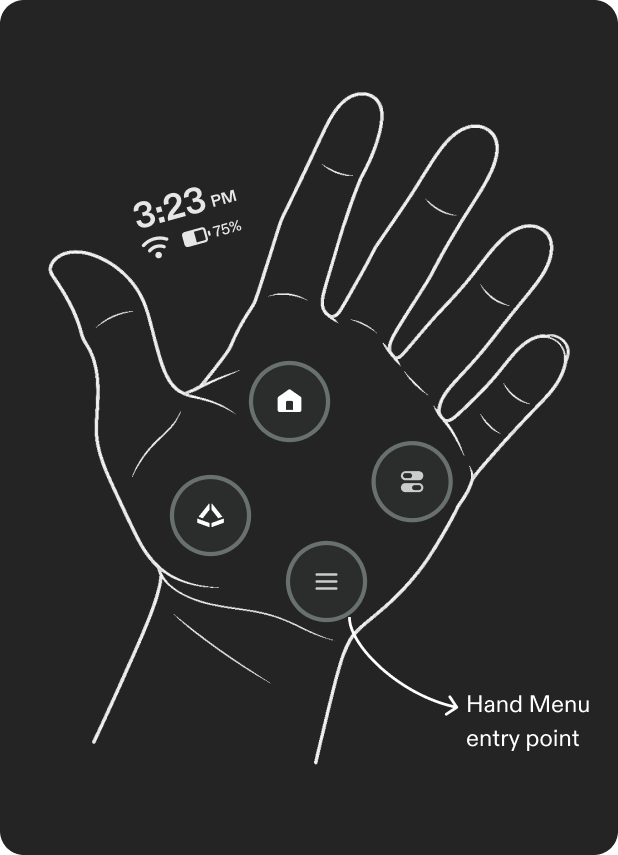
Developers can't customize the palm UI, but it provides an in-Lens Menu button that you can use as the entry point for your own hand menu.
When to use a hand menu
Use a hand menu when the user needs quick controls while their hands are busy with the world, and a floating panel would get in the way.
Skip it when the Lens has few or no controls, or when the controls live in a far-field panel the user is already looking at.
Size it to what is behind it
The main panel is the primary surface; the hand menu is secondary.
- A large hand menu blocks the user's view of the environment and feels heavy.
- Start with one row of controls. Grow it only when the Lens is control-heavy, and never let it cover the content the Lens is about.
Placement
- Spawn the menu from the Menu button, then world-anchor it inside the FoV. Don't attach it to the hand.
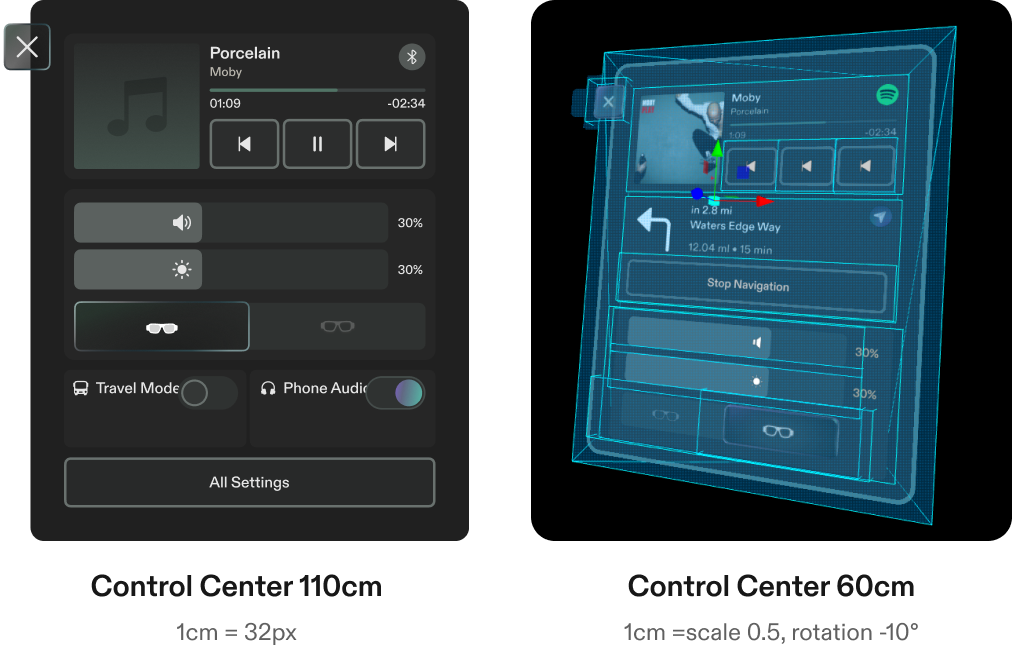
- Use the system Control Center as the reference for position and proportions.
- Always add an interaction plane so both poke and pinch work.
Dimensions
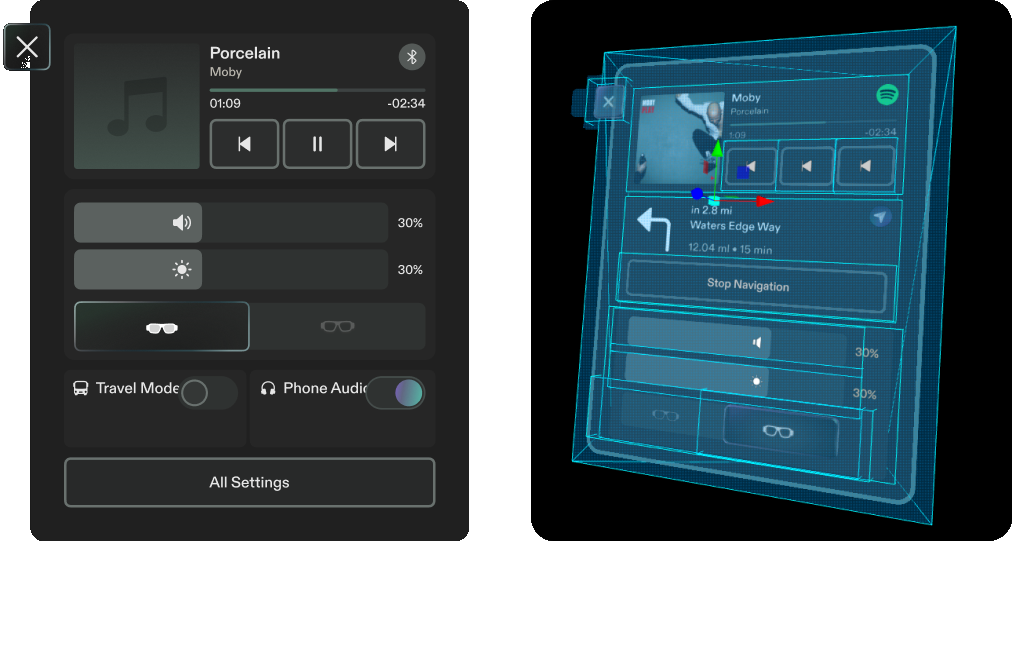
Use the Control Center as the base for button size, gaps, and padding. The Control Center is designed for 110 cm, where 1 cm = 32 px.
A hand menu sits close to the user. Scale the 110 cm layout by 0.5 and tilt it −10° so it faces the eyes. The comfortable distance is around 50–60 cm.
Keep buttons at least 3.5 cm with gaps of at least 0.5 cm. See Target sizes and spacing.