Storage
Create a Snap Cloud storage bucket and download images, 3D models, and audio from it into a SPECS Lens.
- Snapchat: not supported
- SPECS: fully supported
- Camera Kit Web: not supported
- Camera Kit Mobile: not supported
- SnapchatNot supported
- SPECSFully supported
- Camera Kit WebNot supported
- Camera Kit MobileNot supported
Snap Cloud Storage keeps files in buckets: images, videos, documents, and any other file type. The files can be served through a global CDN with locations in over 285 cities, to reduce latency. This guide creates a public bucket, uploads files to it, and downloads them into a Lens as a texture, a 3D model, and an audio track.
Snap Cloud Storage also replaces Remote Assets for SPECS Lenses: see Migrating a Lens to SPECS 27.
For the full reference, see the Snap Cloud documentation site.
Before you start
- Finish Get Started: a Snap Cloud project, its
SupabaseProjectasset, and theSnapCloudStarterscript from Create the client and sign in. - Open your project's dashboard: see Open the Snap Cloud dashboard.
Create a public storage bucket in the Snap Cloud dashboard
-
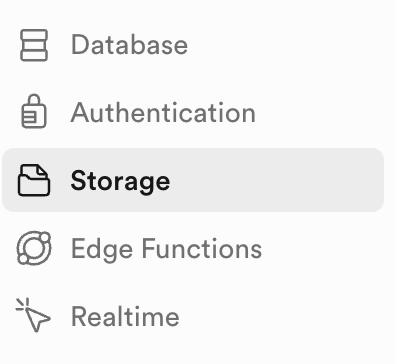
In the dashboard's left sidebar, select Storage.
-
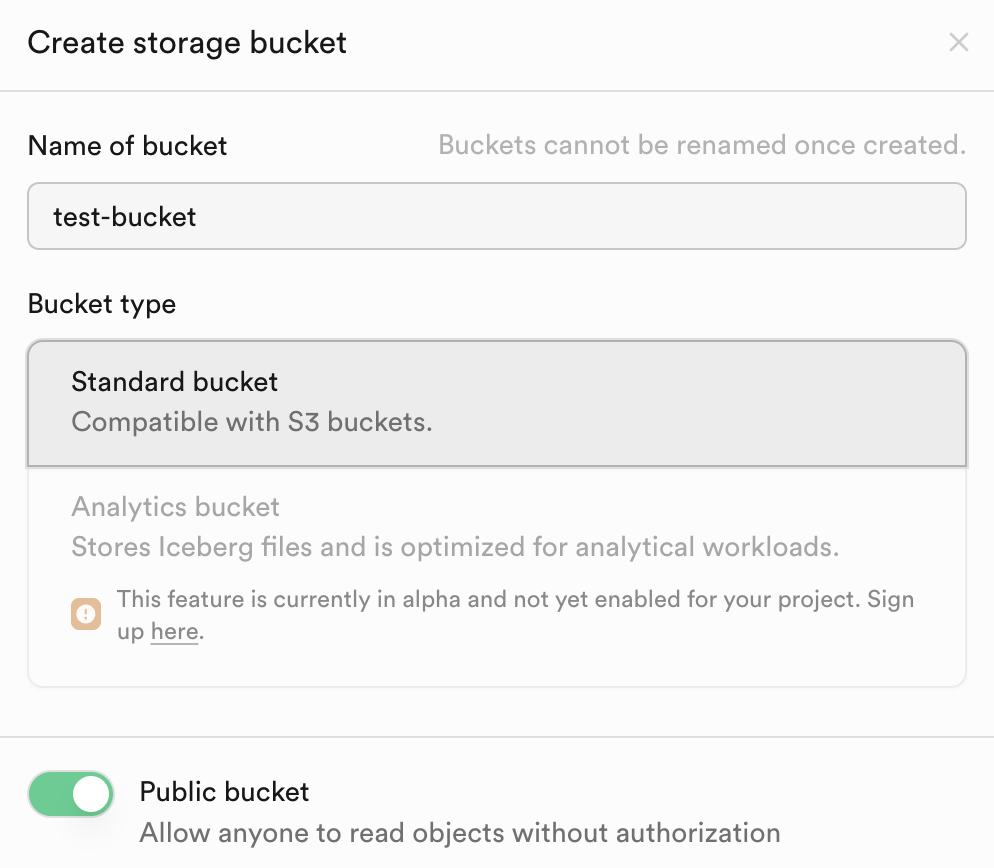
Select New Bucket.
-
Name the bucket
test-bucket. -
Turn on Public bucket.
-
Select Create.
-
Drag a PNG image into the bucket's upload area, and name it
image.png.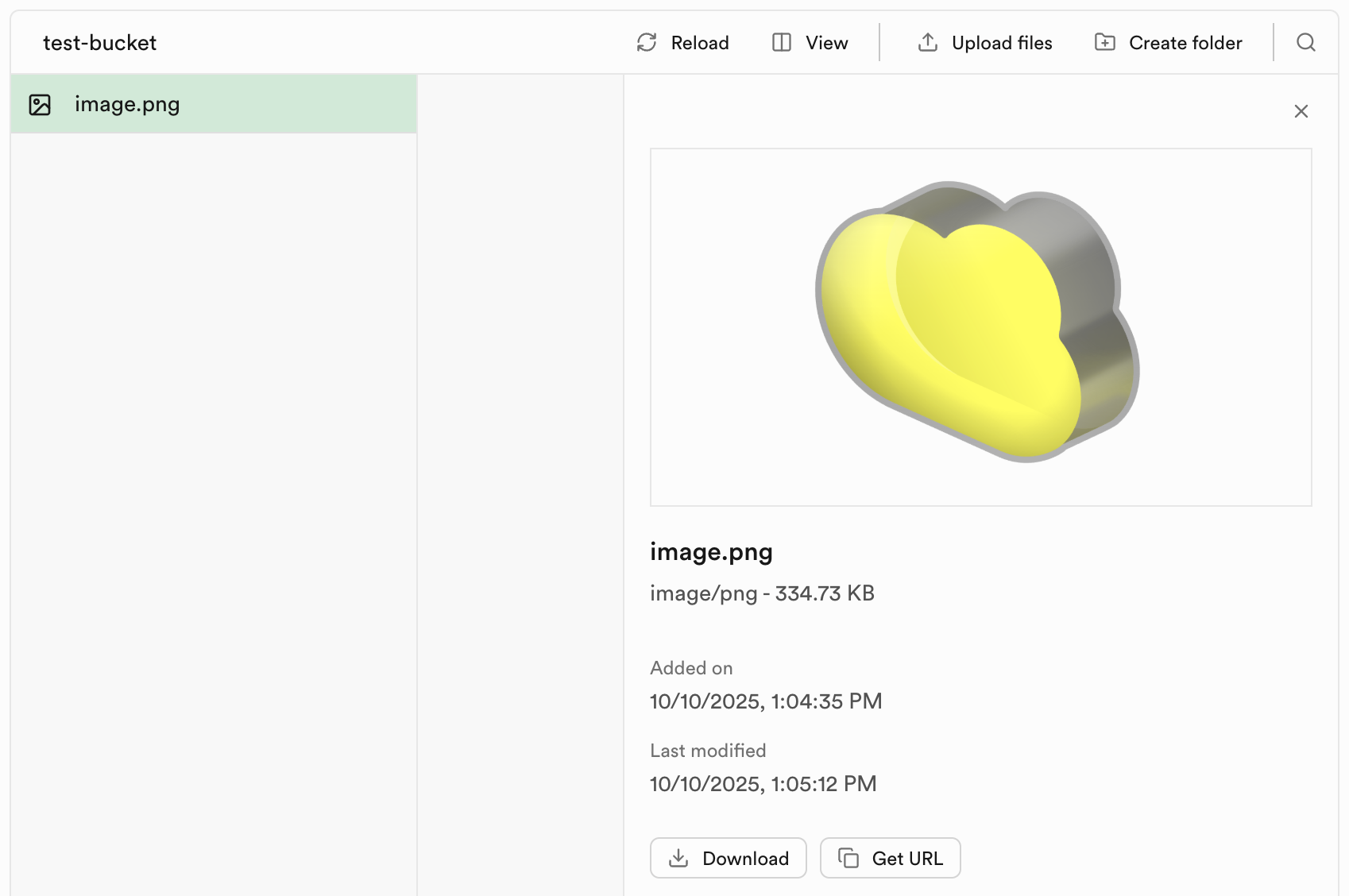
Add storage policies to the bucket
Before a Lens can access a bucket's contents through the client, the bucket needs security policies.
- In the Storage sidebar, under Configuration, select Policies.
- Find your bucket and select New policy.
- Select Get started quickly.
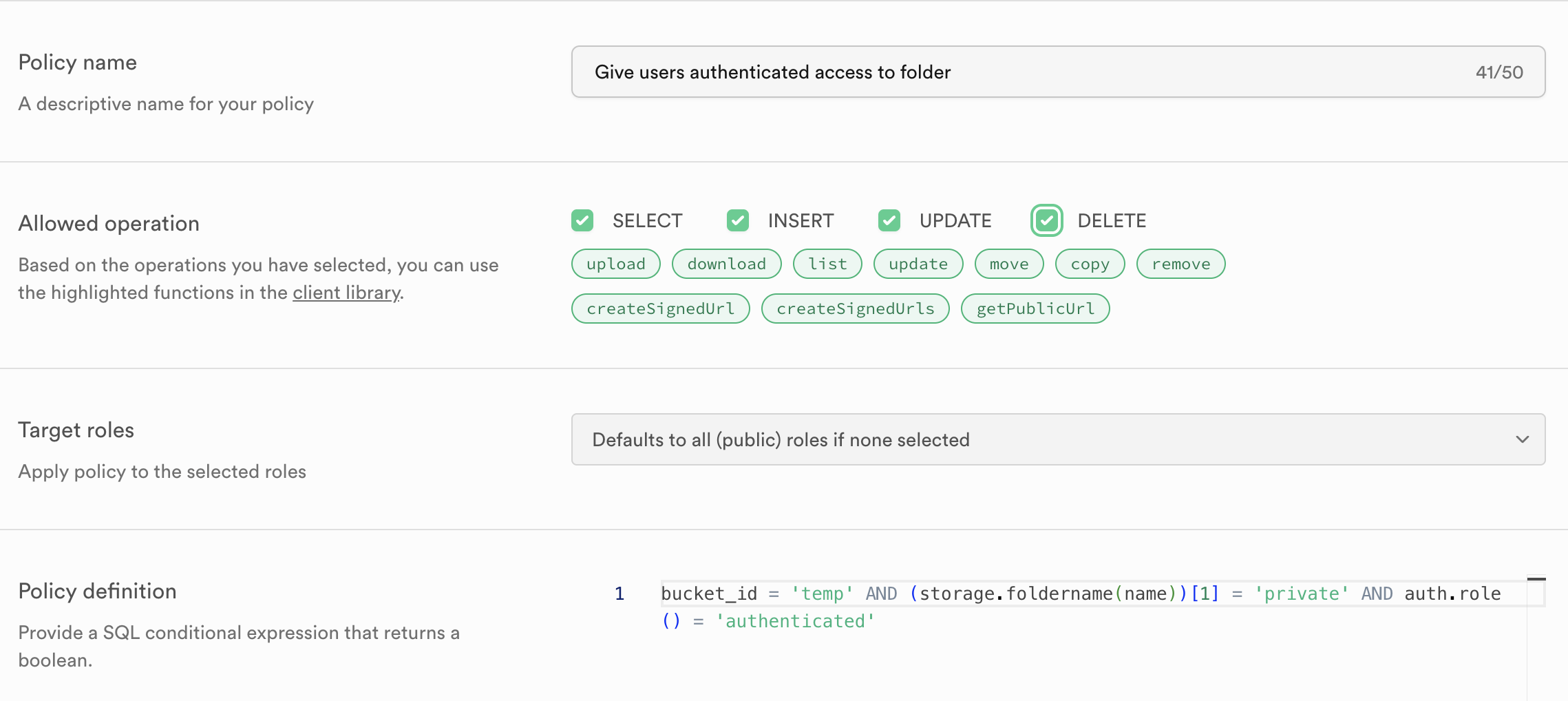
- Select the template Give users access to a folder only to authenticated users.
- Select all of
SELECT,INSERT,UPDATE, andDELETE. - Select Review, then Save Policy.
For more on policies, see the Storage section of the Snap Cloud documentation site.
Organize bucket files in folders by type
Folders by file type keep a bucket organized and its paths predictable. For example:
images/glasses.jpgmodels/rabbit.glbaudio/chill.mp3
The Snap Cloud Examples package ships these three files for its Storage example; see Basic Setup.
Download images, 3D models, and audio into a Lens
Each file type needs something in the scene to receive it:
- Images: an Image component to display the texture. The script downloads the file as a Blob, turns it into a DynamicResource, and RemoteMediaModule loads that as a Texture.
- 3D models: a basic PBR material to apply to the model, and an empty scene object to parent it to. Use the
.glbformat: it loads faster than.gltfand needs no separate texture or.binfiles in the bucket. To test, upload this rabbit model (the link downloads a.glbfile fromgltftests.s3.us-west-2.amazonaws.com). - Audio: a scene object with an AudioComponent to play the sound. The file loads as an AudioTrackAsset and is set on the component.
The script loads models and audio from the files' public URLs with InternetModule, and lists the bucket's files first. Add these members to the SnapCloudStarter script from Get Started, replacing its empty onSignedIn(). They use the starter's client and delay members. Then assign the inputs in the Inspector.
- TypeScript
- JavaScript
  @input
  @hint('Storage bucket name')
  bucketName: string = 'test-bucket';

  @input
  @hint("Image file path in bucket (for example 'images/glasses.jpg')")
  imageFilePath: string = 'image.png';

  @input
  @hint("3D model file path in bucket (for example 'models/rabbit.glb')")
  modelFilePath: string = 'model.glb';

  @input
  @hint("Audio file path in bucket (for example 'audio/chill.mp3')")
  audioFilePath: string = 'audio.mp3';

  @input
  @hint('Image component to display downloaded texture')
  image: Image;

  @input
  @allowUndefined
  @hint('Optional: Parent scene object for the loaded 3D model')
  modelParent: SceneObject;

  @input
  @allowUndefined
  @hint('Optional: Scene object with AudioComponent to play loaded audio')
  audioPlayer: SceneObject;

  @input
  @allowUndefined
  @hint('Optional: Material to use for 3D models')
  defaultMaterial: Material;

  private remoteMediaModule: RemoteMediaModule = require('LensStudio:RemoteMediaModule');
  private internetModule: InternetModule = require('LensStudio:InternetModule');

  async onSignedIn() {
    this.log('Running storage examples...');
    await this.runStorageExamples();
  }

  async runStorageExamples() {
    this.log('--- STORAGE EXAMPLES START ---');

    await this.testListFiles();

    await this.delay(500);
    await this.testDownloadImage();

    if (this.modelParent && this.modelFilePath) {
      await this.delay(500);
      await this.testDownload3DModel();
    }

    if (this.audioPlayer && this.audioFilePath) {
      await this.delay(500);
      await this.testDownloadAudio();
    }

    this.log('--- STORAGE EXAMPLES COMPLETE ---');
  }

  async testListFiles() {
    this.log('Listing files in bucket: ' + this.bucketName);

    const { data, error } = await this.client.storage
      .from(this.bucketName)
      .list('', {
        limit: 10,
        offset: 0,
      });

    if (error) {
      this.log('List files failed: ' + JSON.stringify(error));
      return;
    }

    if (data && data.length > 0) {
      this.log('Found ' + data.length + ' files:');
      data.forEach((file, index) => {
        this.log(
          '  ' +
            (index + 1) +
            '. ' +
            file.name +
            ' (' +
            file.metadata.size +
            ' bytes)'
        );
      });
    } else {
      this.log('No files found in bucket');
    }
  }

  async testDownloadImage() {
    this.log('Downloading image: ' + this.imageFilePath);
    this.log('From bucket: ' + this.bucketName);

    const { data, error } = await this.client.storage
      .from(this.bucketName)
      .download(this.imageFilePath);

    if (error) {
      this.log('Download failed: ' + JSON.stringify(error));
      return;
    }

    if (data) {
      this.log('Download successful');
      this.log('File size: ' + data.size + ' bytes');
      this.log('File type: ' + data.type);

      await this.convertBlobToTexture(data);
    } else {
      this.log('Download failed: No data returned');
    }
  }

  async testDownload3DModel() {
    this.log('Downloading 3D model: ' + this.modelFilePath);
    this.log('From bucket: ' + this.bucketName);

    const publicUrl = this.client.storage
      .from(this.bucketName)
      .getPublicUrl(this.modelFilePath);

    if (!publicUrl || !publicUrl.data || !publicUrl.data.publicUrl) {
      this.log('Failed to get public URL for model');
      return;
    }

    const modelUrl = publicUrl.data.publicUrl;
    this.log('Model URL: ' + modelUrl);

    try {
      const resource = this.internetModule.makeResourceFromUrl(modelUrl);

      if (!resource) {
        this.log('Failed to create resource from URL');
        return;
      }

      this.remoteMediaModule.loadResourceAsGltfAsset(
        resource,
        (gltfAsset) => {
          this.log('GLTF asset loaded successfully');

          const gltfSettings = GltfSettings.create();
          gltfSettings.convertMetersToCentimeters = true;

          gltfAsset.tryInstantiateAsync(
            this.sceneObject,
            this.defaultMaterial,
            (sceneObj) => {
              this.log('GLTF model instantiated successfully');
              this.finalizeModelInstantiation(sceneObj);
            },
            (error) => {
              this.log('Error instantiating GLTF: ' + error);
            },
            (progress) => {
              if (progress === 0 || progress === 1) {
                this.log(
                  'Model load progress: ' + Math.round(progress * 100) + '%'
                );
              }
            },
            gltfSettings
          );
        },
        (error) => {
          this.log('Error loading GLTF asset: ' + error);
        }
      );
    } catch (err) {
      this.log('Error downloading 3D model: ' + err);
    }
  }

  async testDownloadAudio() {
    this.log('Downloading audio: ' + this.audioFilePath);
    this.log('From bucket: ' + this.bucketName);

    const publicUrl = this.client.storage
      .from(this.bucketName)
      .getPublicUrl(this.audioFilePath);

    if (!publicUrl || !publicUrl.data || !publicUrl.data.publicUrl) {
      this.log('Failed to get public URL for audio');
      return;
    }

    const audioUrl = publicUrl.data.publicUrl;
    this.log('Audio URL: ' + audioUrl);

    try {
      const resource = this.internetModule.makeResourceFromUrl(audioUrl);

      if (!resource) {
        this.log('Failed to create resource from URL');
        return;
      }

      this.remoteMediaModule.loadResourceAsAudioTrackAsset(
        resource,
        (audioAsset) => {
          this.log('Audio asset loaded successfully');
          this.applyAudioToObject(audioAsset);
        },
        (error) => {
          this.log('Error loading audio asset: ' + error);
        }
      );
    } catch (err) {
      this.log('Error downloading audio: ' + err);
    }
  }

  finalizeModelInstantiation(sceneObj: SceneObject) {
    try {
      const transform = sceneObj.getTransform();

      if (this.modelParent) {
        sceneObj.setParent(this.modelParent);
        this.log('Model parented to: ' + this.modelParent.name);
        transform.setLocalPosition(vec3.zero());
        transform.setLocalScale(vec3.one());
      }

      this.log('3D model loaded and positioned successfully');
    } catch (error) {
      this.log('Error finalizing model: ' + error);
    }
  }

  applyAudioToObject(audioAsset: AudioTrackAsset) {
    try {
      if (!this.audioPlayer) {
        this.log('No audio player assigned');
        return;
      }

      let audioComponent = this.audioPlayer.getComponent(
        'Component.AudioComponent'
      );

      if (!audioComponent) {
        audioComponent = this.audioPlayer.createComponent(
          'Component.AudioComponent'
        );
        this.log('Created AudioComponent');
      }

      audioComponent.audioTrack = audioAsset;
      audioComponent.volume = 0.8;
      audioComponent.play(1);

      this.log('Audio applied and playing');
    } catch (error) {
      this.log('Error applying audio: ' + error);
    }
  }

  async convertBlobToTexture(blob: Blob) {
    this.log('Converting blob to texture...');

    try {
      const dynamicResource = DynamicResource.createWithBuffer(
        await blob.bytes()
      );

      this.remoteMediaModule.loadResourceAsImageTexture(
        dynamicResource,
        (texture) => {
          this.log('Texture created successfully');
          this.applyTextureToImage(texture);
        },
        (error) => {
          this.log('Failed to create texture: ' + error);
        }
      );
    } catch (err) {
      this.log('Error converting blob: ' + err);
    }
  }

  applyTextureToImage(texture: Texture) {
    if (!this.image) {
      this.log('No image component assigned');
      return;
    }

    this.log('Applying texture to image component');

    try {
      this.image.mainPass.baseTex = texture;
      this.log('Texture applied successfully');
    } catch (err) {
      this.log('Error applying texture: ' + err);
    }
  }

  async testGetPublicUrl(filePath: string) {
    this.log('Getting public URL for: ' + filePath);

    const { data } = this.client.storage
      .from(this.bucketName)
      .getPublicUrl(filePath);

    if (data && data.publicUrl) {
      this.log('Public URL: ' + data.publicUrl);
      return data.publicUrl;
    } else {
      this.log('Failed to get public URL');
      return null;
    }
  }

  async testUploadFile(fileName: string, fileData: any) {
    this.log('Uploading file: ' + fileName);

    const { data, error } = await this.client.storage
      .from(this.bucketName)
      .upload(fileName, fileData, {
        cacheControl: '3600',
        upsert: false,
      });

    if (error) {
      this.log('Upload failed: ' + JSON.stringify(error));
      return;
    }

    if (data) {
      this.log('Upload successful');
      this.log('Path: ' + data.path);
    }
  }

  async testDeleteFile(fileName: string) {
    this.log('Deleting file: ' + fileName);

    const { data, error } = await this.client.storage
      .from(this.bucketName)
      .remove([fileName]);

    if (error) {
      this.log('Delete failed: ' + JSON.stringify(error));
      return;
    }

    if (data) {
      this.log('Delete successful');
    }
  }

  private log(message: string) {
    print('[StorageExample] ' + message);
  }
// Add below the starter's supabaseProject input:
//@input string bucketName = "test-bucket" {"hint":"Storage bucket name"}
//@input string imageFilePath = "image.png" {"hint":"Image file path in bucket (for example 'images/glasses.jpg')"}
//@input string modelFilePath = "model.glb" {"hint":"3D model file path in bucket (for example 'models/rabbit.glb')"}
//@input string audioFilePath = "audio.mp3" {"hint":"Audio file path in bucket (for example 'audio/chill.mp3')"}
//@input Component.Image image {"hint":"Image component to display downloaded texture"}
//@input SceneObject modelParent {"hint":"Optional: Parent scene object for the loaded 3D model"}
//@input SceneObject audioPlayer {"hint":"Optional: Scene object with AudioComponent to play loaded audio"}
//@input Asset.Material defaultMaterial {"hint":"Optional: Material to use for 3D models"}

// Add at the top of the file, below the createClient import:
const remoteMediaModule = require('LensStudio:RemoteMediaModule');
const internetModule = require('LensStudio:InternetModule');

// Add inside the SnapCloudStarter function, replacing this.onSignedIn:
this.onSignedIn = async function () {
  this.log('Running storage examples...');
  await this.runStorageExamples();
};

this.runStorageExamples = async function () {
  this.log('--- STORAGE EXAMPLES START ---');

  await this.testListFiles();

  await this.delay(500);
  await this.testDownloadImage();

  if (script.modelParent && script.modelFilePath) {
    await this.delay(500);
    await this.testDownload3DModel();
  }

  if (script.audioPlayer && script.audioFilePath) {
    await this.delay(500);
    await this.testDownloadAudio();
  }

  this.log('--- STORAGE EXAMPLES COMPLETE ---');
};

this.testListFiles = async function () {
  this.log('Listing files in bucket: ' + script.bucketName);

  const { data, error } = await this.client.storage
    .from(script.bucketName)
    .list('', {
      limit: 10,
      offset: 0,
    });

  if (error) {
    this.log('List files failed: ' + JSON.stringify(error));
    return;
  }

  if (data && data.length > 0) {
    this.log('Found ' + data.length + ' files:');
    data.forEach((file, index) => {
      this.log(
        '  ' + (index + 1) + '. ' + file.name + ' (' + file.metadata.size + ' bytes)'
      );
    });
  } else {
    this.log('No files found in bucket');
  }
};

this.testDownloadImage = async function () {
  this.log('Downloading image: ' + script.imageFilePath);
  this.log('From bucket: ' + script.bucketName);

  const { data, error } = await this.client.storage
    .from(script.bucketName)
    .download(script.imageFilePath);

  if (error) {
    this.log('Download failed: ' + JSON.stringify(error));
    return;
  }

  if (data) {
    this.log('Download successful');
    this.log('File size: ' + data.size + ' bytes');
    this.log('File type: ' + data.type);

    await this.convertBlobToTexture(data);
  } else {
    this.log('Download failed: No data returned');
  }
};

this.testDownload3DModel = async function () {
  this.log('Downloading 3D model: ' + script.modelFilePath);
  this.log('From bucket: ' + script.bucketName);

  const publicUrl = this.client.storage
    .from(script.bucketName)
    .getPublicUrl(script.modelFilePath);

  if (!publicUrl || !publicUrl.data || !publicUrl.data.publicUrl) {
    this.log('Failed to get public URL for model');
    return;
  }

  const modelUrl = publicUrl.data.publicUrl;
  this.log('Model URL: ' + modelUrl);

  try {
    const resource = internetModule.makeResourceFromUrl(modelUrl);

    if (!resource) {
      this.log('Failed to create resource from URL');
      return;
    }

    remoteMediaModule.loadResourceAsGltfAsset(
      resource,
      (gltfAsset) => {
        this.log('GLTF asset loaded successfully');

        const gltfSettings = GltfSettings.create();
        gltfSettings.convertMetersToCentimeters = true;

        gltfAsset.tryInstantiateAsync(
          script.getSceneObject(),
          script.defaultMaterial,
          (sceneObj) => {
            this.log('GLTF model instantiated successfully');
            this.finalizeModelInstantiation(sceneObj);
          },
          (error) => {
            this.log('Error instantiating GLTF: ' + error);
          },
          (progress) => {
            if (progress === 0 || progress === 1) {
              this.log('Model load progress: ' + Math.round(progress * 100) + '%');
            }
          },
          gltfSettings
        );
      },
      (error) => {
        this.log('Error loading GLTF asset: ' + error);
      }
    );
  } catch (err) {
    this.log('Error downloading 3D model: ' + err);
  }
};

this.testDownloadAudio = async function () {
  this.log('Downloading audio: ' + script.audioFilePath);
  this.log('From bucket: ' + script.bucketName);

  const publicUrl = this.client.storage
    .from(script.bucketName)
    .getPublicUrl(script.audioFilePath);

  if (!publicUrl || !publicUrl.data || !publicUrl.data.publicUrl) {
    this.log('Failed to get public URL for audio');
    return;
  }

  const audioUrl = publicUrl.data.publicUrl;
  this.log('Audio URL: ' + audioUrl);

  try {
    const resource = internetModule.makeResourceFromUrl(audioUrl);

    if (!resource) {
      this.log('Failed to create resource from URL');
      return;
    }

    remoteMediaModule.loadResourceAsAudioTrackAsset(
      resource,
      (audioAsset) => {
        this.log('Audio asset loaded successfully');
        this.applyAudioToObject(audioAsset);
      },
      (error) => {
        this.log('Error loading audio asset: ' + error);
      }
    );
  } catch (err) {
    this.log('Error downloading audio: ' + err);
  }
};

this.finalizeModelInstantiation = function (sceneObj) {
  try {
    const transform = sceneObj.getTransform();

    if (script.modelParent) {
      sceneObj.setParent(script.modelParent);
      this.log('Model parented to: ' + script.modelParent.name);
      transform.setLocalPosition(vec3.zero());
      transform.setLocalScale(vec3.one());
    }

    this.log('3D model loaded and positioned successfully');
  } catch (error) {
    this.log('Error finalizing model: ' + error);
  }
};

this.applyAudioToObject = function (audioAsset) {
  try {
    if (!script.audioPlayer) {
      this.log('No audio player assigned');
      return;
    }

    let audioComponent = script.audioPlayer.getComponent('Component.AudioComponent');

    if (!audioComponent) {
      audioComponent = script.audioPlayer.createComponent('Component.AudioComponent');
      this.log('Created AudioComponent');
    }

    audioComponent.audioTrack = audioAsset;
    audioComponent.volume = 0.8;
    audioComponent.play(1);

    this.log('Audio applied and playing');
  } catch (error) {
    this.log('Error applying audio: ' + error);
  }
};

this.convertBlobToTexture = async function (blob) {
  this.log('Converting blob to texture...');

  try {
    const dynamicResource = DynamicResource.createWithBuffer(await blob.bytes());

    remoteMediaModule.loadResourceAsImageTexture(
      dynamicResource,
      (texture) => {
        this.log('Texture created successfully');
        this.applyTextureToImage(texture);
      },
      (error) => {
        this.log('Failed to create texture: ' + error);
      }
    );
  } catch (err) {
    this.log('Error converting blob: ' + err);
  }
};

this.applyTextureToImage = function (texture) {
  if (!script.image) {
    this.log('No image component assigned');
    return;
  }

  this.log('Applying texture to image component');

  try {
    script.image.mainPass.baseTex = texture;
    this.log('Texture applied successfully');
  } catch (err) {
    this.log('Error applying texture: ' + err);
  }
};

this.testGetPublicUrl = async function (filePath) {
  this.log('Getting public URL for: ' + filePath);

  const { data } = this.client.storage.from(script.bucketName).getPublicUrl(filePath);

  if (data && data.publicUrl) {
    this.log('Public URL: ' + data.publicUrl);
    return data.publicUrl;
  } else {
    this.log('Failed to get public URL');
    return null;
  }
};

this.testUploadFile = async function (fileName, fileData) {
  this.log('Uploading file: ' + fileName);

  const { data, error } = await this.client.storage
    .from(script.bucketName)
    .upload(fileName, fileData, {
      cacheControl: '3600',
      upsert: false,
    });

  if (error) {
    this.log('Upload failed: ' + JSON.stringify(error));
    return;
  }

  if (data) {
    this.log('Upload successful');
    this.log('Path: ' + data.path);
  }
};

this.testDeleteFile = async function (fileName) {
  this.log('Deleting file: ' + fileName);

  const { data, error } = await this.client.storage
    .from(script.bucketName)
    .remove([fileName]);

  if (error) {
    this.log('Delete failed: ' + JSON.stringify(error));
    return;
  }

  if (data) {
    this.log('Delete successful');
  }
};

this.log = function (message) {
  print('[StorageExampleJS] ' + message);
};
Run the Lens. The downloaded image appears on your Image component.
Place downloaded 3D models
A downloaded model's scale or rotation can hide it at first. Models are often authored in meters: the script sets convertMetersToCentimeters = true in GltfSettings, which converts them to Lens Studio's centimeters, but you may still need to change the parent, local scale, and rotation after the model is instantiated.
Download files in parallel
The script downloads one file after another, half a second apart. To load faster, start all three downloads at once instead of in sequence, as the Storage example in the Snap Cloud Examples package does. Check each scene reference before starting its download, so a missing optional input skips that file without blocking the others.
Related
- Basic Setup: the Storage example in the Snap Cloud Examples package, with sample files to upload.
- Media: capture images, video, and audio on SPECS and upload them to a bucket.
- Edge Functions: process a Storage image on the server.
- Migrating a Lens to SPECS 27: move Remote Assets to Snap Cloud Storage.
- Snap Cloud documentation site: storage, policies, and the CDN in full.