Databases
Create a Snap Cloud database table with row level security and insert, select, update, and delete its rows from a SPECS Lens.
- Snapchat: not supported
- SPECS: fully supported
- Camera Kit Web: not supported
- Camera Kit Mobile: not supported
- SnapchatNot supported
- SPECSFully supported
- Camera Kit WebNot supported
- Camera Kit MobileNot supported
Each Snap Cloud project has a PostgreSQL database. This guide creates a table that keeps one message per row, restricts each user to their own rows with row level security (RLS), and runs all four database operations on it from a Lens: INSERT, SELECT, UPDATE, and DELETE.
For the full reference, see the Snap Cloud documentation site.
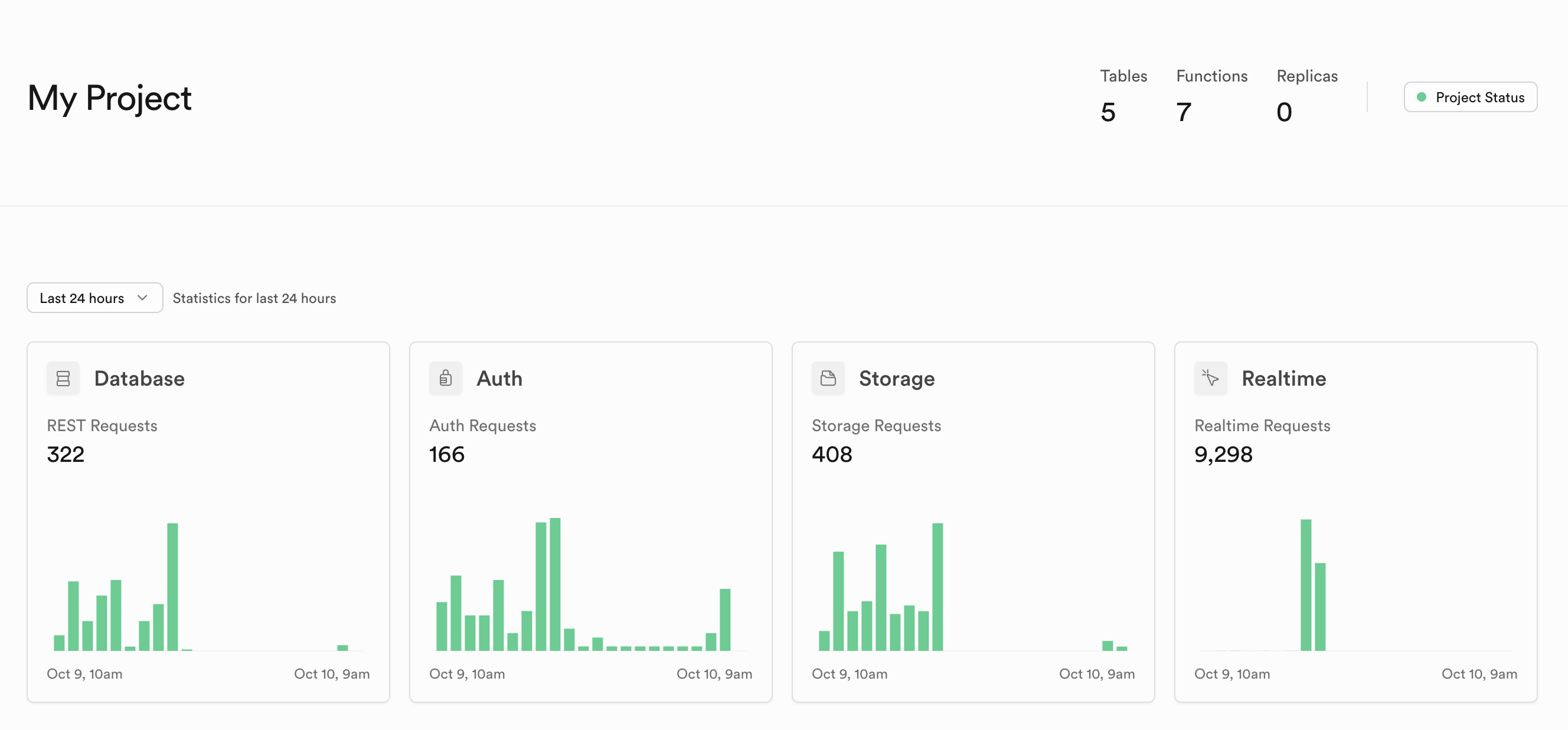
Before you start
- Finish Get Started: a Snap Cloud project, its
SupabaseProjectasset, and theSnapCloudStarterscript from Create the client and sign in. - Open your project's dashboard: see Open the Snap Cloud dashboard.
Create the test_table table in the Snap Cloud dashboard
The table is named test_table, the default the script on this page uses. Use underscores, not hyphens: a hyphenated table name has to be quoted in SQL.
-
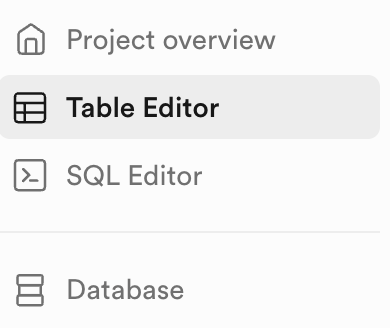
In the dashboard's left sidebar, select Table Editor.
-
Select New Table.
-
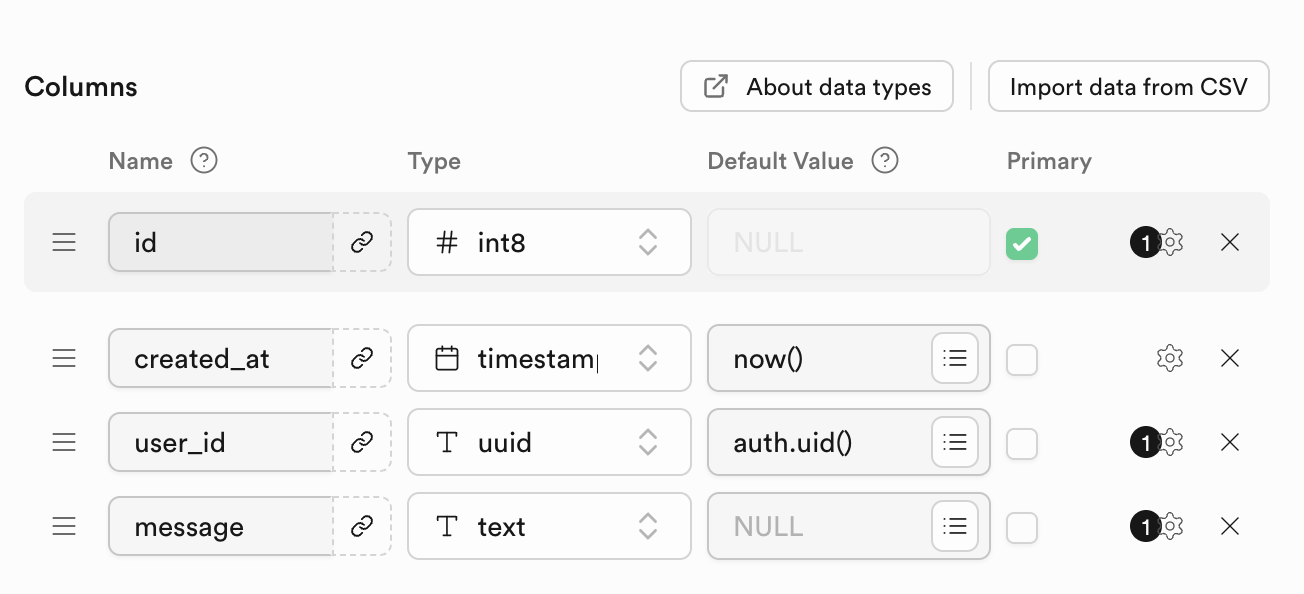
Name the table
test_table. RLS is turned on by default for a new table; it lets you control access to each row. -
Select Add Column and add a column named
user_idof typeuuid, with the default valueauth.uid(). -
Select Add Column again and add a column named
messageof typetext. -
Save the table.
Add row level security policies to test_table
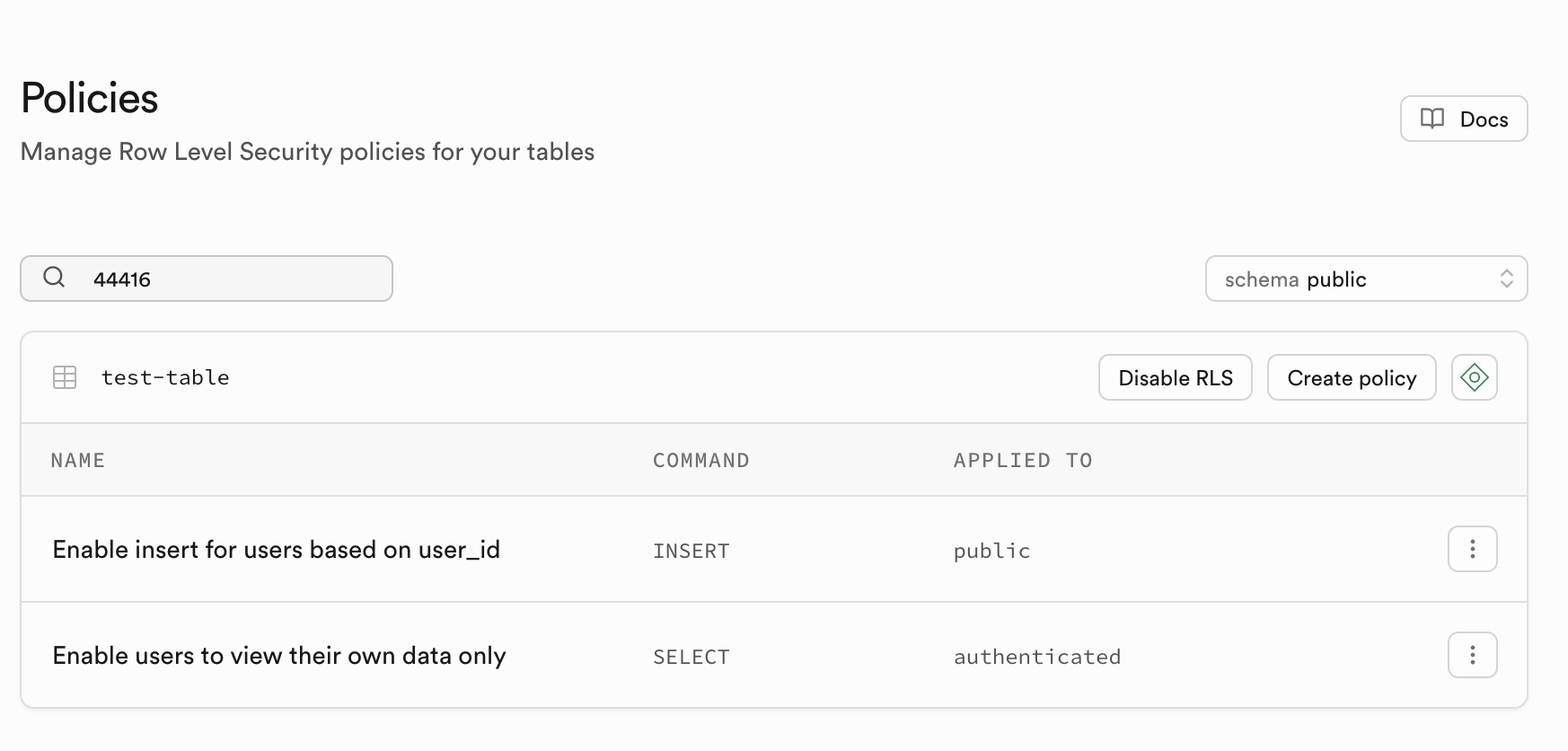
With RLS on and no policies, nobody can read or write the table. These policies let each signed-in user insert, read, update, and delete only the rows whose user_id is their own.
-
In the Table Editor, open
test_tableand select Add RLS policy. -
Select Create Policy.
-
From the templates, select Enable insert for users based on
user_id, then Save Policy.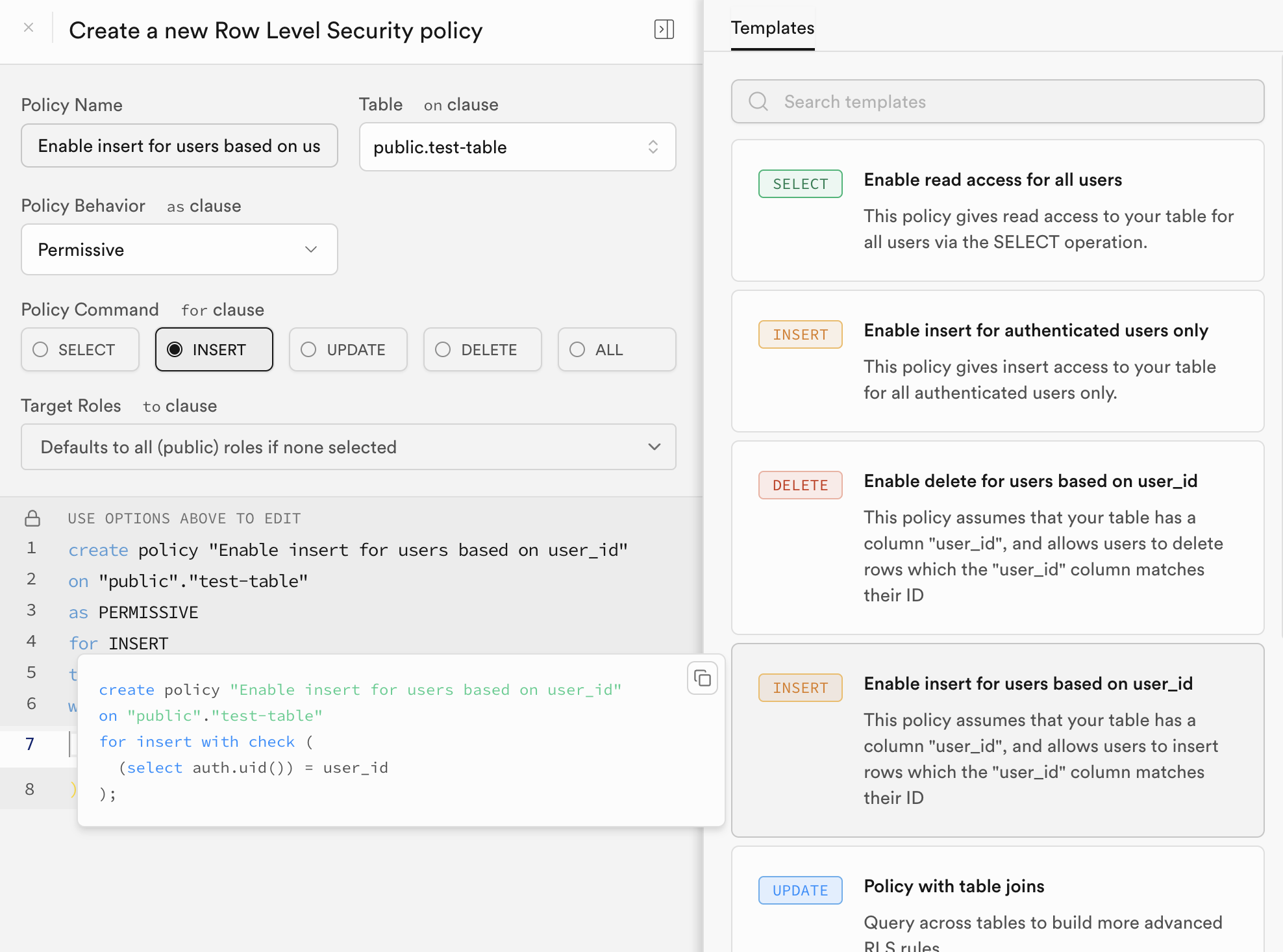
-
Select Create Policy again, select the template Enable users to view their own data only, then Save Policy.
-
Add the UPDATE and DELETE policies: without them, updates and deletes from the Lens match no rows and return no data. Open SQL Editor in the left sidebar, run this SQL, and check that the table now lists four policies.
create policy "Enable update for users based on user_id"
  on public.test_table for update
  to authenticated
  using ((select auth.uid()) = user_id)
  with check ((select auth.uid()) = user_id);

create policy "Enable delete for users based on user_id"
  on public.test_table for delete
  to authenticated
  using ((select auth.uid()) = user_id);
Read and write test_table from a Lens
The script inserts a row, selects the user's rows, updates one, and deletes one, half a second apart, and logs each result. Add these members to the SnapCloudStarter script from Get Started, replacing its empty onSignedIn(). They use the starter's client, uid and delay members.
- TypeScript
- JavaScript
  @input
  @hint('Table name to use for database operations')
  tableName: string = 'test_table';

  async onSignedIn() {
    await this.runDatabaseExamples();
  }

  async runDatabaseExamples() {
    this.log('--- DATABASE EXAMPLES START ---');

    await this.testInsert();

    await this.delay(500);
    await this.testSelect();

    await this.delay(500);
    await this.testUpdate();

    await this.delay(500);
    await this.testDelete();

    this.log('--- DATABASE EXAMPLES COMPLETE ---');
  }

  async testInsert() {
    this.log('Testing INSERT operation...');

    const testMessage = 'Hello Supabase DB ' + Date.now();

    const { data, error } = await this.client
      .from(this.tableName)
      .insert([
        {
          user_id: this.uid,
          message: testMessage,
        },
      ])
      .select();

    if (error) {
      this.log('INSERT FAILED: ' + JSON.stringify(error));
      return;
    }

    if (data && data.length > 0) {
      this.log('INSERT SUCCESS - ID: ' + data[0].id);
      this.log('Message: ' + data[0].message);
    } else {
      this.log('INSERT FAILED: No data returned');
    }
  }

  async testSelect() {
    this.log('Testing SELECT operation...');

    const { data, error } = await this.client
      .from(this.tableName)
      .select('*')
      .eq('user_id', this.uid)
      .limit(3);

    if (error) {
      this.log('SELECT FAILED: ' + JSON.stringify(error));
      return;
    }

    if (data && data.length > 0) {
      this.log('SELECT SUCCESS - Found ' + data.length + ' records');
      data.forEach((record, index) => {
        this.log('  Record ' + (index + 1) + ': ' + record.message);
      });
    } else {
      this.log('SELECT SUCCESS - No records found');
    }
  }

  async testUpdate() {
    this.log('Testing UPDATE operation...');

    const { data: selectData, error: selectError } = await this.client
      .from(this.tableName)
      .select('id')
      .eq('user_id', this.uid)
      .limit(1);

    if (selectError || !selectData || selectData.length === 0) {
      this.log('UPDATE SKIPPED: No records to update');
      return;
    }

    const recordId = selectData[0].id;
    const updatedMessage = 'Updated message ' + Date.now();

    const { data, error } = await this.client
      .from(this.tableName)
      .update({
        message: updatedMessage,
      })
      .eq('id', recordId)
      .select();

    if (error) {
      this.log('UPDATE FAILED: ' + JSON.stringify(error));
      return;
    }

    if (data && data.length > 0) {
      this.log('UPDATE SUCCESS - ID: ' + data[0].id);
      this.log('New message: ' + data[0].message);
    } else {
      // No matching row: check the UPDATE policy
      this.log('UPDATE FAILED: No data returned');
    }
  }

  async testDelete() {
    this.log('Testing DELETE operation...');

    const { data: selectData, error: selectError } = await this.client
      .from(this.tableName)
      .select('id')
      .eq('user_id', this.uid)
      .limit(1);

    if (selectError || !selectData || selectData.length === 0) {
      this.log('DELETE SKIPPED: No records to delete');
      return;
    }

    const recordId = selectData[0].id;

    const { data, error } = await this.client
      .from(this.tableName)
      .delete()
      .eq('id', recordId)
      .select();

    if (error) {
      this.log('DELETE FAILED: ' + JSON.stringify(error));
      return;
    }

    if (data && data.length > 0) {
      this.log('DELETE SUCCESS - Deleted ID: ' + data[0].id);
    } else {
      // No matching row: check the DELETE policy
      this.log('DELETE FAILED: No data returned');
    }
  }

  private log(message: string) {
    print('[DatabaseExample] ' + message);
  }
// Add below the starter's supabaseProject input:
//@input string tableName = "test_table" {"hint":"Table name to use for database operations"}

// Add inside the SnapCloudStarter function, replacing this.onSignedIn:
this.onSignedIn = async function () {
  await this.runDatabaseExamples();
};

this.runDatabaseExamples = async function () {
  this.log('--- DATABASE EXAMPLES START ---');

  await this.testInsert();

  await this.delay(500);
  await this.testSelect();

  await this.delay(500);
  await this.testUpdate();

  await this.delay(500);
  await this.testDelete();

  this.log('--- DATABASE EXAMPLES COMPLETE ---');
};

this.testInsert = async function () {
  this.log('Testing INSERT operation...');

  const testMessage = 'Hello Supabase DB ' + Date.now();

  const { data, error } = await this.client
    .from(script.tableName)
    .insert([
      {
        user_id: this.uid,
        message: testMessage,
      },
    ])
    .select();

  if (error) {
    this.log('INSERT FAILED: ' + JSON.stringify(error));
    return;
  }

  if (data && data.length > 0) {
    this.log('INSERT SUCCESS - ID: ' + data[0].id);
    this.log('Message: ' + data[0].message);
  } else {
    this.log('INSERT FAILED: No data returned');
  }
};

this.testSelect = async function () {
  this.log('Testing SELECT operation...');

  const { data, error } = await this.client
    .from(script.tableName)
    .select('*')
    .eq('user_id', this.uid)
    .limit(3);

  if (error) {
    this.log('SELECT FAILED: ' + JSON.stringify(error));
    return;
  }

  if (data && data.length > 0) {
    this.log('SELECT SUCCESS - Found ' + data.length + ' records');
    data.forEach((record, index) => {
      this.log('  Record ' + (index + 1) + ': ' + record.message);
    });
  } else {
    this.log('SELECT SUCCESS - No records found');
  }
};

this.testUpdate = async function () {
  this.log('Testing UPDATE operation...');

  const { data: selectData, error: selectError } = await this.client
    .from(script.tableName)
    .select('id')
    .eq('user_id', this.uid)
    .limit(1);

  if (selectError || !selectData || selectData.length === 0) {
    this.log('UPDATE SKIPPED: No records to update');
    return;
  }

  const recordId = selectData[0].id;
  const updatedMessage = 'Updated message ' + Date.now();

  const { data, error } = await this.client
    .from(script.tableName)
    .update({
      message: updatedMessage,
    })
    .eq('id', recordId)
    .select();

  if (error) {
    this.log('UPDATE FAILED: ' + JSON.stringify(error));
    return;
  }

  if (data && data.length > 0) {
    this.log('UPDATE SUCCESS - ID: ' + data[0].id);
    this.log('New message: ' + data[0].message);
  } else {
    // No matching row: check the UPDATE policy
    this.log('UPDATE FAILED: No data returned');
  }
};

this.testDelete = async function () {
  this.log('Testing DELETE operation...');

  const { data: selectData, error: selectError } = await this.client
    .from(script.tableName)
    .select('id')
    .eq('user_id', this.uid)
    .limit(1);

  if (selectError || !selectData || selectData.length === 0) {
    this.log('DELETE SKIPPED: No records to delete');
    return;
  }

  const recordId = selectData[0].id;

  const { data, error } = await this.client
    .from(script.tableName)
    .delete()
    .eq('id', recordId)
    .select();

  if (error) {
    this.log('DELETE FAILED: ' + JSON.stringify(error));
    return;
  }

  if (data && data.length > 0) {
    this.log('DELETE SUCCESS - Deleted ID: ' + data[0].id);
  } else {
    // No matching row: check the DELETE policy
    this.log('DELETE FAILED: No data returned');
  }
};

this.log = function (message) {
  print('[DatabaseExampleJS] ' + message);
};
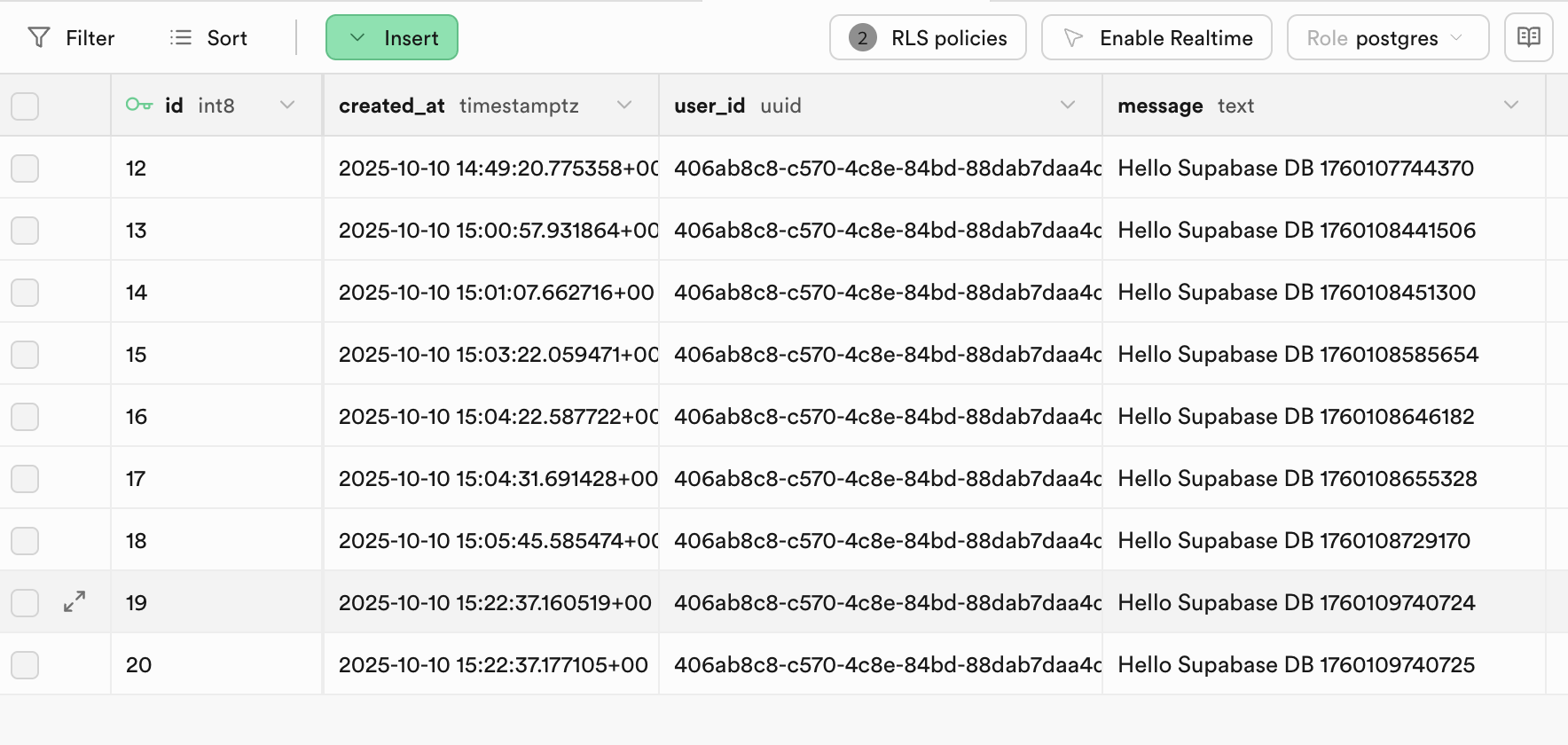
Run the Lens. The Logger shows each operation's result, from --- DATABASE EXAMPLES START --- to --- DATABASE EXAMPLES COMPLETE ---. To see the rows the script wrote, open test_table in the Table Editor and refresh it.
Save per-user settings with upsert
To keep one row of settings per user, such as volume or color mode, give the table a unique user_id column and write with upsert. With { onConflict: 'user_id' }, the first call inserts the row and every later call updates it, so you never check first whether the row exists.
The Snap Cloud Examples package uses a user_preferences table with these columns:
| Column | Type |
|---|---|
id | uuid, primary key |
user_id | text, unique |
preferences | text (a JSON string) |
updated_at | text |
Because user_id is text, the RLS policies compare it with auth.uid()::text. An upsert needs INSERT, UPDATE, and SELECT policies:
create policy "Users insert their own preferences"
  on public.user_preferences for insert to authenticated
  with check ((select auth.uid())::text = user_id);

create policy "Users update their own preferences"
  on public.user_preferences for update to authenticated
  using ((select auth.uid())::text = user_id)
  with check ((select auth.uid())::text = user_id);

create policy "Users read their own preferences"
  on public.user_preferences for select to authenticated
  using ((select auth.uid())::text = user_id);
Add these methods to the SnapCloudStarter script and call them from onSignedIn():
  async savePreferences(preferences: any) {
    await this.client.from('user_preferences').upsert(
      {
        user_id: this.uid,
        preferences: JSON.stringify(preferences),
        updated_at: new Date().toISOString(),
      },
      { onConflict: 'user_id' }
    );
  }

  async loadPreferences(): Promise<any> {
    const { data } = await this.client
      .from('user_preferences')
      .select('preferences')
      .eq('user_id', this.uid)
      .limit(1);
    return data?.length ? JSON.parse(data[0].preferences) : null;
  }

  // For example, in onSignedIn():
  //   await this.savePreferences({ volume: 0.8, colorMode: 'vivid' });
  //   const prefs = await this.loadPreferences();
  //   if (prefs) print('Loaded preferences: volume=' + prefs.volume);
Log events to a Snap Cloud table
An event log is a table you only append to: one row per action, with its data and the session it came from. The Snap Cloud Examples package uses a user_interactions table with the columns id (uuid, primary key), action, data, timestamp, and session_id (all text). It has no user column, so its INSERT policy allows any signed-in user:
create policy "Signed-in users log interactions"
  on public.user_interactions for insert to authenticated
  with check (true);
Add this method to the SnapCloudStarter script and call it whenever something happens, for example await this.logInteraction('session_start', { source: 'lens' }):
  async logInteraction(action: string, data: any) {
    await this.client.from('user_interactions').insert({
      action,
      data: JSON.stringify(data),
      timestamp: new Date().toISOString(),
      session_id: 'lens_' + Date.now(),
    });
  }
Related
- Realtime: receive a message in the Lens when
test_tablechanges. - Basic Setup: the Tables example in the Snap Cloud Examples package, which reads
test_table,user_interactionsanduser_preferences. - Edge Functions and Storage: the other Snap Cloud services.
- Snap Cloud documentation site: the database guides, including row level security.