Device Tracking
Lens Studio provides developers with multiple Tracking solutions in order to create unique AR experiences in the world around them.
- Snapchat: fully supported
- SPECS: partially supported
- Camera Kit Web: not supported
- Camera Kit Mobile: fully supported
- SnapchatFully supported
- SPECSPartially supported
- Camera Kit WebNot supported
- Camera Kit MobileFully supported
Device Tracking
The Device Tracking component allows you to place objects in your Lens Studio experience that will be locked to the world. When run in Snapchat, the content will appear in front of you at the start of the Lens. The Device Tracking component has three modes:
- Rotation: Users can rotate their phone and have the objects stay locked relative to their orientation. Users will not be able to walk towards, away from or around the content.
- Surface: Users are able to walk towards, away from and around the content, in addition to being able to rotate their phones. When using this mode, the 0,0,0 position of your Scene represents a horizontal surface in front of the device's initial position. When the Surface mode is selected, you have the option to also enable Use Native AR. With Use Native AR enabled, the device's native AR tracking capabilities will be utilized to enhance tracking.
- World: Users are able to walk freely through the scene without focusing on a surface. When using this mode, the 0,0,0 position of your Scene represents your device's initial position. This mode solely relies on the device's native AR tracking capabilities and falls back to a Rotation experience if native AR tracking is not available. For most use cases where you want to take advantage of native tracking, we recommend instead using
Surfacewith Use Native AR enabled because it will fallback to Surface if native tracking is unavailable. Note that while in the World mode, the units in the scene reflect centimeters in the real world.
When building for SPECS, set the camera's Device Tracking component to World mode.
Surface mode tracking works best when content is scaled roughly human size or less. For anything bigger, consider enabling Use Native AR as well, or World tracking mode, which will utilize the device's native tracking capabilities if available. When Surface mode is enabled, content in your scene is attached to the ground. Surface mode does not understand or detect walls or obstacles (like a couch or coffee table).
Adding Device Tracking
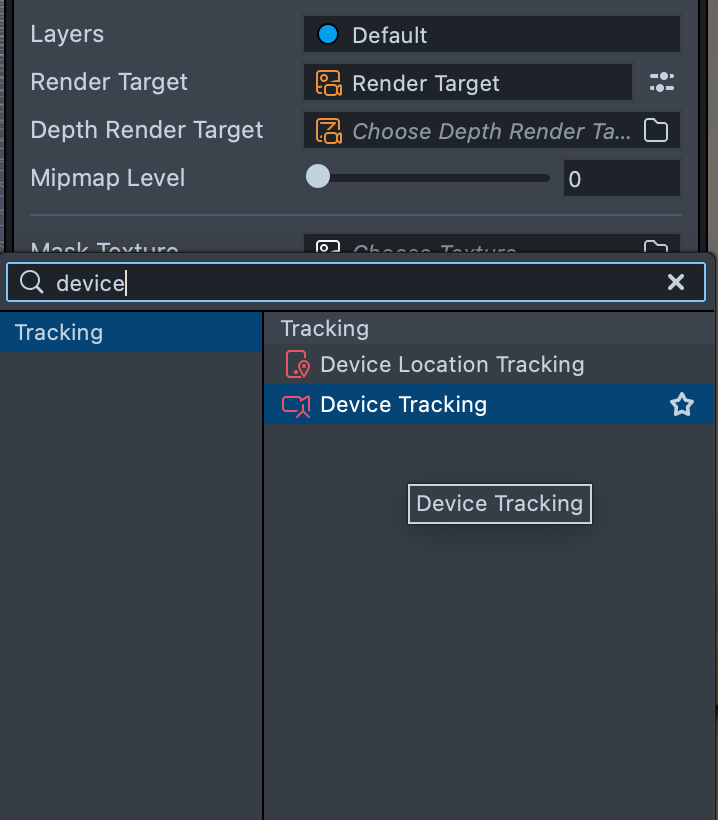
To add Device Tracking, first select the camera object (Camera Object in a new project) in the Scene Hierarchy panel. Then, in the Inspector panel, click Add Component and select Device Tracking. Type device in the search to find it under Tracking.
When Device Tracking is enabled, you'll see a disk of triangles under the camera in the Scene panel, indicating that Device Tracking is turned on. Any object in the scene on the layer of the camera is now attached to the world.
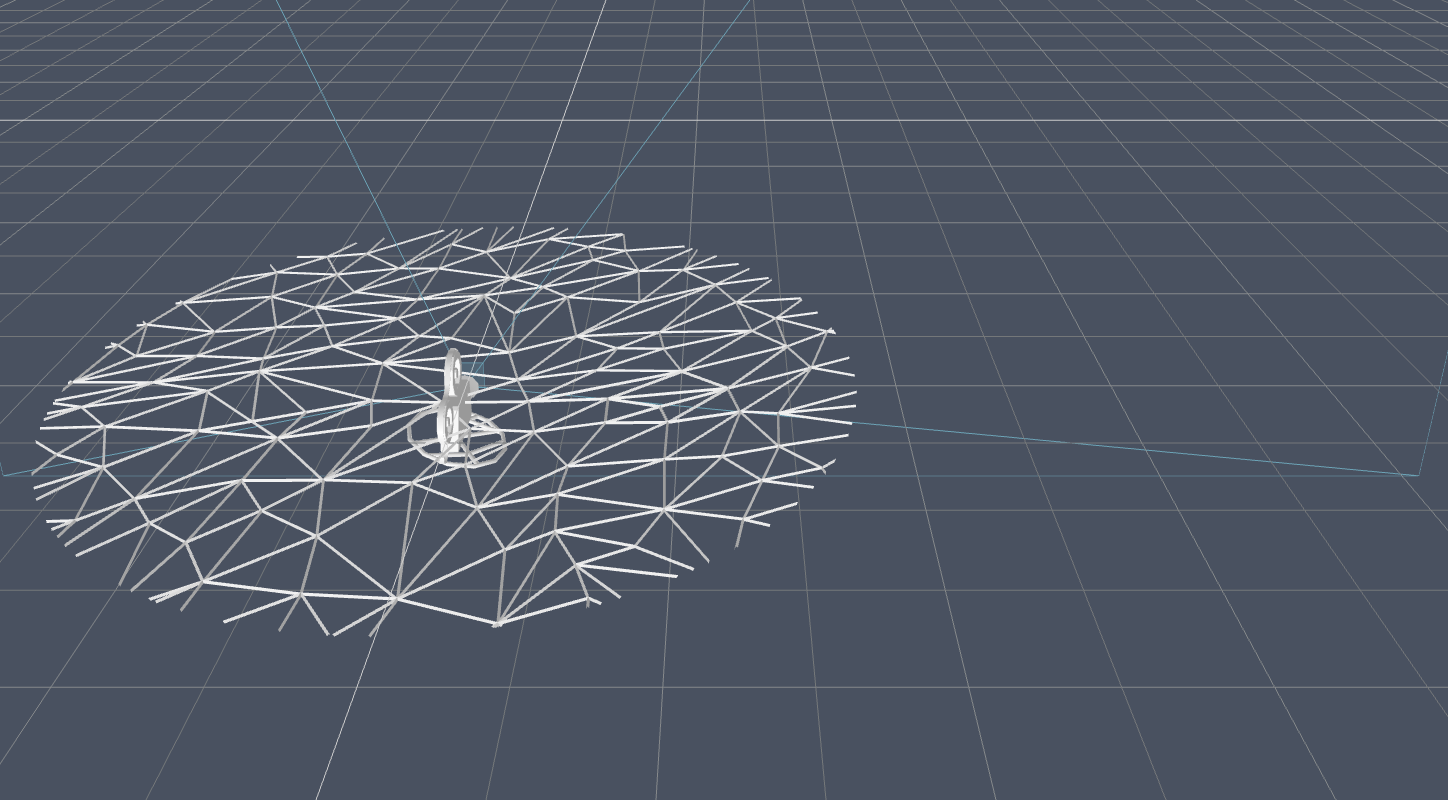
In other words, the Device Tracking component, is using the device data to modify the Camera object which renders the scene.
Choosing Device Tracking Mode
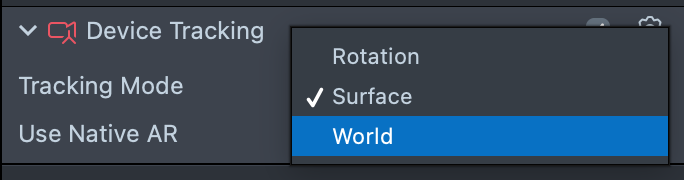
By default, the Device Tracking component uses Surface mode. To change it, open the Tracking Mode dropdown in the Inspector panel and select Rotation, Surface or World.
Using Surface Mode
Surface mode is useful for when you want to allow users to walk up to your content, as well as walk around it. For experiences that encourage the user to more freely walk around (like a portal) or for larger content, consider enabling Use Native AR which will utilize the device's native tracking capabilities if available.
Positioning Object in Surface Mode
When you use Surface tracking mode, Manipulation can be added to any object allowing the user to move, rotate and scale objects. To add Manipulation follow the Manipulation guide.
You can use the World Object Controller in the Asset Library which provides a setup for manipulating objects, as well as UI affordances for it.
Choosing Tracking Point in Surface Mode
As you move your object around on a surface, the further it gets from the origin and the less stable the tracking can become. Telling the Device Tracking system what the tracking target should be can significantly help this. Each time you start your Lens you can reset the device tracker's target with a short script. Create a new script named SetSurfaceTrackingTarget.js and add the text below to its contents.
// -----JS CODE-----
// @input Component.DeviceTracking deviceTrackingComponent
function onSurfaceReset(eventData) {
  if (script.deviceTrackingComponent) {
    script.deviceTrackingComponent.surfaceTrackingTarget =
      script.getSceneObject();
  }
}
var worldTrackingResetEvent = script.createEvent('WorldTrackingResetEvent');
worldTrackingResetEvent.bind(onSurfaceReset);
With the object you want to be the tracking target selected, in the Inspector panel, click Add Component, and select the script you just created (for example, SetSurfaceTrackingTarget). This object will now be the device tracker's target.
Using Rotation Mode
Rotation mode takes the device's gyroscope rotation and applies it to whatever object it is added to. The primary use case for the Device Tracking component with Rotation mode is to have the scene's camera rotation be driven by the device's gyroscope. This will allow you to place content all around the user in 3D space and give the user the ability to freely look around the scene. It is useful for when you want to surround the user with content, but not necessarily allow them to walk towards it (that is, 360 view).
Camera Attached
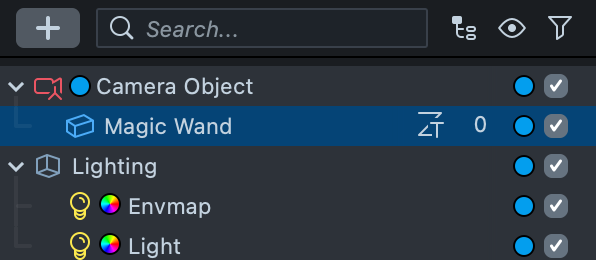
You can attach an object to the camera. This is great for simulating a first person object (For example: a magic wand pretending to be in the user's hand). To do this, in the Scene Hierarchy panel, drag the object you want to be attached to the camera to be a child of the Camera object.
Further Reading
While using Device Tracking is a common way to track your experience to the world, depending on your use case, you might want to use other world related trackers.