Debugging
Debug Sync Kit multiplayer Lenses with logging, network state inspection, and tools for diagnosing synchronization issues.
- Snapchat: not supported
- SPECS: fully supported
- Camera Kit Web: not supported
- Camera Kit Mobile: not supported
- SnapchatNot supported
- SPECSFully supported
- Camera Kit WebNot supported
- Camera Kit MobileNot supported
Sync Kit and Lens Studio provide a number of tools to help debug Connected Lenses on device and in the editor. For more information on Lens Studio Connected Lenses features, including the Connected Lenses Monitor and Multiple Previews, see Connected Lenses > Development Workflow.
SyncEntityDebug
SyncEntityDebug is a helper script that can show SyncEntity information using text components. It is especially useful for debugging SyncEntities on device. SyncEntity information that can be shown by the SyncEntityDebug script includes:
- Network ID
- Owner Display Name
- Owner ID
- Storage Properties
Setup Steps
To use the SyncEntityDebug in your scene, follow these steps:
- Add text components in the Scene Hierarchy for each piece of SyncEntity information you want to debug.
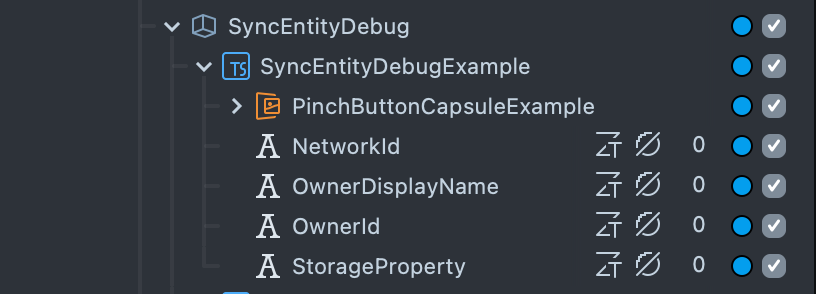
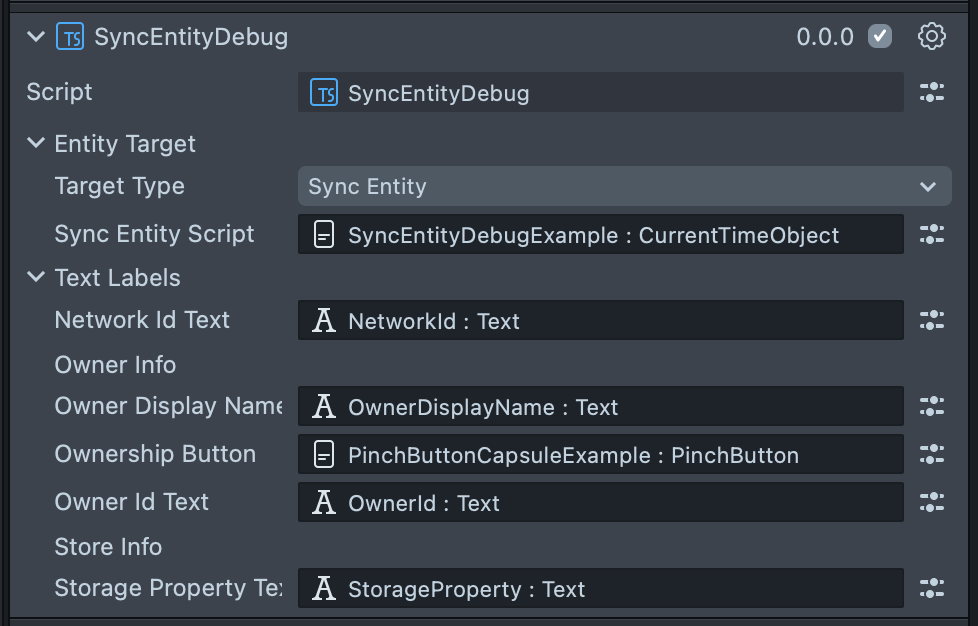
- Add the SyncEntityDebug script to a scene object in the Scene Hierarchy. Populate the relevant text component inputs in the SyncEntityDebug script Inspector panel. You do not have to populate all inputs.
-
For Target Type, use Network Root if you are using SyncEntityDebug script within a prefab. Otherwise, set Target Type to Sync Entity, and populate the Sync Entity Script input with the script that the SyncEntity is associated with.
-
Populate Ownership Button with a
PinchButtoncomponent, described in UI Elements, to clear ownership of the SyncEntity when pinched.
Once the SyncEntityDebug is set up, the text components will update to reflect SyncEntity information in the Preview panel and on SPECS when pushed to device.