How Connected Lenses Work
Connected Lenses allow you to create AR experiences that friends can experience together at the same time, and return to over time.
- Snapchat: not supported
- SPECS: fully supported
- Camera Kit Web: not supported
- Camera Kit Mobile: not supported
- SnapchatNot supported
- SPECSFully supported
- Camera Kit WebNot supported
- Camera Kit MobileNot supported
Connected Lenses are a type of Lens that allows you to pass and store data between devices that are running the same Lens, whether they’re in the same location or in different locations. Connected Lenses allow you to create AR experiences that friends can experience together at the same time, and return to over time.
Connected Lenses are a part of Lens Cloud, a collection of backend services, built on the same infrastructure that powers Snapchat. To learn more about Lens Cloud and how to power a new generation of AR experiences that are more dynamic, useful, and interactive than ever before, please visit Lens Cloud Overview
This feature is only available for use in Spectacles and Camera Kit.
The left image shows friends playing in a colocated space. The right shows friends playing in a remote space.
Remote and Colocated
Connected Lenses can be experienced whether the participating Snapchatters are together or apart. In other words, you can create a Connected Lens experience which is:
-
Remote: You and your friends can be connected to a shared session in a Lens where you can share data back and forth.
-
To invite your friends to a remote experience, the Lens will allow you to send a message to your friends to invite them to the experience.
-
-
Colocated: In addition to the capabilities above, when in the same location, you and your friends can reference the same World Tracked experience on your individual devices.
-
To invite your friends to a Colocated experience, one user first needs to map your area, then the Lens can show a Snapcode that your friends can scan to join the experience.
-
The mapped area will not provide the geometry of the scene, it will only allow you to share the same coordinate frame between participants.
-
A single Lens can contain a single-user experience, a remote experience, as well as a colocated experience—though you will have to manage this logic yourself.
In a remote experience, you can invite friends via a group chat (which can include friends of friends) to join. In colocated, however, only the creator of the session can invite, and all participants must be a friend of the creator.
There's a limit of 64 participants in a Connected Lens session.
Connected Lenses are a type of Lens that passes data between devices running the same Lens, so friends can experience the same AR content together at the same time. On SPECS, a Connected Lens session is SPECS-to-SPECS and colocated, and the Sync Kit package creates and manages the session for your Lens.
How Connected Lenses work on SPECS
When building for SPECS, design a Connected Lens for people who wear SPECS in the same room:
- SPECS-to-SPECS. All users join a Connected Lens from SPECS. Joining the same Connected Lens from both SPECS and mobile devices is not supported.
- Colocated. Users are in the same physical space. Sync Kit guides each user through colocation, so everyone shares one coordinate space for the Lens content. Using Connected Lenses shows the flow from the user's side.
- Synchronous. Users experience the Lens at the same time, and Lens data is updated across the network in real time.
Sync Kit creates the session for your Lens: its Session Controller sets up the session, tells your scripts when it is ready, and gives them the users in the session and the server time. Lifecycle in the Sync Kit docs lists the setup steps and when each Sync Kit feature is safe to use.
Differences of a Connected Lens
At the core of a Connected Lens, is the ability for the Lens to create a session that can be joined by others. This capability is enabled by the ConnectedLensModule. Adding this module makes your Lens a Connected Lens which has some differences.
In a remote setting, the session corresponds to a 1 on 1, or group chat.
Call to Action
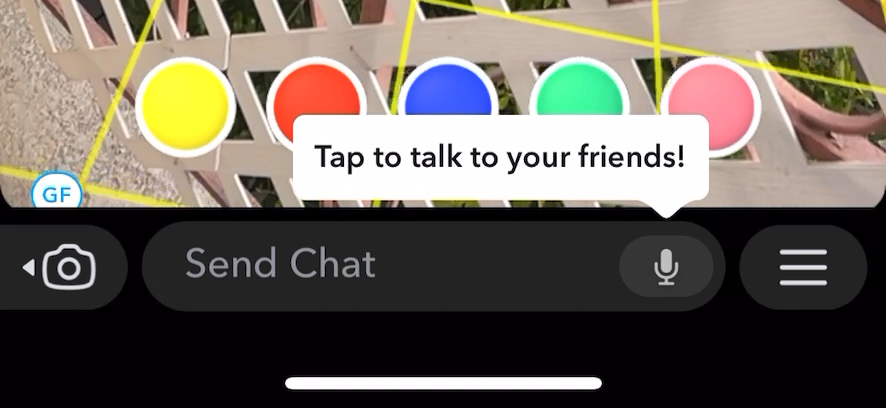
If your Lens includes a ConnectedLensModule, your Lens will have a Call to Action button that users will tap to enter into a full screen state (the “Connected Lens State”) at which point you can provide the functionality for them to invite others into a session. When a user enters a Lens through an invitation (chat or Snapcode), the user will enter directly into the “Connected Lens State”.
At this point:
- The user will not have access to any camera mode, except to change between front and rear camera.
- Instead of a carousel of Lenses, you will have an Action bar (similar to what you see in Snap Games). The Action Bar will allow the user to see who else is in the session.
The Action Bar takes care of additional "Connected" experience such as written and audio chat systems.
Start Screen
Once a user is connected to a session, the user will then need to invite others into either the colocated (via Snapcode) or remote (via Chat) session. The Connected Lens template provides this invitation flow so you can focus on developing your experience.
You'll usually also add the option for a "solo" mode here so that your experience is still usable even when the Snapchatter's friend is not available.
At the core of a Connected Lens is the ability for the Lens to create a session that can be joined by others. This capability is enabled by the ConnectedLensModule. Adding this module makes your Lens a Connected Lens, which has some differences.
When building for SPECS, you don't add the module yourself: the Sync Kit package includes the Connected Lens Module that connects your Lens to the Connected Lenses backend.
Start screen of a Connected Lens on SPECS
The Sync Kit package includes an example Start Menu, shown to users when they enter a Connected Lens, with Multiplayer and Singleplayer buttons. Multiplayer takes the user into the colocated joining flow; Singleplayer skips the joining flow and puts the user directly into the Lens. Start Menu and Player Mode describes how to customize it.
Relay Messaging & User Info
Connected Lenses do not rely on server-side logic to manage the state of each user. Within a session, a user sends a message to everyone, as well as receives messages from everyone. To help facilitate communication, each participant in a session will also be assigned a user id for that session.
Persistent Storage
With Connected Lenses, you can make a Lens that is meant to be experienced together in real time, but you can also make one that can be experienced asynchronously by storing data in a session to a shared persistent storage. This allows you to build a Lens that users will want to come back to again and again.
Since a session is tied to other mechanisms, so will the Lens ability to access the shared persistent storage. That is:
- A remote session can be rejoined as long as the chat conversation exists (for example, its retention is based on the conversation’s settings)
- A colocated session can be rejoined as long as you have access to the Snapcode that was generated to enter the session.
Connected Lenses do not rely on server-side logic to manage the state of each user. Within a session, a user sends a message to everyone, as well as receives messages from everyone. To help facilitate communication, each participant in a session will also be assigned a user id for that session. The Connected Lenses backend relays these messages and also holds the session's Realtime Stores, the shared data every participant can read; Sharing Data Between Participants compares the ways to share data.
Data that outlives a session on SPECS
When building for SPECS, the data a Connected Lens shares through Sync Kit lasts only while at least one user is in the session: the Persist persistence option is deprecated in Sync Kit. Store data that must survive after a session ends, such as progress a user comes back to, in a Snap Cloud database. Sync Entity describes the move to Snap Cloud, and Databases in the Snap Cloud docs covers reading and writing the data.
Restrictions
When Using Connected Lenses, some APIs will be restricted in order to protect the user’s privacy. The following APIs will be disabled:
- UserContextSystem:
requestBirthdaterequestBirthdateFormattedrequestCity
- Text component:
- Reading from text property when Dynamic Text is being used.
- ProceduralTextureProvider:
getPixels
- DepthTextureProvider:
getDepth
- DeviceTracking:
hitTestWorldMeshraycastWorldMeshgetPointCloud
- DeviceLocationTrackingComponent:
distanceToLocation
- ScanModule
- OutputPlaceholder:
data
- MicrophoneAudioProvider:
getAudioFrame
- TensorMath:
textureToGrayscale
- LocalizationSystem:
getLanguage
Building a Connected Lens
With an understanding of what makes a Lens a Connected Lens, take a look at the following pages to get started developing your own Connected Lens experience.
-
Sync Kit: the package that builds Connected Lenses on SPECS, and how to start a project with it.
-
Building Connected Lenses: the Lens Studio tools for developing and testing a Connected Lens.
-
Using Connected Lenses: how users start and join a session on SPECS.
-
Lifecycle: what happens from opening a Connected Lens to being in a session, and the session APIs.
-
Development Workflow: how to develop and test a Connected Lens in Lens Studio.