Test Your Lens With LEAF
Install LEAF, write a test scenario that pinches a button in your SPECS Lens and checks the result, and run it in the Lens Studio Preview.
- Snapchat: not supported
- SPECS: fully supported
- Camera Kit Web: not supported
- Camera Kit Mobile: not supported
- SnapchatNot supported — LEAF simulates Interaction Kit input
- SPECSFully supported
- Camera Kit WebNot supported — LEAF simulates Interaction Kit input
- Camera Kit MobileNot supported — LEAF simulates Interaction Kit input
LEAF (Lens Evaluation & Automation Framework) runs automated tests on a SPECS Lens. A test, called a scenario, drives the Lens with simulated input (a pinch, a drag, a hover, or a hand gesture), then checks that the Lens reacted as expected. Scenarios are TypeScript files in your project, so you can run them after every change. CLAD writes and runs them for you with its LEAF skills; this page shows how to do it yourself.
Before you start
- A SPECS project open in Lens Studio 5.25 or later, with
Interaction Kit 4.0.0 or
later. LEAF simulates input through Interaction Kit, so it tests what an Interaction Kit
Interactabledoes. - The Preview set to SPECS 27, as in Preview Lenses for SPECS.
Install LEAF
-
Select Asset Library in the toolbar, search for Leaf, and install it. Version 4.0.0 or later includes the LEAF panel.
-
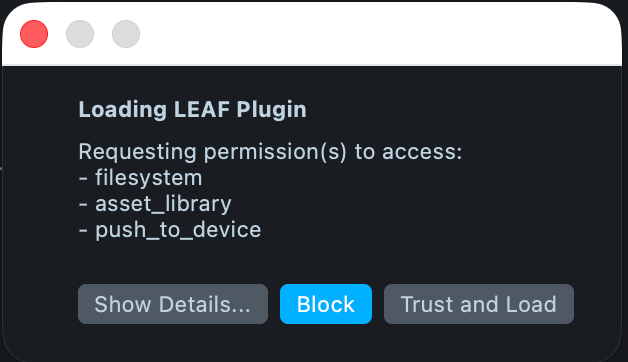
When Lens Studio asks to load the LEAF plugin, select Trust and Load. The plugin asks for access to the file system, the Asset Library, and sending Lenses to a device.
Leaf.lspkg appears in the Asset Browser under Packages.
Write a LEAF scenario
A scenario is a component that extends Scenario and implements an async run() method. This
one tests a Lens with a button named PrimaryButton, which has an Interaction Kit
Interactable, and a text object named StatusLabel, whose text the button changes to "Pressed" when pinched.
The scenario pinches the button, then checks the label:
import { Scenario } from "Leaf.lspkg/Scenarios/scenario/Scenario";
import { DefaultLeafInteractor } from "Leaf.lspkg/Interactors/interactor/DefaultLeafInteractor";
import { findInteractableByName } from "Leaf.lspkg/Interactors/InteractableUtils";
import { findSceneObjectByName } from "Leaf.lspkg/Utils/common/Utils";
import { expect } from "Leaf.lspkg/Utils/common/Expect";

@component
export class TapButtonScenario extends Scenario {
  async run(): Promise<void> {
    const interactor = new DefaultLeafInteractor();

    // Find the button to test.
    const button = findInteractableByName("PrimaryButton");
    expect(button).toBeTruthy();

    // Pinch it.
    await interactor.trigger(button);

    // Check that the Lens reacted.
    const label = findSceneObjectByName("StatusLabel").getComponent("Text");
    expect(label.text).toBe("Pressed");
  }
}
Put await before every asynchronous call in run(). A failure in a call that isn't awaited is
lost, and the scenario passes when it shouldn't.
The interactor drives the Lens:
| Method | What it simulates |
|---|---|
trigger(target) | Targets an Interactable and pinches it |
drag(target, dragVector, dragDurationMs) | Pinches an Interactable and moves it along a vector, for a duration in milliseconds |
hover(target, hoverDurationMs?) | Targets an Interactable without pinching, for a duration in milliseconds (200 by default) |
DefaultLeafInteractor is the simplest interactor. LeafHandInteractor gives you a left and a
right hand, each of which can make a gesture (fist, pinch, palm, backhand, relaxed), and
IKBodyInteractor simulates a full body for the most realistic input.
expect() checks a value with toBe, toEqual (deep equality), toBeCloseTo, toBeGreaterThan,
toBeLessThan, toBeTruthy, toBeFalsy, or toBeNull, and .not reverses any of them. A failed
check, or any error the scenario throws, fails it. To wait for the Lens between steps, use
nextFrame() or sleep(ms) from Leaf.lspkg/Utils/common/Utils.
Register LEAF scenarios in a scenario index
LEAF runs a scenario by its ID, from a scenario index:
-
Create a component with a static array marked
@scenariosIndex, with one entry per scenario:Assets/Tests/LeafIndex.tsimport { scenariosIndex } from "Leaf.lspkg/Scenarios/decorator/ScenarioIndexDecorator";import { ScenarioMetadata } from "Leaf.lspkg/Scenarios/scenario/ScenarioMetadata";import { TapButtonScenario } from "./TapButtonScenario";@componentexport class LeafIndex extends BaseScriptComponent {@scenariosIndexstatic scenariosIndex: ScenarioMetadata[] = [{id: "tap_button",typename: TapButtonScenario.getTypeName(),},];} -
Add the index script to a scene object, so it runs when the Lens starts. Don't add the scenarios themselves to the scene: LEAF creates each one when it runs.
An entry can declare parameters, such as parameters: { button_name: "PrimaryButton" }, so one
scenario class serves several tests. Read them in run(config) with
config.getOrThrow("button_name").
Run a LEAF scenario in the Preview
- Select Reset in the Preview toolbar so the Lens starts clean.
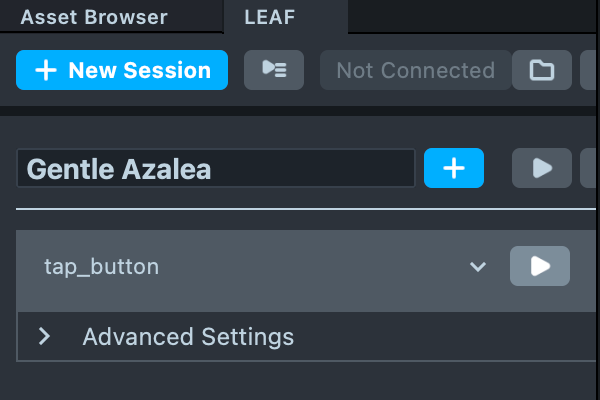
- In the LEAF panel, select New Session.
- Select + next to the session name, and choose the scenario, here
tap_button. - Select the run button on the scenario's row. The Preview plays the simulated input.
Read the LEAF results in the Logger
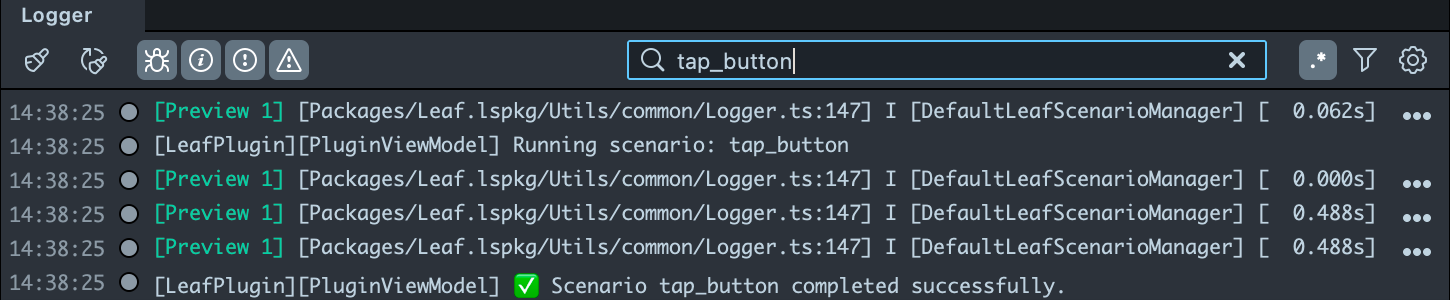
The Logger shows each run. Type the scenario ID in the Logger search to see only its lines:
PASSED: tap_button and ✅ Scenario tap_button completed successfully. for a pass, or
FAILED: tap_button with the error for a failure.
To check that a scenario can fail, change the expected text to something else and run it again.
Test a Lens with LEAF through CLAD
With CLAD installed, ask your AI assistant to do these steps, or name the
skills: /specs-leaf-install-packages installs LEAF, /specs-leaf-write-scenarios writes scenarios
for your Lens's interactions, and /specs-leaf-run-in-preview runs them. The live-lens-tester
agent can also run them on a connected SPECS.
Limits of LEAF scenarios
- LEAF simulates Interaction Kit input. Input that doesn't go through an
Interactable, such as custom gesture code, needs a custom interactor. - A scenario finds objects by name, so give the objects you test stable names. A missing object fails the scenario.
Related
- CLAD Agents and Skills: the LEAF skills and the
live-lens-testeragent. - Interaction Kit: the interactables LEAF drives.
- Preview Lenses for SPECS: set up the Preview that scenarios run in.