Dreams Animated
Build a Lens that turns a photo into a stylized, non-realistic animated video from a prompt.
- Snapchat: fully supported
- SPECS: not supported
- Camera Kit Web: not supported
- Camera Kit Mobile: not supported
- SnapchatFully supported
- SPECSNot supported
- Camera Kit WebNot supported
- Camera Kit MobileNot supported
Dreams Animated plugin lets creators build Lenses that turn a photo into a stylized, non-realistic animated video. You start with a photo. The Lens restyles it into the look you describe, then finishes as a fully animated sequence. Each Lens uses one embedded prompt. Choose One Person or Two People. Then describe the style, the scene, and the motion.
One Person transforms the user's own photo. Two People adds a friends carousel. The user picks a friend, and that friend appears in the animated video with them.
Getting Started
Only Lens+ subscribers can use Lenses created with the Dreams Animated plugin. Using the plugin doesn't enroll you in Lens+ Payouts. To start monetizing your Lenses, apply here.
Launching Dreams Animated
-
Navigate to the Lens Studio AI option in the top right corner of Lens Studio. Then, click the GenAI Home Page tab in the sidebar.

-
On the GenAI Home Page tab, you may need to scroll to find Dreams Animated.
-
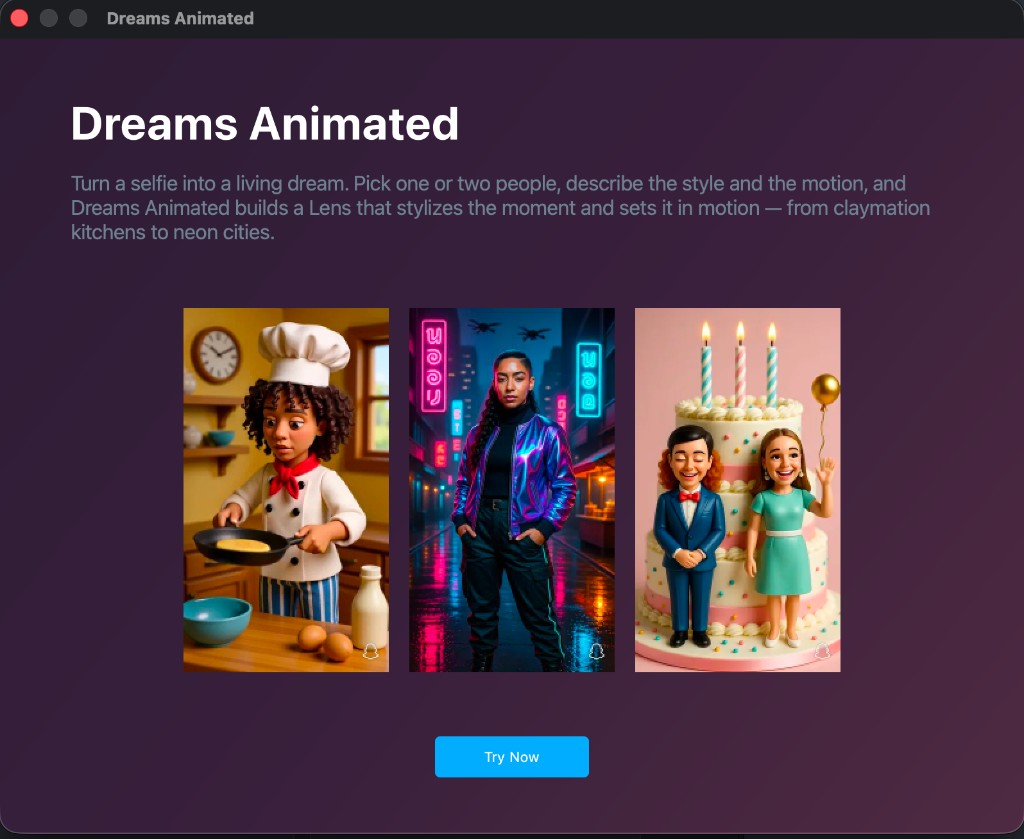
If you haven't generated an effect yet, the plugin opens an intro page with example clips. Click Try Now.
User Interface Overview
-
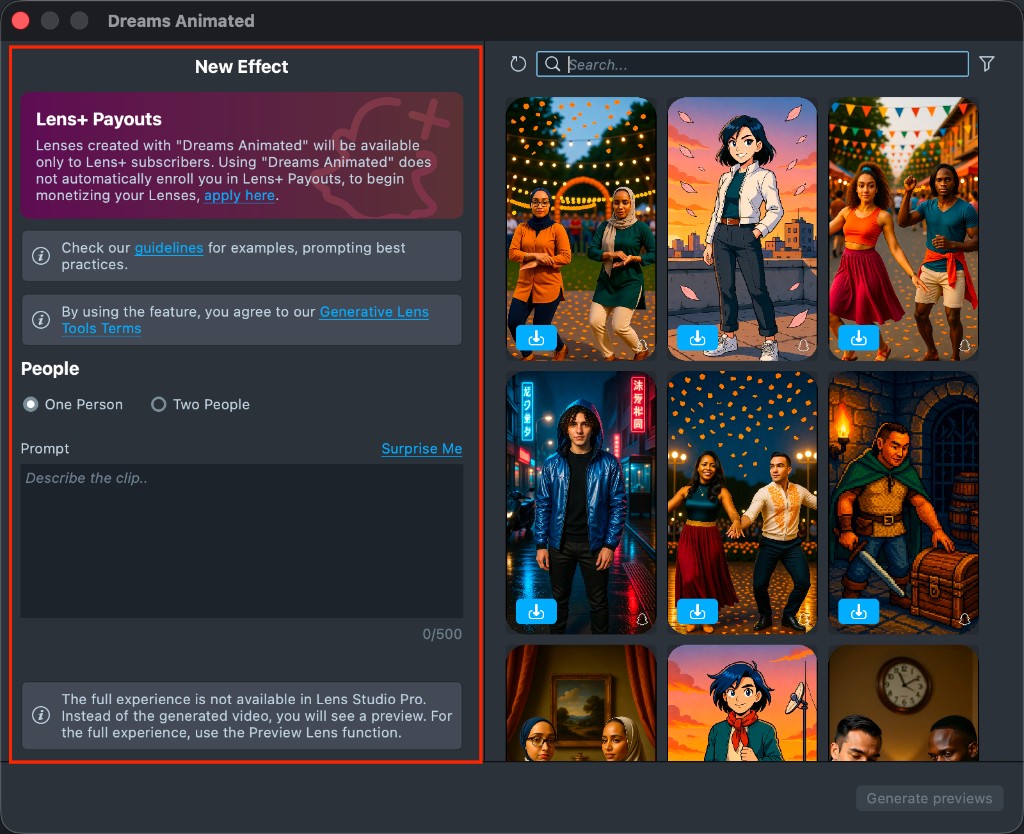
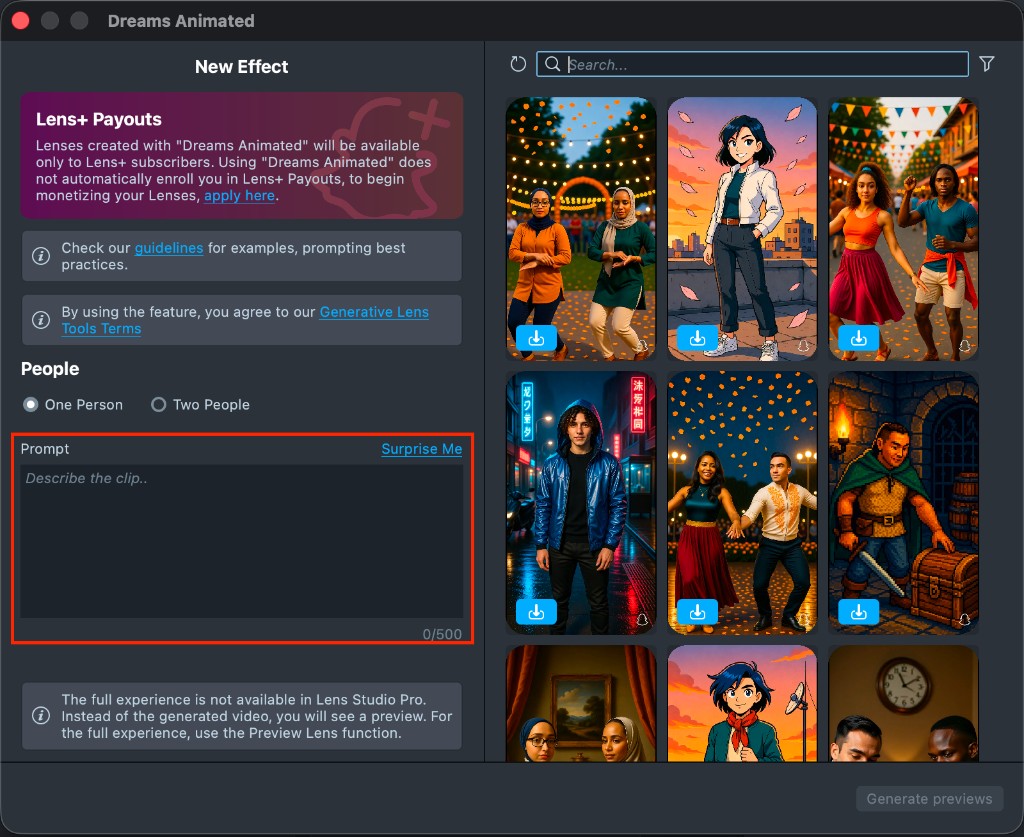
Creation Panel: the New Effect panel on the left. Choose One Person or Two People, then describe the clip in Prompt. Surprise Me inserts an example prompt for the people count you selected.
-
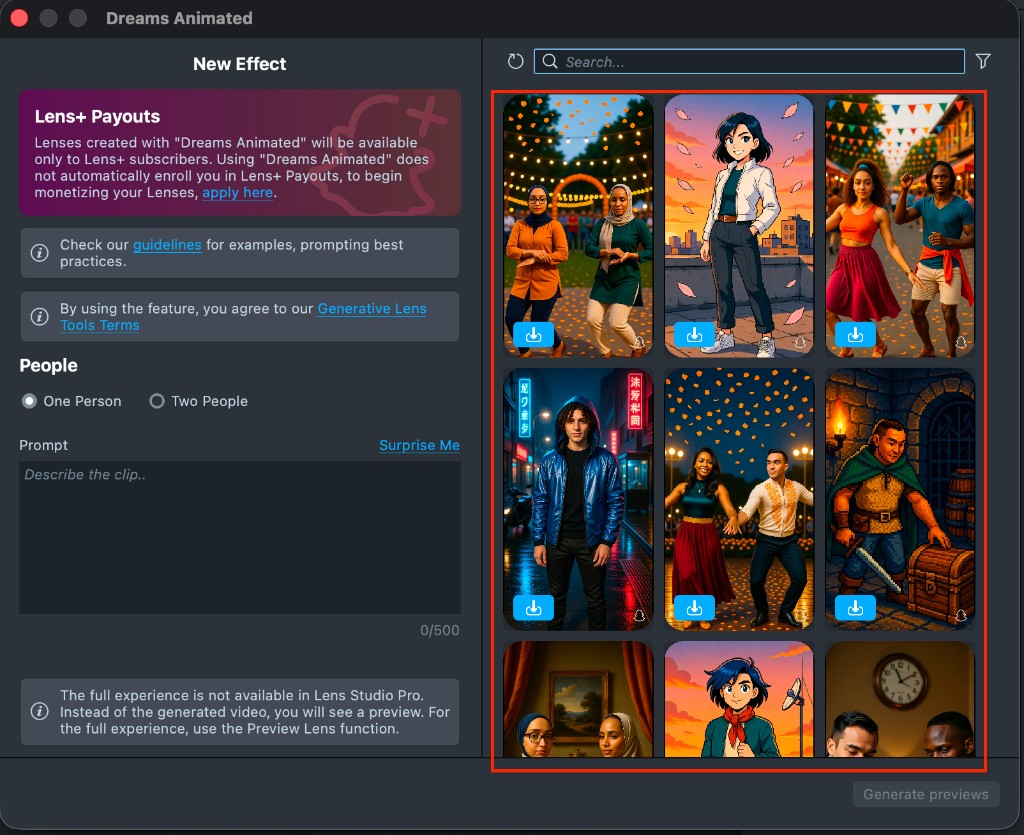
Gallery: shows the effects you've created, along with their statuses.
-
Search: finds an effect in your gallery by its prompt.
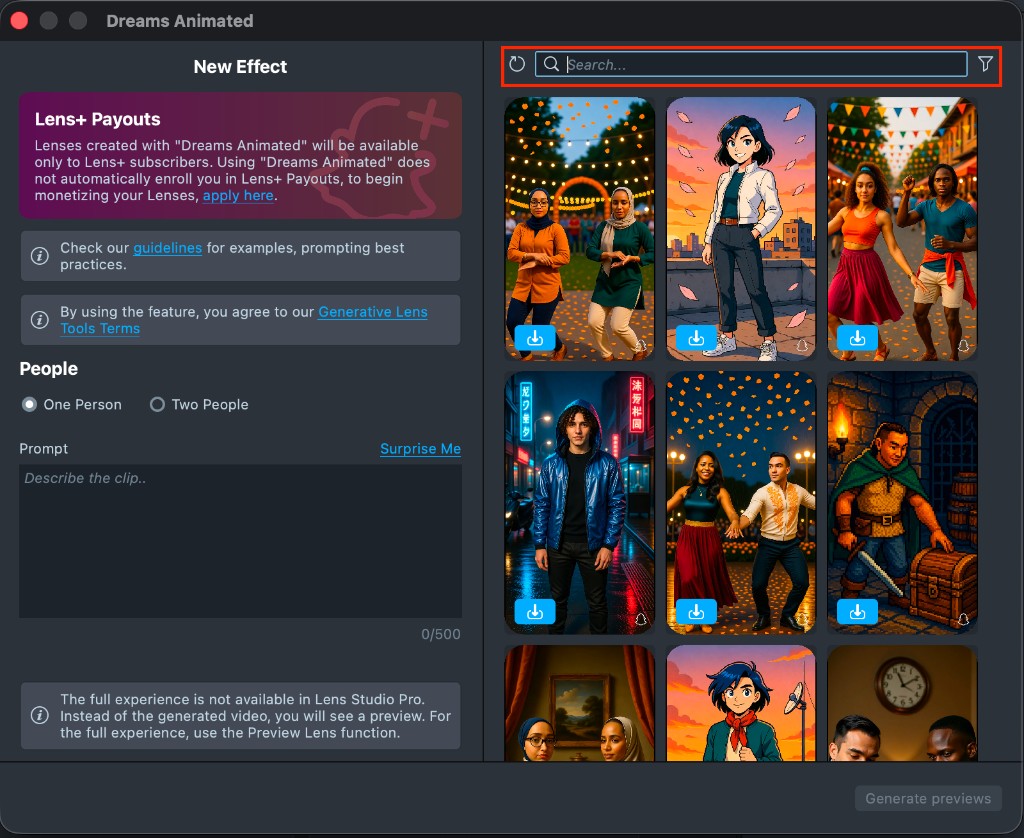
Effect Creation flow
-
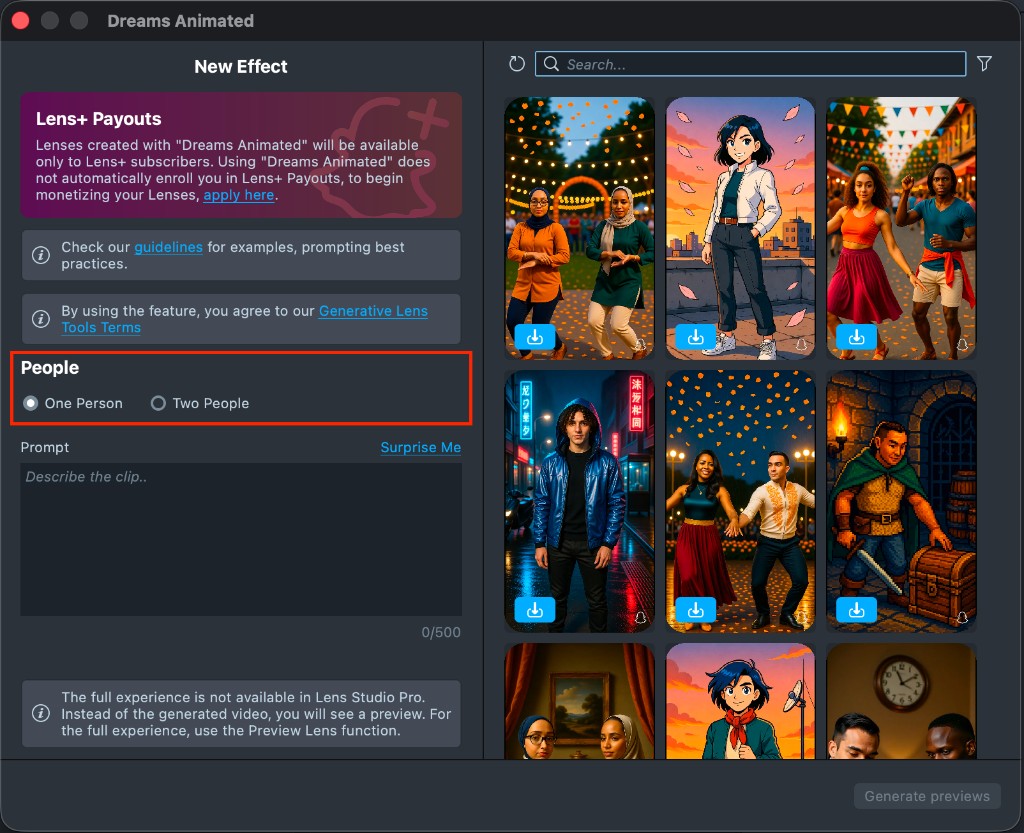
Set People to One Person or Two People. One Person starts selected and transforms the user's own photo. Two People lets the user pick a friend from a carousel. That friend then appears in the video with them. Your choice decides which component the plugin imports.
-
Describe the clip you want. Click Surprise Me to insert a default prompt and learn the flow.
-
Once you've entered your prompt, click Generate previews.
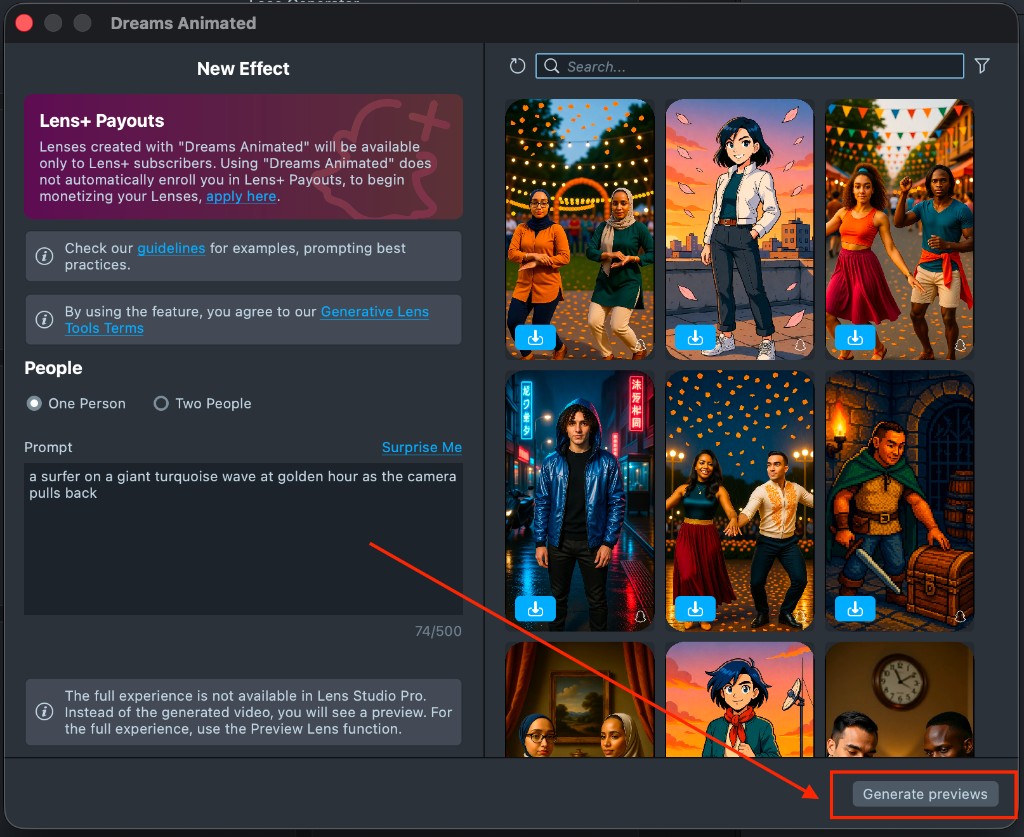
Generation can take up to 1 minute. You can close the plugin and come back later.
You can generate up to 10 previews every hour.
-
Once the preview finishes, click its tile in the gallery to open the effect and review the result.
-
If the preview doesn't match, adjust your prompt in New Effect and generate again. Each generation appears in the gallery as a new effect.
-
Happy with the preview? Import it. Click Import in the gallery, or click Import to project on the effect page.
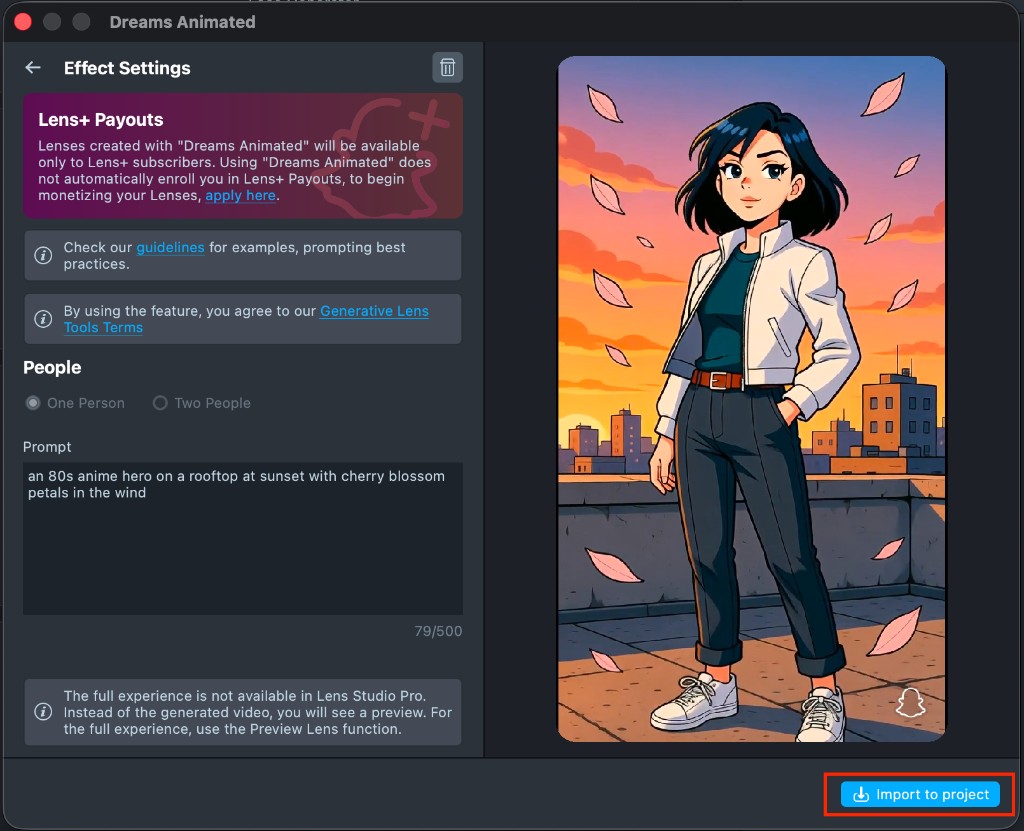
-
The imported component already includes the generation flow, so you can preview right away. Tap the Preview panel or push the project to a device.
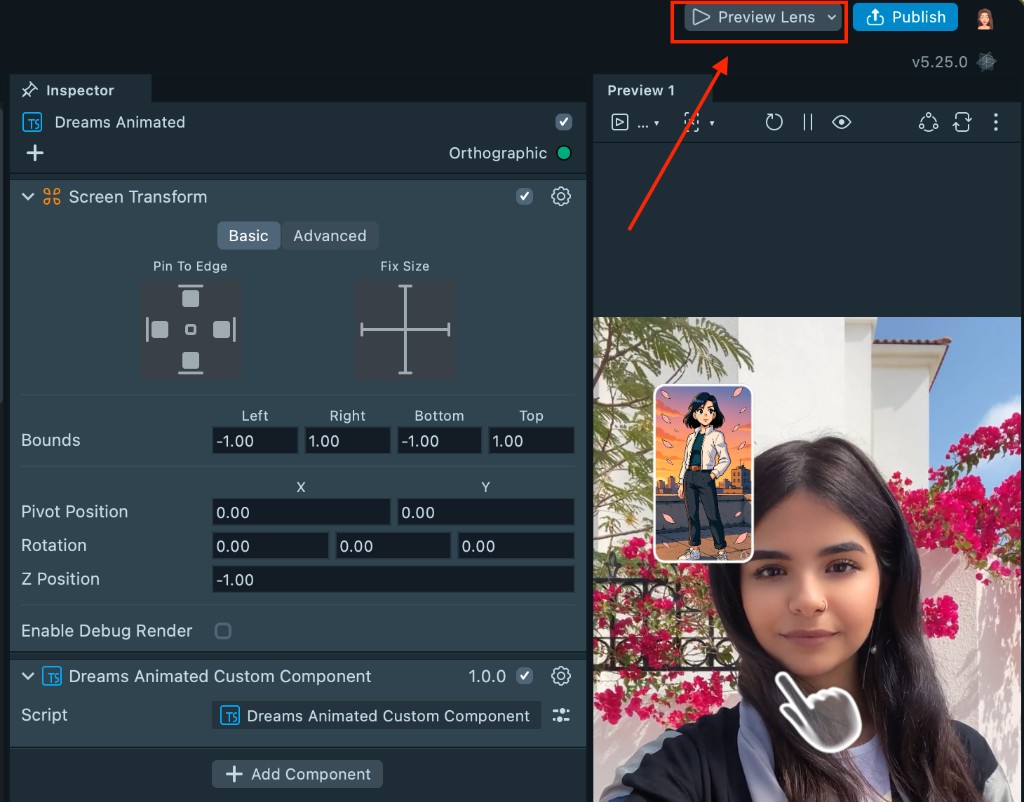
On device, the user provides a photo. With One Person, the Lens transforms that photo into an animated sequence. With Two People, the user first picks a friend from the carousel, who then appears with them.
The Push to Device feature in Lens Studio sends a Lens to your device, but it only opens if your account has an active Lens+ subscription.
Don't add music, the Music Lyrics component, or the Face Animator component to your project. These components don't work with Dreams Animated and can block Lens publish.
Lens Studio Preview shows the imported preview video, not a new clip. To test generation, click Preview Lens and try the Lens on your device. Preview supports only the default person. In Two People, the carousel shows sample friends until you test on a device.
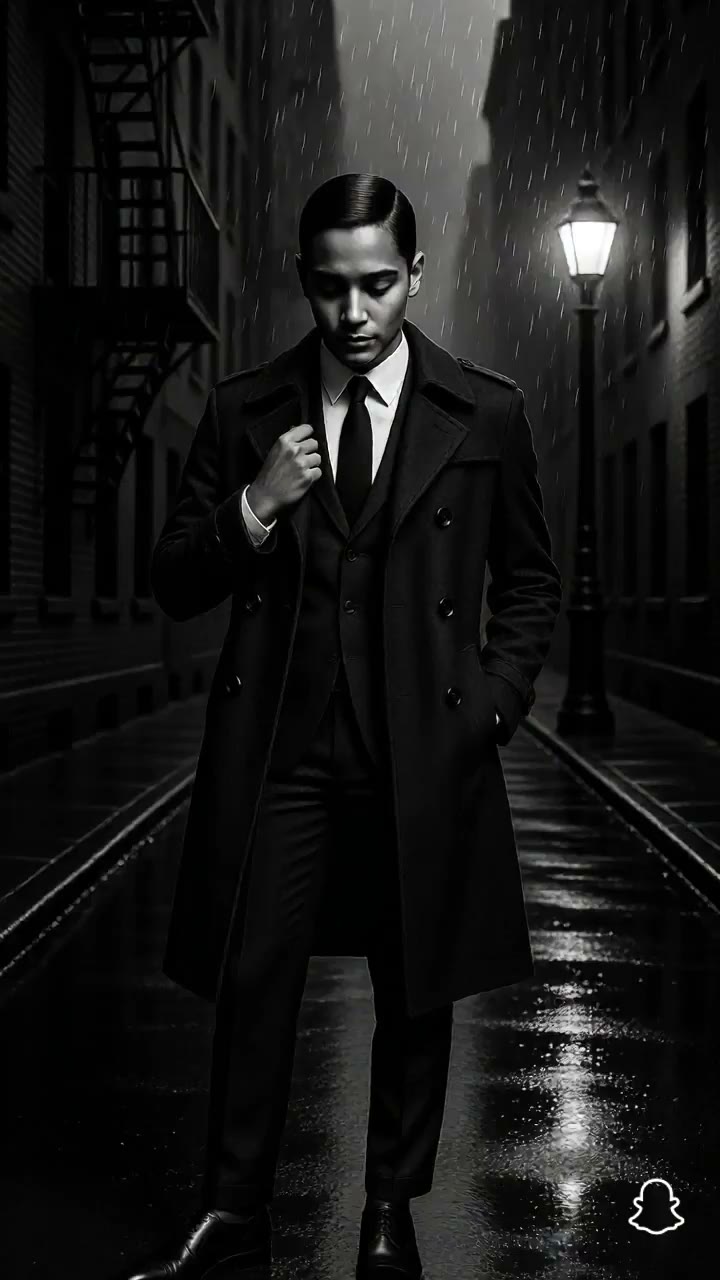
Prompt Template Examples
Quick Tip: describe the clip. Include the style, the place, and the motion.
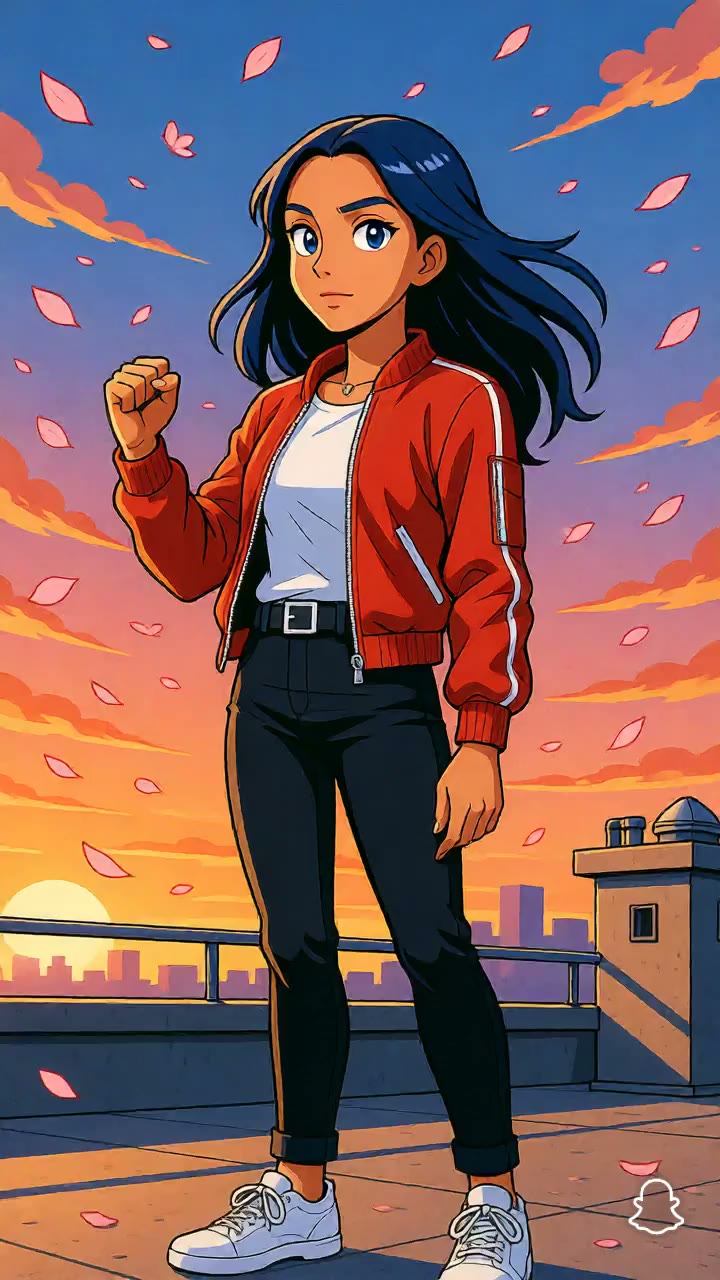
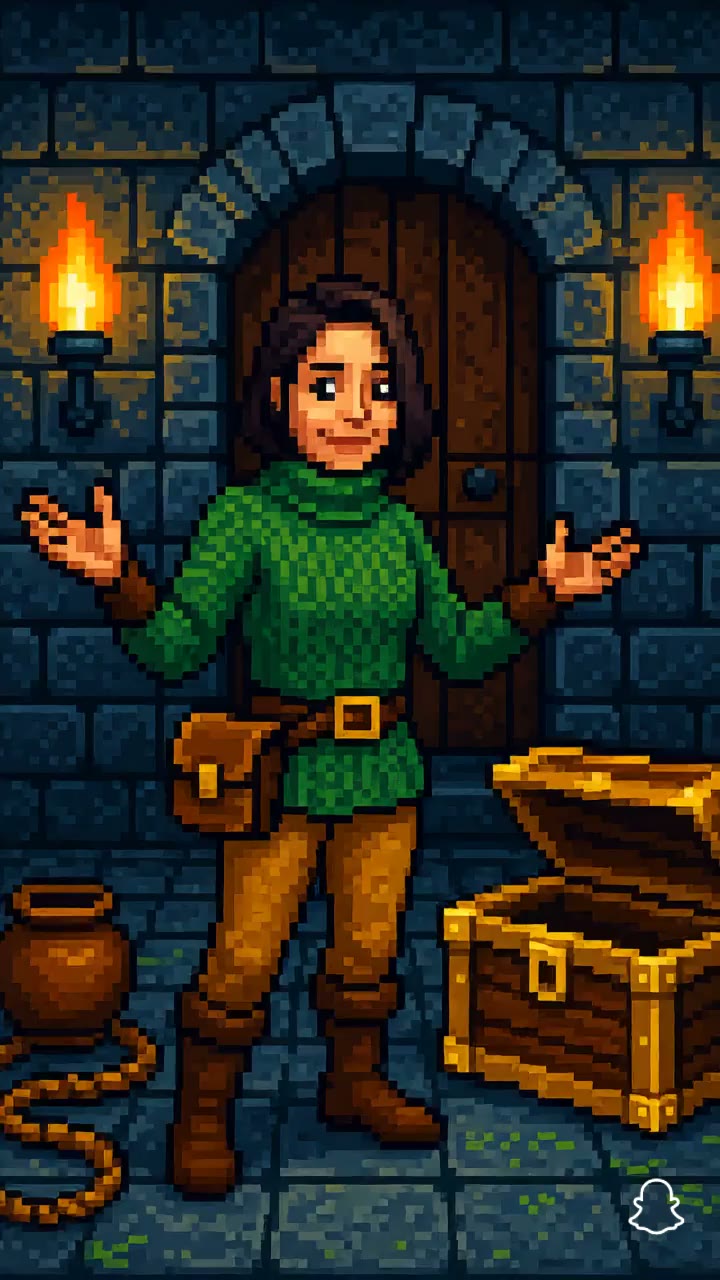
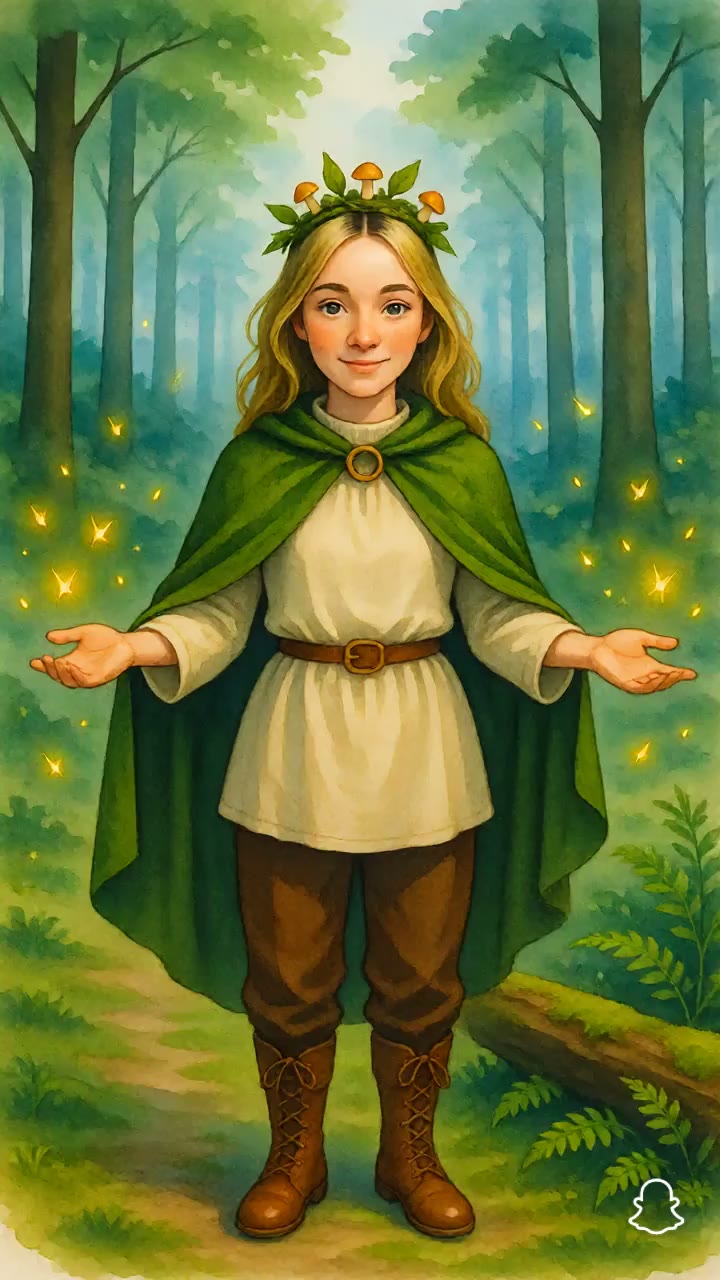
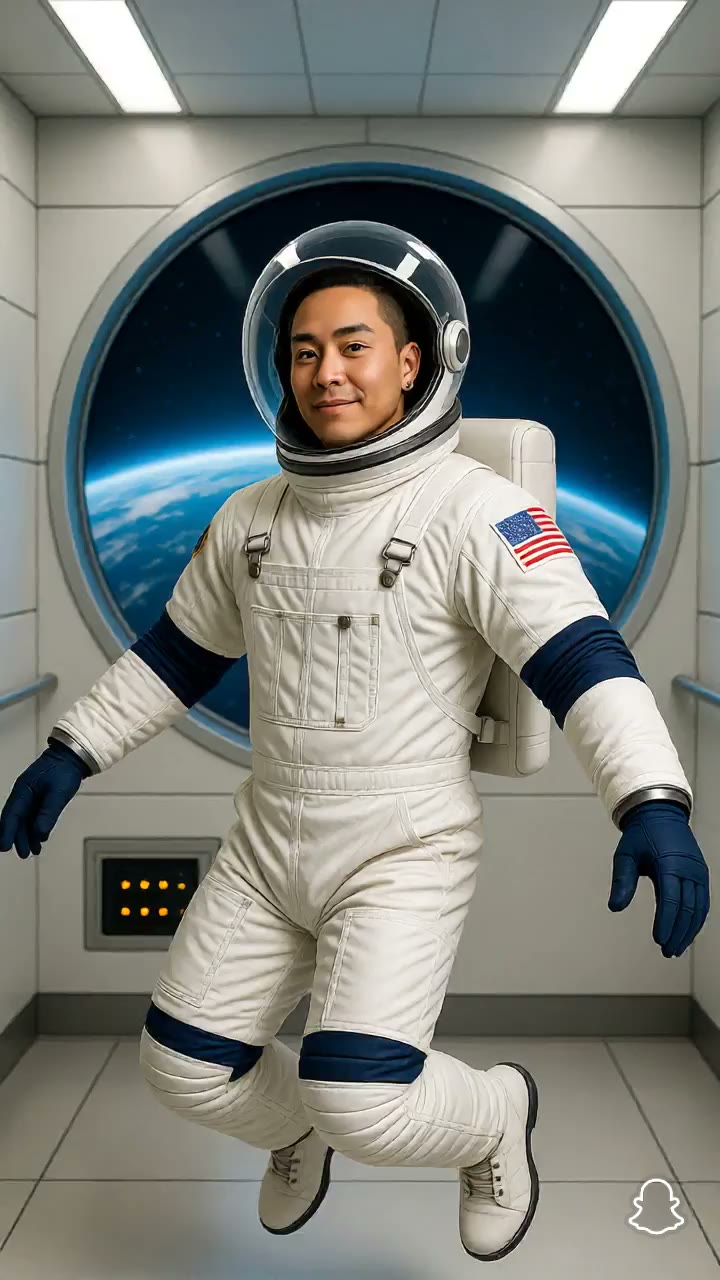
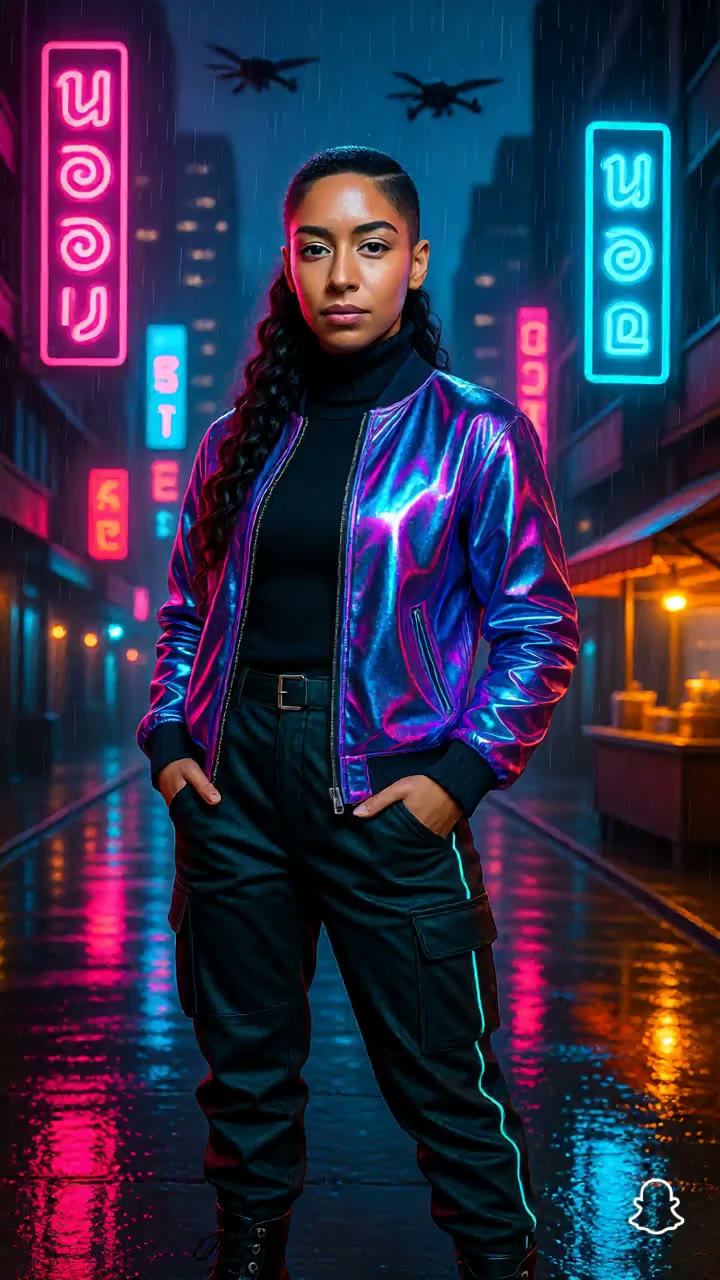
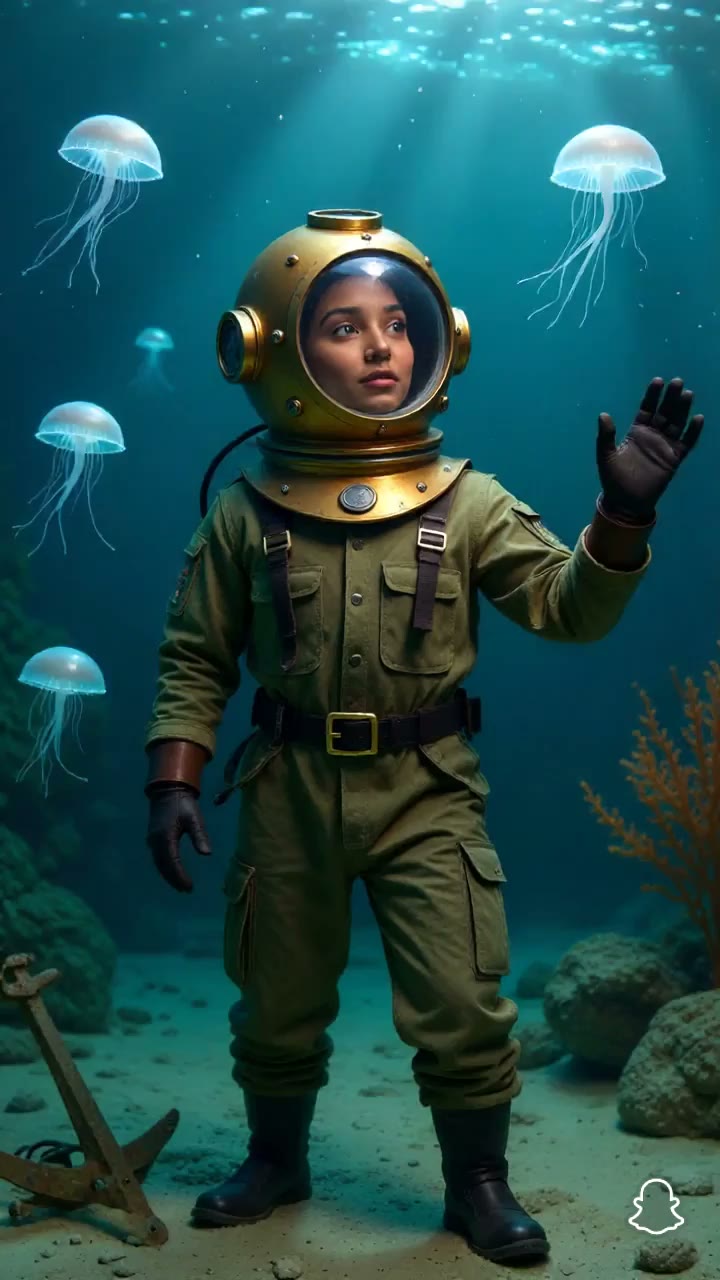
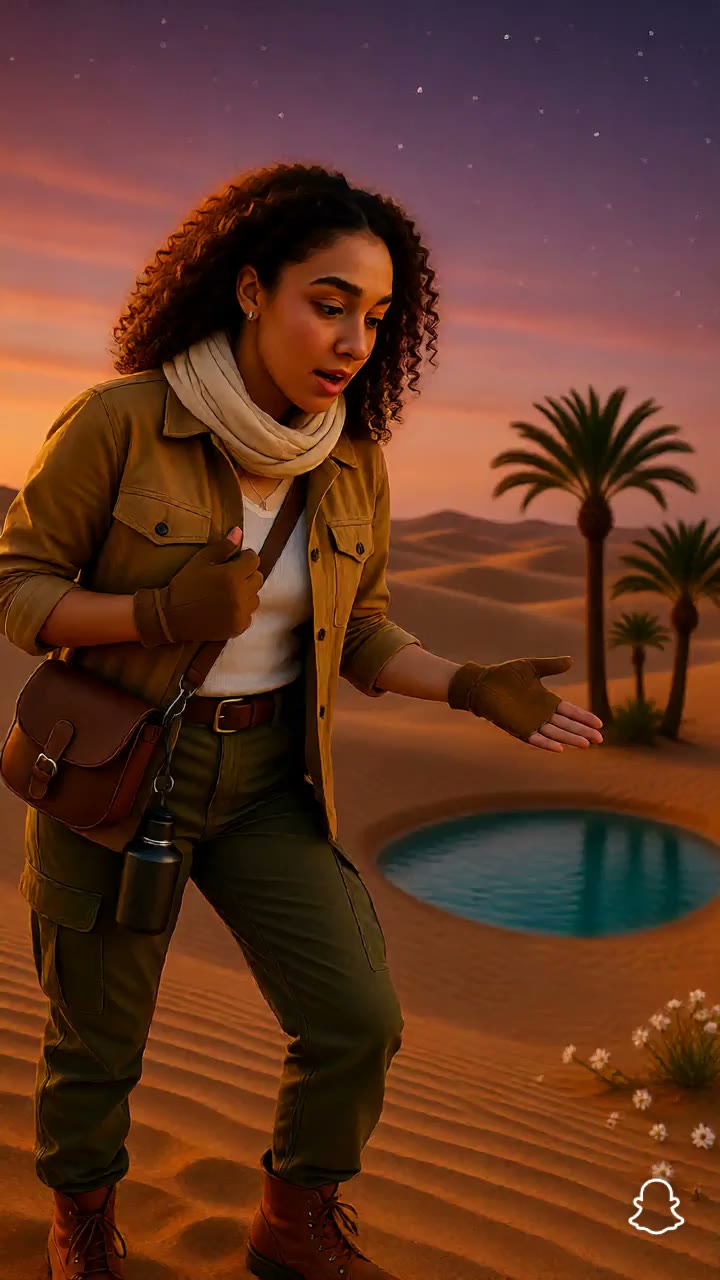
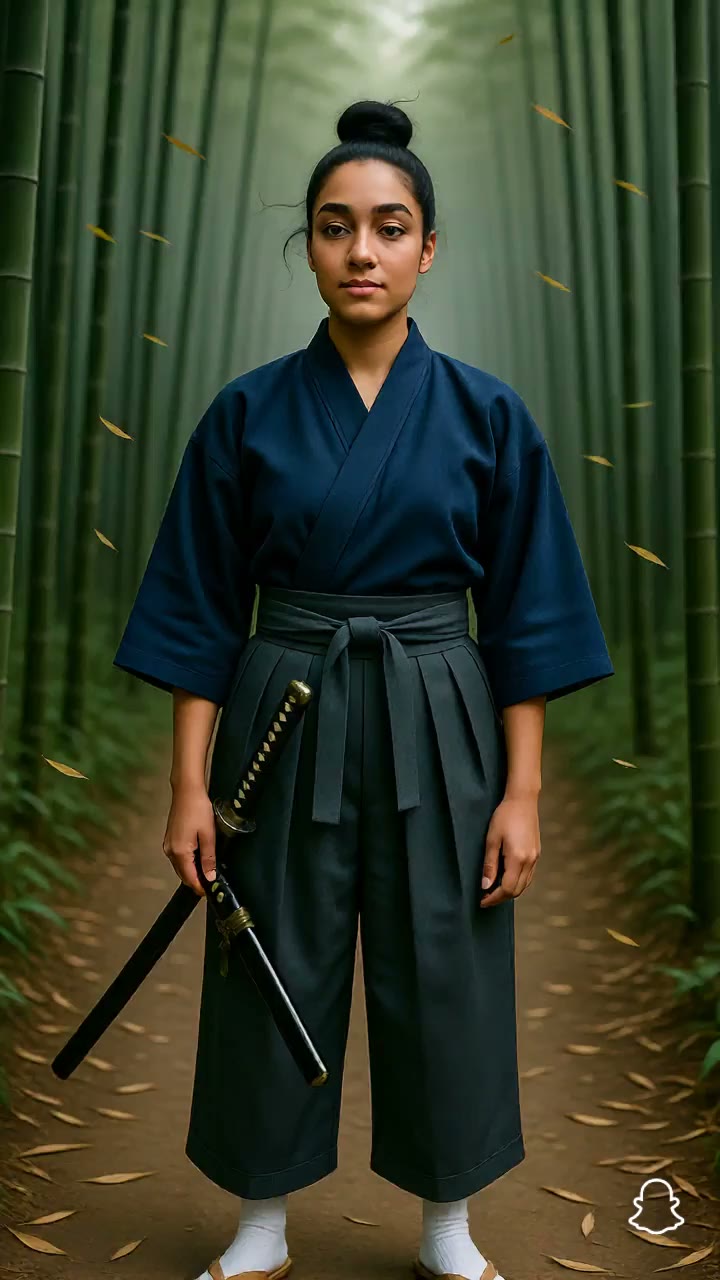
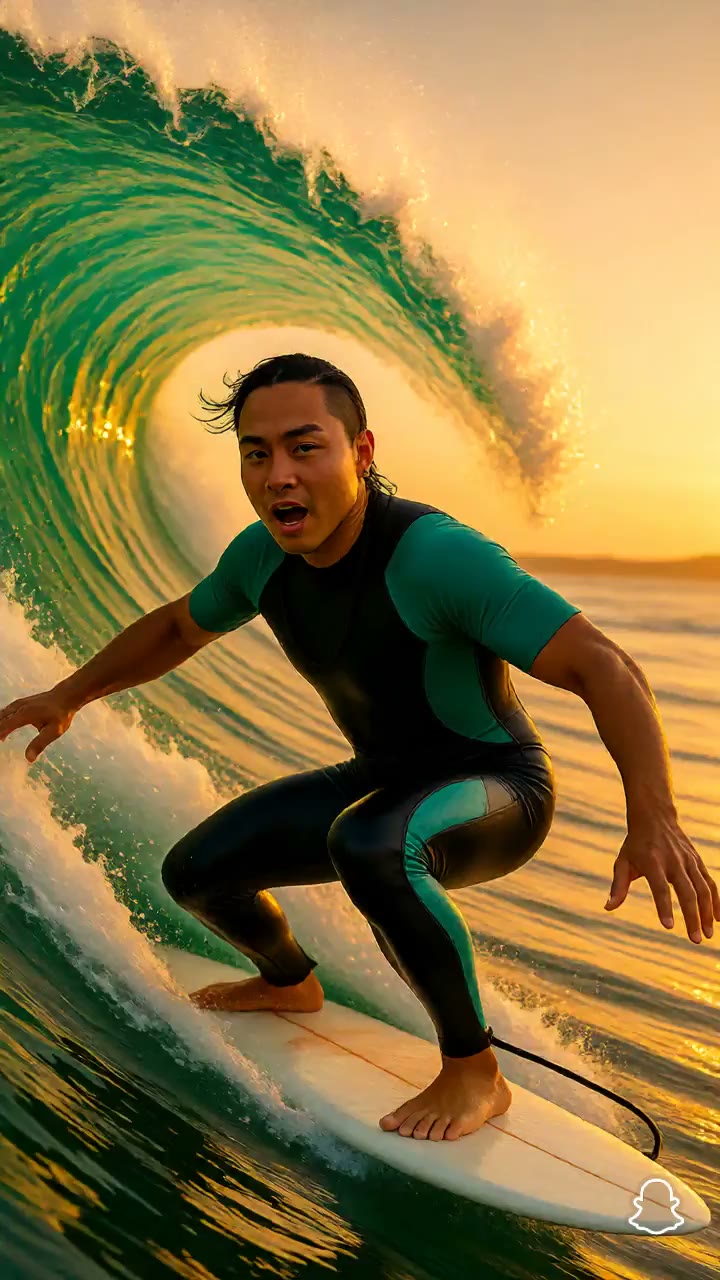
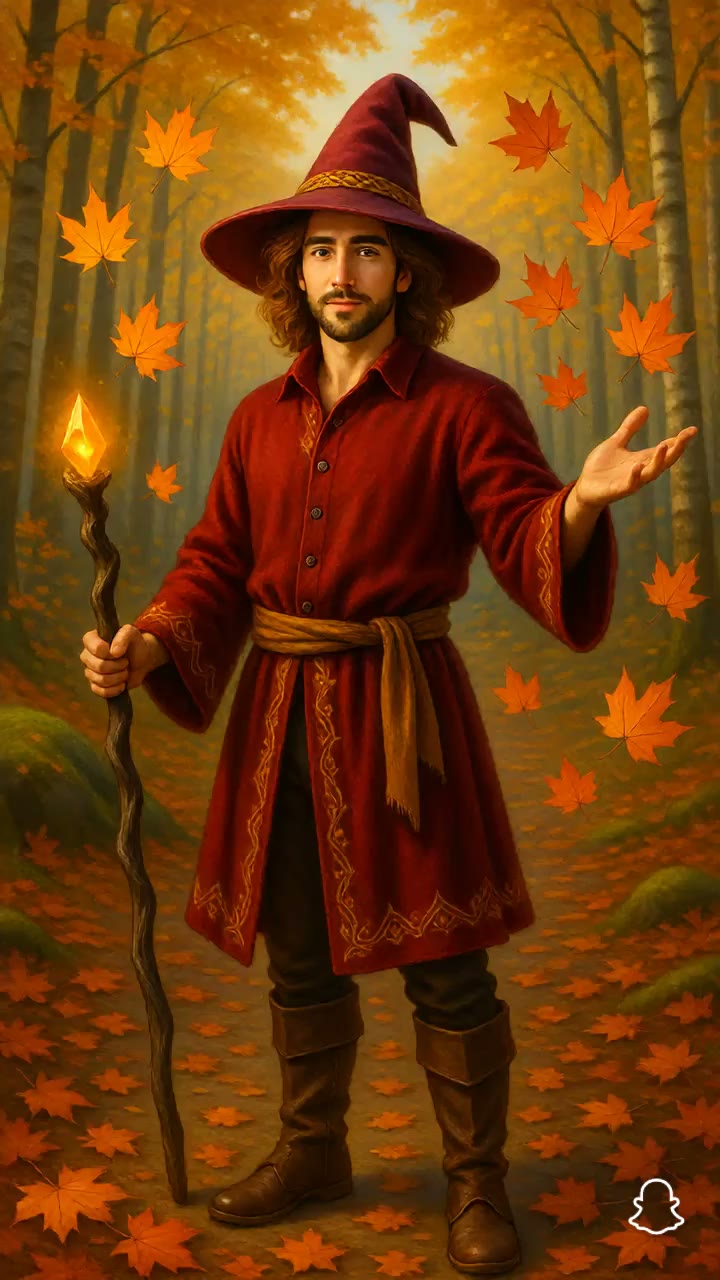
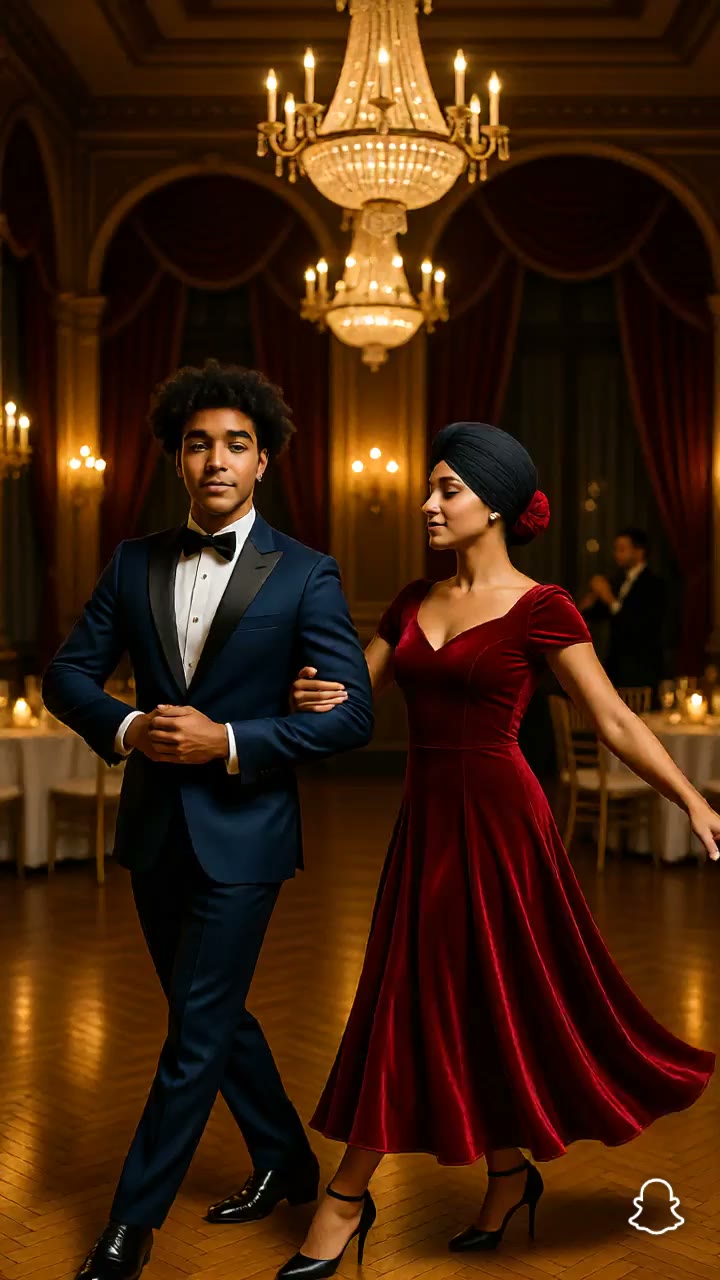
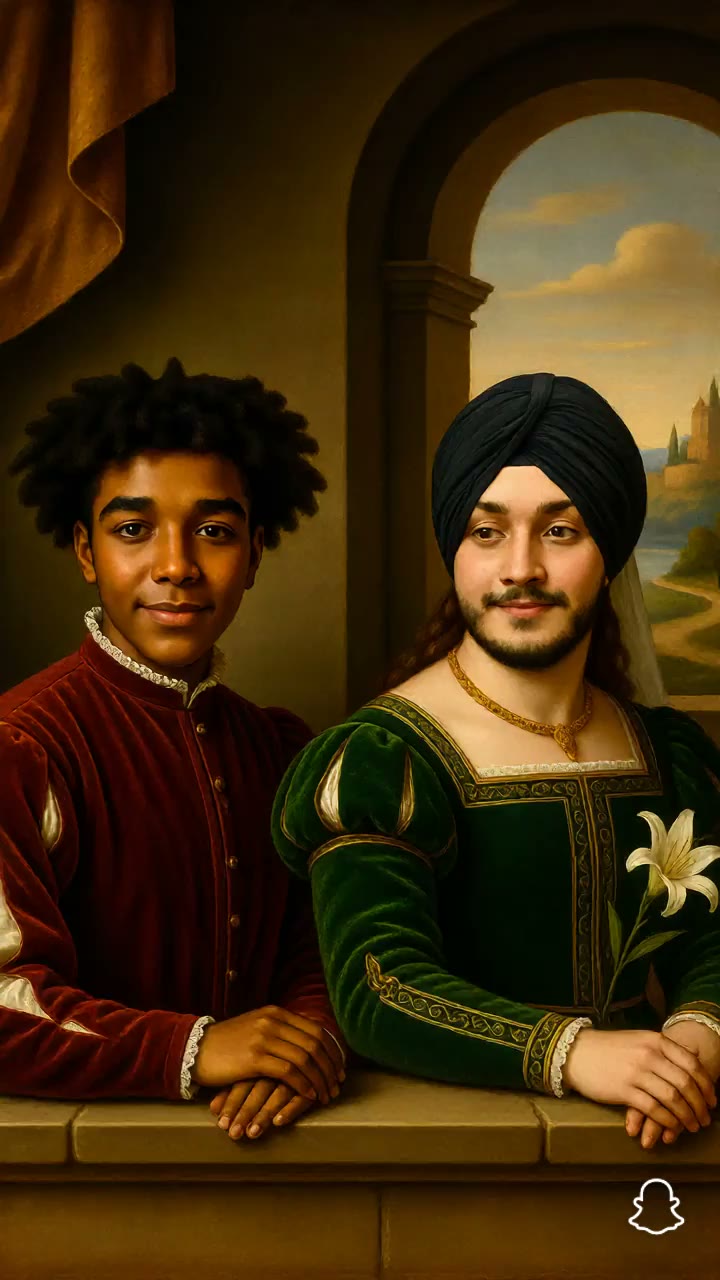
These templates match prompts the plugin can generate. Change them or combine them. The stills below come from clips those prompts produced.
Style
Give the person a specific art direction.
Name the medium or era, then the character and the place.
A [art style] [character] [action] in [place].
Example: a 1980s anime hero on a rooftop at sunset with cherry blossom petals in the wind.

Scene
Put the person in a concrete place.
Name the setting, the light, and one or two props.
A [character] in [place, with light and props], [action].
Example: an astronaut floating inside a space station while Earth glows through the window.
Motion
Say what moves.
Include the person's action, something moving around them, or a camera move.
A [character] [action] in [place] as [what moves].
Example: a wandering samurai standing in a bamboo grove as wind rushes through.
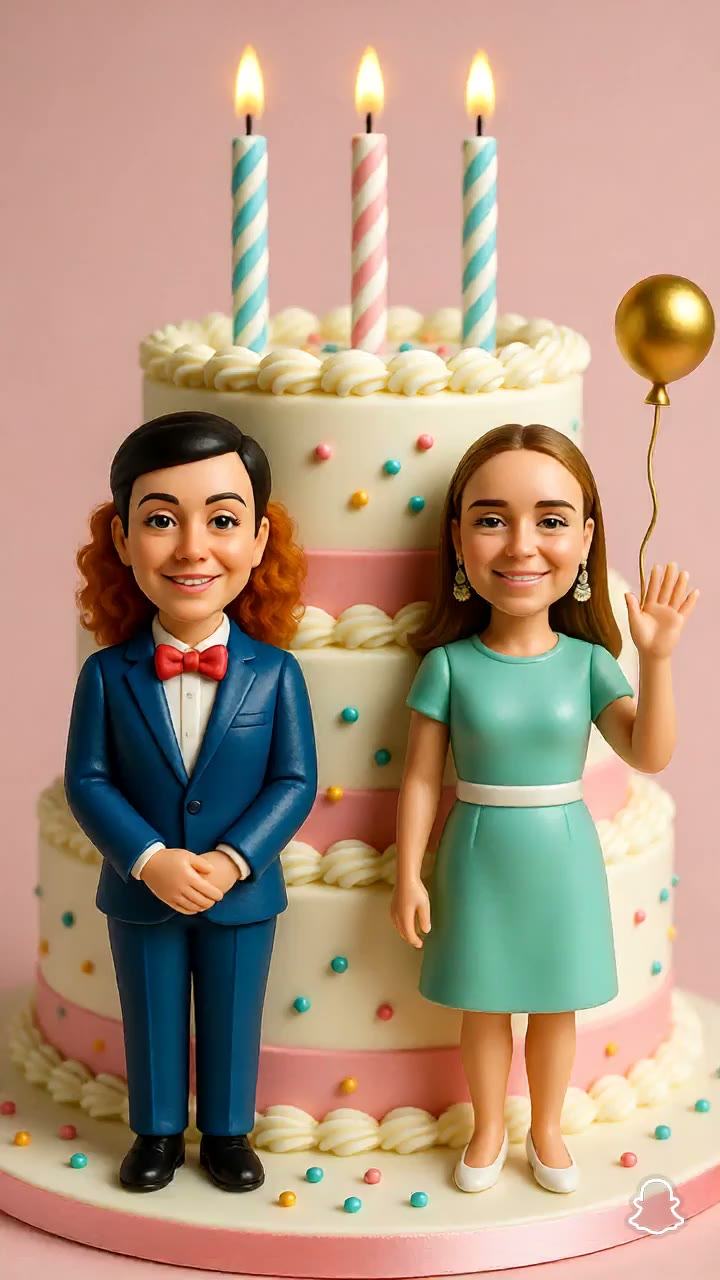
Two People
Describe both people in one scene.
Select Two People before you generate. The prompt covers the pair. The user picks the friend in the Lens, not in the prompt.
[Both people] [action] in [place] as [what moves].
Example: miniature figurines standing on top of a giant celebration cake as confetti falls.

Current Limitations
-
Don't add music, the Music Lyrics component, or the Face Animator component to your project. These components don't work with Dreams Animated and can block Lens publish.
-
Lens Studio Preview shows the imported preview video, not a new clip. To test generation, click Preview Lens and try the Lens on your device. Preview supports only the default person. In Two People, the carousel shows sample friends until you test on a device.
-
Only Lens+ subscribers can use Lenses built with Dreams Animated.