AI Edits
Build a Lens that applies one described edit to any photo, from a prompt in the AI Edits plugin.
- Snapchat: fully supported
- SPECS: not supported
- Camera Kit Web: not supported
- Camera Kit Mobile: not supported
- SnapchatFully supported
- SPECSNot supported
- Camera Kit WebNot supported
- Camera Kit MobileNot supported
AI Edits plugin lets creators build Lenses that apply one edit to a photo. You describe the change: a new style, a new place, or a new look. The Lens applies that edit to any photo a Snapchatter takes. Each Lens uses one embedded prompt. An optional image can show the look you want.
Getting Started
Lenses created with the AI Edits plugin are available only to Lens+ subscribers. Using AI Edits doesn't automatically enroll you in Lens+ Payouts. To begin monetizing your Lenses, apply here.
Launching AI Edits
-
Navigate to the Lens Studio AI option in the top right corner of Lens Studio. Then, click the GenAI Home Page tab in the sidebar.

-
On the GenAI Home Page tab, you may need to scroll to find AI Edits.
-
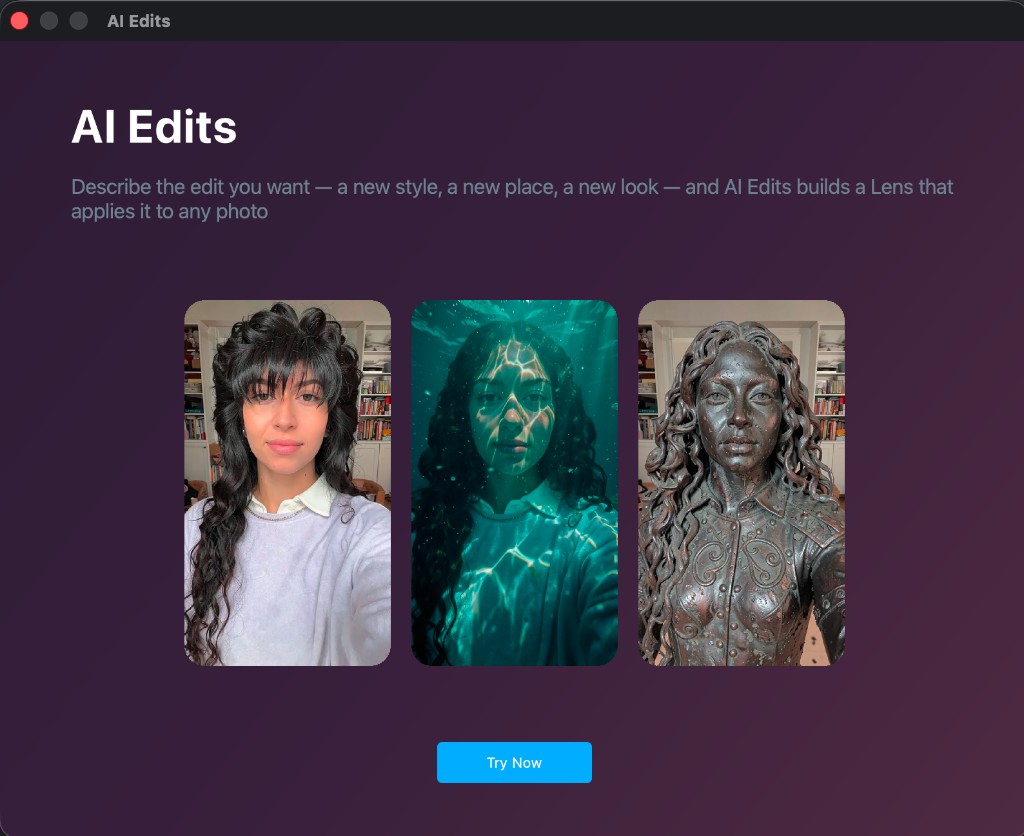
If you haven't generated an effect yet, the plugin opens an intro page with example edits. The intro reads: describe the edit you want, a new style, a new place, or a new look, and AI Edits builds a Lens that applies it to any photo. Click Try Now.
User Interface Overview
-
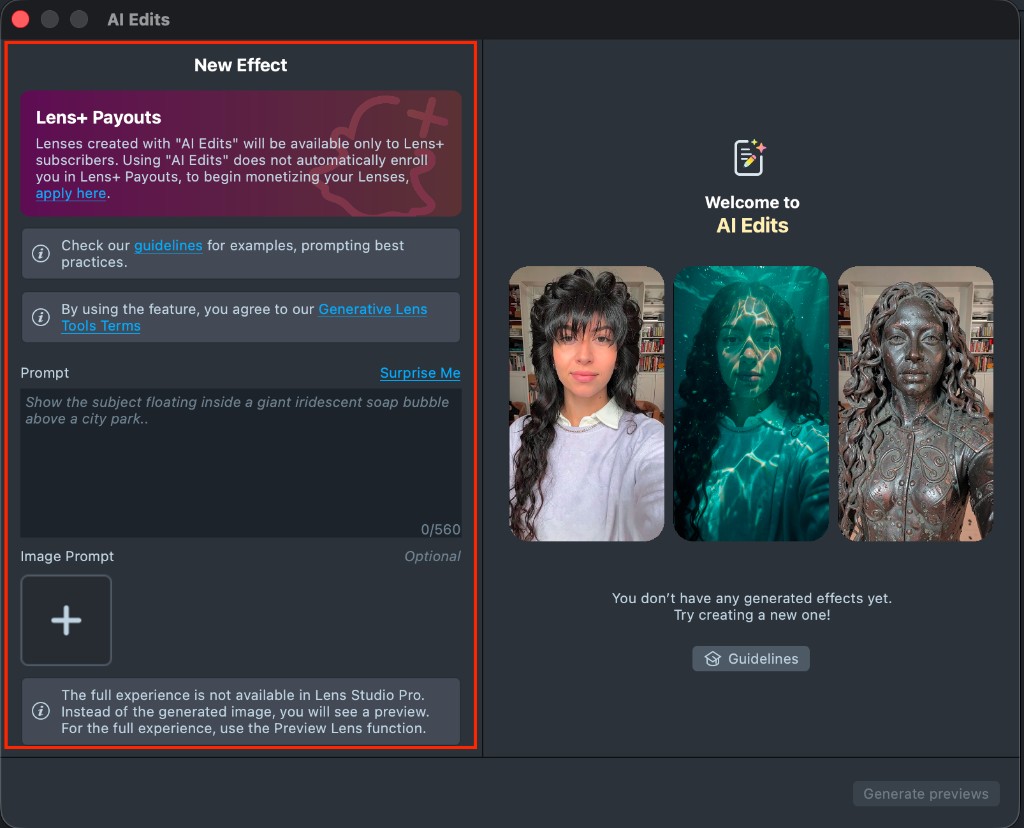
New Effect: describe the edit in Prompt. Surprise Me inserts one of the example prompts. Image Prompt is optional. Add one image when the look is easier to show than to describe. The text prompt stays required.
-
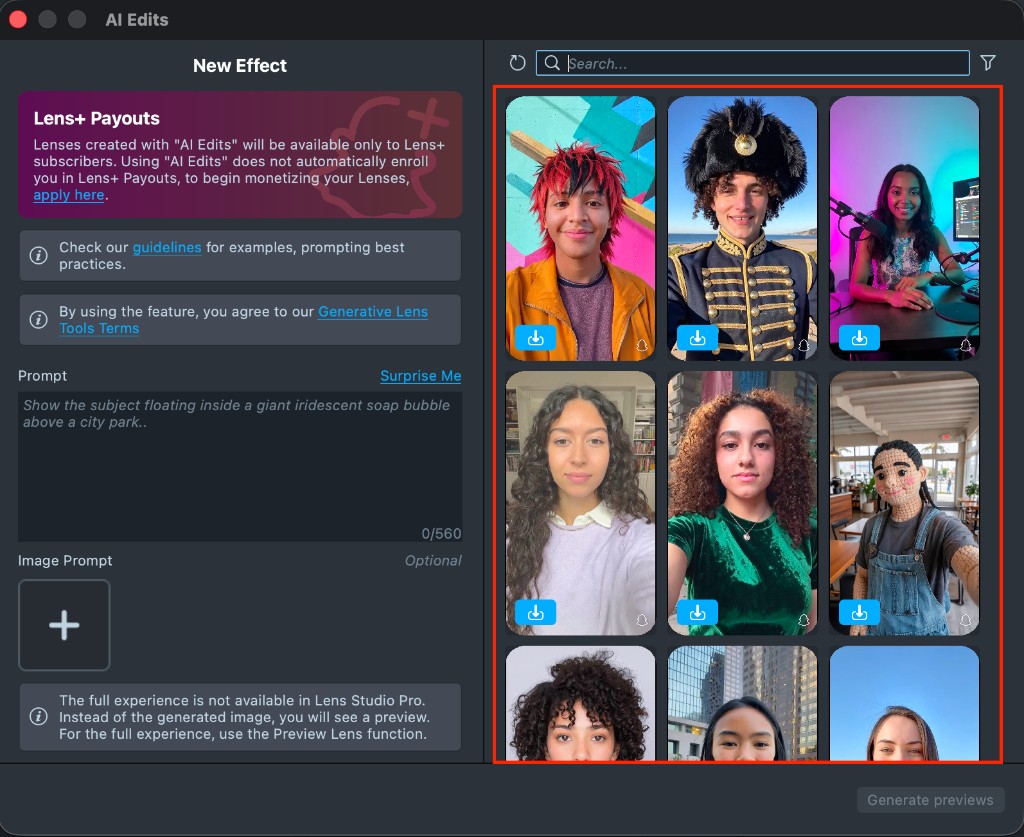
Gallery: shows the effects you've created. A finished effect has an Import button on its tile.
-
Search: finds an effect in your gallery by its prompt.
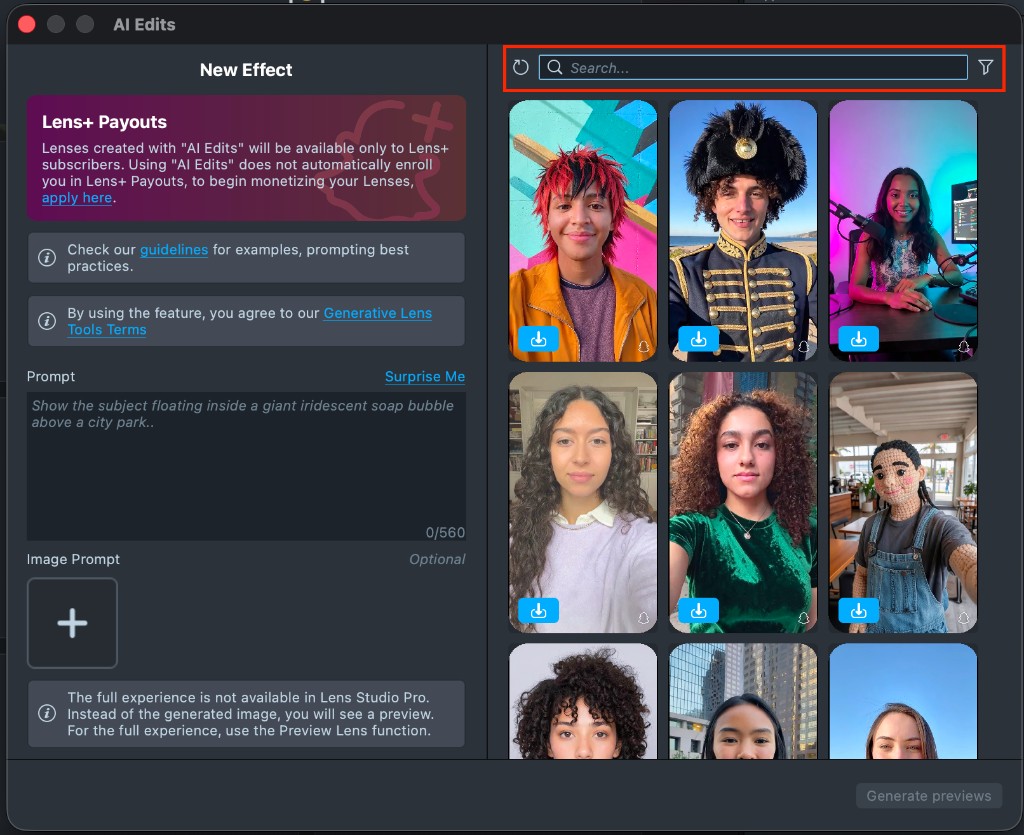
Effect Creation flow
-
Enter a description of the edit you want. You can click Surprise Me to insert one of the default prompts and get familiar with the creation flow. To guide the look with a picture, add it under Image Prompt.
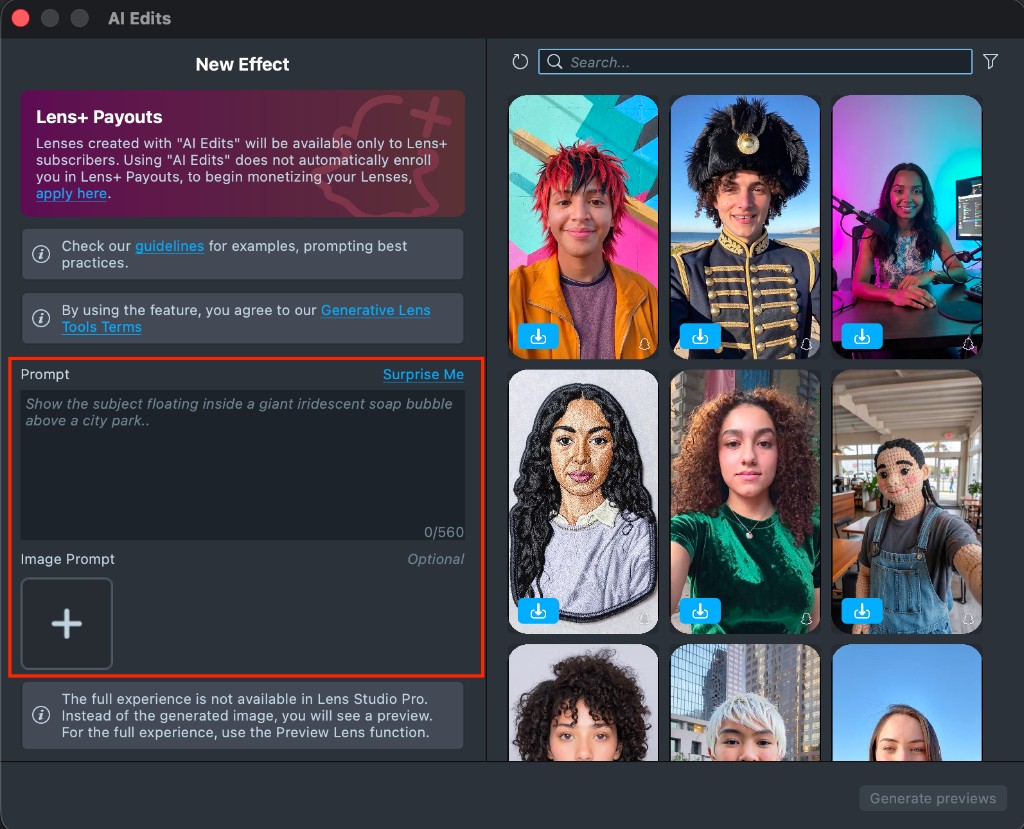
-
Once you've entered your prompt, click Generate previews.
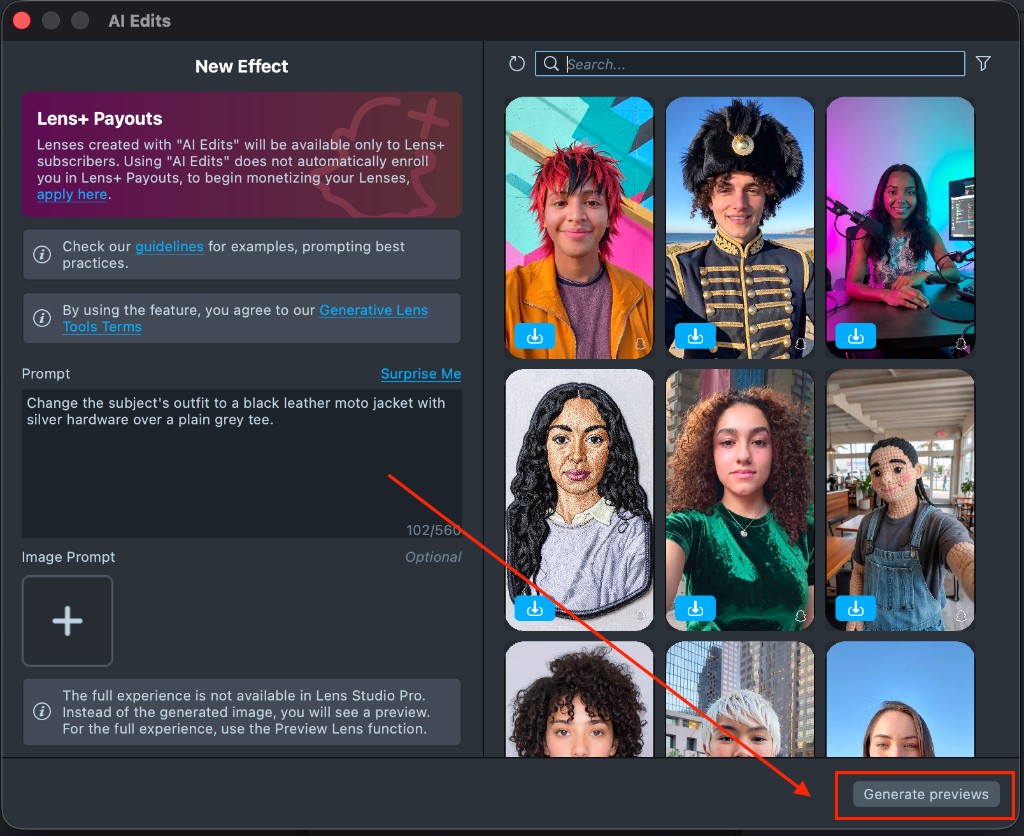
Generating the preview may take up to 1 minute. You can close the plugin and return later.
You can generate up to 10 previews every hour.
-
Once the preview finishes, click its tile in the gallery to open the effect and review the result.
-
If the preview doesn't match what you wanted, return to New Effect, adjust your prompt, and generate a new preview. Each generation appears in the gallery as a new effect, without changing the previous one.
-
Happy with the preview? Import it. Click Import in the gallery, or click Import to project on the effect page.
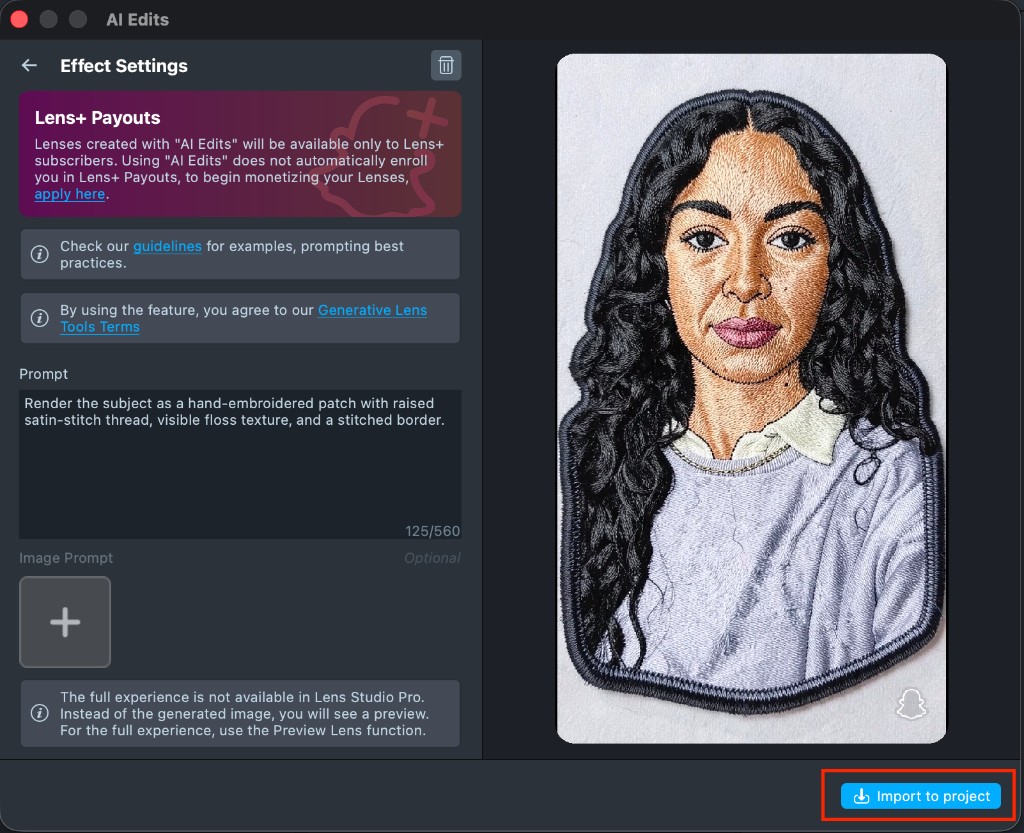
-
The imported component already includes the generation flow, so the project is ready to preview. You can tap the Preview panel or push the project to a device.
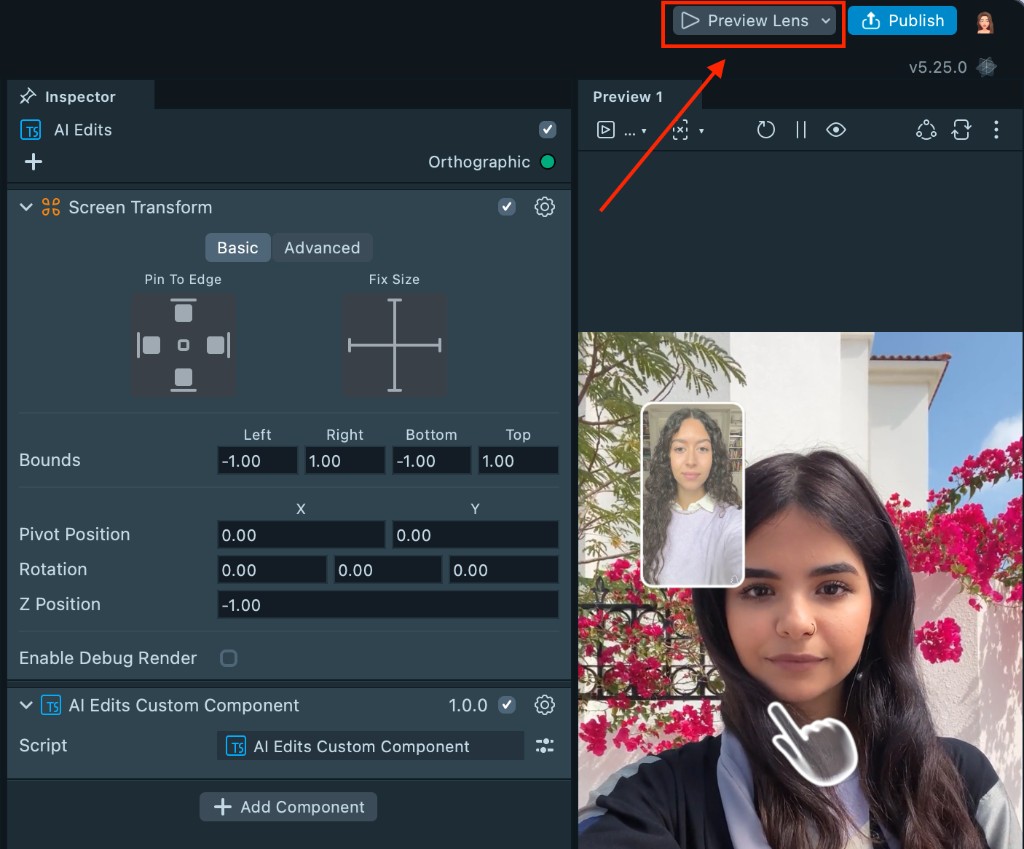
On device, the user taps the screen. The Lens freezes the camera photo and applies your edit.
The Push to Device feature in Lens Studio sends a Lens to your device, but it only opens if your account has an active Lens+ subscription.
Don't add music, the Music Lyrics component, or the Face Animator component to your project. These components don't work with AI Edits and can block Lens publish.
Lens Studio Preview supports the default person only. To test with other people, click Preview Lens and try the Lens on your device.
Prompt examples
Quick Tip: describe one edit. Name the look, the place, the light, the outfit, or the character.
These prompts match examples Surprise Me can insert. Change them, or combine a prompt with an Image Prompt.
Selfie
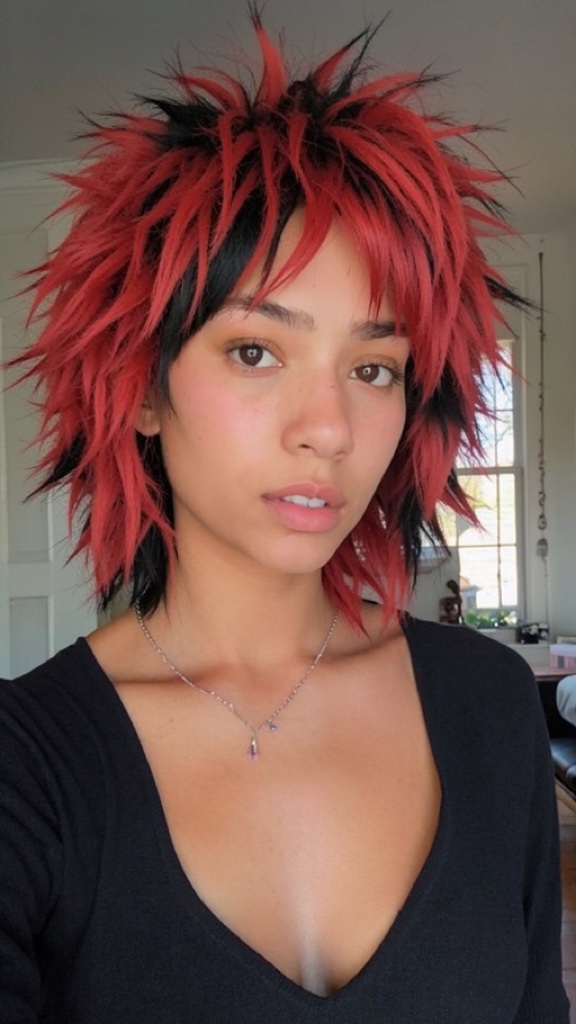
Keep the photo. Change the look: a new cut, a new color, or full makeup.
Change the subject's hair to a shaggy wolf cut in two-tone cherry red over black.
Scenes
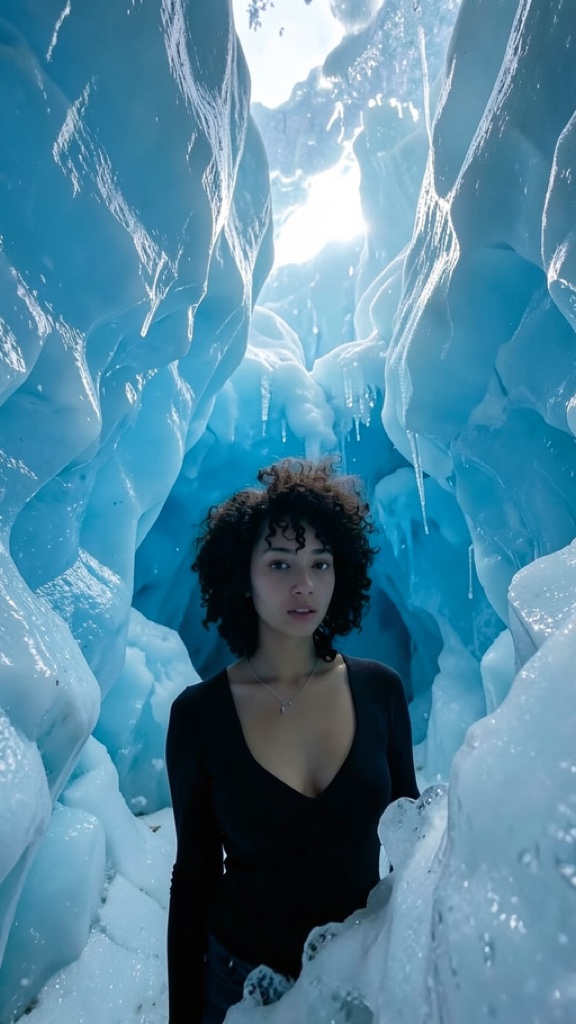
Put the person in a place you can describe.
Place the subject deep inside a glacier ice cave with translucent blue walls and light filtering through the ceiling.
Style
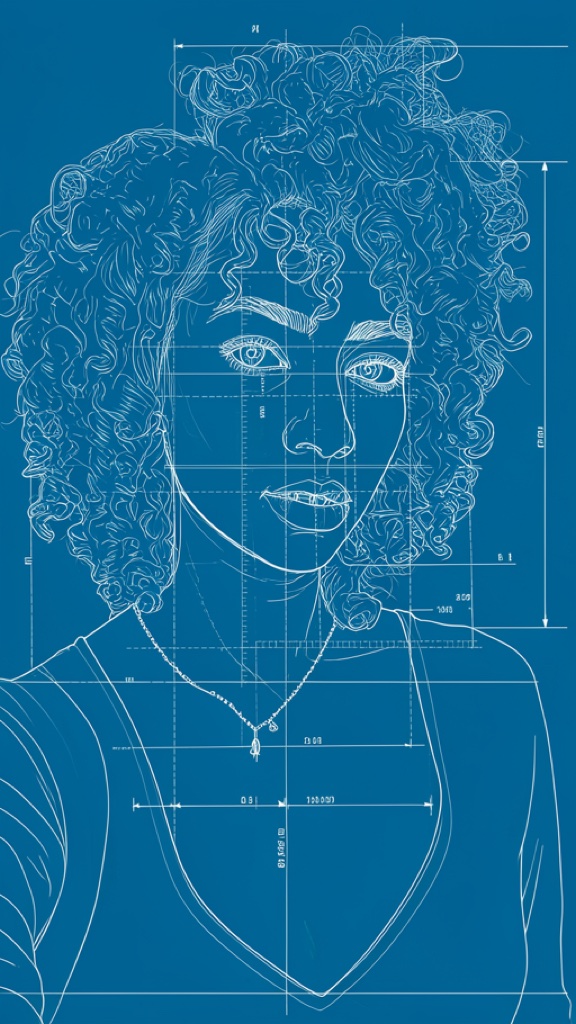
Restyle the frame: a new medium, material, or finish.
Render the subject as a white-line technical blueprint on deep cyan paper with fine construction lines and dimension marks.
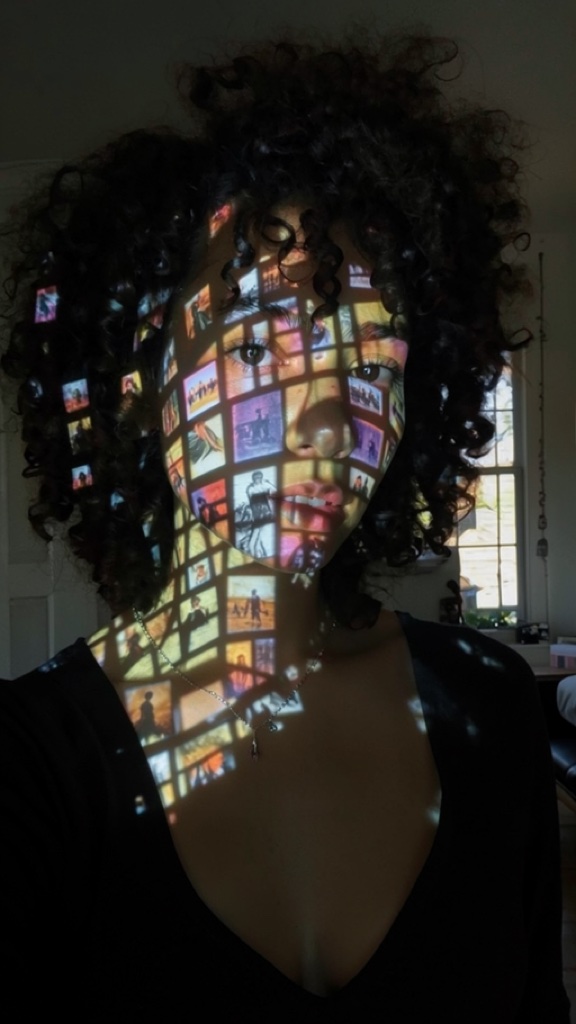
Lighting
Relight the shot.
Change the lighting to a projector beam casting film frames across the face.
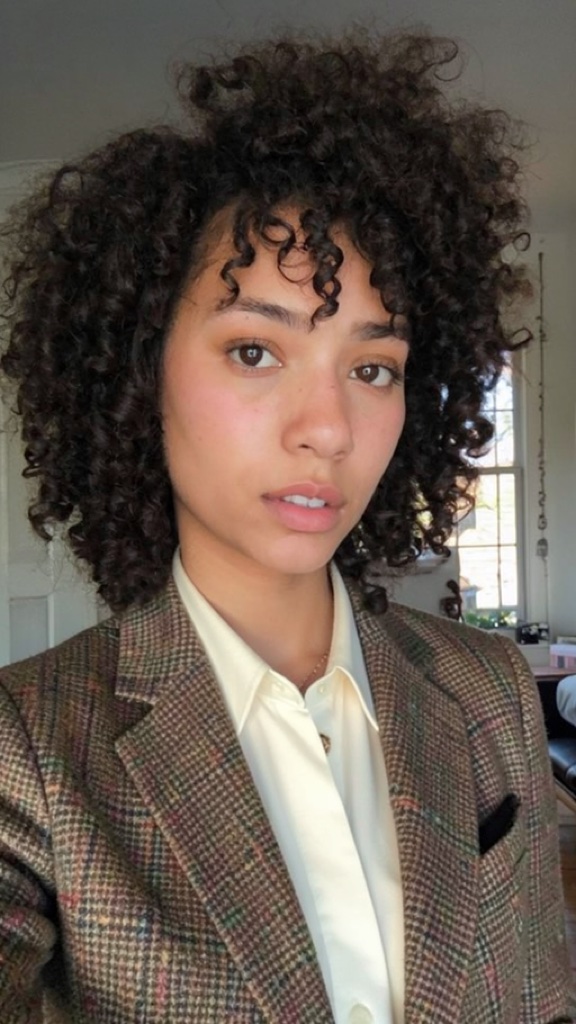
Outfits
Give the person new clothes, an accessory, or a costume.
Change the subject's outfit to a tailored brown-check tweed jacket over a soft cream shirt.
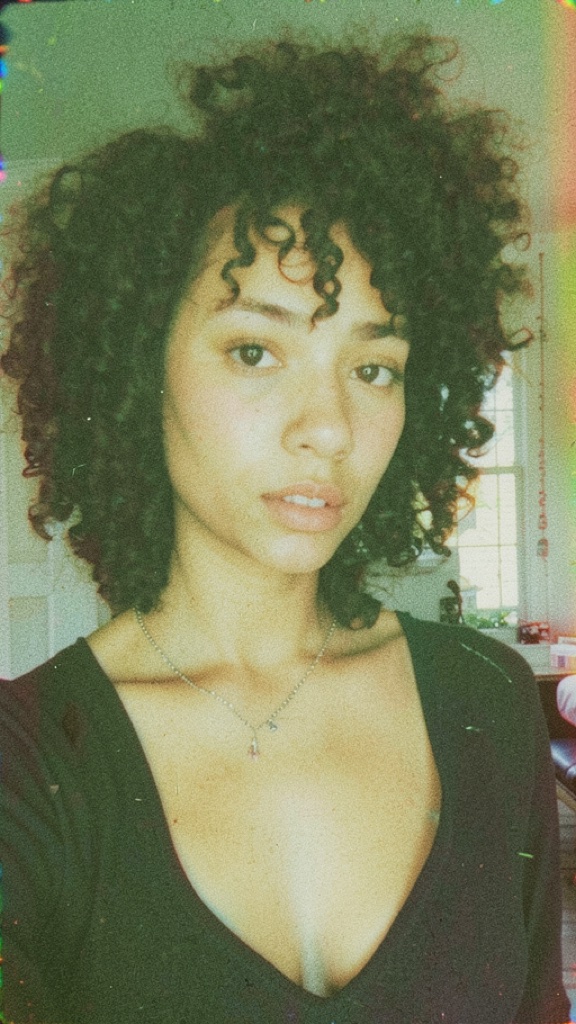
Camera
Apply a camera or film look.
Convert to a faded analog film photo with heavy grain, a slightly green-tinted instant-photo palette, muted contrast, and subtle color fringing at the edges.
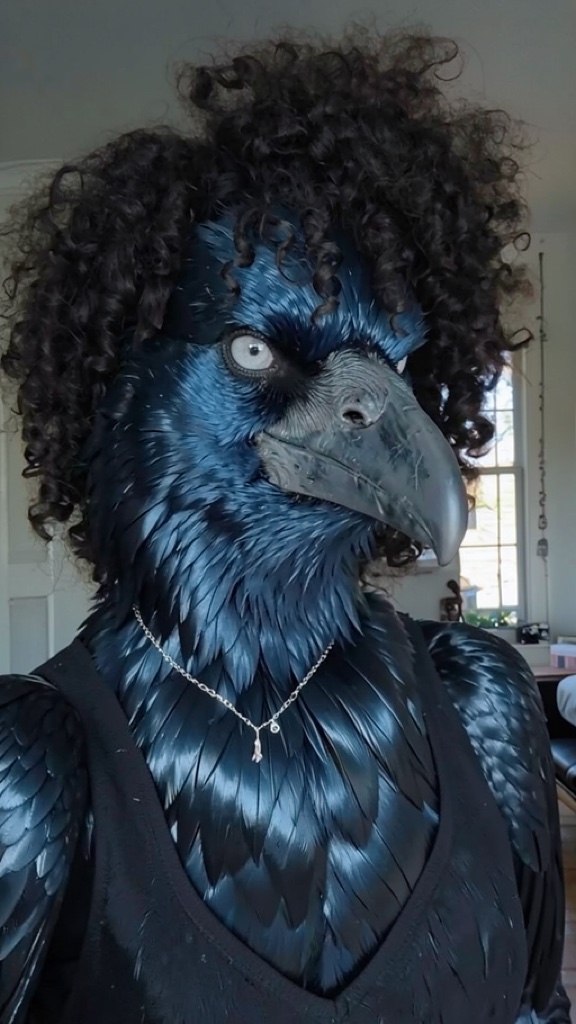
Characters
Turn the person into someone, or something, else.
Turn the subject into an anthropomorphic raven with glossy blue-black plumage, a heavy gray beak, and pale gray eyes.
Current Limitations
-
Don't add music, the Music Lyrics component, or the Face Animator component to your project. These components don't work with AI Edits and can block Lens publish.
-
Lens Studio Preview supports the default person only. To test with other people, click Preview Lens and try the Lens on your device.
-
AI Edits Lenses are available only to Lens+ subscribers.