Refresh the Logger
Clear the Lens Studio Logger and use the TypeScript Status window to see only the compilation errors that stop your Lens from running.
- Available on all platforms
The Logger records errors as Lens Studio sees them, so it can keep showing errors you've already fixed. Only some of them are compilation errors, which stop your Lens from running. To see where the project stands now, clear the Logger and check the TypeScript Status panel.
Refresh the Logger to show current compilation errors
-
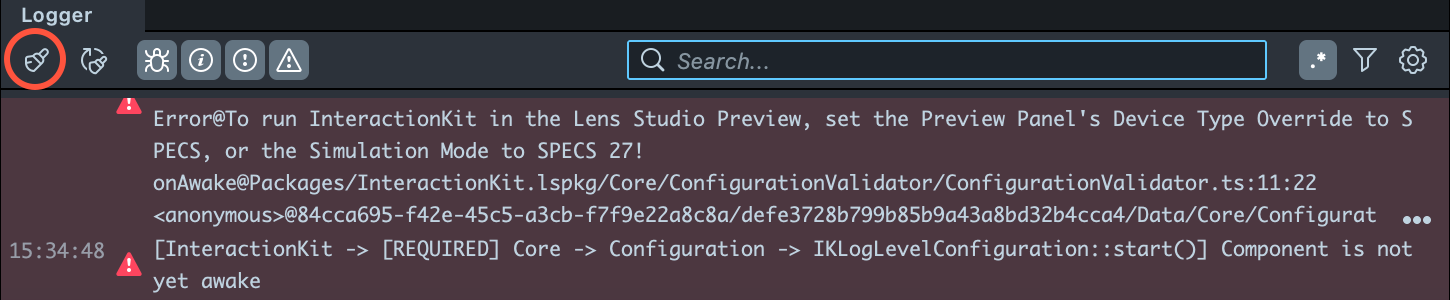
In the Logger panel, select the Clear button (the brush icon) to remove the old messages.
-
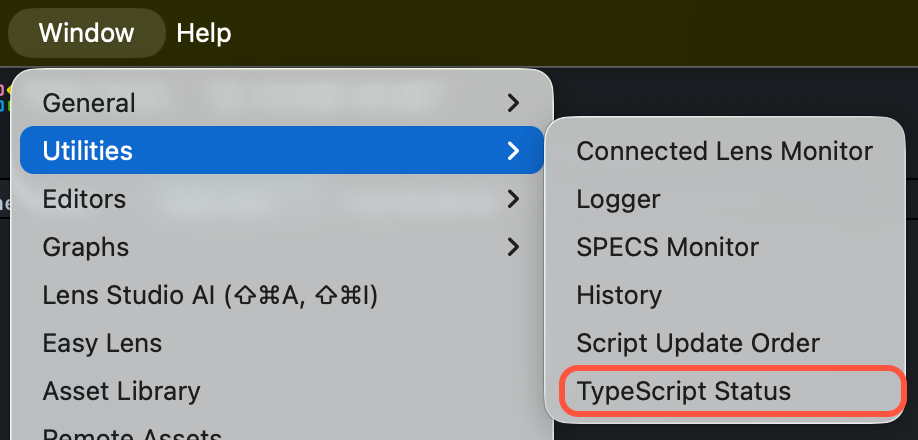
Select Window > Utilities > TypeScript Status.
-
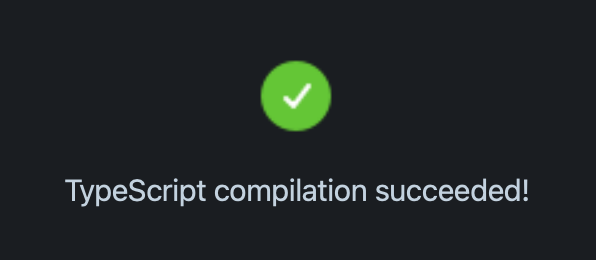
In the TypeScript Status panel, check the result. A green check and "TypeScript compilation succeeded!" mean the project compiled with no errors.
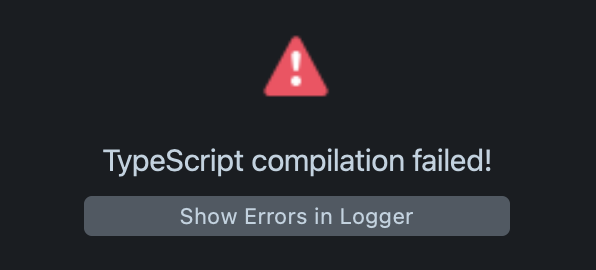
A red triangle and "TypeScript compilation failed!" mean there are compilation errors. Select Show Errors in Logger to list them in the Logger.
Related
- Convert a Project to SPECS: refresh the Logger after the conversion.
- Debug a Lens With the JavaScript Debugger: pause and inspect a running Lens.
- Troubleshoot Lens Studio MCP: when an AI assistant can't connect.