Script Events
- Available on all platforms
- SnapchatFully supported
- SPECSFully supported
- Screen touch events fire only in the Lens Studio Preview; on the device, use Interaction Kit or the Gesture Module
- Camera Kit WebFully supported
- Camera Kit MobileFully supported
Introduction
This guide provides a breakdown of Lens Events available. Scripts are triggered by binding them to these events. By default, all scripts are bound to the On Awake Event.
Lens Events
We've broken down the events into five categories: Scene, Camera, Touch, Keyboard and Other.
For a technical reference of all Lens Events, please visit the Events API Reference.
Scene Events
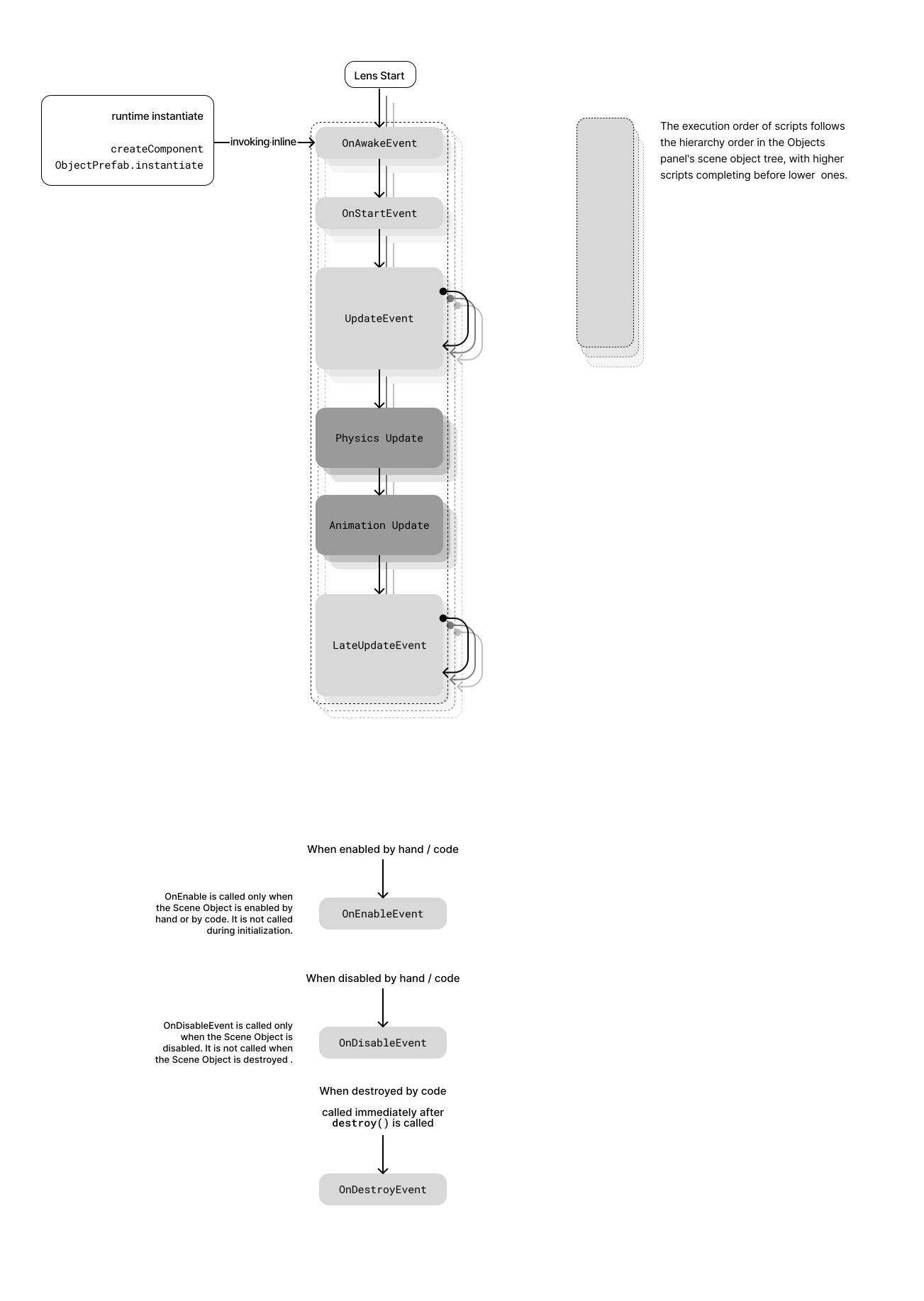
These events are tied to the timing and execution of the Lens Scene. The ordering in which the scene objects are placed in the scene hierarchy will determine the execution time.
On Awake
Scripts bound to this event will trigger before any other event in the Lens (including OnStart and Update). It also fires immediately on a newly instantiated or copied object, for instance before returning from createComponent. OnAwake should be used for a script to configure itself or define its API but not to access other ScriptComponents since they may not have yet received OnAwake themselves.
Scripting API
OnAwakeEvent
On Start
Scripts bound to this event will trigger before Update on the first frame a Component is enabled. This will be after all OnAwake events have triggered on the first frame and after a createComponent caller has had an opportunity to configure the Component. OnStart should be used to do initialization that depends on inputs or to access other Components which will have defined their inputs and methods during OnAwake.
Scripting API
OnStartEvent
On Destroy
Scripts bound to this event will trigger once the Script Component associated with the script has been destroyed while the Lens is running.
Scripting API
OnDestroyEvent
On Enable
Scripts bound to this event will trigger once the associated Script Component is enabled.
Scripting API
OnEnableEvent
On Disable
Scripts bound to this event will trigger once the associated Script Component is disabled.
Scripting API
OnDisableEvent
Update
Scripts bound to this event will trigger once on every frame update. This is handy for running code that changes things over time.
Multiple update events can cause slow performance.
Scripting API
UpdateEvent
Late Update
This event is triggered at the end of every frame, after normal UpdateEvents such as Physics Events or Animation Events but before rendering occurs.
Scripting API
LateUpdateEvent
Face Events
These events are triggered based on user face actions (for example, opening or closing the mouth, raising eyebrows).
Brows Frowned
Scripts bound to this event will trigger when a face's eyebrows are lowered.
Scripting API
BrowsLoweredEvent
Brows Raised
Scripts bound to this event will trigger when a face's eyebrows are raised.
Scripting API
BrowsRaisedEvent
Brows Returned To Normal
Scripts bound to this event will trigger when a face's eyebrows are returned to a neutral pose.
Scripting API
BrowsReturnedToNormalEvent
Face Found
Scripts bound to this event will trigger when a face enters the video frame.
Scripting API
FaceFoundevent
Face Lost
Scripts bound to this event will trigger when a face leaves the video frame.
Scripting API
FaceLostEvent
Mouth Closed
Scripts bound to this event will trigger when a face's mouth closes.
Scripting API
MouthClosedEvent
Mouth Opened
Scripts bound to this event will trigger when a face's mouth opens.
Scripting API
MouthOpenedEvent
Camera Events
These events are triggered when a change is made to the current device camera.
On SPECS, there is no front and rear camera to switch between, so Switched To Front Camera and Switched To Rear Camera don't fire.
Switched To Front Camera
Scripts bound to this event will trigger once when the camera is switched to the front (selfie) camera.
Scripting API
CameraFrontEvent
Switched To Rear Camera
Scripts bound to this event will trigger once when the camera is switched to the rear (world) camera.
Scripting API
CameraBackEvent
Touch Events
These events are triggered by user touch gestures. To use these events, you'll need a Scene Object with a Touch Component. To learn more about using the Touch Component, refer to the Touch Input guide.
These events are triggered by user touch gestures.
On SPECS, Touch Started, Touch Moved and Touch Ended fire only in the Lens Studio Preview panel, where Interaction Kit uses the mouse to simulate hands. On the device, use Interaction Kit events or the Gesture Module for input.
Touch Started
Scripts bound to this event will trigger once when the user starts a Touch gesture.
Scripting API
TouchStartEvent
Touch Moved
Scripts bound to this event will trigger once every frame while the user is moving their finger during a Touch gesture (that is, dragging their finger).
Scripting API
TouchMoveEvent
Touch Ended
Scripts bound to this event will trigger once when the user ends a Touch gesture (that is, lifts their finger).
Scripting API
TouchEndEvent
SnapRecordStartEvent
Scripts Bound to this event will be triggered when the user starts long pressing the capture button to record a Snap.
On SPECS, SnapRecordStartEvent, SnapRecordStopEvent and SnapImageCaptureEvent don't fire: Capture isn't available on SPECS yet.
Scripting API
SnapRecordStartEvent
SnapRecordStopEvent
Scripts Bound to this event will be triggered when the user stops long pressing the Snap button to end recording of a Snap.
Scripting API
SnapRecordStopEvent
SnapImageCaptureEvent
Scripts Bound to this event will be triggered when the user taps on the capture button to record an image.
Scripting API
SnapImageCaptureEvent
Keyboard Events
These events are triggered by keyboard input. Use KeyPressEvent and KeyReleaseEvent to react when keys are pressed or released. Event data includes the key (via the Keys enum) and modifiers such as Shift, Control, Alt, and Meta (via the KeyModifiers enum). To check whether a key is currently held down—for example, for movement or game controls—use KeyboardManager.isKeyPressed in your script.
Key Pressed
Scripts bound to this event will trigger when a key is pressed.
Scripting API
KeyPressEvent
Key Released
Scripts bound to this event will trigger when a key is released.
Scripting API
KeyReleaseEvent
Other Events
In addition to the selectable events described above, there are many other events that can be bound in script. To learn more about binding events in script, please visit the section below.
Lens Turned Off
Scripts bound to this event will trigger once when the Lens is exited (if the user switches to another Lens, or closes the Lens carousel).
Scripts bound to this event will trigger once when the Lens is exited. On SPECS, leaving a Lens currently ends it rather than suspending it; see Lifecycle events on SPECS.
Scripting API
TurnOffEvent
Delayed Callback
Scripts bound to this event will trigger after a specified amount of time. This event can be used as a countdown timer.
Scripting API
DelayedCallBackEvent
Manipulate Start
Scripts bound to this event will trigger when the user starts a Manipulate gesture.
Scripts bound to this event will trigger when the user starts a Manipulate gesture.
Scripting API
ManipulateStartEvent
Manipulate End
Scripts bound to this event will trigger when the user ends a Manipulate gesture.
Scripts bound to this event will trigger when the user ends a Manipulate gesture.
Scripting API
ManipulateEndEvent
On SPECS, Manipulate gestures come from the Manipulate component, a touchscreen feature. To let people move, rotate and scale objects with their hands, use Interaction Kit's InteractableManipulation component instead.
Lifecycle events on SPECS
On SPECS, a Lens moves between lifecycle states: Foreground (visible, rendering, input active), Paused (visible and rendering, input not active), Suspended (no JavaScript runs and no frames render; in-memory state is kept until the Lens ends) and Terminated. Bind these events in script to save and restore state as the Lens moves between them:
| Event | When it fires on SPECS |
|---|---|
| OnPauseEvent | When the Lens enters Paused |
| OnResumeEvent | When the Lens leaves Paused for Foreground |
| OnWillEnterSuspendedEvent | Before the Lens enters Suspended: the last chance to save state |
| OnDidEnterSuspendedEvent | After the suspend transition; JavaScript stops when the handler returns, until the Lens returns to Foreground |
| OnWillEnterForegroundEvent | Before the Lens returns to Foreground; restorable resources may not be ready yet |
| OnDidEnterForegroundEvent | After the return to Foreground is scheduled; the next frame is about to render |
To branch on the current state instead of tracking it in your own flag, call global.scene.getActivityPhase(), which returns a SceneActivityPhase value.
Keep lifecycle handlers short: they run synchronously, and SPECS waits for them to finish. Leaving a Lens on SPECS currently ends it rather than suspending it, so save anything you need to keep in persistent storage, not only in memory. To trigger each event while you test, use the Preview panel's request items described in Preview Lenses for SPECS.
Binding Events In Script
You can bind a function to a Lens Event as follows:
- JavaScript
- TypeScript
function printTime(eventData) {
  // Print the elapsed Lens time
  print(getTime().toString());
}
// Bind the function printTime to the event UpdateEvent
var event = script.createEvent('UpdateEvent');
event.bind(printTime);
@component
export class NewScript extends BaseScriptComponent {
  onAwake() {
    let event = this.createEvent('UpdateEvent');
    // Bind the function printTime to the event UpdateEvent
    event.bind(this.printTime.bind(this));
  }

  printTime(eventData: UpdateEvent) {
    // Print the elapsed Lens time
    print(getTime().toString());
  }
}
In this example, the function printTime is bound to the UpdateEvent using a SceneEvent.
To learn more about what the Script Component can do with events, visit the Script Component API Documentation.