Transform Sync Server
Move, rotate and scale objects by hand on SPECS and sync their transforms back to the Lens Studio scene with the Transform Sync Server plugin and Client package.
- Snapchat: not supported
- SPECS: partially supported
- Camera Kit Web: not supported
- Camera Kit Mobile: not supported
- SnapchatNot supported
- SPECSPartially supported
- The Client package (5.15.2) imports the Interaction Kit 0.16 package path and doesn't compile with Interaction Kit 4.0.0
- Camera Kit WebNot supported
- Camera Kit MobileNot supported
Transform Sync is a Lens Studio server plugin and a Client package for SPECS Lens creators. With it you move, rotate and scale 3D objects by hand on SPECS and sync those transforms back to the scene in Lens Studio, either automatically when an interaction ends or manually when you select an Apply button. Use it to place content in a real room, then keep the exact values in your project.
The Transform Sync Server plugin and the Client package are for development and iteration only. Don't ship them in a published Lens: before you publish, remove the Client's Scene Objects (ObjectTransformManager, HttpSender and the Apply button UI) or disable them.
The Client package 5.15.2 imports Interaction Kit from its 0.16 package path
(SpectaclesInteractionKit.lspkg), so its scripts don't compile in a project that uses Interaction Kit 4.0.0.
What Transform Sync does
- Hands-on editing on SPECS: grab, move, rotate and scale objects on the device.
- Two sync modes: Auto Sync sends each object's transform when an interaction ends; Manual lets you review changes first, then sends them when you select the Apply button.
- Many objects, one manager: one ObjectTransformManager syncs every target object you assign.
- Less manual entry: you adjust objects on SPECS, and Lens Studio receives the exact values.
- Local network only: SPECS and your computer must be on the same Wi-Fi or local network.
Transform Sync is also an example of sending data from SPECS to Lens Studio over HTTP during
development. Use the server plugin and the HttpSender script as a starting point for your own
device-to-editor communication.
Transform Sync components
| Part | Where it runs | What it does |
|---|---|---|
| Transform Sync Server plugin | Lens Studio | Runs a local server in Lens Studio on port 3434, receives transform JSON from SPECS and applies it to the world transform of the Scene Object with the same name |
ObjectTransformManager (Client package) | The Lens on SPECS | Tracks the target objects and the sync mode. In Auto Sync mode it sends a transform when an interaction ends; in Manual mode, only when the Apply button is selected |
HttpSender (Client package) | The Lens on SPECS | Sends each object's position, rotation (Euler angles) and scale to the server in an HTTP POST request, through the Internet Module |
| Apply button (Client package) | The Lens on SPECS | Sends the pending changes in Manual mode |
Before you start
- A SPECS project with Interaction Kit: the Client package uses Interaction Kit's
Interactableto detect when you grab an object. - SPECS connected to Lens Studio, as described in Connect Lens Studio to SPECS.
- Your computer's local IPv4 address (for example, 192.168.1.23), on the same network as SPECS.
Install the Transform Sync Server plugin
- Open the Asset Library.
- Search for Transform Sync Server (a plugin) and select Install.
Add the Client package to your project
-
In the Asset Library, search for Client and select Import on the Snap Inc. package tagged SPECS.
-
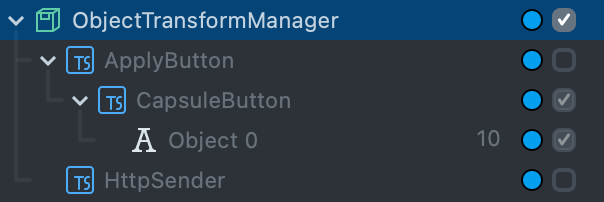
Drag the ObjectTransformManager prefab from the Asset Browser panel into the Scene Hierarchy panel.
-
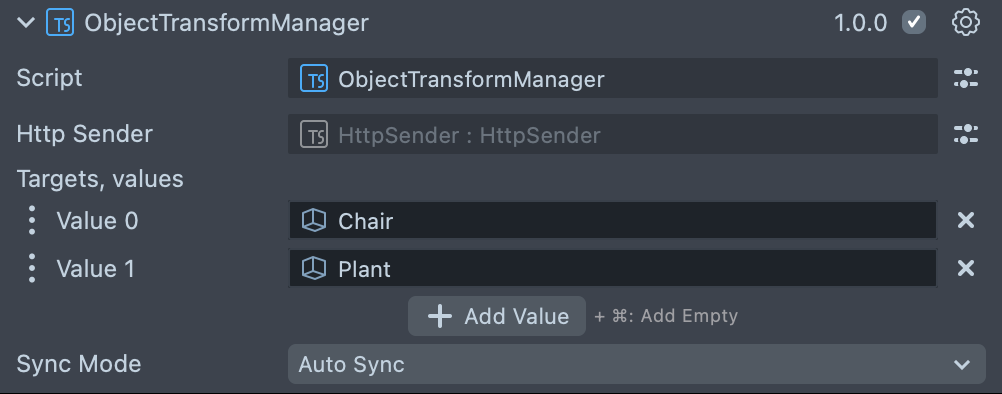
Select ObjectTransformManager. In the Inspector panel, under Targets, select Add Value and assign each Scene Object you want to sync. Each target needs an Interaction Kit
Interactableand a collider, or the Logger shows[TransformSync] Target[<n>] "<name>" has no Interactable + Collider. -
Set Sync Mode to Auto Sync or Manual. In Manual mode, also assign the Apply button's Scene Object in Apply Button.
Point HttpSender at your computer
- In the Scene Hierarchy panel, under ObjectTransformManager, select HttpSender.
- In the Inspector panel, enter your computer's local IPv4 address in Local Ip.
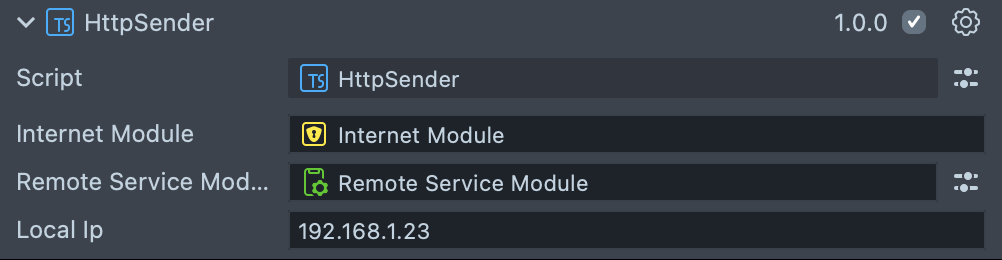
The server and the client both use port 3434, an arbitrary development port. It isn't an
Inspector field: to use another port, change serverPort in the server plugin's main.js and
the URL in the Client's HttpSender.ts to the same value.
Send the Lens and sync transforms
The Client syncs only from a Lens running on SPECS: in the Lens Studio Preview panel it disables
HttpSender and sends nothing.
-
Send the Lens to SPECS: open the menu beside Preview in the toolbar and select Send to SPECS, as described in Send a Lens to SPECS.
-
In the Logger panel, check that the server started: it logs
Server started atfollowed by the address and port 3434.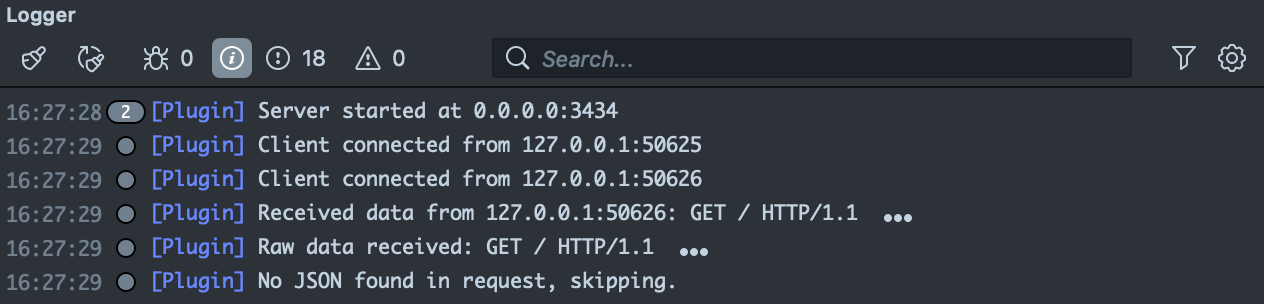
-
Check that SPECS connects: the Logger shows
Client connected fromfollowed by its address.
-
On SPECS, grab a target object and move, rotate or scale it. In Auto Sync mode, release it; in Manual mode, select the Apply button.
-
In the Logger panel, check that transform data arrives: for each object, the plugin logs
Updated transform of "<name>".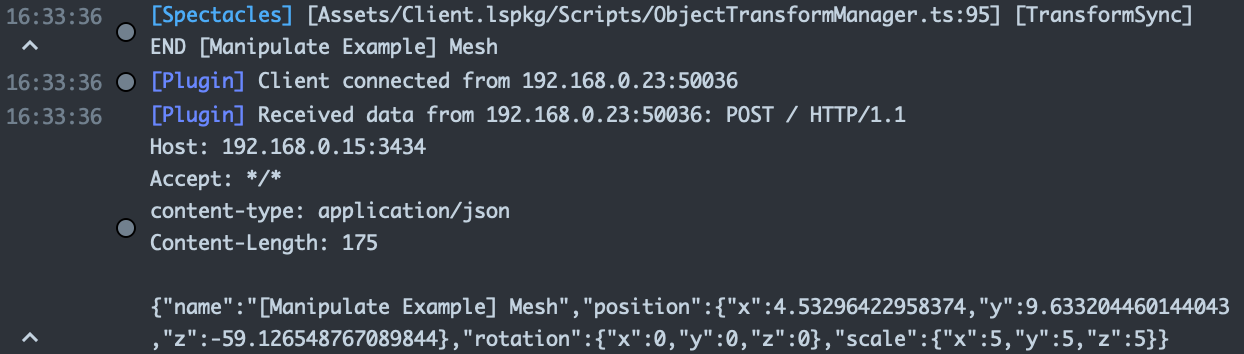
The matching Scene Objects update in the Scene panel:
Troubleshooting Transform Sync
The Logger shows "SceneObject named" and "not found"
SceneObject named "<name>" not found.
Cause: the server applies each transform to the first Scene Object in the Lens Studio scene with the name the Lens sent, and none has that name.
Fix: give each target object a name that exists in the scene you have open in Lens Studio, and keep target names unique so the transform lands on the right object.
A target never sends its transform
Cause: the target has no Interaction Kit Interactable and collider, so grabbing it isn't
detected. The Logger shows [TransformSync] Target[<n>] "<name>" has no Interactable + Collider.
when the Lens starts on SPECS.
Fix: add an Interactable and a collider to each target object in Targets.
Related
- Send a Lens to SPECS: send the Lens that runs the Client package.
- Interaction System: the Interaction Kit interactions the Client uses to grab and move objects.
- SPECS packages: the other SPECS packages in the Asset Library.