Interactable Helper
Use Interactable Helper for prototyping by controlling Interaction Kit components via events without code.
- Snapchat: not supported
- SPECS: fully supported
- Camera Kit Web: not supported
- Camera Kit Mobile: not supported
- SnapchatNot supported
- SPECSFully supported
- Camera Kit WebNot supported
- Camera Kit MobileNot supported
Interactable Helper lets you prototype hand interactions on SPECS without writing code. You add it to an object, then list responses (show an object, animate it, play a sound, call a script) under four Interaction Kit events: hover enter, hover exit, pinch down and pinch up. Each event plays its responses. This page covers Interactable Helper 4.0.0, built for Lens Studio 5.25 and Interaction Kit 4.0.0.
Before you start
- Lens Studio 5.25 or later.
- A SPECS project with Interaction Kit 4.0.0: start one from the Base Template, as described in Set Up Lens Studio for SPECS, or use your current project. Interactable Helper's events come from Interaction Kit, so the scene needs the Interaction Kit prefab: without it, no hover or pinch event fires.
Install Interactable Helper
- Open the Asset Library.
- Search for Interactable Helper and import version 4.0.0. Lens Studio also imports the packages it depends on: Interaction Kit, UI Kit, Utilities, SnapDecorators, Motion and Icons, all at 4.0.0.
- Optional: to explore an example of every response type, drag the
InteractableHelper__PLACE_IN_SCENEprefab from the Asset Browser panel into the Scene Hierarchy panel. It adds a guide, an example carousel and twelve example groups.
Add Interactable Helper to an object
- Create a Scene Object and add a visual component to it, such as Render Mesh Visual, Image or Text.
- Create a child Scene Object and add the InteractableHelper component to it. Interactable
Helper adds a Physics Collider (
ColliderComponent) to this object when the Lens wakes, and an Interaction KitInteractablewhen it starts, if the object doesn't have them already. Add your own Physics Collider to control its shape and size. - In the Inspector panel, under the event you want to handle (for example Pinch Up / Select Responses), select Add Value.
- In Scene Object, assign the Scene Object the response acts on.
- In Event Response Type, choose a response, then set its options. The response types are described in Interactable Helper response types.
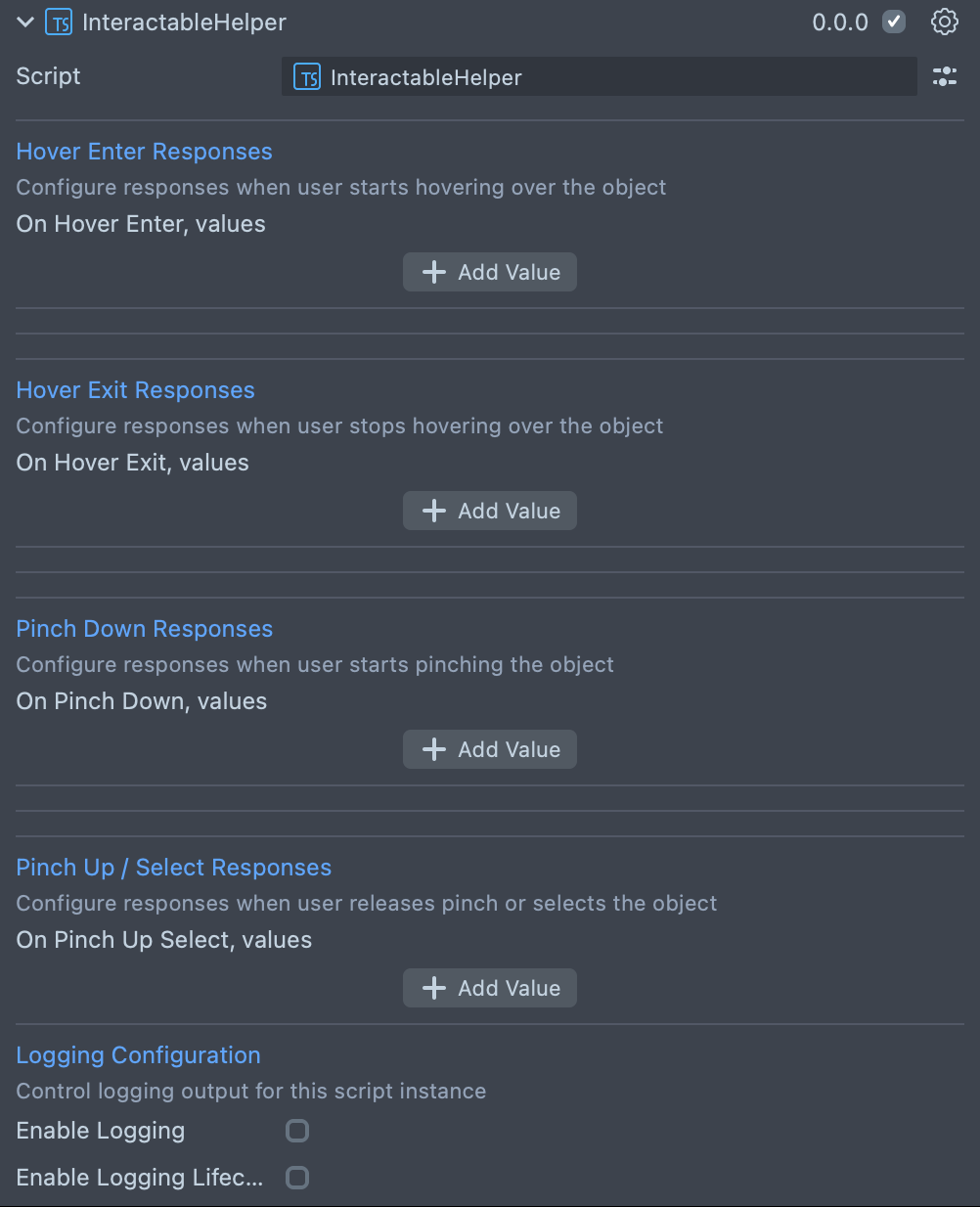
Put the visual targets beside the object that holds Interactable Helper, as the example prefab does, so you can resize that object's collider without scaling the content. Keep one Interactable Helper per object; if several objects must react to one pinch, use a Custom Callback that calls each of them.
Interactable Helper events
Interactable Helper has one list of responses for each Interaction Kit event. When an event fires, every response in its list starts, top to bottom, without waiting for the others. To sequence responses, give them a Delay, or chain them with the on start and on complete actions that animations offer.
| Inspector list | When it runs |
|---|---|
| Hover Enter Responses | The hand or cursor starts hovering over the object |
| Hover Exit Responses | The hand or cursor stops hovering over the object |
| Pinch Down Responses | The user starts pinching the object (trigger start) |
| Pinch Up / Select Responses | The user releases the pinch or selects the object (trigger end) |
Interactable Helper response types
Event Response Type offers eleven responses:
| Event Response Type | What it does |
|---|---|
| SetState | Enables or disables the target, after an optional delay |
| Toggle | Switches the target between enabled and disabled |
| Iterate Through Children | Shows the target's children one at a time |
| Transform Animation | Moves, scales or rotates the target |
| Custom Animation | Plays clips of the target's Animation Player |
| Material Property Animation | Animates a shader parameter of the target's material |
| Material Base Color Animation | Animates the base color of the target's material or Text |
| Custom Callback | Calls a function in a script |
| BlendShape Animation | Animates one blend shape weight of the target's mesh |
| Play Audio Clip | Plays the target's Audio component |
| Play Video Texture | Plays the video texture of the target's Image |
Enable or disable an object with SetState
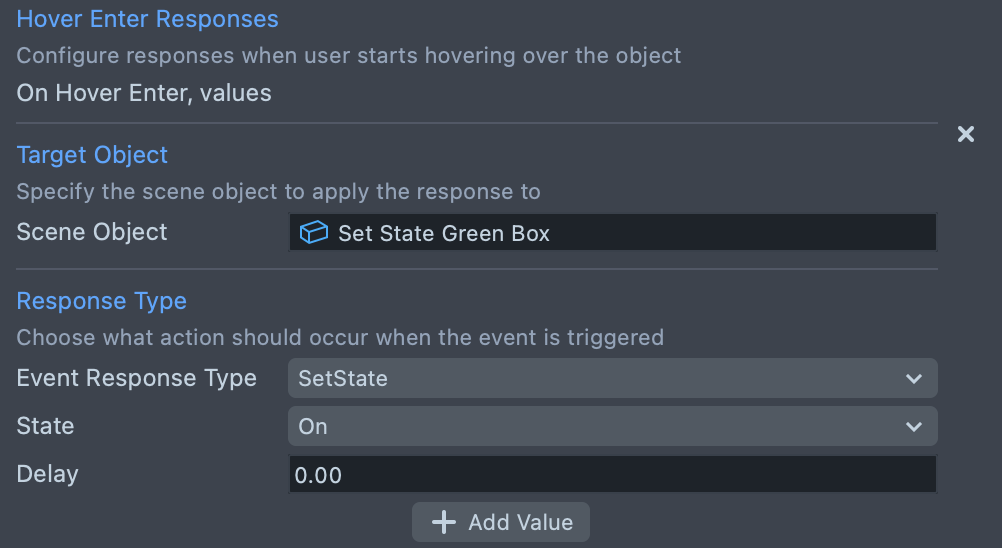
SetState enables or disables the target Scene Object when the event fires. Set State to On or Off, and optionally a Delay in seconds before the change. For example, show a highlight on Hover Enter Responses and hide it on Hover Exit Responses.
Switch an object on and off with Toggle
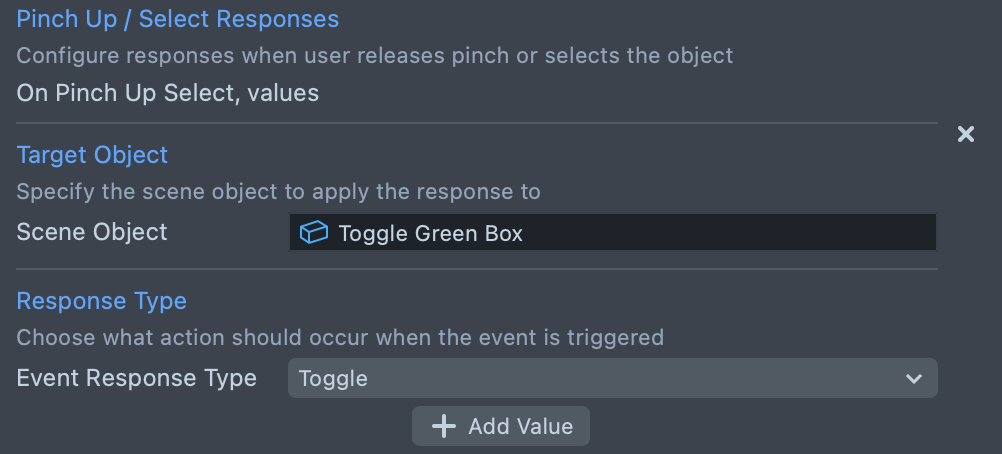
Toggle switches the enabled state of the target Scene Object each time the event fires.
Move, scale or rotate an object with Transform Animation
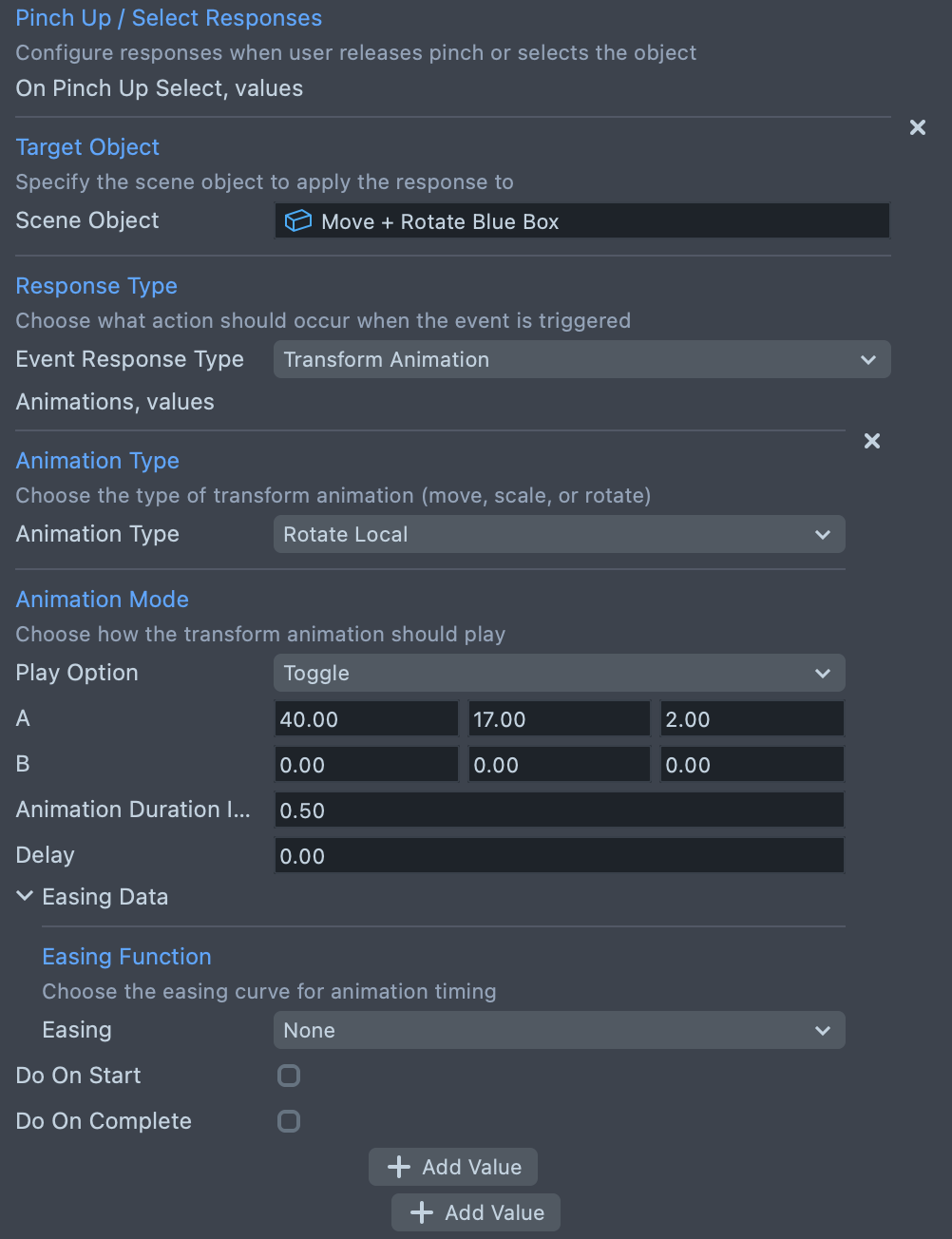
Transform Animation plays one or more transform animations on the target Scene Object, all started together. For each animation in Animations, set:
- Animation Type: Move Local, Move World, Scale Local, Scale World, Rotate Local or Rotate World.
- Play Option: how the animation picks its start and end values. See Play options for Interactable Helper animations.
- The end value, or the start and end values, that the play option asks for.
- Animation Duration In Seconds, Delay (seconds) and, under Easing Data, Easing.
To run something when the animation starts or ends, turn on Do On Start or Do On Complete. In the action that appears, set Action Type to Custom Callback to call a script's function by name, or to Set State to enable or disable one or more Scene Objects.
Play Animation Player clips with Custom Animation
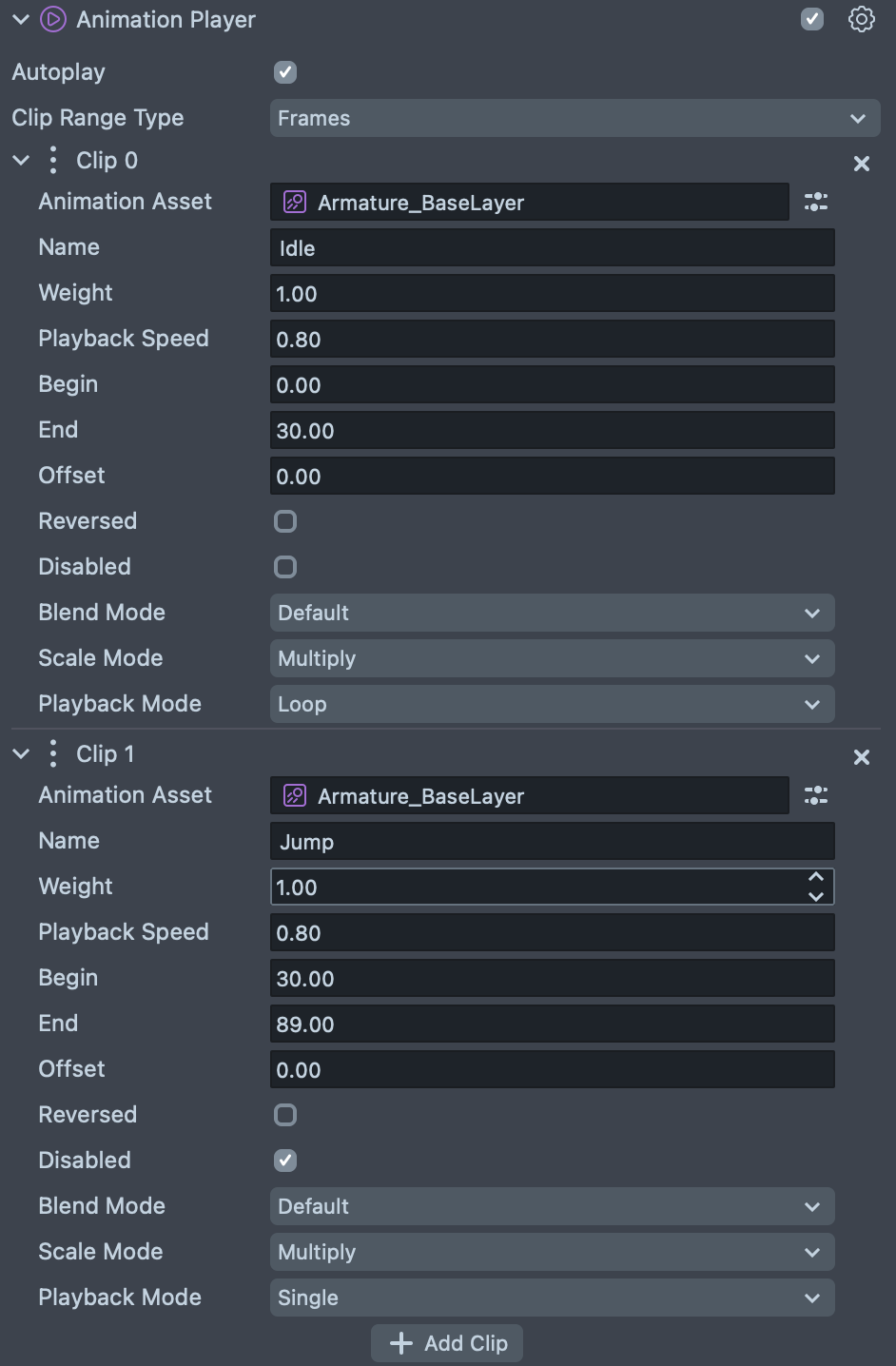
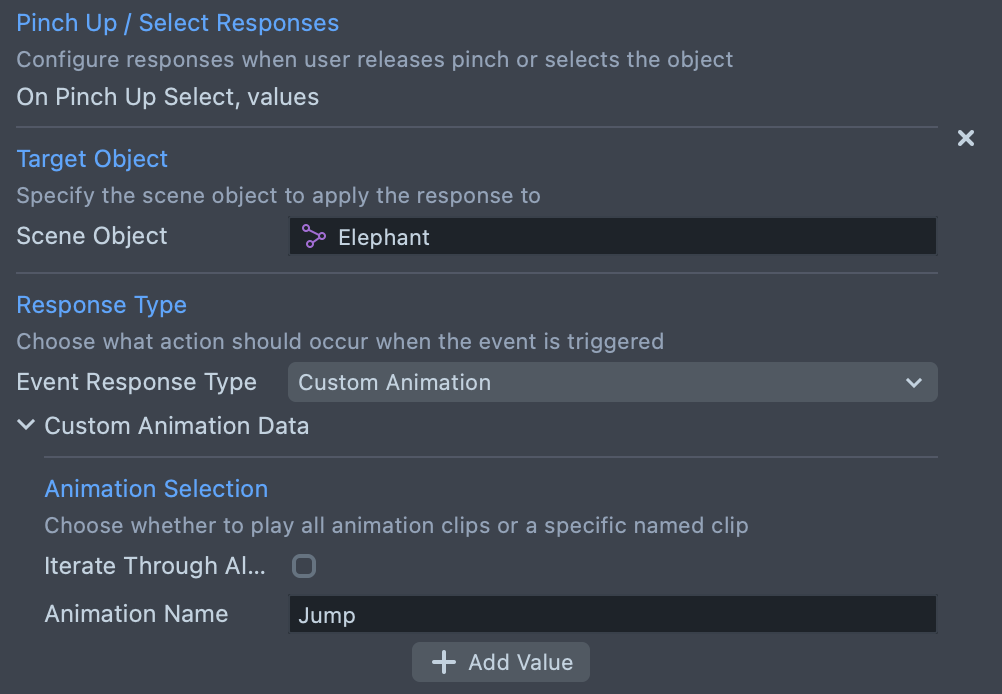
Custom Animation plays clips of the Animation Player component on the target Scene Object. Either turn on Iterate Through All Clips to play the next clip each time the event fires, or turn it off and enter one clip's name in Animation Name.
Show children one at a time with Iterate Through Children
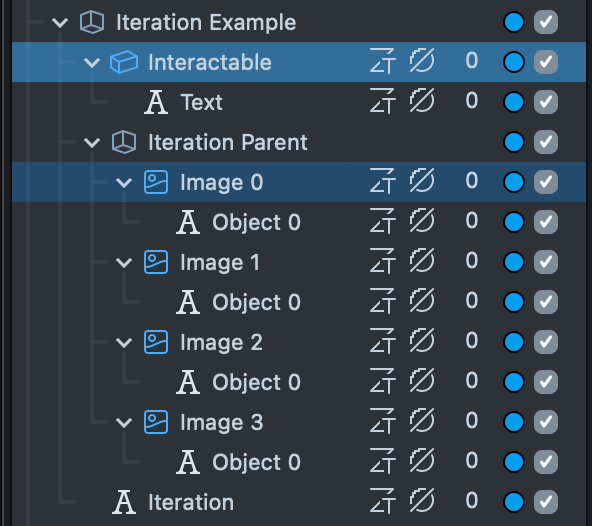
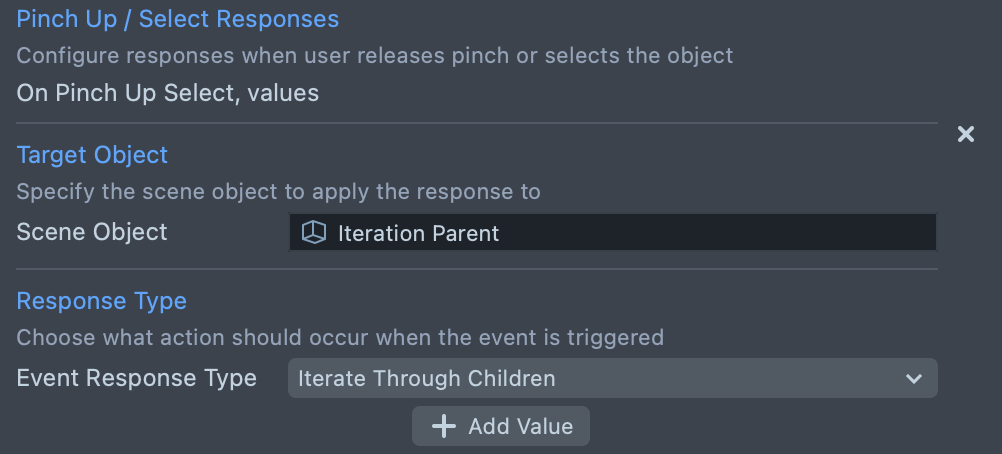
Iterate Through Children treats the target Scene Object's children as pages. When the Lens starts, only the first child is visible; each time the event fires, Interactable Helper shows the next child, and after the last one it starts again from the first.
Animate a shader parameter with Material Property Animation
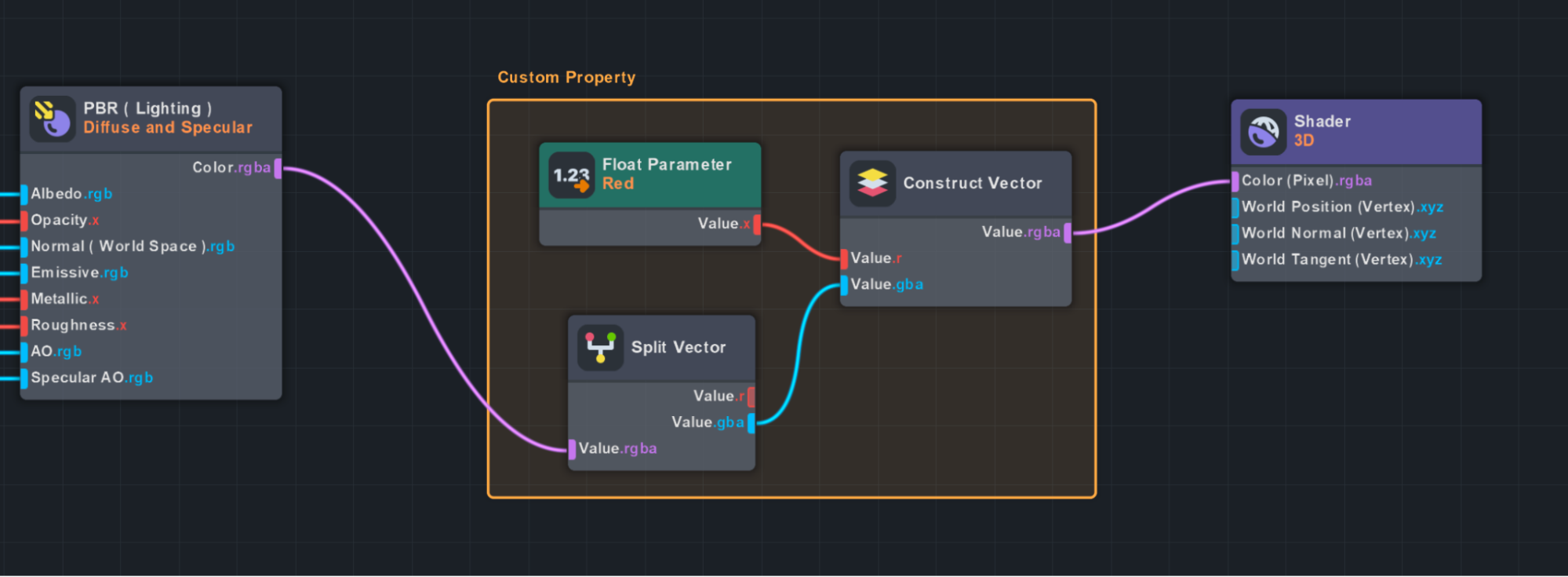
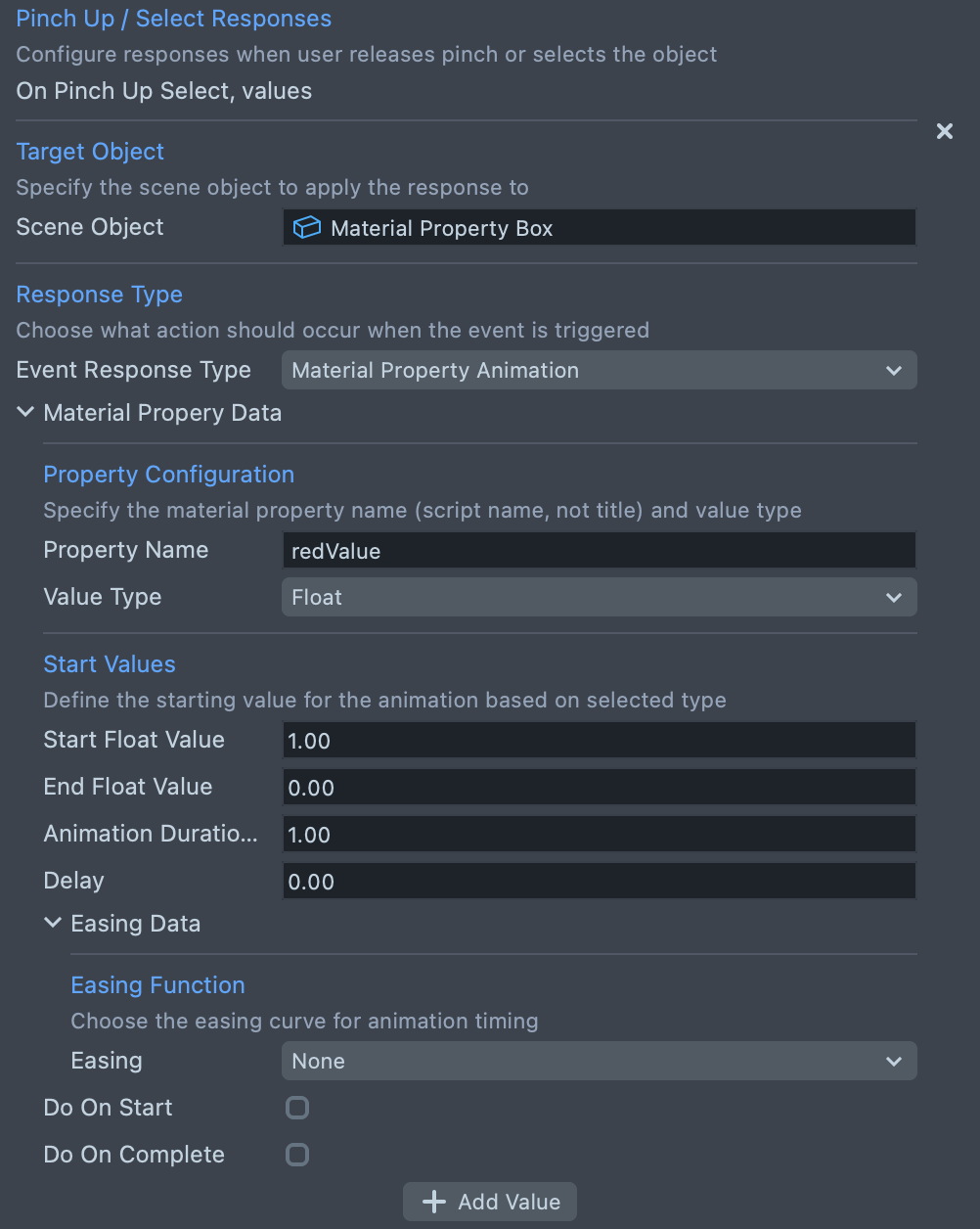
Material Property Animation animates a parameter of the main material of the target's Render Mesh Visual. Enter the parameter's script name (not its title) in Property Name, choose Value Type (Float, Vec3 or Vec4), then set the start and end values, Animation Duration In Seconds, Delay and Easing. Interactable Helper clones the material the first time the response runs, so the change stays on that object.
Animate a color with Material Base Color Animation
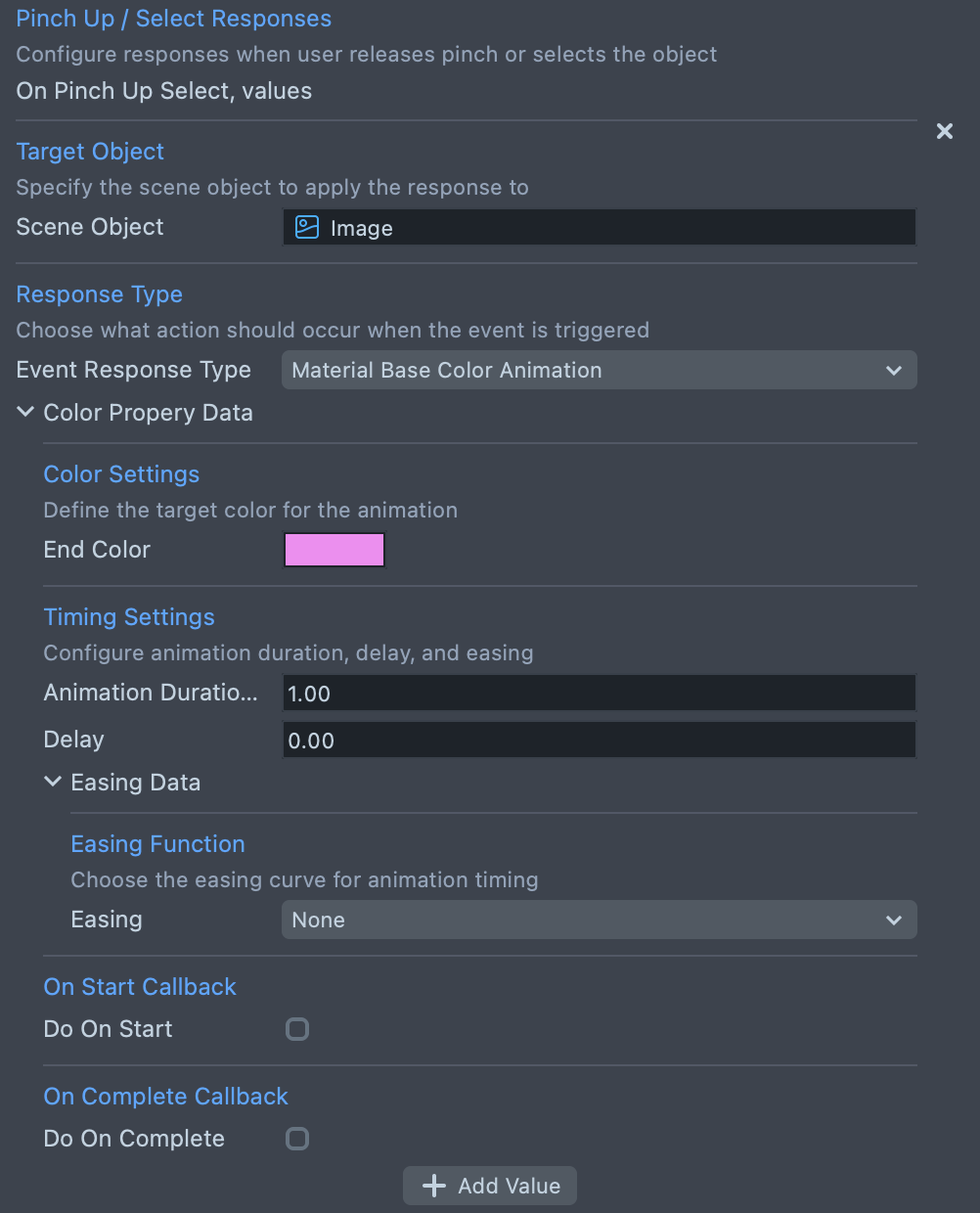
Material Base Color Animation animates the target's color to End Color: the baseColor of
the material of a Render Mesh Visual or an Image (cloned first, so the change stays on that object),
or the color of a Text component. Set Animation Duration In Seconds, Delay and Easing.
To make a staggered wave across several objects, add one response per object with the same
End Color and increasing delays (0, 0.1, 0.2 and so on).
Call a script function with Custom Callback
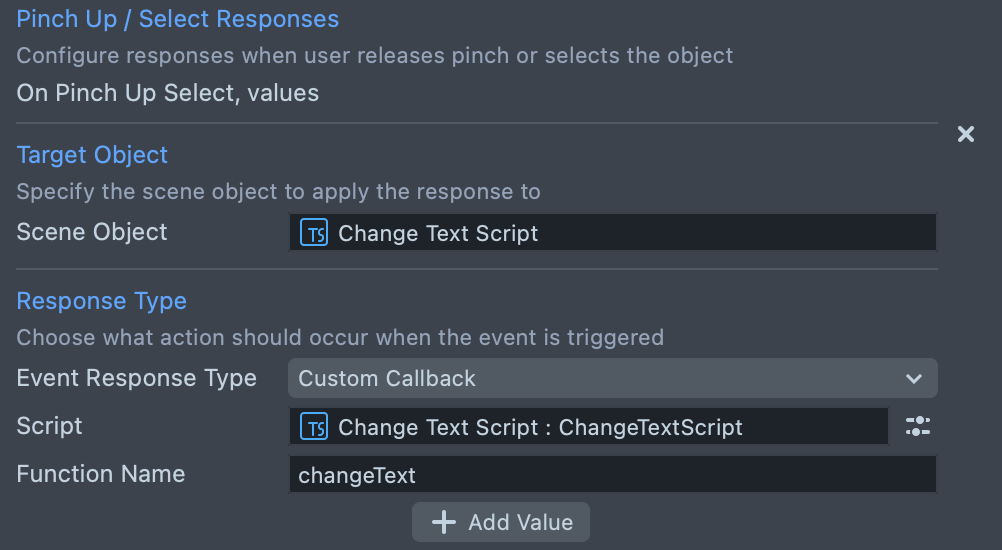
Custom Callback calls a public function of a script when the event fires. Assign the Script
Component in Script and enter the function's name in Function Name. The package's
ChangeTextScript example changes the text of its Scene Object's Text component:
@component
export class ChangeTextScript extends BaseScriptComponent {
  public changeText() {
    this.getSceneObject().getComponent('Text').text = 'Woof';
  }
}
Animate a blend shape with BlendShape Animation
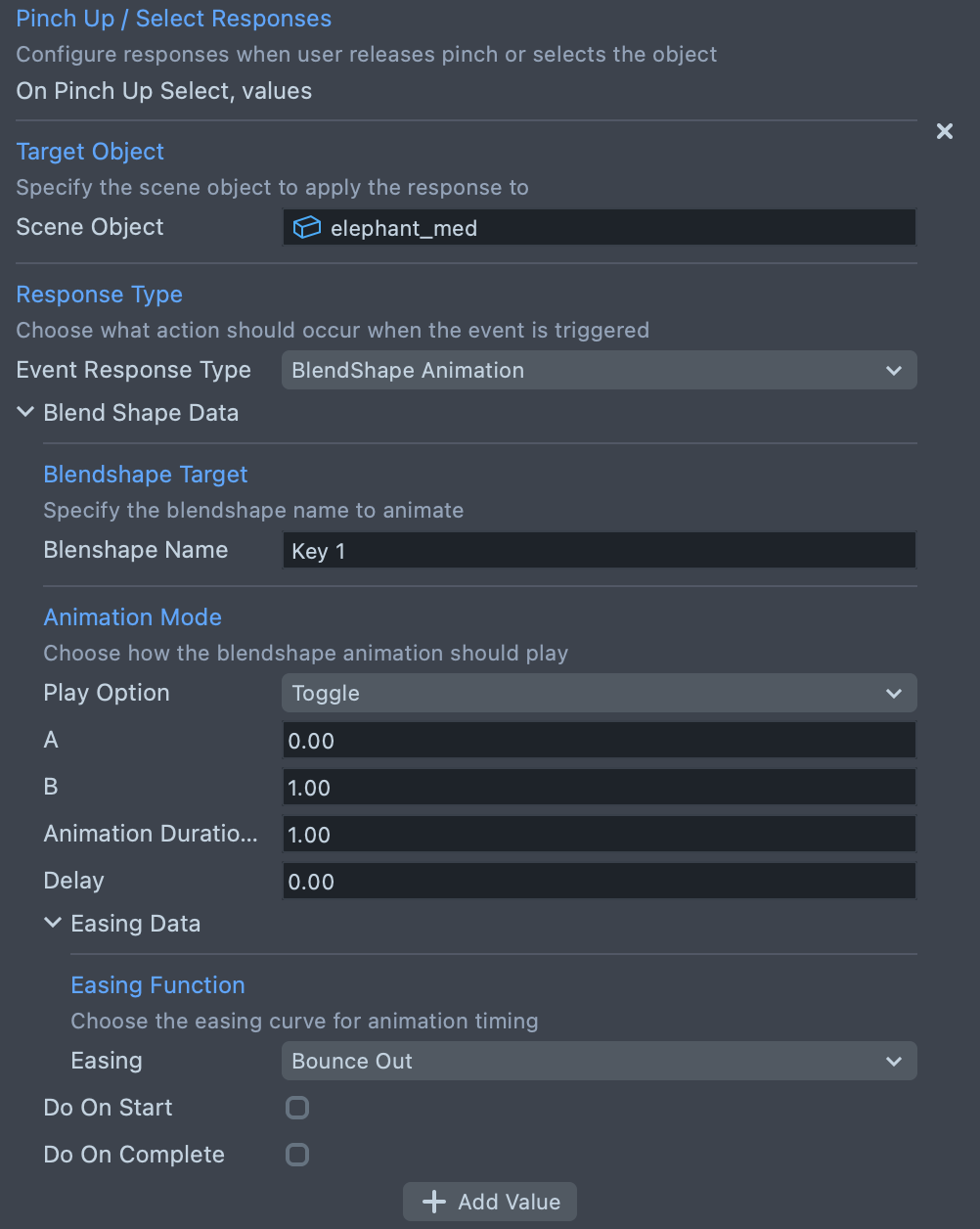
BlendShape Animation animates one blend shape weight of the target's mesh. Enter the blend shape's name, choose a Play Option, set the values it asks for, then Animation Duration In Seconds, Delay and Easing. For a shape that follows hover, add a BlendShape Animation with Play From Current Value and an end value of 1 under Hover Enter Responses, and the same blend shape with an end value of 0 under Hover Exit Responses.
Play audio with Play Audio Clip
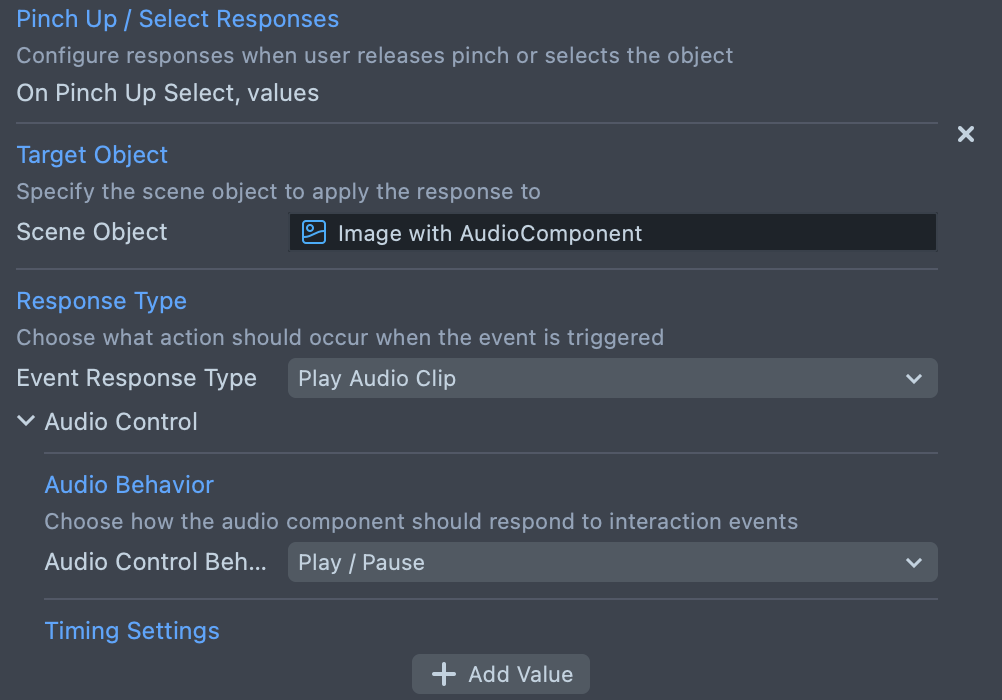
Play Audio Clip plays the Audio component on the target Scene Object. Choose Audio Control Behavior:
- Play Once: plays the audio clip from the start each time the event fires, after an optional Delay.
- Play / Stop: alternates between playing and stopping the audio each time the event fires.
- Play / Pause: alternates between playing and pausing the audio each time the event fires.
Play a video with Play Video Texture
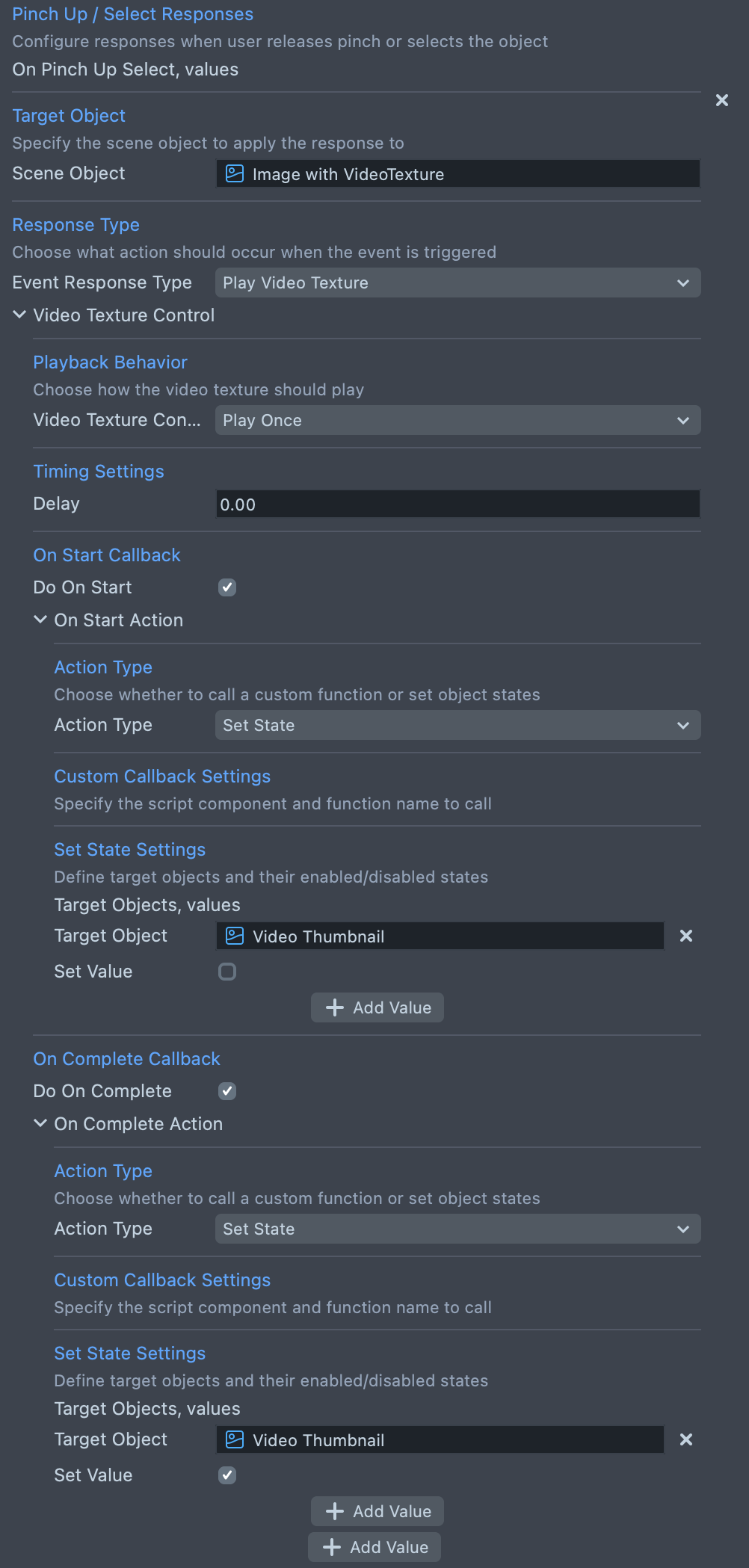
Play Video Texture plays the video texture of the Image component on the target Scene Object. Assign a video file as the Image's texture, then set Video Texture Control Behavior to Play Once, with an optional Delay, or Loop. Turn on Do On Start or Do On Complete to run an action when the video is ready to play or when it finishes, for example to hide a thumbnail while the video plays and show it again at the end.
Play options for Interactable Helper animations
Transform Animation and BlendShape Animation have a Play Option that decides the values each run animates between:
| Play Option | What each run does | Values you set |
|---|---|---|
| Play From Current Value | Animates from the current value to the end value | End Val |
| Play Everytime | Animates from the start value to the end value, every time | Start Value, End Value |
| Toggle | Animates from A to B on the first, third and later odd runs, and from B to A on the even runs | A, B |
Each event list counts its runs separately. For pairs such as hover enter and hover exit, use Play From Current Value rather than Toggle: two Toggles on different lists would both start from A to B.
Troubleshooting Interactable Helper
Interactable Helper reports "is missing SceneObject"
Interactable Helper on <object> is missing SceneObject in On Hover Enter Event. Assign SceneObject
Cause: a response in that event's list has no Scene Object assigned. Configuration mistakes, such as a wrong function, property, clip or blend shape name, or a missing component, also throw an error that names the Interactable Helper and its Scene Object, the first time the event fires.
Fix: assign the target in the response's Scene Object field, or correct the name the error reports. Trigger every event once in the Preview panel to catch these errors before you send the Lens to SPECS.
No hover or pinch response plays
Cause: the scene has no Interaction Kit prefab, so Interaction Kit events never fire.
Fix: add the Interaction Kit prefab to the scene, as the Base Template does.
Related
- Interaction System: how Interaction Kit turns hands into the hover and pinch events Interactable Helper responds to.
- SPECS packages: the other SPECS packages in the Asset Library.
- Set Up Lens Studio for SPECS: create a SPECS project from the Base Template.
- Tween Manager: another helper for adding tweens and animations to objects in your scene.