Outfit
- Snapchat: fully supported
- SPECS: partially supported
- Camera Kit Web: partially supported
- Camera Kit Mobile: partially supported
- SnapchatFully supported
- SPECSPartially supported
- No friend graph: getAllFriends, getBestFriends, getUsersInCurrentContext and getMyAIUser aren't available, so friends' and My AI's Bitmoji can't load
- Camera Kit WebPartially supported
- Camera Kit MobilePartially supported
The Outfit tab of Bitmoji Suite allows creators to change their Bitmoji’s and their friends’ outfits by replacing them with clothing from the Bitmoji fashion library.
Create Outfit
-
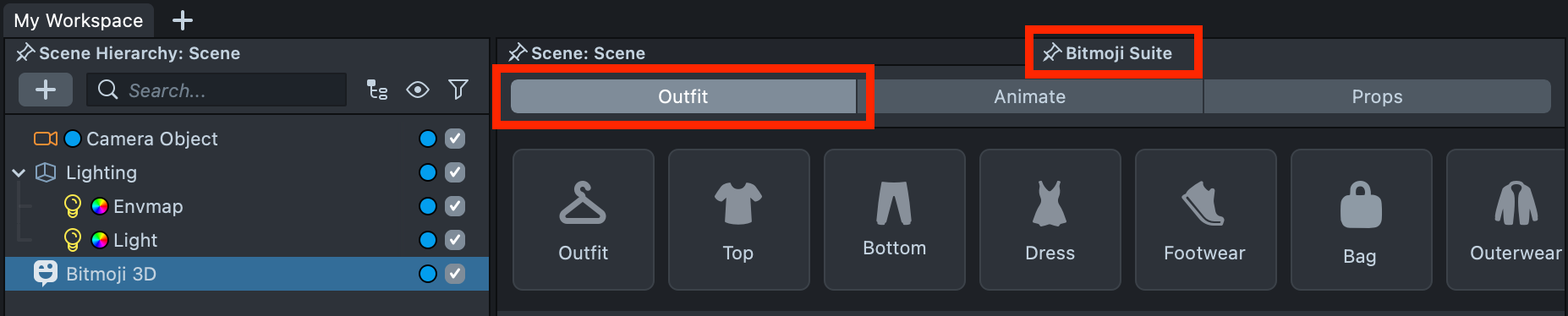
Choose the Outfit tab in the Bitmoji Suite (To learn how to find Bitmoji Suite, go to the Overview).
-
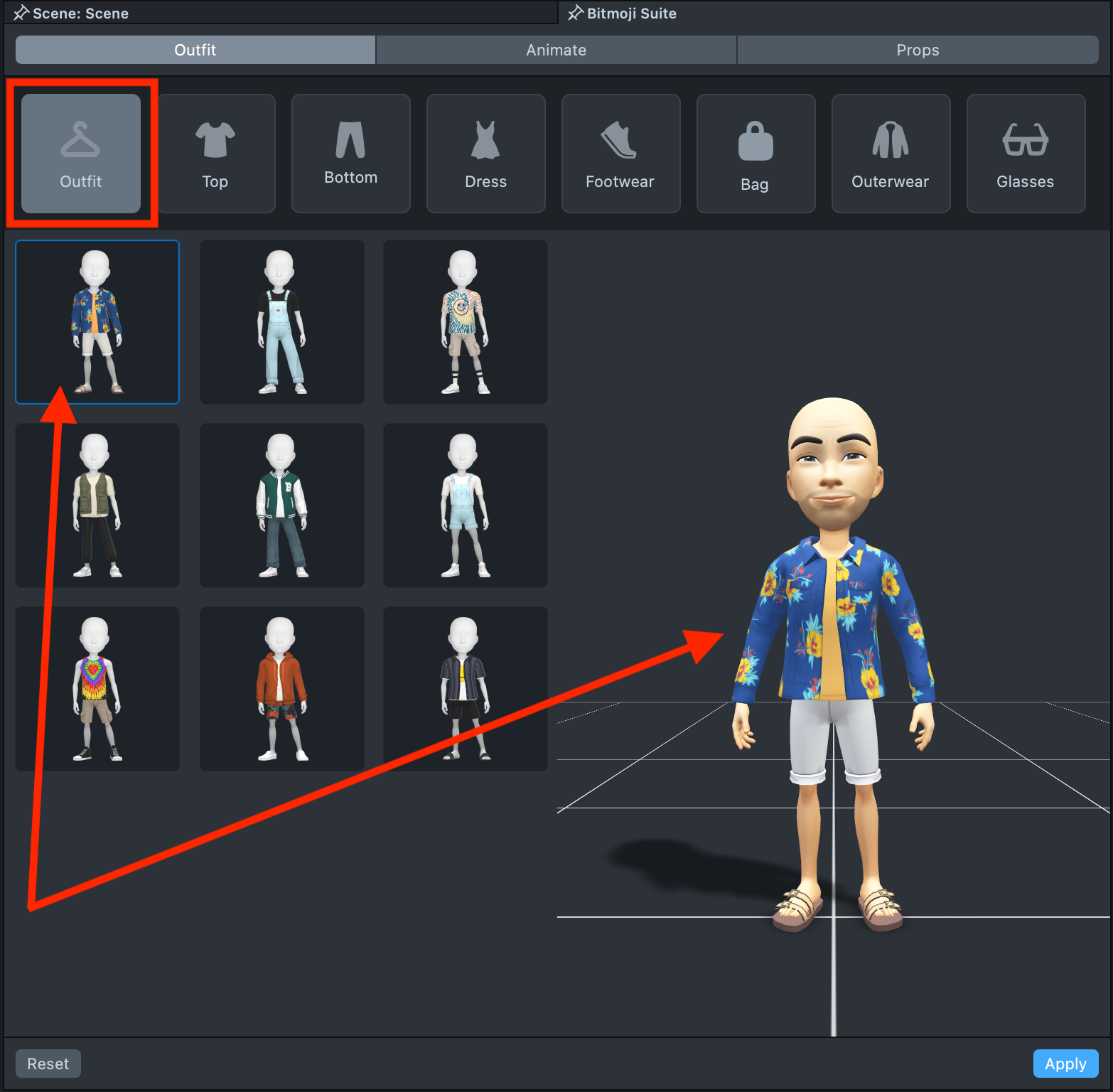
Choose the first tab to put on the whole "look" or choose the specific category of garment to override with.
-
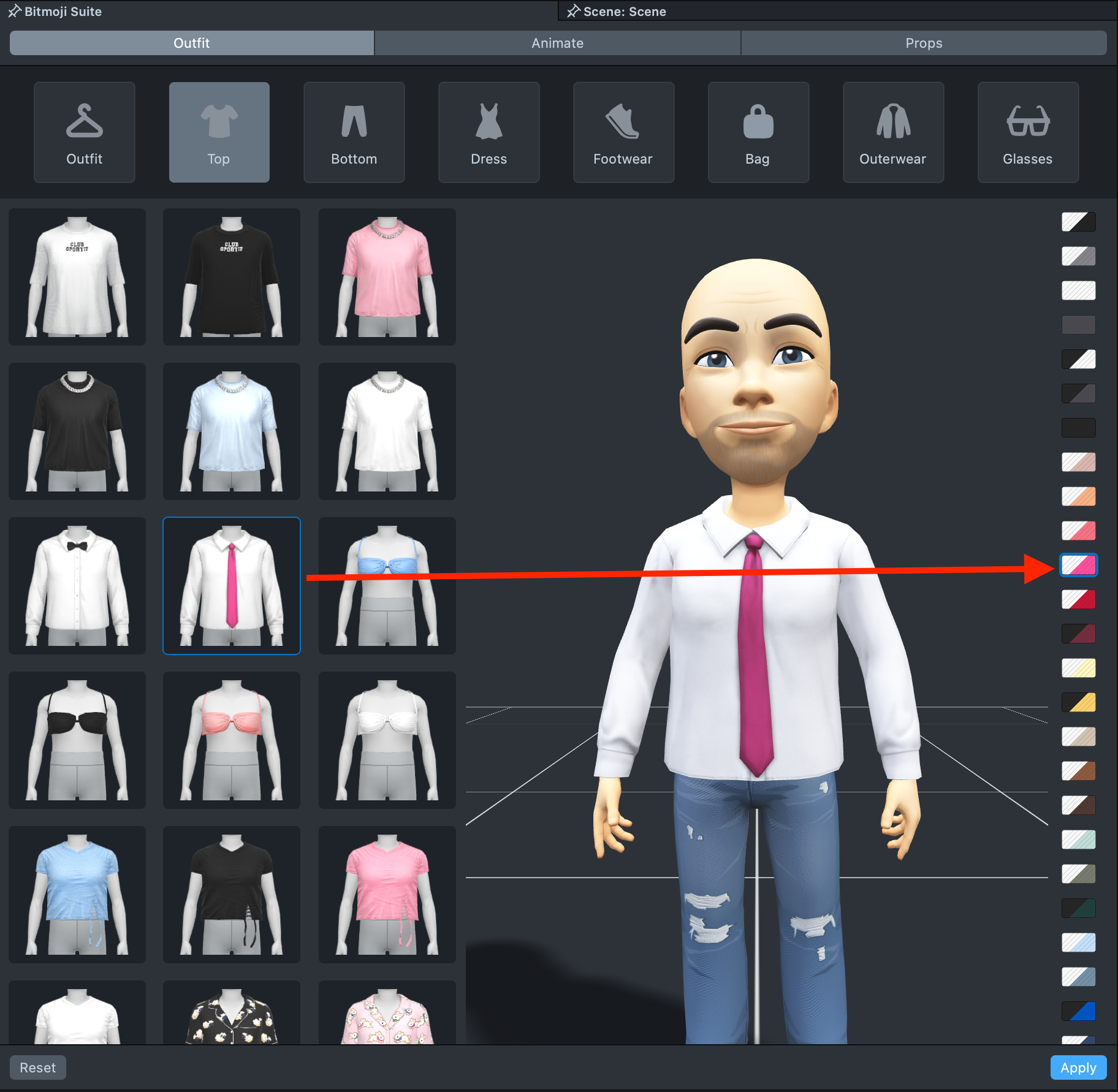
Some garments are available in multiple colors. If the selected garment supports color options, you’ll see them displayed on the right-hand panel.
-
Press the Hide button to remove the specific garment
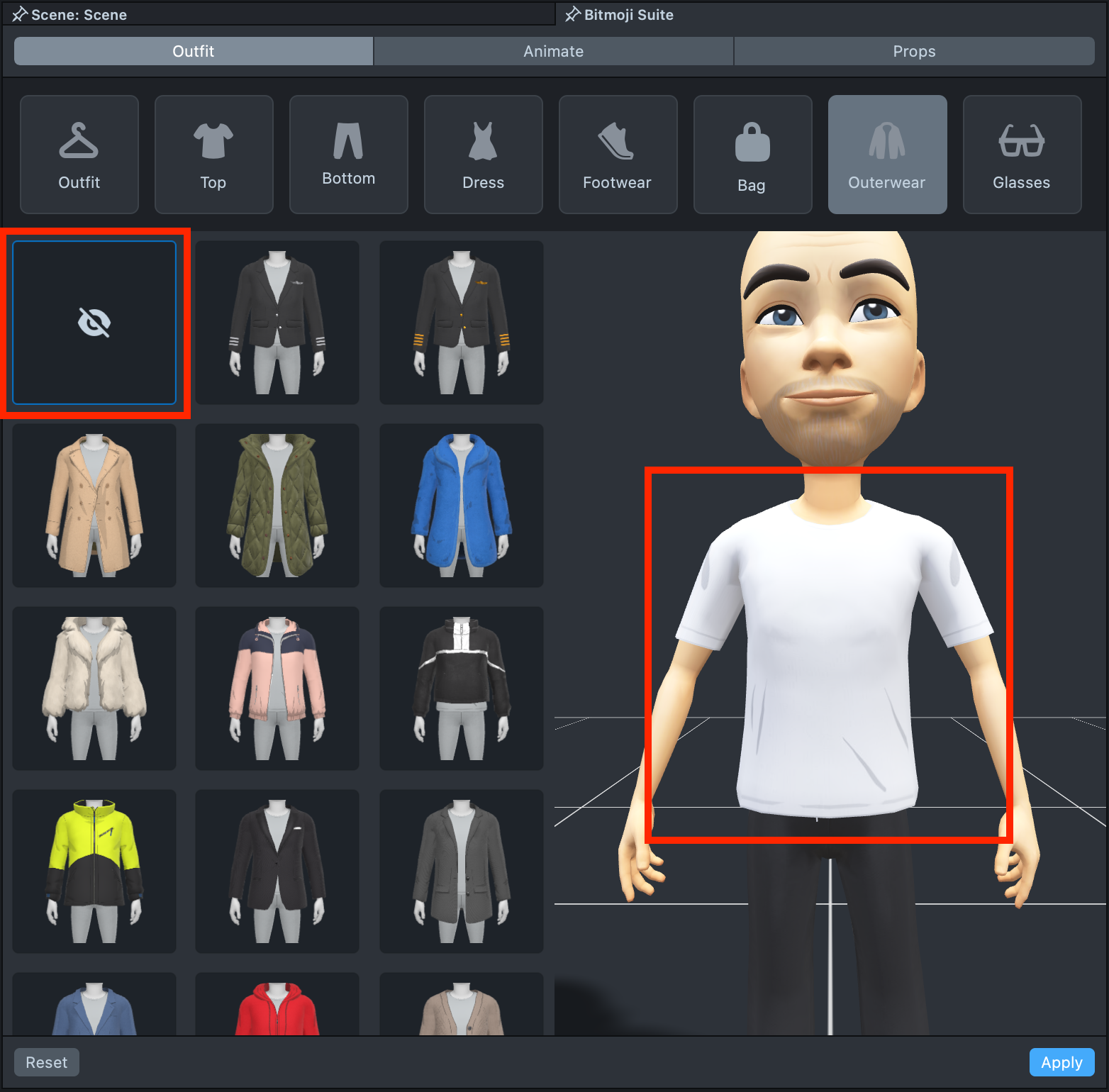
-
Press the Reset button to return to the previous outfit
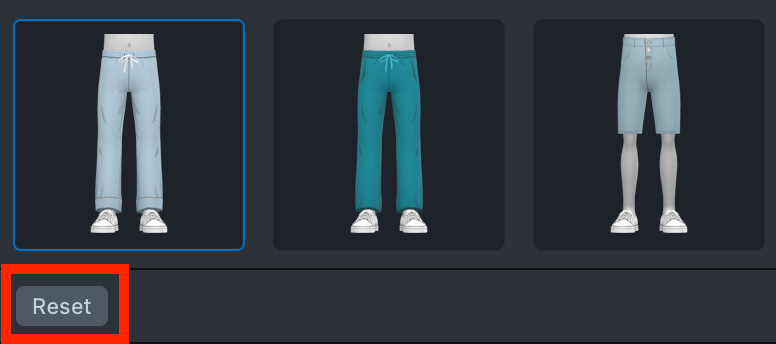
-
When you are done with the Outfit creation, you can go to the Bitmoji Component in the Inspector and choose the Bitmoji Owner
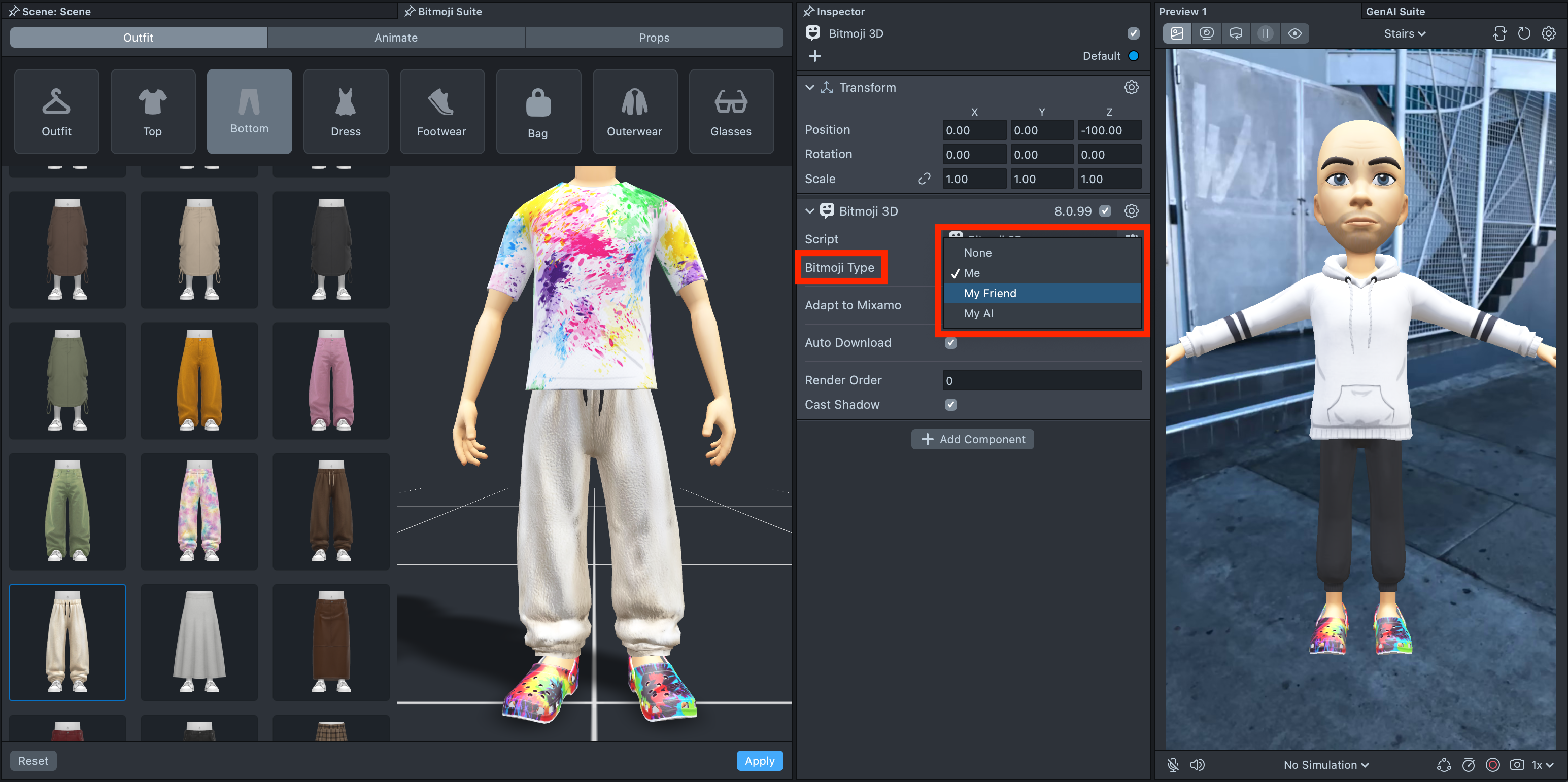
When building for SPECS, set the Bitmoji 3D component's Bitmoji Type to Me (the Bitmoji Owner); friends' avatars aren't available.
Visit Bitmoji 3D page to learn more about the Bitmoji 3D Component.
-
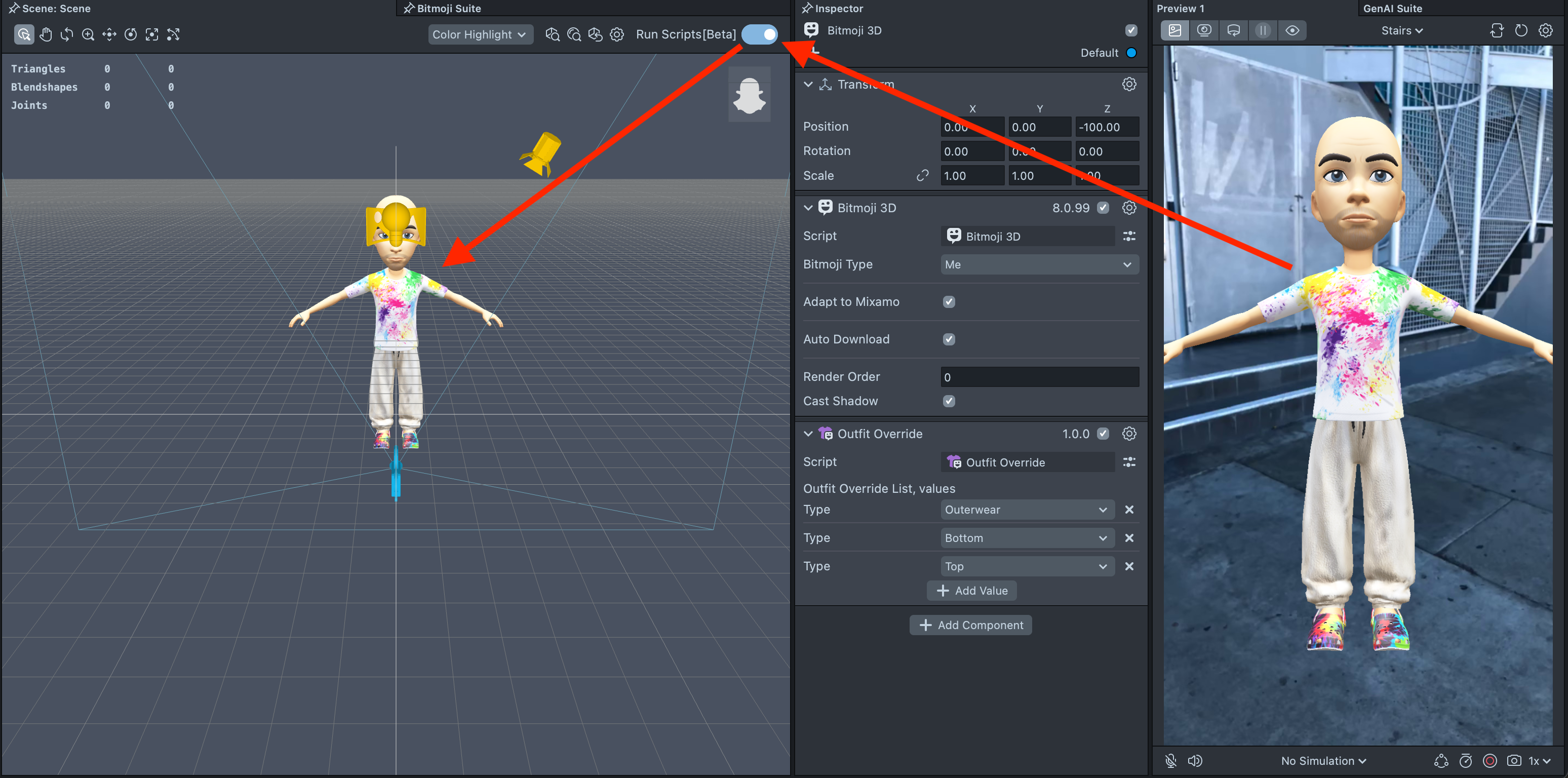
When you are happy with the created outfit and the Bitmoji Owner has been chosen, you can press the Apply button to apply changes to the Bitmoji in the project.
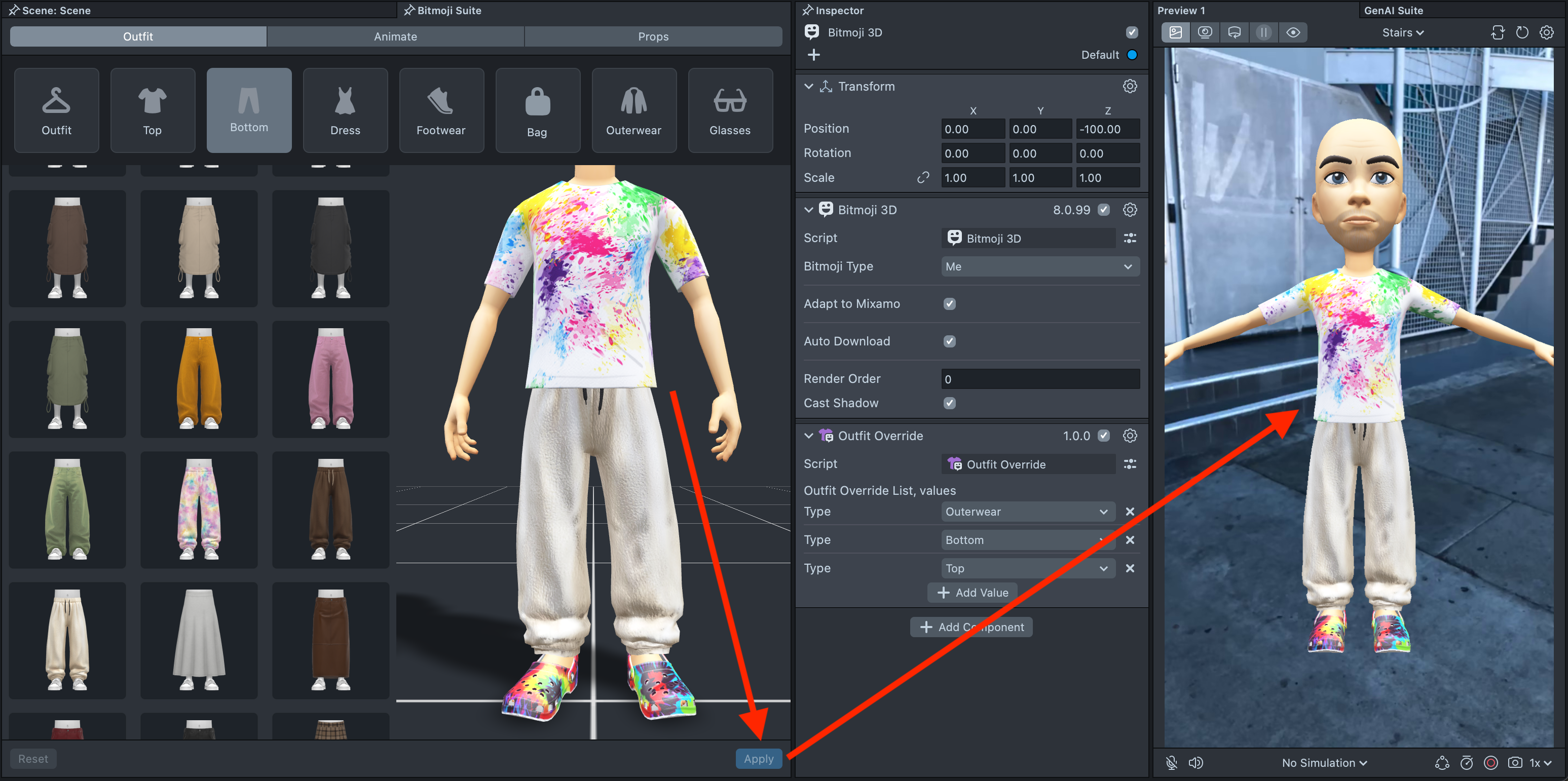
To view your Bitmoji in the Scene panel and interact with it, select Run Scripts in the middle of the Scene panel's toolbar. It's off by default; while scripts run, the button reads Stop Scripts.

Copy Outfit
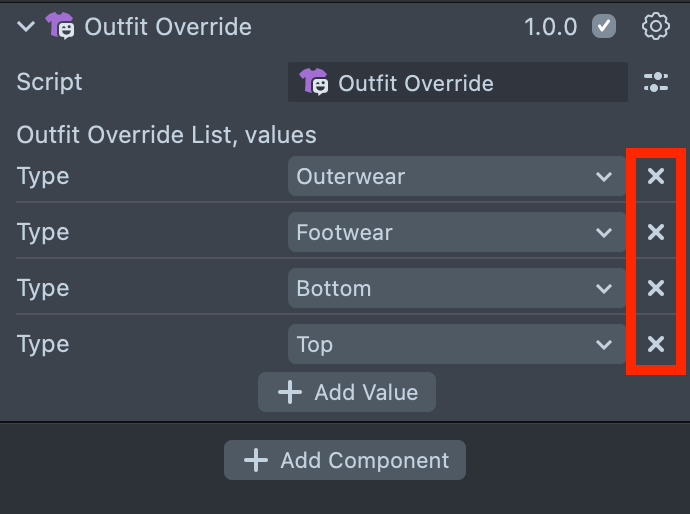
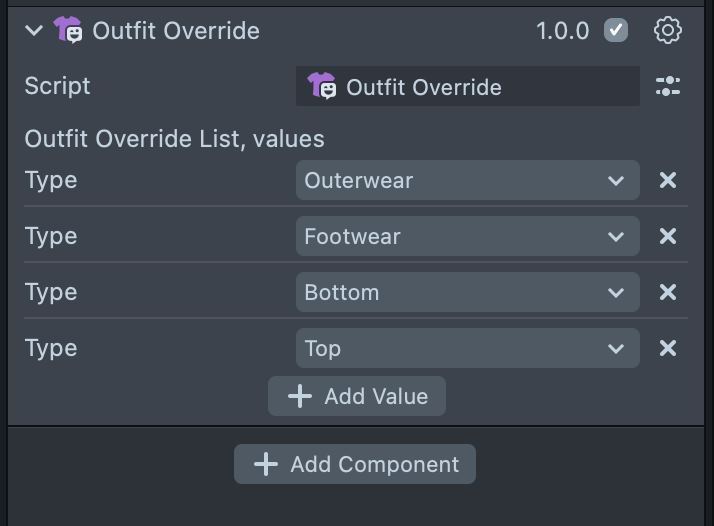
You can use the Outfit Override component to transfer your custom Outfit from one Bitmoji to another. This component is created automatically when you create a custom Outfit and click the Apply button. You can find it in the Inspector panel. Just copy and paste the component to do so.
-
Find the Outfit Override component in the Inspector panel
-
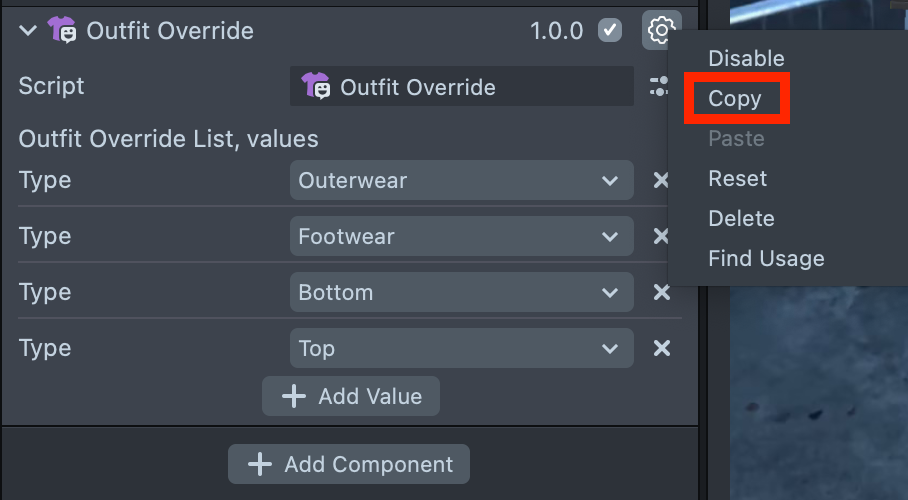
Click the gear icon and select the Copy option
-
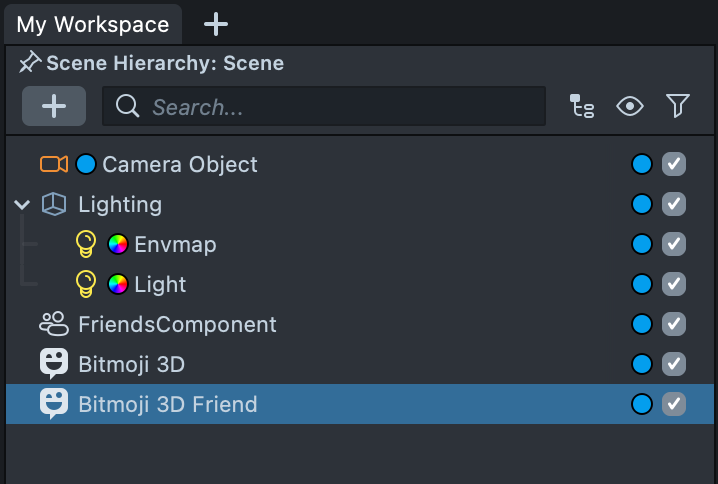
Select the Bitmoji in the Scene Hierarchy that you want to apply the copied outfit to
-
Go to the Inspector panel, open the context menu under the Bitmoji 3D component, and click Paste
-
You can remove specific parts of the Outfit by clicking the
Xicon on the right