Optimizing Lens Performance
Measure your SPECS Lens's frame rate and power on the device, find the content and scripts that cost the most, and reduce draw calls, texture memory, and script work.
A SPECS Lens should hold 45 FPS, which leaves about 22 ms to render each frame. When a Lens uses too much power or runs hot, SPECS throttles it: it lowers the frame rate and rendering quality to keep every Lens running consistently. A Lens that drops frames or gets throttled needs optimizing. For how throttling affects your Lens and how to test it, see Device Power Management. Measure on the device, change one thing at a time, and measure again after each change.
Measure your Lens's performance on SPECS
Run your Lens on SPECS and read its performance with either tool:
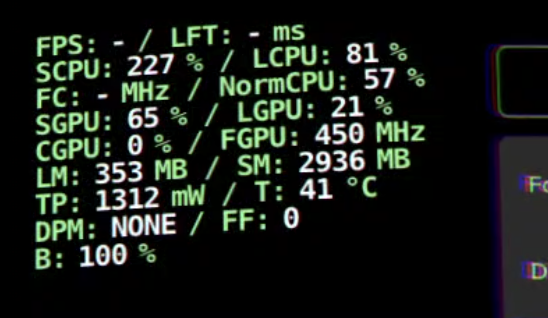
- The Lens Performance Overlay, on the device, shows the frame rate and the Lens's CPU and GPU load.
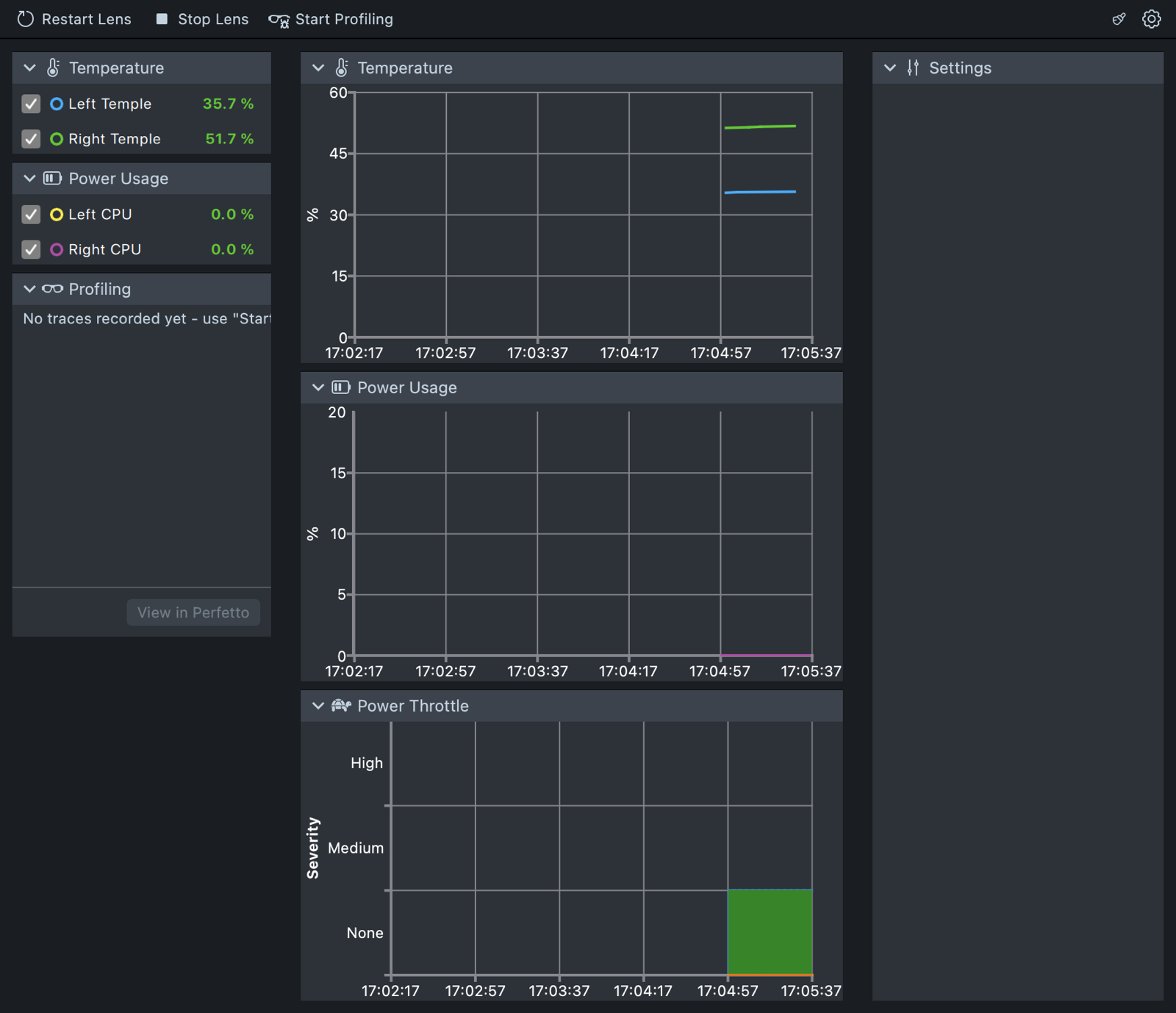
- The SPECS Monitor, in Lens Studio, graphs the temperature and CPU power use of SPECS, shows when SPECS throttles the Lens, and records Perfetto traces.
A Lens should use the least power it needs to do what it's for.
Find the content or scripts that cost the most
With the Lens running and a tool open:
- Face each part of your Lens in turn, then look away from it, and compare the GPU load, CPU power use, and temperature in each case.
- If the readings rise a lot whenever one part is in view, that part needs the rendering optimizations.
- If the readings stay high wherever you look, or the Lens stutters when it runs some logic, it needs the scripting optimizations.
Reduce rendering cost on SPECS
Rendering optimizations cut the number and the quality of what the Lens draws, which saves power.
- Disable invisible or unused meshes. A mesh still renders when it's invisible. Disable it, or move it out of the camera's view, until you need it. Destroy it if the Lens won't use it again.
- Reduce draw calls and materials. Use instancing to draw the same mesh many times. Combine textures into an atlas, so that one material can texture several meshes through different UVs.
- Avoid expensive materials and lighting. Avoid PBR materials, use fewer lights, and avoid effects such as reflections, shadows, and environment maps.
- Reduce complexity. Use fewer vertices in meshes and fewer calculations in shaders. Use fewer and smaller textures: 512 × 512 px or smaller. Turn off MSAA if it's on. For textures and meshes, see Texture Optimization, Compression, and 3D Optimization.
Reduce script cost on SPECS
To find the scripts that cost the most CPU time, record a Perfetto trace and look for the functions that take longest to run. Then:
- Limit UpdateEvents. Use an UpdateEvent only where you need one, and keep expensive work out of it.
- Create fewer resources. Create only the Events, SceneObjects, Assets, and Components the Lens needs, and reuse them.
- Use less physics. Add a Physics Body only to the SceneObjects that need one, and run a cheap broad check before a complex calculation.
- Calculate less. Precompute values you can cache, move calculations to the GPU where you can, and avoid complex trigonometry and operations on large datasets in JavaScript or TypeScript.
- Save and log less. Avoid saving large data repeatedly and logging too much. Use WAV files instead of MP3 for sounds where you can, and limit how many sounds play at once.
Check each optimization on the device
No single technique works for every Lens. After each change, run the Lens on SPECS again and compare the frame rate and power with your earlier readings. If a technique doesn't help, look for similar opportunities elsewhere in the Lens.
Let CLAD find and fix what costs the most
If you build with CLAD, your agent can do the measuring and the fixing:
/specs-capture-perf-tracerecords a Perfetto trace from the Lens Studio Preview./perfetto-trace-analysisfinds frame drops and stutter in a trace./specs-lens-perf-attributionmeasures how much frame time each part of your Lens uses, in ms per frame, and ranks the fixes./specs-lens-perf-optimizeapplies those fixes one at a time, checks that the Lens still looks and behaves the same, measures again, and keeps only the fixes that help, each as its own Git commit./specs-optimize-lens-meshmerges meshes that share a material and reduces their geometry, to cut draw calls.
These skills measure in the Lens Studio Preview, so confirm the result on SPECS. See CLAD Agents and Skills.
Related
- SPECS Monitor: graph temperature and power, and record Perfetto traces.
- Lens Performance Overlay: read performance on the device.
- Texture Optimization: make textures smaller.
- 3D Optimization: compress meshes.