Compression
Since Lenses are designed to work on mobile devices, it is important that they are optimized to have a small footprint so that it can be downloaded quickly by users as well as run on a variety of devices.
When building for SPECS, a Lens with a small footprint downloads to the device faster and uses less memory and power while it runs.
Lens Studio has a built-in compression system, so you can fit richer content into your Lens.
Texture Compression
When you import 2D assets such as images and animated textures, Lens Studio compresses them automatically.
To change a texture's compression settings, select it in the Asset Browser: its settings appear in the Inspector.
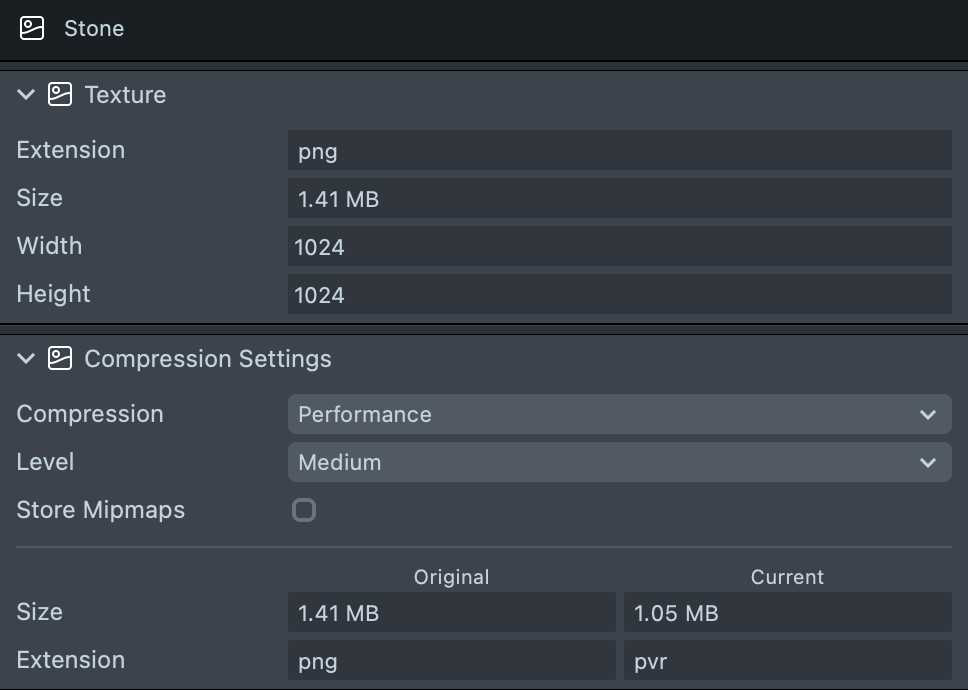
By default, Compression is set to Performance. This setting helps the Lens load faster and, where it can, use less RAM.
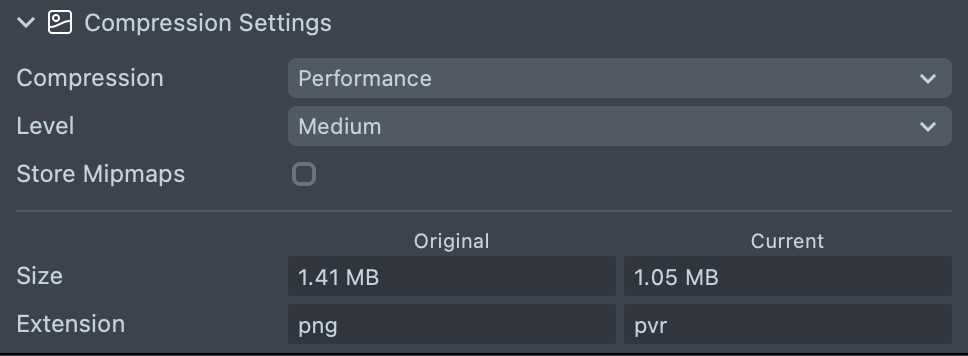
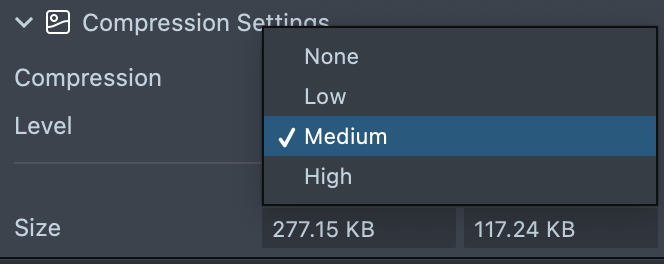
To change how much Lens Studio compresses the asset, select a level from the Level menu.
You can also set Compression to Size. This setting trades some of the texture's quality for a smaller Lens, which downloads faster.
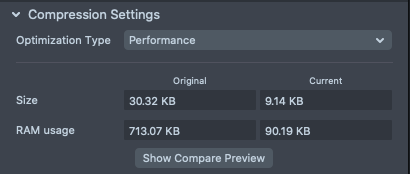
Texture compression is available for PNGs and animated textures. Lens Studio skips small textures.
See more tip about optimizing your Lens in the optimization guide
For more ways to optimize a SPECS Lens, see Optimizing Lens Performance.