Snap Kit
Launch a Lens from your app and pass it data such as a score or a word of the day.
- Snapchat: fully supported
- SPECS: not supported
- Camera Kit Web: fully supported
- Camera Kit Mobile: fully supported
- SnapchatFully supported
- SPECSNot supported
- Camera Kit WebFully supported
- Camera Kit MobileFully supported
Dynamic Lenses let your Lens receive information from outside the Lens itself. For example, you can pass in information like the current score of a sports game to change the effects of your Lens, or modify the look of a hat that the user is wearing. In our example below, we will be passing word of the day information to a book page Lens so the user can take a photo to match the word for that day.
When building for Snapchat, you must launch the Lens via a Creative Kit integration to pass information into it. To learn more about Creative Kit guide, or check out the repo for iOS and Android to learn more.
When building for Camera Kit, your app passes launch data to the Lens when it starts the Lens. See Lens Launch Parameters for iOS and Android, or Launch Data for Web.
How it Works
When your app launches the Lens, it can pass in information that the Lens reads when it opens.
When building for Snapchat, you pass this information through Creative Kit's SnapLensLaunchData.
For example, if your app passes the following launch data:
word_of_the_day:"didactic"definitions:
["designed or intended to teach", "intended to convey instruction and information as well as pleasure and entertainment", "making moral observations"]date:[2021, 6, 5]
You’d be able to read this content in the Lens by creating a script:
var store = global.launchParams;
var wordOfTheDay = store.getString('word_of_the_day');
print( "Today's word is " + wordOfTheDay);
var def = store.getStringArray('definitions');
print('Which can mean: ' + def[0] + ',  ' + def[1] + ', or ' + def[2]);
var date = store.getFloatArray('date');
print(date[1] + '/' + date[2] + '/' + date[0]);
And use it to feed logic in the same way you’d use any script.
The launch parameters uses a similar API to the GeneralDataStore. Strings and arrays of strings launch parameters are read with getString(key) and getStringArray(key) respectively. Numbers and arrays of numbers are accessed with getFloat(key) and getFloatArray(key) calls.
You can pass parameters of type:
- Strings
- Arrays of Strings
- Numbers
- Arrays of Numbers
Launch parameters are not available in Lens Studio or when pushed to the device.
Dynamic Lens Template
To help with development, you can download this template.
This template provides you with a framework to set up fallback data, and see how a passed in parameter would affect your Lens.
Using the Wrapper
Instead of accessing launchParams directly you can use this wrapper:
var launchParams = global.getLaunchParams();
This will automatically provide you with either the real launch parameters, or the fallback data depending on what is available.
Choosing Fallback Data
If your Lens is launched without the expected launchParams (for example, launched outside of your app), it will use a predefined fallback data. The Lens will check whether real data are available based on a Key to Check.
To set this, click the Launch Params Wrapper object in the Scene Hierarchy panel, and fill in the field next to Key To Check.
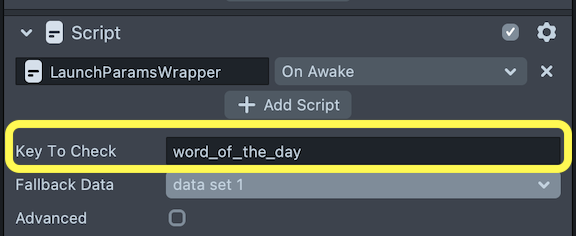
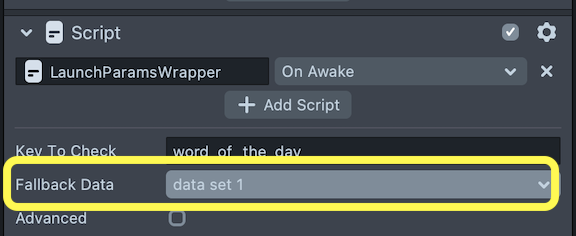
If this key is not available, the Lens will use the data set chosen in Fallback Data. Choose this by changing the dropdown next to Fallback Data on the same script component.
Testing Launch Parameters
Since launchParams are not available in Lens Studio, choosing different fallback data is a quick way to test out your different parameters. Click on the dropdown next to Fallback Data to try different data sets.
Adding Data
You can set up your data sets by modifying the FallbackDataSource script found in the Asset Browser panel. Double click on the script to open it in the Script Editor.
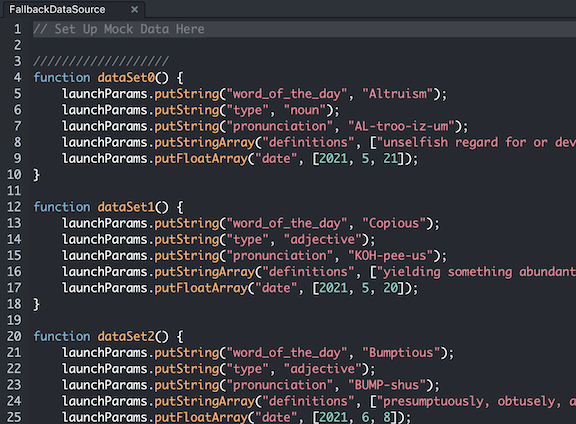
Then, modify the dataSet function to add in your data. These dataSet functions correspond to the drop down found in the LaunchParamsWrapper script on the LaunchParamsWrapper object.
That is, this function:
function dataSet1() {
  launchParams.putString('word_of_the_day', 'Copious');
  launchParams.putString('type', 'adjective');
  launchParams.putString('pronunciation', 'KOH-pee-us');
  launchParams.putStringArray('definitions', [
    'yielding something abundantly',
    'plentiful in number',
    'full of thought, information, or matter',
  ]);
  launchParams.putFloatArray('date', [2021, 5, 20]);
}
Will be selected when Data Set 1 is selected in the Inspector panel.
To add your data set, you can put your data as you would in general data store.
launchParams.putString('testString', 'Test string 1');
launchParams.putStringArray('testStringArray', ['One', 'Two', 'Tree']);
launchParams.putFloat('testNumber', 1256.0);
launchParams.putFloatArray('testNumberArray', [1, 2.5465, 3.14]);
By default, there are 6 data set slots. However, you can add more as you wish. To do this, add a new function for the data set, and append it to the script.api.data array. Then, modify the fallbackData dropdown found in the LaunchParamsWrapper script found in the Scripts folder. Take a look at the Custom Script UI input to learn more.
Reading Data
You can read the params as you would with the General Data Store. For example, to access a string:
var stringParamName = 'testString';
if (launchParams && launchParams.has(stringParamName)) {
  var myString = launchParams.getString(stringParamName);
  // use one of scenarios depending of the value of this variable
} else {
  //use some fallback scenario here in case if launch parameters were not set or there is no value with this name
}
Take a look at the WordOfTheDayManager script to see an example of how you can use launchParams to modify your Lens!
Publishing your Dynamic Lens
The process of publishing your Dynamic Lens is the same as any other Lens. Take a look at the Submitting guide for more information.
Optionally, you may want to make the Lens not discoverable outside of your app. To do this, click on the three dots next to the Share button in your My Lenses, and enable Do Not Promote.
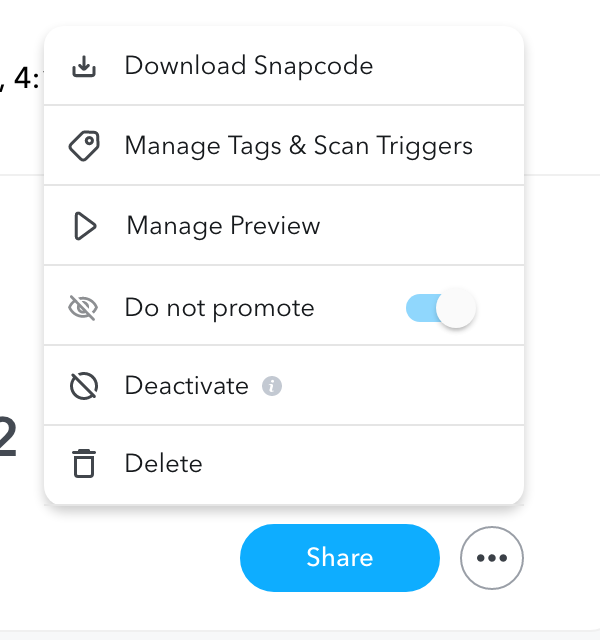
This step is especially important in Snapchat if you’ve not designed your Lens with fallback content.
To make your Lens available in your Camera Kit app, see Upload Lenses.
Getting your SnapLensContent ID
To launch your Lens from your Creative Kit enabled app, you need to find its unique unlock code. You will use this UUID when initializing SCSDKLensSnapContent (iOS) or SnapLensContent (Android).
- Open My Lenses and find your Lens.
- Copy its Unlock URL *(The URL will look something like this: *https://www.snapchat.com/unloc...)*
- Use just the UUID portion of the URL in your Creative Kit Lens instance.
Example: aa42eb1ce25347869c77d2df6db01237
In the All Lenses view, the Unlock URL link can be found here:

Alternatively, it can be found after selecting the specific Lens from the list by clicking the Share Lens button:
