Third-Party Integration Guide
Integrate third-party authentication providers and OAuth services into Spectacles Lenses using the Auth Kit integration framework.
- Snapchat: not supported
- SPECS: fully supported
- Camera Kit Web: not supported
- Camera Kit Mobile: not supported
- SnapchatNot supported
- SPECSFully supported
- Camera Kit WebNot supported
- Camera Kit MobileNot supported
This guide walks you through setting up a third party, Spotify, OAuth2 integration with Auth Kit from scratch.
Prerequisites
- Spectacles device with Auth Kit support
- Lens Studio project with AuthorizationKit and SpectaclesInteractionKit packages
- Spotify Developer account
- Basic understanding of OAuth2 flows
Step 1: Create a Spotify App
1.1 Access Spotify Developer Dashboard
- Go to Spotify Developer Dashboard
- Log in with your Spotify account
- Click "Create app"
1.2 Set Package ID in Lens Studio
On SPECS, your Lens is identified by the Package ID (the lensId used by OAuth deep
links). Set it before registering the Spotify redirect URI—the same ID works for
development and for a published Lens:
Project Settings → Platform Settings → SPECS → SPK Configuration → Package ID
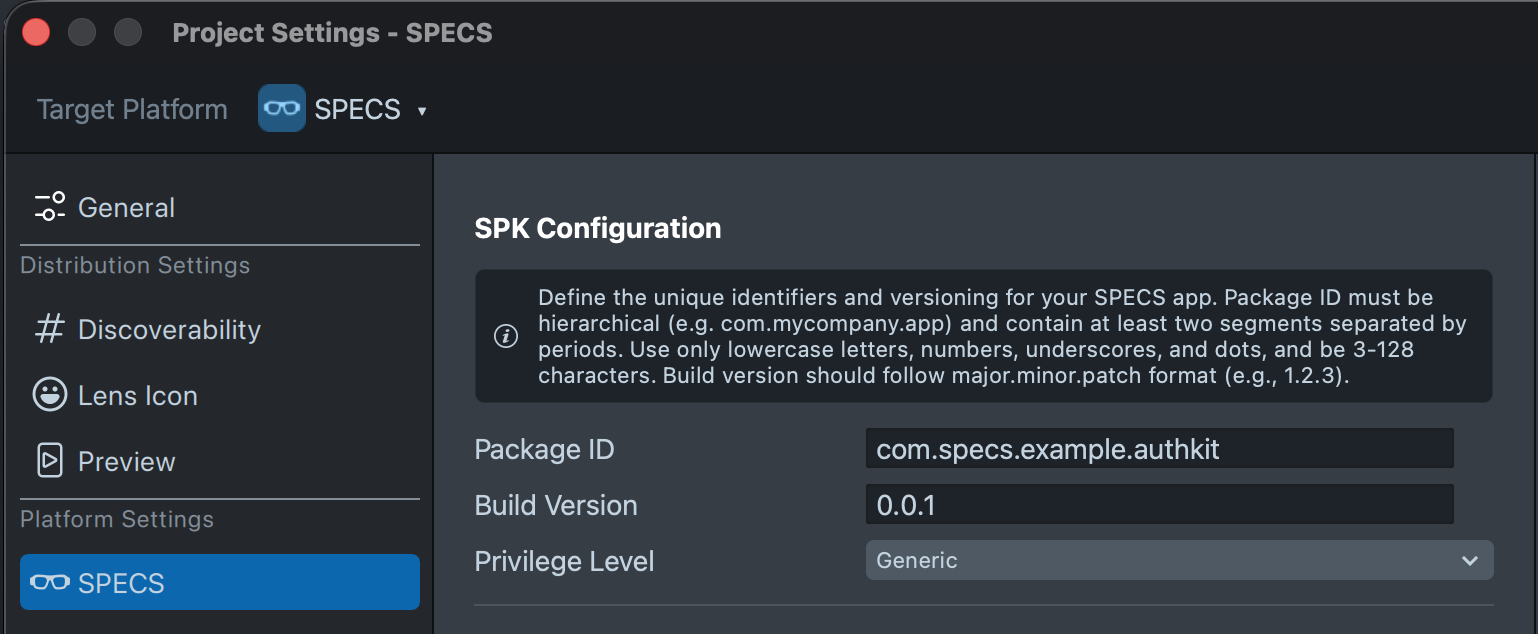
Choose a stable Package ID before shipping (for example, com.specs.example.authkit);
changing it later breaks deep link routing and requires updating the redirect URI on Spotify.
Do not use the legacy …/oauth2redirect/unsecure path.
1.3 Configure Your App
Fill out the app creation form:
- App name: Choose a descriptive name for your Lens (for example, "My Music Lens")
- App description: Describe what your Lens does with Spotify
- Website: Enter your website or use a placeholder
- Redirect URI: Important! Use your Package ID in the path:
Replacehttps://lenses.specs.com/deeplink/specslink/oauth2redirect/com.specs.example.authkit
com.specs.example.authkitwith your Package ID, and pass the same URI asredirectUriwhen you constructOAuth2.
1.4 Accept Terms and Create
- Check the boxes to agree to Spotify's Terms of Service and Developer Terms
- Click "Save" to create your app
Step 2: Get OAuth2 Credentials
2.1 Access App Settings
- Click on your newly created app in the dashboard
- Go to "Settings"
- Note down the following credentials:
2.2 Required Credentials
You'll need these four pieces of information:
const spotifyConfig = {
  clientId: 'your-client-id-here', // From app settings
  authorizationUri: 'https://accounts.spotify.com/authorize',
  tokenUri: 'https://accounts.spotify.com/api/token',
  scope: 'user-read-private user-read-email', // See scopes section below
};
Step 3: Understanding Scopes
Spotify uses scopes to control what data your app can access. Choose only the scopes you need:
Always check the Spotify Web API Scopes documentation for the most up-to-date list of available scopes and their descriptions.
Common Scopes
| Scope | Description |
|---|---|
user-read-private | Access user's subscription details and country |
user-read-email | Access user's email address |
user-read-playback-state | Read user's current playback state |
user-modify-playback-state | Control user's playback (play, pause, skip) |
user-read-currently-playing | Read user's currently playing track |
user-read-recently-played | Access user's recently played tracks |
user-top-read | Access user's top artists and tracks |
playlist-read-private | Access user's private playlists |
playlist-read-collaborative | Access user's collaborative playlists |
Example Scope Combinations
// For a music discovery Lens
const discoverScopes =
  'user-read-private user-top-read user-read-recently-played';

// For a playback control Lens
const playbackScopes =
  'user-read-playback-state user-modify-playback-state user-read-currently-playing';

// For a playlist viewer Lens
const playlistScopes =
  'user-read-private playlist-read-private playlist-read-collaborative';
Step 4: Implement OAuth2 in Your Lens
Complete UIController Implementation
Here's a complete implementation using the UIController pattern that handles Spotify OAuth2 authentication:
- TypeScript
- JavaScript
import { OAuth2 } from 'AuthKit.lspkg/Core/OAuth2';
import { SIK } from 'SpectaclesInteractionKit.lspkg/SIK';

@component
export class SpotifyUIController extends BaseScriptComponent {
  @input signInButton: SceneObject;
  @input signOutButton: SceneObject;
  @input apiButton: SceneObject;
  @input statusText: Text;
  @input titleText: Text;

  @ui.separator
  @input
  title: string = 'Spotify Music Lens';

  @ui.separator
  @input
  clientId: string = 'your-spotify-client-id'; // Replace with your Spotify Client ID
  @input authorizationUri: string = 'https://accounts.spotify.com/authorize';
  @input tokenUri: string = 'https://accounts.spotify.com/api/token';
  @input authenticationType: string = 'code';

  @ui.separator
  @input
  scope: string =
    'user-read-private user-read-currently-playing user-read-playback-state';

  @ui.separator
  @input
  apiUri: string = 'https://api.spotify.com/v1/me';
  @input apiResponseKey: string = 'display_name';

  private internetModule: InternetModule = require('LensStudio:InternetModule');
  private oauth: OAuth2;

  onAwake() {
    // Initialize OAuth2 with Spotify configuration
    this.oauth = new OAuth2({
      clientId: this.clientId,
      authorizationUri: this.authorizationUri,
      tokenUri: this.tokenUri,
      authenticationType: this.authenticationType,
      // Must match Package ID under Project Settings → Platform Settings → SPECS → SPK Configuration
      redirectUri:
        'https://lenses.specs.com/deeplink/specslink/oauth2redirect/com.specs.example.authkit',
    });

    this.createEvent('OnStartEvent').bind(() => {
      this.bindButtons();
    });

    // Update initial UI state
    this.statusText.text = this.oauth.isAuthorized
      ? 'Signed In'
      : 'Tap Sign In to connect Spotify';
    this.titleText.text = this.title;
  }

  private bindButtons() {
    // Bind Sign In button
    SIK.InteractionManager.getInteractableBySceneObject(
      this.signInButton
    ).onTriggerEnd(this.onSignIn.bind(this));

    // Bind Sign Out button
    SIK.InteractionManager.getInteractableBySceneObject(
      this.signOutButton
    ).onTriggerEnd(this.onSignOut.bind(this));

    // Bind API Test button
    SIK.InteractionManager.getInteractableBySceneObject(
      this.apiButton
    ).onTriggerEnd(this.onAPI.bind(this));
  }

  private onSignIn() {
    this.statusText.text = 'Connecting to Spotify...';

    this.oauth
      .authorize(this.scope)
      .then(() => {
        this.statusText.text = '✅ Successfully connected to Spotify!';
      })
      .catch((error) => {
        this.statusText.text = '❌ Connection failed:\n' + error;

        // Handle common errors
        if (
          error
            .toString()
            .includes('Authorization not supported in editor mode')
        ) {
          this.statusText.text =
            "⚠️ Test on Spectacles device\nOAuth2 doesn't work in Lens Studio";
        }
      });
  }

  private onSignOut() {
    this.oauth.signOut();
    this.statusText.text = 'Signed out from Spotify';
  }

  private onAPI() {
    this.statusText.text = 'Getting your Spotify profile...';

    this.getUserData()
      .then((displayName) => {
        this.statusText.text = `Hello, ${displayName}! 🎵`;
      })
      .catch((error) => {
        this.statusText.text = 'API error:\n' + error;
      });
  }

  private async getUserData(): Promise<string> {
    const token = await this.oauth.getAccessToken();

    const request = new Request(this.apiUri, {
      headers: {
        Authorization: 'Bearer ' + token,
        'Content-Type': 'application/json',
      },
    });

    const response = await this.internetModule.fetch(request);
    const data = await response.text();

    print('Spotify API response: ' + data);

    const userData = JSON.parse(data);
    return userData[this.apiResponseKey] || 'Spotify User';
  }
}
var OAuth2 = require('AuthKit.lspkg/Core/OAuth2').OAuth2;
var SIK = require('SpectaclesInteractionKit.lspkg/SIK').SIK;
var internetModule = require('LensStudio:InternetModule');

// @input SceneObject signInButton
// @input SceneObject signOutButton
// @input SceneObject apiButton
// @input Component.Text statusText
// @input Component.Text titleText
// @input string title {"default": "Spotify Music Lens"}
// @input string clientId {"default": "your-spotify-client-id"}
// @input string authorizationUri {"default": "https://accounts.spotify.com/authorize"}
// @input string tokenUri {"default": "https://accounts.spotify.com/api/token"}
// @input string authenticationType {"default": "code"}
// @input string scope {"default": "user-read-private user-read-currently-playing user-read-playback-state"}
// @input string apiUri {"default": "https://api.spotify.com/v1/me"}
// @input string apiResponseKey {"default": "display_name"}

var oauth;

function onAwake() {
  // Initialize OAuth2 with Spotify configuration
  oauth = new OAuth2({
    clientId: script.clientId,
    authorizationUri: script.authorizationUri,
    tokenUri: script.tokenUri,
    authenticationType: script.authenticationType,
    // Must match Package ID under Project Settings → Platform Settings → SPECS → SPK Configuration
    redirectUri:
      'https://lenses.specs.com/deeplink/specslink/oauth2redirect/com.specs.example.authkit',
  });

  script.createEvent('OnStartEvent').bind(function () {
    bindButtons();
  });

  // Update initial UI state
  script.statusText.text = oauth.isAuthorized
    ? 'Signed In'
    : 'Tap Sign In to connect Spotify';
  script.titleText.text = script.title;
}

function bindButtons() {
  // Bind Sign In button
  SIK.InteractionManager.getInteractableBySceneObject(
    script.signInButton
  ).onTriggerEnd(onSignIn);

  // Bind Sign Out button
  SIK.InteractionManager.getInteractableBySceneObject(
    script.signOutButton
  ).onTriggerEnd(onSignOut);

  // Bind API Test button
  SIK.InteractionManager.getInteractableBySceneObject(
    script.apiButton
  ).onTriggerEnd(onAPI);
}

function onSignIn() {
  script.statusText.text = 'Connecting to Spotify...';

  oauth
    .authorize(script.scope)
    .then(function () {
      script.statusText.text = '✅ Successfully connected to Spotify!';
    })
    .catch(function (error) {
      script.statusText.text = '❌ Connection failed:\n' + error;

      // Handle common errors
      if (
        error.toString().includes('Authorization not supported in editor mode')
      ) {
        script.statusText.text =
          "⚠️ Test on Spectacles device\nOAuth2 doesn't work in Lens Studio";
      }
    });
}

function onSignOut() {
  oauth.signOut();
  script.statusText.text = 'Signed out from Spotify';
}

function onAPI() {
  script.statusText.text = 'Getting your Spotify profile...';

  getUserData()
    .then(function (displayName) {
      script.statusText.text = 'Hello, ' + displayName + '! 🎵';
    })
    .catch(function (error) {
      script.statusText.text = 'API error:\n' + error;
    });
}

function getUserData() {
  return oauth.getAccessToken().then(function (token) {
    var request = new Request(script.apiUri, {
      headers: {
        Authorization: 'Bearer ' + token,
        'Content-Type': 'application/json',
      },
    });

    return internetModule.fetch(request).then(function (response) {
      return response.text().then(function (data) {
        print('Spotify API response: ' + data);
        var userData = JSON.parse(data);
        return userData[script.apiResponseKey] || 'Spotify User';
      });
    });
  });
}

// Start the script
onAwake();
Configuration in Lens Studio
In the Inspector panel, configure your Spotify credentials:
- Client ID: Your Spotify app's Client ID from the Developer Dashboard
- Authorization URI:
https://accounts.spotify.com/authorize - Token URI:
https://accounts.spotify.com/api/token - Authentication Type:
code - Scope:
user-read-private user-read-currently-playing user-read-playback-state - API URI:
https://api.spotify.com/v1/me(for testing user profile) - API Response Key:
display_name(to display user's name)
Button Behaviors Explained
onSignIn()
- Updates status to show
Connecting to Spotify... - Calls
oauth.authorize()with the specified scopes - On success: Shows "Successfully connected to Spotify!"
- On error: Displays the error message with user-friendly handling for common issues
onSignOut()
- Calls
oauth.signOut()to clear stored tokens - Updates status to show
Signed out from Spotify
onAPI()
- Updates status to show
Getting your Spotify profile... - Calls
getUserData()to fetch user's Spotify profile - On success: Displays "Hello, [User's Name]! 🎵"
- On error: Shows the API error message
Step 5: Testing Your Integration
Testing Checklist
- ✅ Verify Redirect URI: Ensure it matches exactly in Spotify app settings
- ✅ Test on Device: OAuth2 only works on actual Spectacles, not in editor
- ✅ Check Scopes: Verify you're requesting appropriate permissions
- ✅ Handle Errors: Test error scenarios (denied access, network issues)
- ✅ Token Refresh: Ensure automatic token refresh works for long sessions
Debugging Tips
- TypeScript
- JavaScript
// Check authorization status
if (this.oauth.isAuthorized) {
  print('✅ User is authenticated');
} else {
  print('❌ User needs to authenticate');
}

// Validate token manually
const token = await this.oauth.getAccessToken();
if (token) {
  print(`Token available: ${token.substring(0, 10)}...`);
} else {
  print('No valid token available');
}
// Check authorization status
if (oauth.isAuthorized) {
  print('✅ User is authenticated');
} else {
  print('❌ User needs to authenticate');
}

// Validate token manually
oauth.getAccessToken().then(function (token) {
  if (token) {
    print('Token available: ' + token.substring(0, 10) + '...');
  } else {
    print('No valid token available');
  }
});
Common Issues
"Invalid Redirect URI"
- Double-check the redirect URI in your Spotify app settings
- It must match your Package ID, for example:
https://lenses.specs.com/deeplink/specslink/oauth2redirect/com.specs.example.authkit - The same URI must be passed as
redirectUriwhen you constructOAuth2
Spotify opens but the Lens never says Connected
- Confirm the redirect URI is registered on the Spotify app and matches your Package ID
- Confirm the Spotify account is allowed while the app is in development mode
- Confirm Package ID is set under Project Settings → Platform Settings →
SPECS → SPK Configuration—OAuth deep links route by this
lensId; an empty or changed Package ID breaks the callback
"Authorization doesn't work in editor"
- OAuth2 requires testing on actual Spectacles device
- Use device logs to debug issues
"Invalid Client ID"
- Copy the Client ID exactly from Spotify Developer Dashboard
- Ensure no extra spaces or characters
Rate Limiting
- Spotify has rate limits on API calls
- Implement proper error handling for 429 responses
- Cache data when possible to reduce API calls