In-Viewport Authoring
Create interactive Scene Editor handles with @runInEditor, persist @input values, and omit viewport-only assets from the packed Lens.
- Available on all platforms
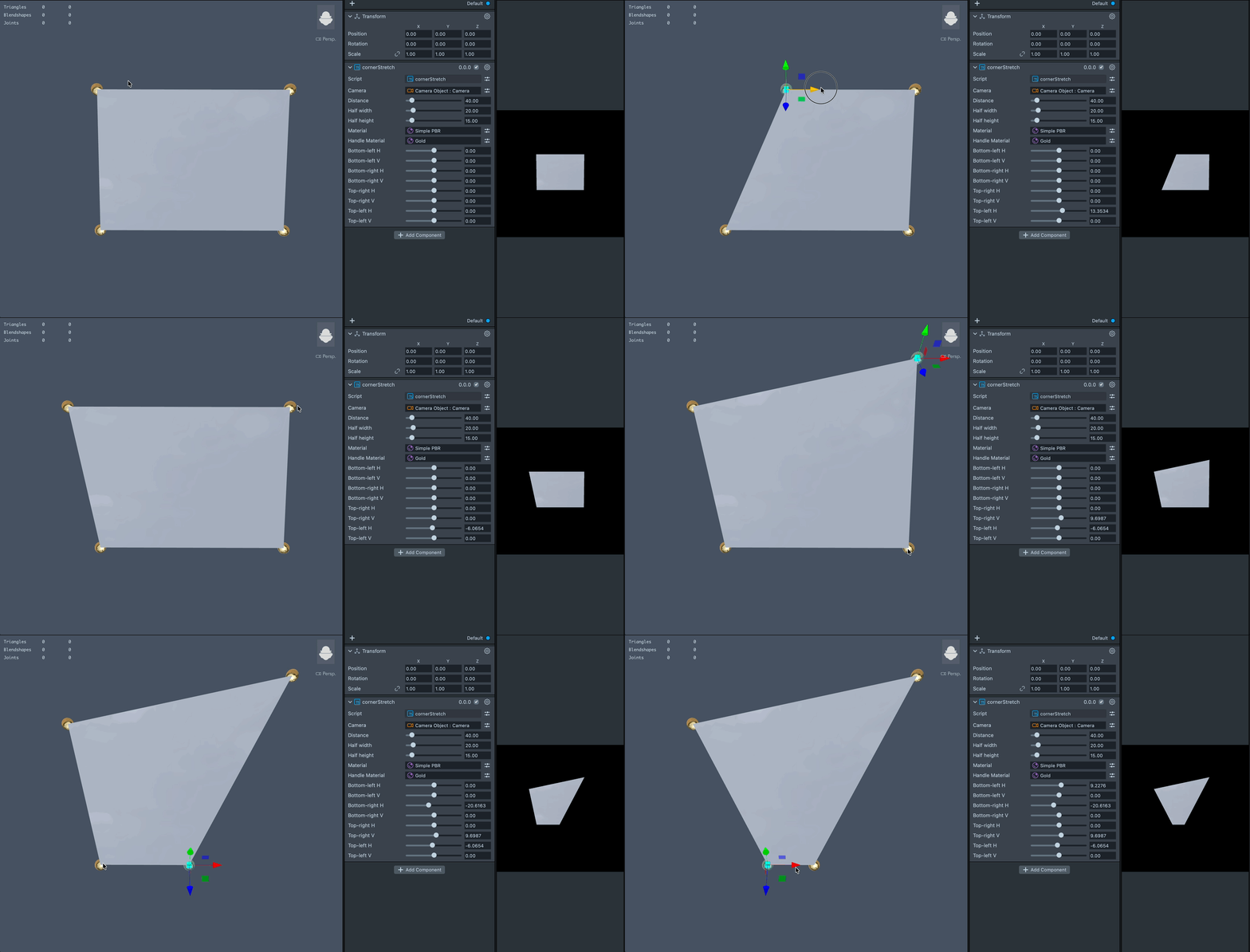
@runInEditor lets a Script Component run in the Scene Editor viewport so you can build interactive
authoring controls there. A script can create editor-only objects, make them selectable, choose
which transform tools they support, react to manipulation, and write the result back into its
@input values.
This guide assumes you are familiar with the basics of scripting in Lens Studio. To learn more, please visit the Scripting Overview.
Running a script in the Scene Editor
Add @runInEditor so the Script Component can run in the Scene Editor even when regular scripts are
turned off there. Events that the viewport used to block, such as UpdateEvent, can run for these
scripts.
In TypeScript, @runInEditor must be on the same class as @component. The component also runs in
Preview and at runtime. Keep editor-only behavior behind global.scene.isEditorViewport().
- JavaScript
- TypeScript
//@runInEditor
//@component
//@input float width = 10

script.createEvent('UpdateEvent').bind(function () {
  // Keep generated geometry and authoring controls in sync.
});
@runInEditor
@component
export class AdjustableShape extends BaseScriptComponent {
  @input
  width: number = 10;

  onAwake() {
    this.createEvent('UpdateEvent').bind(() => {
      this.updateShape();
    });
  }

  private updateShape() {
    // Keep generated geometry and authoring controls in sync.
  }
}
Detecting the Scene Editor viewport
global.scene.isEditorViewport() is true in the Scene Editor viewport and false in Preview and
at runtime. Use this check before creating editor-only objects, attaching editor interaction
components, or requesting an editor-only model write.
- JavaScript
- TypeScript
if (global.scene.isEditorViewport()) {
  createAuthoringHandles();
}
onAwake() {
  if (global.scene.isEditorViewport()) {
    this.createAuthoringHandles();
  }
}
Scene conversion can recreate script-generated objects. Make setup safe to repeat: find and reuse owned objects when possible, or remove stale objects before rebuilding them.
Creating a selectable editor-only object
A SceneObject created by a running script has no project-model counterpart. Add
Component.EditorSelectableObject to let the Scene Editor select it.
- JavaScript
- TypeScript
function createHandle(name) {
  var handle = global.scene.createSceneObject(name);
  handle.setParent(script.getSceneObject());

  handle.createComponent('Component.EditorSelectableObject');

  var visual = handle.createComponent('Component.RenderMeshVisual');
  visual.mesh = script.handleMesh;
  visual.mainMaterial = script.handleMaterial;

  return handle;
}
private createHandle(name: string): SceneObject {
  const handle = global.scene.createSceneObject(name);
  handle.setParent(this.getSceneObject());

  handle.createComponent('Component.EditorSelectableObject');

  const visual = handle.createComponent(
    'Component.RenderMeshVisual'
  ) as RenderMeshVisual;
  visual.mesh = this.handleMesh;
  visual.mainMaterial = this.handleMaterial;

  return handle;
}
If a selectable handle has child visuals, attach the marker to the handle root. Picking a child resolves to the nearest marked ancestor.
Controlling gizmos with EditorInteractionProfile
Add Component.EditorInteractionProfile to define which stock transform tools can manipulate an
object. The profile supports Move, Rotate, Scale, and Unified gizmos. Set allowMove,
allowRotate, and allowScale to expose only the intended operations.
- JavaScript
- TypeScript
function configureHandle(handle) {
  var profile = handle.createComponent('Component.EditorInteractionProfile');

  profile.allowMove = true;
  profile.allowRotate = false;
  profile.allowScale = false;

  profile.onManipulationStarted.add(function () {
    // A drag began.
  });
  profile.onManipulationUpdated.add(function () {
    readHandlePosition(handle);
  });
  profile.onManipulationFinished.add(function () {
    readHandlePosition(handle);
  });
}
private configureHandle(handle: SceneObject) {
  const profile = handle.createComponent(
    'Component.EditorInteractionProfile'
  ) as any;

  profile.allowMove = true;
  profile.allowRotate = false;
  profile.allowScale = false;

  profile.onManipulationStarted.add(() => {
    // A drag began.
  });
  profile.onManipulationUpdated.add(() => {
    this.readHandlePosition(handle);
  });
  profile.onManipulationFinished.add(() => {
    this.readHandlePosition(handle);
  });
}
The lifecycle callbacks are:
onManipulationStarted: the user pressed a live gizmo handle.onManipulationUpdated: the transform changed during the drag.onManipulationFinished: the manipulation ended.
Constraining movement to a plane
Set constrainToPlane and planeNormal to keep a move handle on a plane. planeNormal is
interpreted in the parent object's local space. Parent the handle to an object whose origin should
anchor the interaction plane.
- JavaScript
- TypeScript
var profile = handle.createComponent('Component.EditorInteractionProfile');

profile.allowMove = true;
profile.allowRotate = false;
profile.allowScale = false;
profile.constrainToPlane = true;
profile.planeNormal = new vec3(0, Math.SQRT1_2, Math.SQRT1_2);
const profile = handle.createComponent(
  'Component.EditorInteractionProfile'
) as any;

profile.allowMove = true;
profile.allowRotate = false;
profile.allowScale = false;
profile.constrainToPlane = true;
profile.planeNormal = new vec3(0, Math.SQRT1_2, Math.SQRT1_2);
Persisting a manipulated value
Changing a script property at runtime does not by itself change the project model. After writing an
@input, call requestPersistInput() with its
declared property name.
The request has an effect only in the Scene Editor viewport. Lens Studio writes the current value back after the frame, so treat persistence as deferred rather than immediate. Request only inputs that the manipulation changed.
- JavaScript
- TypeScript
//@input float horizontalOffset = 0

function readHandlePosition(handle) {
  script.horizontalOffset = handle.getTransform().getLocalPosition().x;
  script.requestPersistInput('horizontalOffset');
}
@input
horizontalOffset: number = 0;

private readHandlePosition(handle: SceneObject) {
  this.horizontalOffset = handle.getTransform().getLocalPosition().x;
  this.requestPersistInput('horizontalOffset');
}
For multiple values, request each name:
- JavaScript
- TypeScript
function persistCorner(u, v) {
  script.cornerU = u;
  script.cornerV = v;
  script.requestPersistInput('cornerU');
  script.requestPersistInput('cornerV');
}
private persistCorner(u: number, v: number) {
  this.cornerU = u;
  this.cornerV = v;
  this.requestPersistInput('cornerU');
  this.requestPersistInput('cornerV');
}
Omitting viewport-only inputs from the packed Lens
Mark every viewport-only @input asset with exportRequired: false. @runInEditor and
isEditorViewport() do not drop those references. Unmarked textures and meshes still pack
into the exported Lens.
Objects you create at runtime in the viewport stay out of the project and do not export. Asset
@inputs on the Script Component are different: mark them in the same script so they are omitted
from the packed Lens.
Preview, the emulator, and the Scene Editor still bind the input. Only packed Lens export and Lens minify omit it. Native package export still includes the reference.
- JavaScript
- TypeScript
//@input Asset.Texture gizmo {"exportRequired":false}
@input
@exportRequired(false)
gizmo: Texture;
Only top-level @input honors exportRequired. Nested @typedef @property entries with the key
do not skip export. The assignment stays on the component in the project.
require() is unchanged: a module used only inside an editor branch still packs.
Example: a position handle
This example creates one editor-only handle, limits it to movement on the parent's XY plane, and
saves its position into two inputs. The handle mesh and material are viewport-only, so they are
marked with exportRequired: false and stay out of the packed Lens. For production use, also make
object creation idempotent and recover when a scene conversion invalidates a cached object.
- JavaScript
- TypeScript
//@runInEditor
//@component
//@input float offsetX = 0
//@input float offsetY = 0
//@input Asset.RenderMesh handleMesh {"exportRequired":false}
//@input Asset.Material handleMaterial {"exportRequired":false}

var handle = null;

if (global.scene.isEditorViewport()) {
  handle = global.scene.createSceneObject('__PositionHandle');
  handle.setParent(script.getSceneObject());
  handle
    .getTransform()
    .setLocalPosition(new vec3(script.offsetX, script.offsetY, 0));

  handle.createComponent('Component.EditorSelectableObject');

  var visual = handle.createComponent('Component.RenderMeshVisual');
  if (script.handleMesh) {
    visual.mesh = script.handleMesh;
  }
  if (script.handleMaterial) {
    visual.mainMaterial = script.handleMaterial;
  }

  var profile = handle.createComponent('Component.EditorInteractionProfile');
  profile.allowMove = true;
  profile.allowRotate = false;
  profile.allowScale = false;
  profile.constrainToPlane = true;
  profile.planeNormal = new vec3(0, 0, 1);

  profile.onManipulationUpdated.add(updateInputsFromHandle);
  profile.onManipulationFinished.add(updateInputsFromHandle);
}

function updateInputsFromHandle() {
  if (!handle) {
    return;
  }

  var position = handle.getTransform().getLocalPosition();
  script.offsetX = position.x;
  script.offsetY = position.y;
  script.requestPersistInput('offsetX');
  script.requestPersistInput('offsetY');
}
@runInEditor
@component
export class PositionHandle extends BaseScriptComponent {
  @input
  offsetX: number = 0;

  @input
  offsetY: number = 0;

  @input
  @exportRequired(false)
  @allowUndefined
  handleMesh: RenderMesh;

  @input
  @exportRequired(false)
  @allowUndefined
  handleMaterial: Material;

  private handle: SceneObject | null = null;

  onAwake() {
    if (!global.scene.isEditorViewport()) {
      return;
    }

    this.handle = global.scene.createSceneObject('__PositionHandle');
    this.handle.setParent(this.getSceneObject());
    this.handle
      .getTransform()
      .setLocalPosition(new vec3(this.offsetX, this.offsetY, 0));

    this.handle.createComponent('Component.EditorSelectableObject');

    const visual = this.handle.createComponent(
      'Component.RenderMeshVisual'
    ) as RenderMeshVisual;
    if (this.handleMesh) {
      visual.mesh = this.handleMesh;
    }
    if (this.handleMaterial) {
      visual.mainMaterial = this.handleMaterial;
    }

    const profile = this.handle.createComponent(
      'Component.EditorInteractionProfile'
    ) as any;
    profile.allowMove = true;
    profile.allowRotate = false;
    profile.allowScale = false;
    profile.constrainToPlane = true;
    profile.planeNormal = new vec3(0, 0, 1);

    profile.onManipulationUpdated.add(() => {
      this.updateInputsFromHandle();
    });
    profile.onManipulationFinished.add(() => {
      this.updateInputsFromHandle();
    });
  }

  private updateInputsFromHandle() {
    if (!this.handle) {
      return;
    }

    const position = this.handle.getTransform().getLocalPosition();
    this.offsetX = position.x;
    this.offsetY = position.y;
    this.requestPersistInput('offsetX');
    this.requestPersistInput('offsetY');
  }
}
Related Documentation
Please refer to the guides below for additional information: