GIPHY Import
- Snapchat: fully supported
- SPECS: not supported
- Camera Kit Web: fully supported
- Camera Kit Mobile: fully supported
- SnapchatFully supported
- SPECSNot supported
- Camera Kit WebFully supported
- Camera Kit MobileFully supported
You can directly import content from GIPHY inside Lens Studio. This guide walks you through importing a GIPHY GIF as a texture resource and then using it as a Face Image, Screen Image, or World Image.
The content comes from GIPHY Stickers, which have transparent backgrounds.
Add From GIPHY
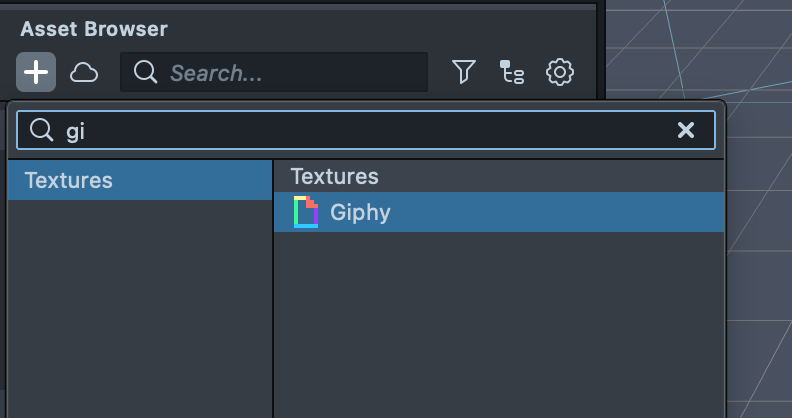
In the Asset Browser, press the + button and search for GIPHY under Textures. A window opens to allow you to search for the stickers you want.
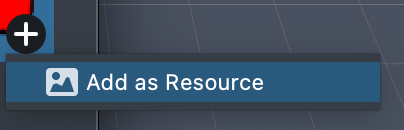
Click a sticker and choose Add as Resource, or double-click it, to import the sticker as a resource.
Using the Stickers
The imported resource is a texture that you can use anywhere else you can use a texture. Below are some examples to consider.
Attach to the user's face
Check out the Face Image guide for more information on how you can attach a texture to different points on a user's face.
Display the image in screen space
Using Screen Image, you can attach the imported GIPHY GIF to the screen. Check out the Image and the Screen Transform guide for more information on how to set up a Screen Image.
Attach the image to the world
With the sticker on an image, and a Device Tracking component on a camera object, you can attach the imported GIPHY GIF as a 3D plane in the world. Check out the Image guide for more information on how to work with Image.