Playing Animations Programmatically
- Available on all platforms
By default, Animation Player will play the animations automatically. However, you may want to manually trigger the animation, or switch between animations. In addition, when useful, you can blend between animation clips.
Naming Animation Clips
In the Animation Player, you can give your Animation Clips a name, so that you can refer to them in scripts:
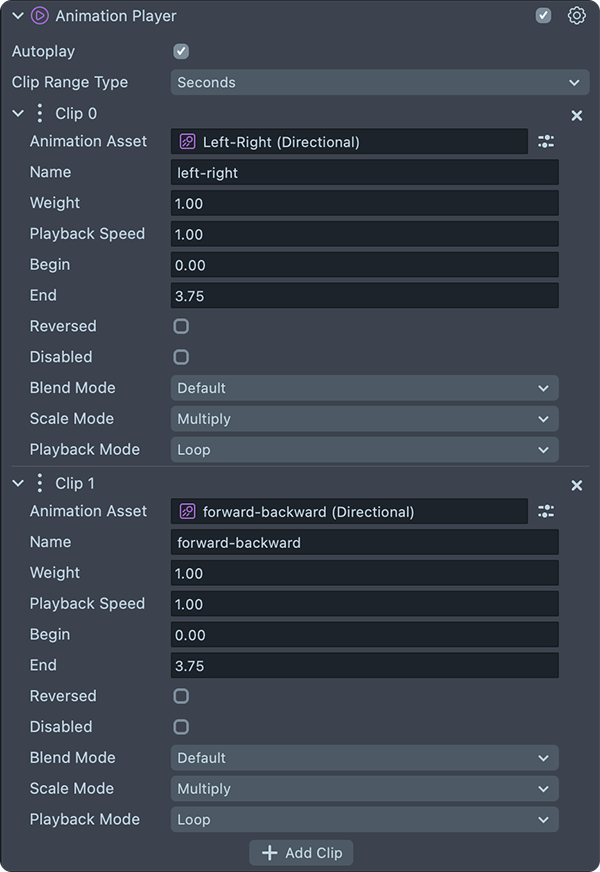
Triggering Animations Through Behavior
You can use Behavior to trigger your animation in a variety of ways.
In the Response section, choose Play Animation Clip and then add a reference to your Animation Player and the name of your clip.
On SPECS, the Behavior helper's Touch Event trigger doesn't fire on the device, because it needs a touchscreen. Behavior describes how to start a Behavior from an Interaction Kit Interactable instead.
Triggering Animations Through Script
You can trigger an animation using the playClipAt, and passing in the clip name, as well as the second you want the clip to start at.
For example, to play an animation when the user taps the screen:
//@input Component.AnimationPlayer animationPlayer
script.createEvent('TapEvent').bind(function () {
  script.animationPlayer.playClipAt('myClipName', 0);
});
On SPECS, start the clip when the user pinches or pokes an object. Add an Interaction Kit Interactable to the object, then subscribe to its onTriggerStart event inside OnStartEvent. For example, to play an animation when the user pinches the object:
import { Interactable } from 'InteractionKit.lspkg/Components/Interaction/Interactable/Interactable';

@component
export class PlayClipOnPinch extends BaseScriptComponent {
  @input
  animationPlayer: AnimationPlayer;

  @input
  interactable: Interactable;

  onAwake() {
    // Interaction Kit events are ready from OnStartEvent, not onAwake.
    this.createEvent('OnStartEvent').bind(() => {
      this.interactable.onTriggerStart.add(() => {
        this.animationPlayer.playClipAt('myClipName', 0);
      });
    });
  }
}
To set up the Interactable, see Interaction Kit.
Take a look at the scripting guide to learn more about scripting.
Transitioning Between Animation Clips
You can play multiple clips simultaneously to blend between various animations.
Animation Clips are processed in the order they are visualized on the Animation Player. For example, if you wanted to transition between a walking and running animation, you will likely want the walking animation to be the first clip, with a weight of 1.0, and then blend in the run clip, ramping from 0-1. See an example script in the API page.
For example: notice here how the tube bending starts transitioning from going forward-backward to left-right on mouse click. See the script in the Animation Player API example.