Animation Player
- Available on all platforms
AnimationPlayer handles animations created by other 3D creation software.
Prior to Lens Studio 5.0.10, animations leveraged Animation Mixer instead of Animation Player. Take a look at the Animation Mixer doc to learn more about the old system.
Animation Player Component
Animations are played through the Animation Player component. The component takes in a list of Animation Clips, and allows you to play, stop, resume, subscribe to animation events, and more.
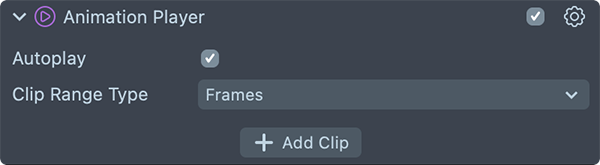
- Autoplay - Specifies if clips should play on initialization.
- Animation Clips - Array of animation clips. You can add Animation Clips by pressing
+ Add Value.
Animation Clips
Animation Clip is what an Animation Player uses to manage playback for a specific animation. It defines the playback speed, clip duration, sample speed, weight. This asset takes in a single Animation Asset. Animation Clips are created within the Animation Player Component.
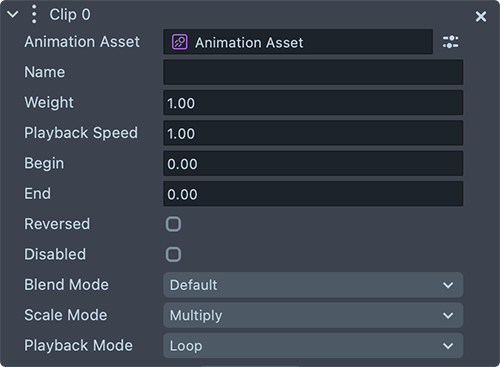
- Animation Asset - Points to the animation asset to be played by the Animation Player.
- Name - Name of the clip. Way to refer to the clip in code.
- Weight - Strength of animation clip contribution. Lies between [0.0f, 1.0f] inclusive.
- Begin - The start of the clip, in frames or seconds depending on the Animation Player's Clip Range Type (Frames uses the animation asset's fps).
- End - The end of the clip, in frames or seconds depending on the Animation Player's Clip Range Type.
- Playback Speed - Playback speed multiplier, where 1.0 is 100% speed.
- Playback Mode - Whether the clip plays once (Single), repeats (Loop, the default), or plays back and forth (PingPong).
- Offset - Starting point within the clip, for the first iteration only, in the unit set by the Animation Player's Clip Range Type. Later iterations start from the beginning of the clip.
- Reversed - Specifies if the clip should be played reversed.
- Disabled - Specifies whether the clip has any influence on the Animation Player.
- Blend Mode - When blending multiple animations you can specify how you would like this blend to be applied
- Default - Completely overrides any influence on the joints this animation will be applied giving this animation priority
- Additive - The weight of this animation will be added to any current animation influence already being applied to the joints this animation is being applied to
- Scale Mode - This value determines how you want the animation values to be applied to the joints
- Multiply - Multiples the values to each joint effectively scaling values currently applied
- Additive - Adds the desired animation's values to the currently applied values on joints
Animation Asset
Animation Asset contains multiple Animation Property Layers. It also allows you to hook into events which can be triggered by the animation.
Animation Assets are found in the Asset Browser panel. One is created when you import a 3D animation. Lens Studio also creates one when you right-click a scene object in the Scene Hierarchy and choose Animate, or when you click Add Clip in the Curve Editor.
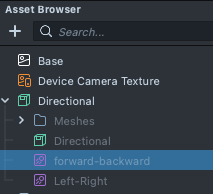
When dealing with joints in a 3D animation, the animation targets based on the name of the joints. Meaning, every object should have a unique name.
Animations will automatically retarget if they have the same structure.
Animation Property Layer
A layer containing different properties. Examples include position, rotation, scale or any other arbitrary properties. Animation Property Layers are made within an Animation Asset.
Since an Animation Property Layer only contains a bunch of numbers that describe the state of a property (for example, state of a rotation), you can sample the animation in many other contexts (for example, state of a font size).
In other words:
- Animation Player component, controls and plays an Animation Clips.
- Animation Clips contains a reference to a single Animation Asset.
- Animation Asset contains a map of Animation Layers.
- Animation Layers contain different properties of the animations.
You can learn more about each of these, and their interface for scripting in the API documentation.