Crop Texture
- Snapchat: fully supported
- SPECS: partially supported
- Camera Kit Web: fully supported
- Camera Kit Mobile: fully supported
- SnapchatFully supported
- SPECSPartially supported
- Camera Kit WebFully supported
- Camera Kit MobileFully supported
When using a model, it may be necessary to provide a specific region of the input texture. For example, you might need to pass a texture that focuses on the center of the screen, an area around a person's face, or a rectangle surrounding a hand.
Two types of crop textures are available: Screen Crop and Face Crop.
Screen Crop Texture
This feature allows you to extract a rectangular area from the input texture.
To create a Screen Crop Texture, click the “+” button in the Asset Browser panel and select Screen Crop Texture.
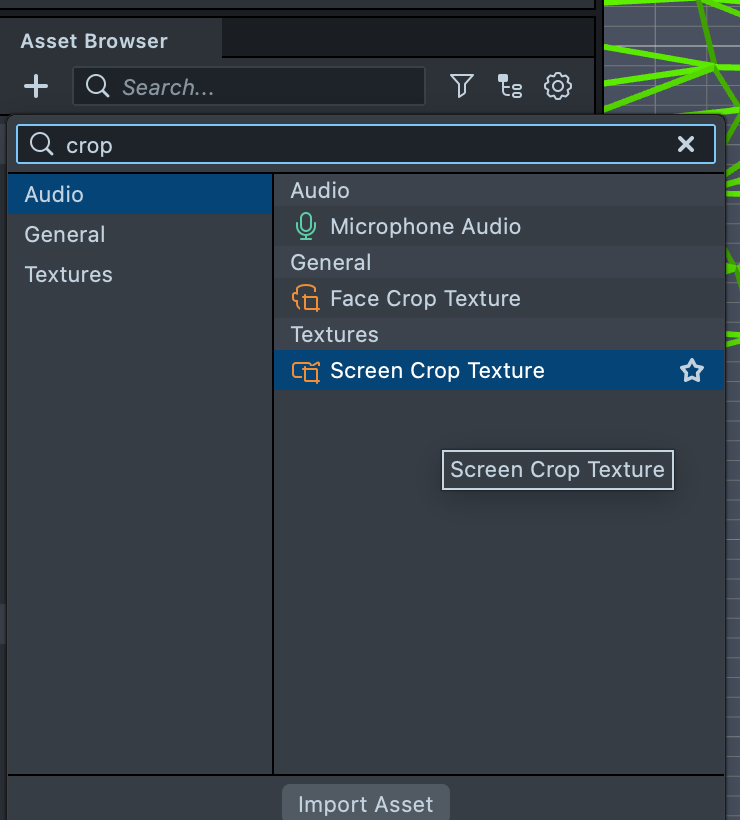
Click on the newly created texture in the Asset Browser panel to view its properties:
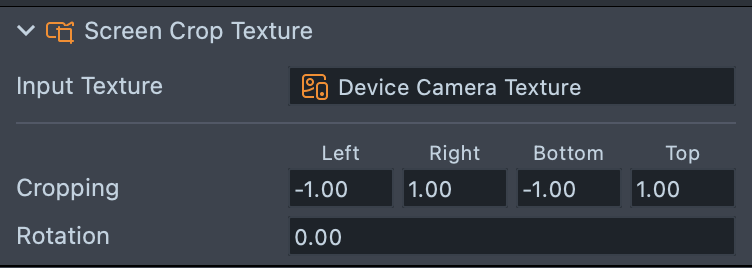
- Input Texture: The original texture from which to crop. By default, it is set to the Device Camera Texture.
The cropping region is defined by:
- Cropping Left, Right, Top, Bottom: Specifies the anchors of the crop rectangle within the input texture's local space. (A rectangle with anchors (-1, 1, -1, 1) represents the entire input texture.)
- Rotation: The rotation angle of the crop rectangle.
These parameters can be modified via script. Refer to RectCropTextureProvider in the API documentation.
Face Crop Texture
This feature allows you to crop a texture around a face.
To create a Face Crop Texture, click the “+” button in the Asset Browser panel and select Face Crop Texture.
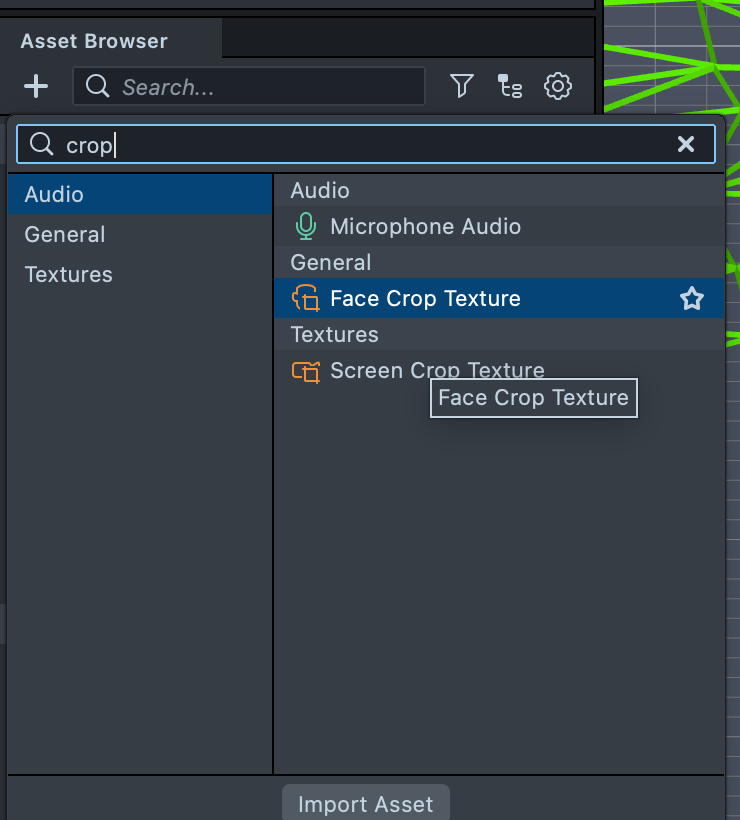
Click on the newly created texture in the Asset Browser panel to view its properties:
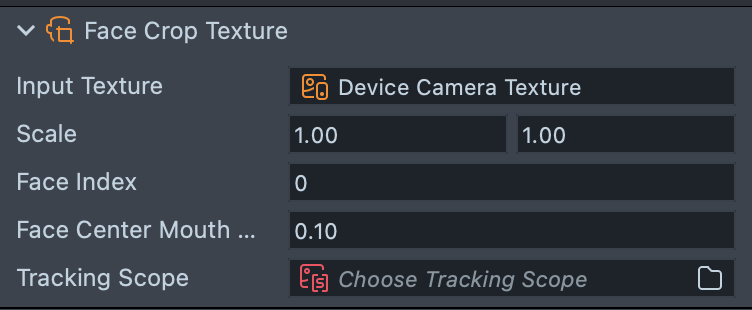
- Input Texture: The original texture from which to crop. By default, it is initialized with the Device Camera Texture.
- Scale: The UV scale of the face texture, which can be adjusted to zoom in or out on the face.
- Face Index: Specifies which face to use for cropping. The first face is indexed at 0, the second at 1, etc.
- Face Center Mouth Weight: A value of 0 positions the mouth at the default location, while a value of 1 centers the mouth in the cropped texture.
- Tracking Scope: Optional. A Tracking Scope asset that sets where the Face Crop Texture looks for the face, instead of the default camera feed.
For further details, see the FaceCropProvider in the Lens Studio API documentation.
Rectangle Setter
The Rectangle Setter component controls the ScreenTransform component of an object based on the crop rectangle of a Crop Texture.
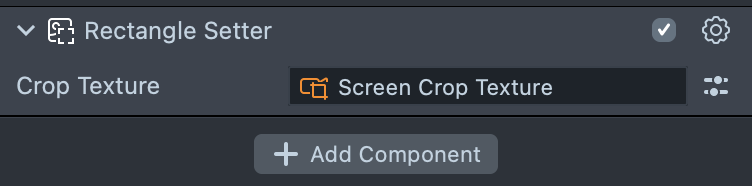
To create a Rectangle Setter component, select Screen Image in the Scene Hierarchy panel. In the Inspector panel, click Add Component -> Rectangle Setter. Then assign the CropTexture property to the desired crop texture.