WebXR
Run WebXR experiences on SPECS from the browser, with hand input and hit testing, using standard web APIs and no Lens Studio project.
- Snapchat: not supported
- SPECS: fully supported
- Camera Kit Web: not supported
- Camera Kit Mobile: not supported
- SnapchatNot supported
- SPECSFully supported
- Camera Kit WebNot supported
- Camera Kit MobileNot supported
WebXR experiences run on SPECS in the SPECS browser: you build an AR experience with standard web technologies, host it on any web server, and open its URL on SPECS. You need no Lens Studio project, and the wearer installs nothing. This page is for web developers bringing a WebXR experience to SPECS.
What WebXR is
WebXR is the web standard for virtual reality (VR) and augmented reality (AR) in the browser: the WebXR Device API and its modules let a web page start an immersive session, track the viewer, read input, and render 3D content into the world. On SPECS, WebXR lets you build AR experiences with the web tools and frameworks you already use. To learn more about the standard, see Immersive Web.
How WebXR experiences run on SPECS
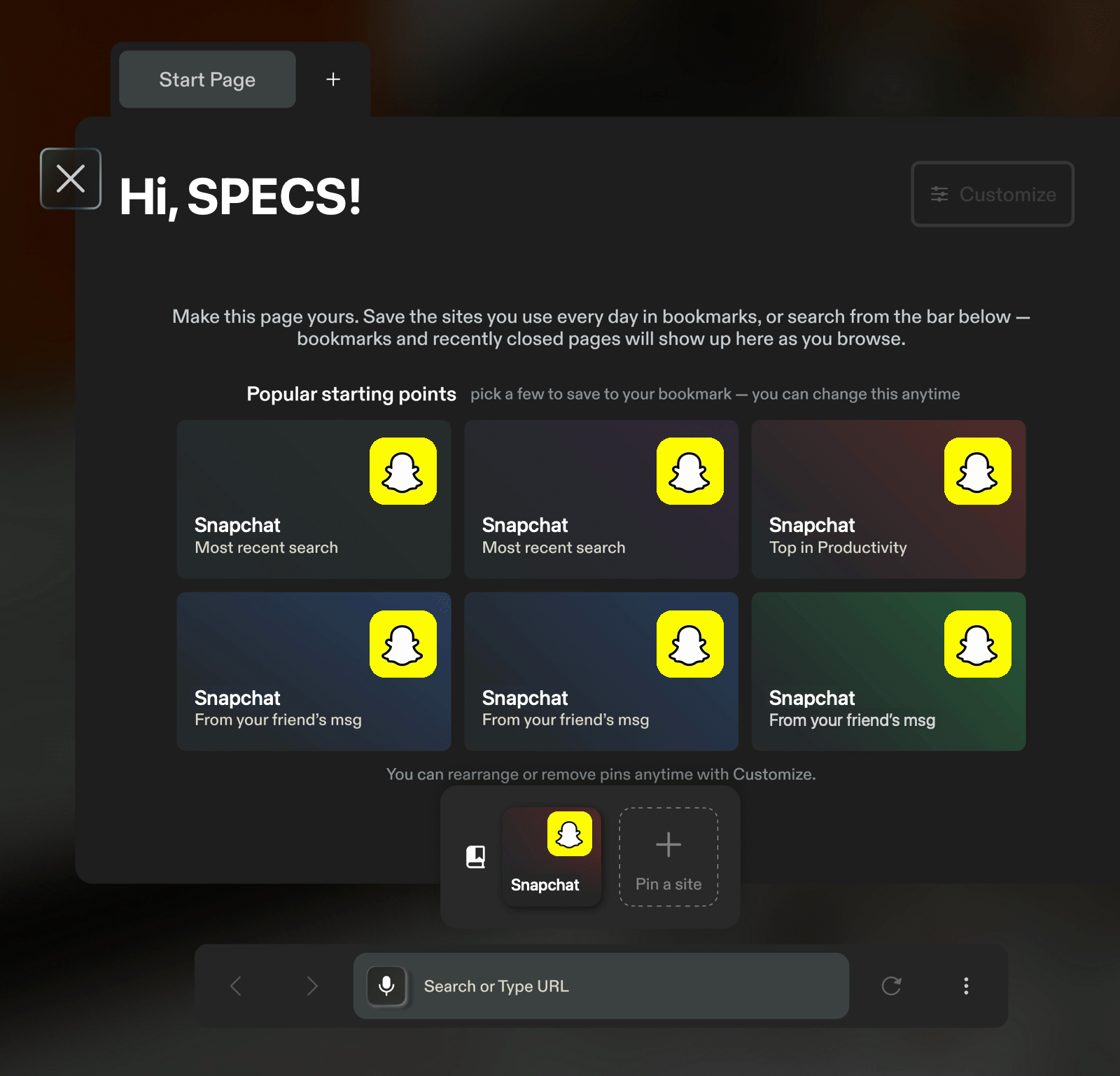
The SPECS browser uses WebKit, the browser engine behind Safari, and its WebXR support runs on the SPECS OpenXR runtime. A WebXR experience on SPECS:
- Opens from a URL. The wearer opens the browser from Lens Explorer on SPECS and visits the experience's address, with no installation.
- Uses standard web APIs. Code written against the WebXR Device API and the WebXR AR module runs as it does in other WebXR browsers.
- Runs on other WebXR devices too. The same experience works in any browser that supports the WebXR features it uses.
What SPECS adds around a WebXR experience
SPECS wraps every WebXR experience in its own system UI, with no code on your part:
- Immersive mode notification. When an experience enters WebXR immersive mode, SPECS shows a notification for 3 seconds, so the wearer knows they are moving from 2D browsing to an AR experience.
- Exit from the palm. In immersive mode, the System Menu on the wearer's palm shows an Exit Immersive button, which leaves immersive mode and returns to the 2D web page: the same gesture-based control the rest of SPECS uses.
- Capture. The wearer can capture a WebXR experience and share it, with no setup in your experience.

Supported WebXR features on SPECS
The SPECS browser supports these WebXR specifications:
| Feature | Status on SPECS |
|---|---|
| WebXR Device API | Supported |
| WebXR AR Module | Supported |
| WebXR Hand Input | Supported. Hands are the main input on SPECS. |
| WebXR Hit Test | Supported |
| WebXR Gamepads | Supported |
| WebXR Anchors | Partly: an anchor holds a pose for the session; anchors don't persist between sessions. |
| WebXR Layers | Partly: too many layers, or a layer type SPECS doesn't support, renders through a slower path. See Use few WebXR layers. |
WebXR features SPECS doesn't support yet
These WebXR features aren't available in the SPECS browser:
- Plane Detection
- Depth Sensing
- Mesh Detection
- Image tracking
- Raw camera access
- Lighting estimation
Request them as optionalFeatures, not requiredFeatures, and check the session's enabledFeatures,
so your experience still starts on SPECS and falls back when a feature is missing.
Build and test a WebXR experience for SPECS
- Choose a framework. PlayCanvas is the recommended framework for WebXR on SPECS; any framework built on the WebXR Device API works.
- Build your experience on the WebXR Device API and the AR module: request an
immersive-arsession, with the features from Supported WebXR features on SPECS that it uses. - Test the experience in a WebXR-compatible browser.
- Host the experience on any web server, over HTTPS: browsers offer WebXR only on secure pages.
- On SPECS, open the browser from Lens Explorer and visit the experience's URL.
The experience picks up the SPECS system UI and hand input with no extra code.
To check what the SPECS browser supports, open these pages in it:
- WebXR support report: lists the WebXR session modes and features the browser offers.
- WebXR hit-test sample: places objects on real surfaces with the Hit Test module.
- WebGL report: shows the WebGL 2 capabilities your renderer can use.
Make a WebXR experience run well on SPECS
SPECS are lightweight glasses you wear in the world, and a WebXR experience runs best on them when you build it for them, with AR content placed in the room, compact assets, and the settings these practices describe. Apply them when you bring an experience first made for a VR headset or a desktop to SPECS, too.
Design for AR, not VR
Fill rate, the share of the display a WebXR experience draws over every frame, has the biggest effect on its frame rate on SPECS. AR on SPECS shows the real world, so place a few objects in the room and leave the rest of the view empty. Experiences designed for VR cover the whole view with skyboxes, rooms, or full-view video, and run slowly on SPECS even when they load.
Turn off antialiasing
Create the WebGL context with antialiasing off: antialias: false in the context attributes, or
antialias: false on three.js' WebGLRenderer. When an experience asks for antialiasing and uses
WebXR Layers, three.js adds its own 4x multisampling, which uses enough memory to stop the experience
or cut its frame rate.
Keep memory and asset sizes small
Compact assets let a WebXR experience load quickly and stay running on SPECS. Keep polygon counts, texture sizes, and shader count and complexity down, and test on SPECS as you add assets. Projects exported from Unity to WebGL or three.js carry assets made for desktops and VR headsets, and often don't fit in SPECS memory until you reduce those assets.
Encode video for hardware decoding
SPECS decodes H.264, H.265 (HEVC), and VP9 video in hardware. Other codecs, such as VP8, fall back to software decoding, which is too slow for a steady frame rate: a 30 fps stereo video in VP8 plays with long delays and dropped frames. Encode video for a WebXR experience in H.264, HEVC, or VP9; for WebM files, use VP9, not VP8.
Use few WebXR layers
When a WebXR experience uses many WebXR Layers, or a layer type SPECS doesn't support, SPECS falls back to a slower compositing path for the whole experience. Use as few layers as the experience needs, and check its frame rate on SPECS after adding a layer.
SPECS stops the experience with "App Stopped: high memory used"
App Stopped: high memory used
Cause: the experience used more memory than SPECS allows the browser. The usual causes are antialiasing with WebXR Layers, and large textures or meshes.
Fix: turn off antialiasing (see Turn off antialiasing), then reduce the experience's assets (see Keep memory and asset sizes small).
Example WebXR experiences for SPECS
These demo experiences target SPECS and run in the SPECS browser:
| Demo | What it shows | URL |
|---|---|---|
| Chair | Placing furniture in the room | webxr-chair.vercel.app |
| Sneaker | Viewing a product in 3D | webxr-sneaker.vercel.app |
| Burger | Interacting with food items | webxr-burger.vercel.app |
| 3D Tic-Tac-Toe | An interactive game | webxr-tictactoe.vercel.app |
Adam Varga created the demos.
Source code: the complete source code for all four demos is in the webxr-ar-demos repository on GitHub.
Related
- Immersive Web: the WebXR standard, its modules, and browser support.
- PlayCanvas WebXR guide: building WebXR experiences with the recommended framework.
- WebXR samples: reference implementations of each WebXR module to test on SPECS.