Connect Lens Studio to SPECS
Connect SPECS to Lens Studio wirelessly, so you can send Lenses to the glasses, read their logs, profile them, and debug them.
Connect SPECS to Lens Studio to send Lenses to the glasses, read their logs in the Logger, profile them in the SPECS Monitor, and debug them.
Before you connect
- Developer Mode is on, in the SPECS App. Lens Studio can't connect to SPECS without it.
- Your SPECS are powered on and unlocked.
- Lens Studio and the SPECS App are signed in to the same SPECS account. To sign in to Lens Studio, select SPECS Dev Portal > Login in the menu bar.
- The project targets SPECS (File > Project Settings > Target Platform). See Set Up Lens Studio for SPECS.
Connect wirelessly
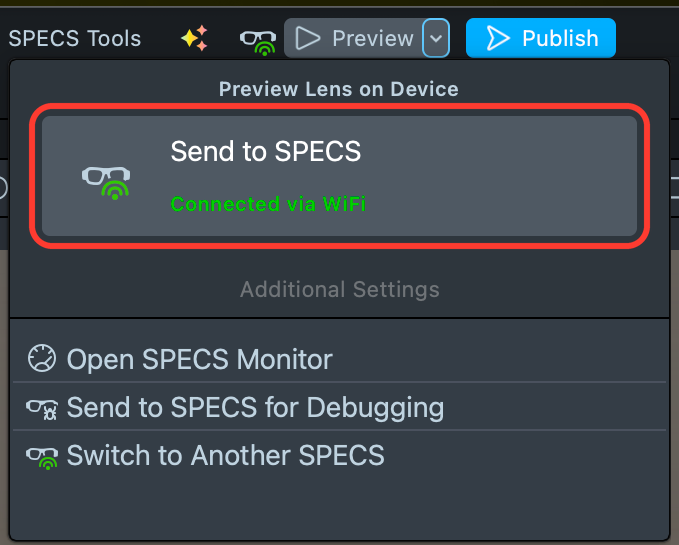
- Open the menu beside Preview in the toolbar (the arrow). The card under Preview Lens on Device shows the connection.
- If the card reads Connect SPECS, select it.
When the connection is ready, the card reads Send to SPECS with Connected via WiFi, and the glasses icon in the toolbar turns green. If SPECS hasn't answered after a few seconds, the card reads SPECS Still Connecting… and Lens Studio keeps trying for up to 60 seconds. Make sure your SPECS are on and unlocked.

Connect to another SPECS
Lens Studio connects to one SPECS at a time. When several SPECS on your account are awake and
online, the first one to answer connects. The Logger names it by serial number, for example
SPECS (S/N …) has successfully connected to Lens Studio.
To use a different pair, open the menu beside Preview and select Switch to Another SPECS under Additional Settings. Lens Studio disconnects the connected SPECS and connects another SPECS on your account. Select it again to move on to the next one. It's available while SPECS is connected and no Lens is sending.
If no other SPECS is awake and online, none connects and the card returns to Connect SPECS. Select Connect SPECS to connect any SPECS on your account again.
Check the SPECS software version
When you connect, Lens Studio checks that the software on your SPECS meets the minimum version this version of Lens Studio supports. If it doesn't, the SPECS Software Compatibility dialog recommends an update. You can continue, but the Lens may not run or preview as expected on your SPECS. To update, see Updating.
Connection types between Lens Studio and SPECS
Lens Studio tries Direct Wireless first. When your computer and SPECS can't reach each other, it connects through Cloud instead.
| Connection type | How it connects | What it needs | Not available |
|---|---|---|---|
| Direct Wireless | Your computer and SPECS reach each other over the network | A network that lets devices reach each other | Nothing |
| Cloud | Through Snap's servers, when Direct Wireless can't connect | Any network with internet access | Device settings, Lens messages |
Both connection types need a sign-in to the same SPECS account in Lens Studio and the SPECS App, and internet access on your computer and SPECS.
- Direct Wireless works whenever your computer and SPECS can reach each other: on the same Wi-Fi network, or with your computer on Ethernet in the same network.
- Cloud works on networks that block devices from reaching each other, such as guest networks and many office and school networks, even when your computer and SPECS share the Wi-Fi.
The card reads Connected via WiFi for both. To check which one you got, open the SPECS Monitor (Window > Utilities > SPECS Monitor): over Cloud, its Settings section shows a warning instead of the device settings.
Troubleshoot the connection
If the Send to SPECS card shows Connection Failed or Disconnected, find the message from the Logger below.
"SPECS couldn't connect to Lens Studio within 60 seconds"
SPECS couldn’t connect to Lens Studio within 60 seconds. Make sure Lens Studio and the SPECS mobile app are signed in to the same account, …
Lens Studio sent the connection request, but no SPECS answered. Check these, then select Connect SPECS again:
- Your SPECS are awake. SPECS that are asleep miss the request. Put them on and unlock them.
- Your SPECS are online. Both connection types need internet access on SPECS.
- Lens Studio and the SPECS App use the same SPECS account.
- Developer Mode is on in the SPECS App.
After three failed attempts in a row, Lens Studio also shows a Connection Failed dialog. The same checks apply.
"No user is currently logged in"
[SPECS Connection] - No user is currently logged in. Please log in to the account paired with your SPECS device by navigating to SPECS Dev Portal → Login.
Lens Studio opens the sign-in page. Sign in with the account your SPECS are paired to, then select Connect SPECS again.
"Please enable SPECS in the Project Settings to connect with SPECS"
Set File > Project Settings > Target Platform to SPECS, then select Connect SPECS again.
"no active Wi-Fi or Ethernet connection was found on this computer"
Unable to connect to SPECS wirelessly: no active Wi-Fi or Ethernet connection was found on this computer. …
Connect your computer to a Wi-Fi or Ethernet network, then select Connect SPECS again.
"SPECS (S/N …) has disconnected from Lens Studio"
SPECS (S/N …) has disconnected from Lens Studio.
Your SPECS went to sleep or lost their network, or your computer changed networks. Wake your SPECS, then select Connect SPECS.
Lens Studio connected to a different SPECS
With several SPECS on your account awake, the first one to answer connects. Select Switch to Another SPECS; see Connect to another SPECS.
The SPECS Monitor shows "Settings are unavailable"
Settings are unavailable because a direct connection to your device could not be established. …
SPECS are connected through Cloud, which doesn't carry device settings or Lens messages. Change the settings in the SPECS App, or connect your computer and SPECS to a network that lets devices reach each other, so Lens Studio connects with Direct Wireless.
If the connection still fails, see Help Pairing.
Related
- Send a Lens to SPECS: run your Lens on the glasses once they're connected.
- Preview Lenses for SPECS: test in Lens Studio before you connect.
- SPECS Monitor: profile a Lens running on the glasses.